1 Choose Role
If you are a member of more than one role, SoftwareCentral asks which one you want to work as. Each role is a card with its name. The role you used last is marked Last used and is shown first.
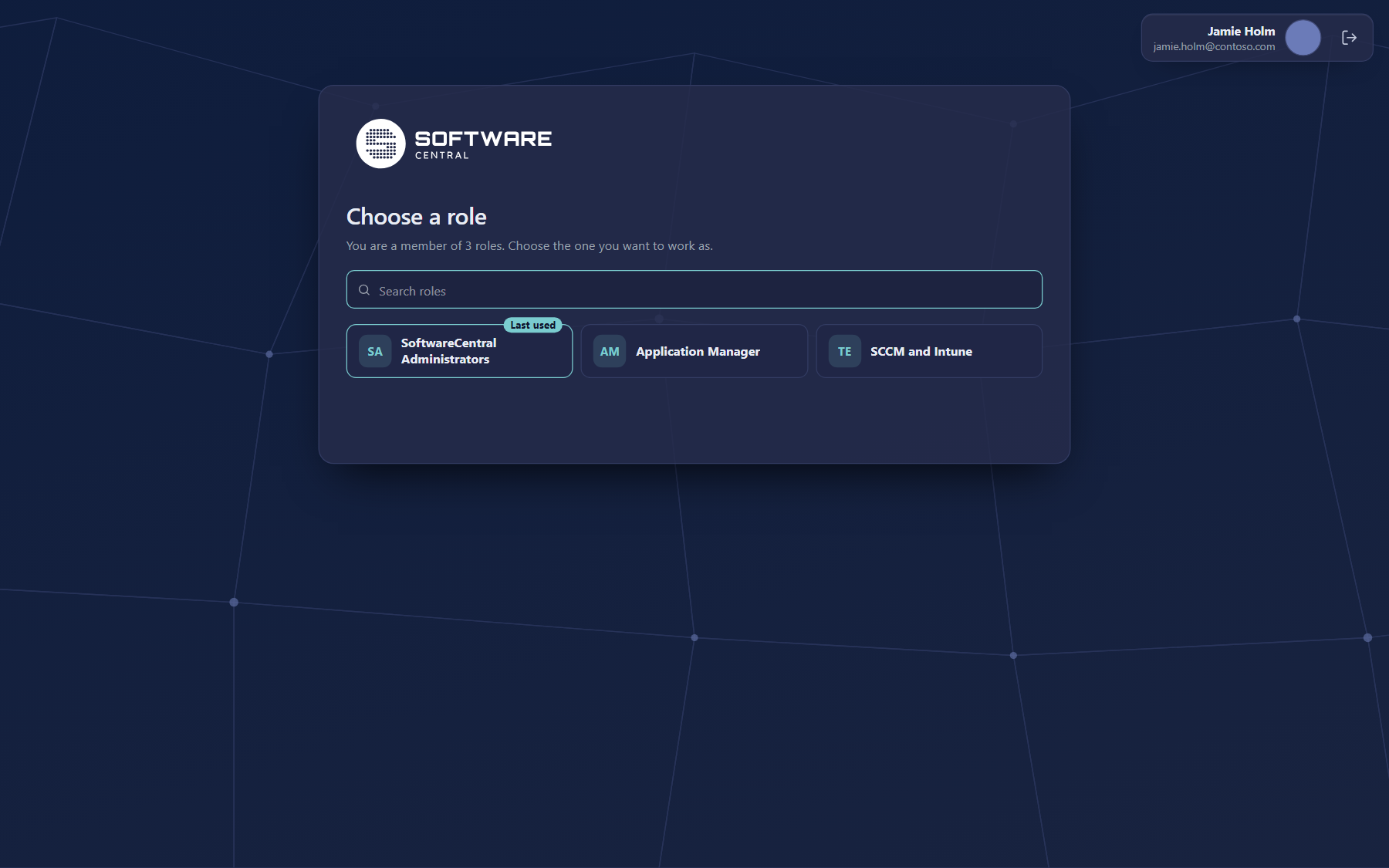
- Search roles: type part of the name or of the group. Every word you type must match. Press / to go to the search box, and Enter to open the first role in the list.
- Choose a role: click its card. A short message shows which role is opening.
- Your account: your name and e-mail are shown at the top right, with the sign-out button.
2 The Home page
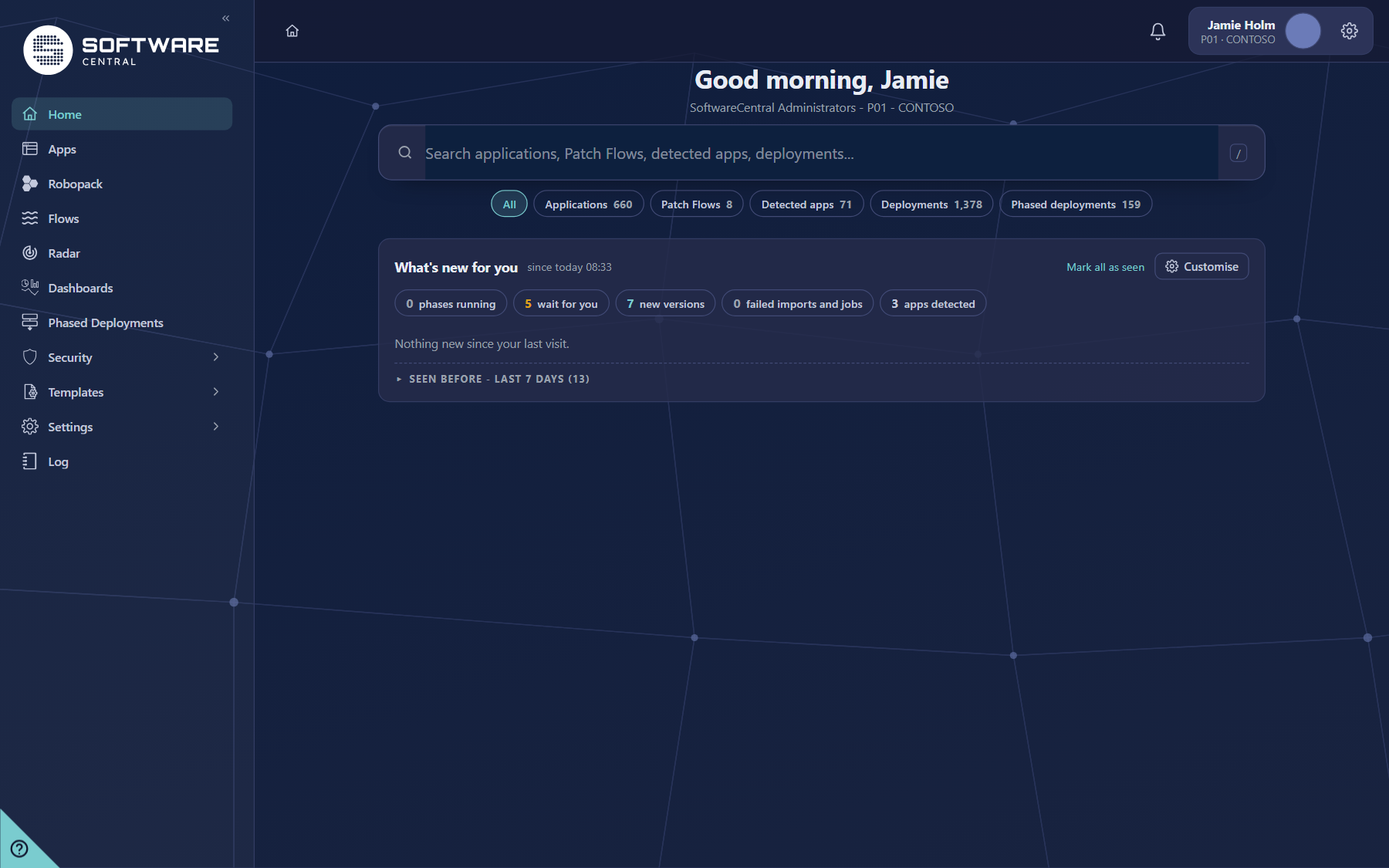
The Home page is the start page of the new layout. Click the home icon in the breadcrumb at the top left to return to it from any page. It greets you by your first name and shows your role, site and tenant under the greeting.
Search
The search finds applications, Patch Flows, detected apps, deployments and phased deployments. Type at least two characters; results appear in groups. Press / anywhere on the page to jump to the search.
- The buttons under the search box limit the results to one kind: All, Applications, Patch Flows, Detected apps, Deployments and Phased deployments. Each button shows how many items match.
- Click a result to open it. Enter opens the chosen result. When nothing is chosen, Enter searches the Robopack catalogue for the text, which finds applications you have not imported yet. This row is only offered when Robopack is licensed and your role can open Robopack.
What's new for you
This list shows what has changed since your last visit, with the time of that visit next to the title. The counters show the number of items of each kind; click a counter to show only that kind.
| Counter | What it counts |
|---|---|
| Phases running | Phased deployments that are running. |
| Wait for you | Phases that wait for an approval. |
| New versions | Newer versions of applications: imported versions, and versions that Robopack has released for an application without a Patch Flow. |
| Failed imports and jobs | Imports and jobs that failed. |
| Apps detected | New detected apps, one line per detection run. |
- Mark all as seen marks everything in the list as seen. Use it after you have read the list.
- Seen before - last 7 days opens the items you have already seen in the last seven days.
- When nothing has changed, the list says Nothing new since your last visit.
Customise
Customise opens the settings of this page: what What's new shows, when an app counts as failing, which cards appear on the Home page and which apps are muted. The settings are saved for you and follow you to every PC.
- Show: choose which kinds of items are listed (running phases, waiting for approval, failing apps, new in Robopack, imports, failed imports and jobs, detected apps).
- Failing: an app is failing when its install success is below the percentage you set, or has dropped by the number of percentage points you set in seven days.
- On the home page: show or hide the Quick actions and Opened recently cards.
- Muted apps: type the name of an app to stop it appearing in What's new.
Quick actions and Opened recently
- Quick actions are buttons for the things your role may do, such as Create application, Deploy software, Import from Robopack, Patch Flows, Detected apps, Phased deployments, Mend packages and Dashboards. The first two open their window; the others open their page. A button only appears when your role can open that function.
- Opened recently lists the applications, Patch Flows, detected apps and phased deployments you opened last. It is kept for you on every PC.
- Each card has a × button to hide it. Customise shows it again.
3 The sidebar menu
The sidebar on the left lists the pages of your role, in the order below. Groups with an arrow (Security, Templates and Settings) open to show their pages. Only the entries your role may open are shown.
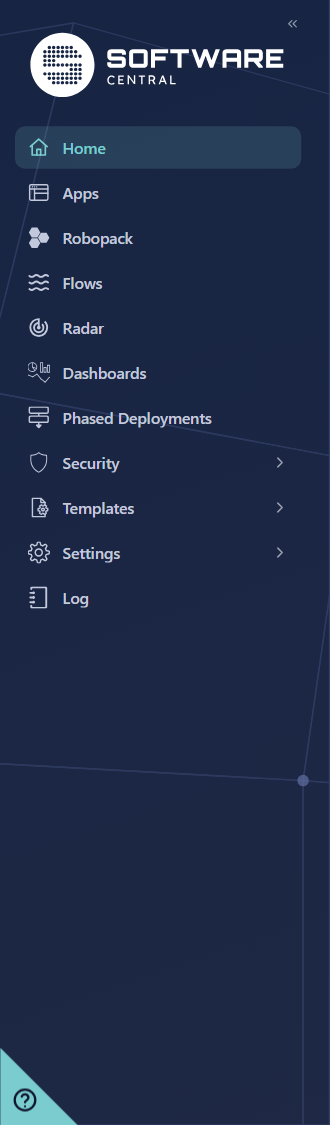
| Sidebar entry | Pages in it | Help page |
|---|---|---|
| Home | The Home page (search, What's new, Quick actions) | Getting started |
| Apps | Applications, Create and Deploy | Apps |
| Robopack | Robopack catalogue, downloaded apps, wizard and automation | Robopack |
| Flows | Patch Flows and their jobs | Flows |
| Radar | Detected applications | Radar |
| Dashboards | Dashboards of devices | Dashboards |
| Phased Deployments | Phased deployments and their phases | Phased Deployments |
| Security | Security Roles; Package Security Groups | Security Roles, Package Security Groups |
| Templates | Intune Application Templates; Application Templates; Robopack Templates | Intune Application Templates, Application Templates, Robopack Templates |
| Settings | Mend Packages; Service Manager; SCCM Folders and Collections; Setup Guide; Configuration | Mend Packages, Service Manager, SCCM Folders and Collections, Setup Guide, Configuration |
| Log | The SoftwareCentral log | Log |
4 Docking and automatic opening
The sidebar can stay open, be docked to icons, or open by itself when the mouse is over it. Your choice is remembered in this browser.
- Dock menu to icons: the button with the double arrow at the top of the sidebar shows only the icons. Press it again to open the sidebar.
- Menu always open: the switch in the profile card settings. When it is off, the menu shows icons only and opens over the page while the mouse is on it.
- A menu that opens by itself makes room for itself, so it does not cover the page you are working on.
- Clicking a group (for example Settings) opens its pages. Only one group is open at a time.
5 The top bar
The top bar runs along the top of every page in the new layout. It has the breadcrumb, the Deployment Monitor, the notifications bell and your profile card.

- Breadcrumb (left): shows where you are. The home icon opens the Home page.
- Deployment Monitor: opens the Deployment Monitor.
- Notifications bell: opens the notifications panel. When Open automatically is off, the bell shows a count of new notifications.
- Profile card: your name, your site and Intune tenant, and the settings button. Click the settings button to open the settings of the profile card.
Notifications panel
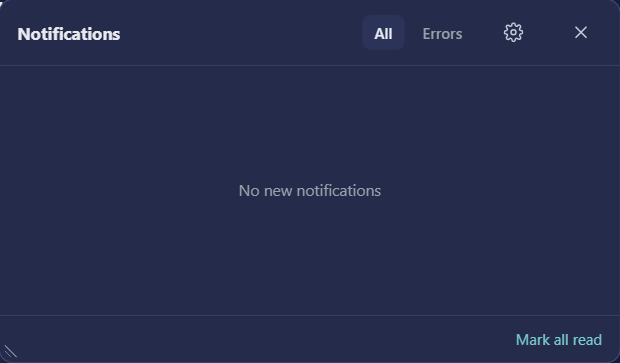
| Part | What it does |
|---|---|
| All / Errors | Shows all notifications, or only the errors. |
| Settings (gear) | Show chooses which notifications you receive. Open automatically opens this panel when a notification arrives; when it is off, new notifications are counted on the bell. Show Deployment Monitor automatically opens the monitor when a new deployment is started. |
| Open Deployment Monitor | Opens the Deployment Monitor from the bottom of the panel. |
| Mark all read | Marks every notification in the list as read. |
| Corner handle | Drag the bottom-left corner to change the size of the panel. The size is kept. |
Profile card settings
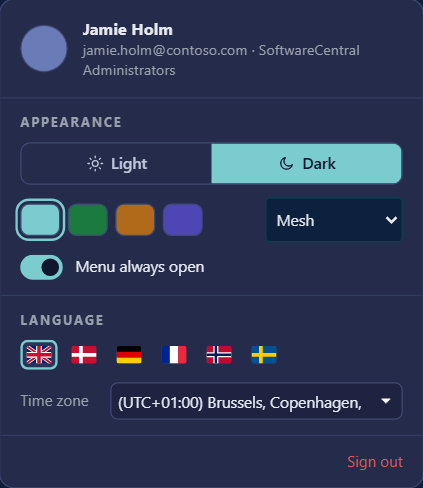
| Setting | What it does |
|---|---|
| Appearance | Light or Dark mode, for your user in this browser. |
| Colour theme | The colour swatches. Each user chooses one; until you do, the default set by your administrator is used. Popups and windows follow the chosen colour. |
| Background | The background pattern shown in dark mode (for example Mesh). |
| Menu always open | The sidebar switch described in section 4. |
| Language | One flag for each language. The language in use is outlined. |
| Time zone | Your time zone setting. |
| Sign out | Signs you out of SoftwareCentral. |
6 The help corner
The ? in the bottom-left corner opens the help page for the page you are on. The help opens in a new window.

7 Best practices
| Topic | Recommendation |
|---|---|
| Use the search | Press / and type the name of an application, a Patch Flow or a deployment. Use the scope buttons when you know the kind of item. |
| Work through What's new | Read the list, then press Mark all as seen. The next visit then starts with only the new changes. |
| Show what you act on | Use Customise to show only the kinds of item you act on, and to mute applications you do not manage. |
| Keep the Home page short | Hide the Quick actions and Opened recently cards you never use. They can be shown again at any time. |
| Choose the menu for the screen | Keep the menu open on a wide screen for daily work, and dock it to icons on a small one. |
| Choose the notification style | Keep Open automatically on while you watch deployments. Turn it off to count new notifications on the bell instead of opening the panel. |
| Check errors first | Use the Errors button in the notifications panel to see only what failed. |
| Use the help corner | When a page is unclear, open the help corner on that page rather than searching the whole help. |
8 Troubleshooting
| Symptom | Cause | What to do |
|---|---|---|
| A page is missing from the sidebar | Your role has not been given that page in Security Roles. | Ask an administrator to add the page to your role in Security Roles. |
| A page you were given is still not in the sidebar | The sidebar is built from the role when it is chosen. | Choose the role again. |
| Enter does not search the Robopack catalogue | Robopack is not licensed, or your role cannot open Robopack. | Ask an administrator. The catalogue row only appears when both are true. |
| The search finds nothing | The search only finds items your role can see. It needs at least two characters. | Type more of the name, or check the scope buttons. |
| A Quick actions button is missing | Either you hid the card, or your role cannot open that function. | Use Customise to show the card again. If the button is still missing, ask an administrator. |
| Nothing new since your last visit. | Nothing has changed since you last looked at the page. | This is normal. Use Seen before - last 7 days to see the older items. |
| The bell shows a count, but the panel did not open | Open automatically is off, so new notifications are only counted. | Press the bell to open the panel, or turn Open automatically on in its settings. |
| The sidebar closes when the mouse moves away | The menu is not set to always open. | Turn on Menu always open in the profile card settings. |
| The help does not show a page for the screen | Application Manager Only help shows only the Application Manager pages. | Use the contents on the left of the help, or the Related links. |