1 What it is for
Use this page to see whether a rollout is moving on, and to find the deployment that needs attention.
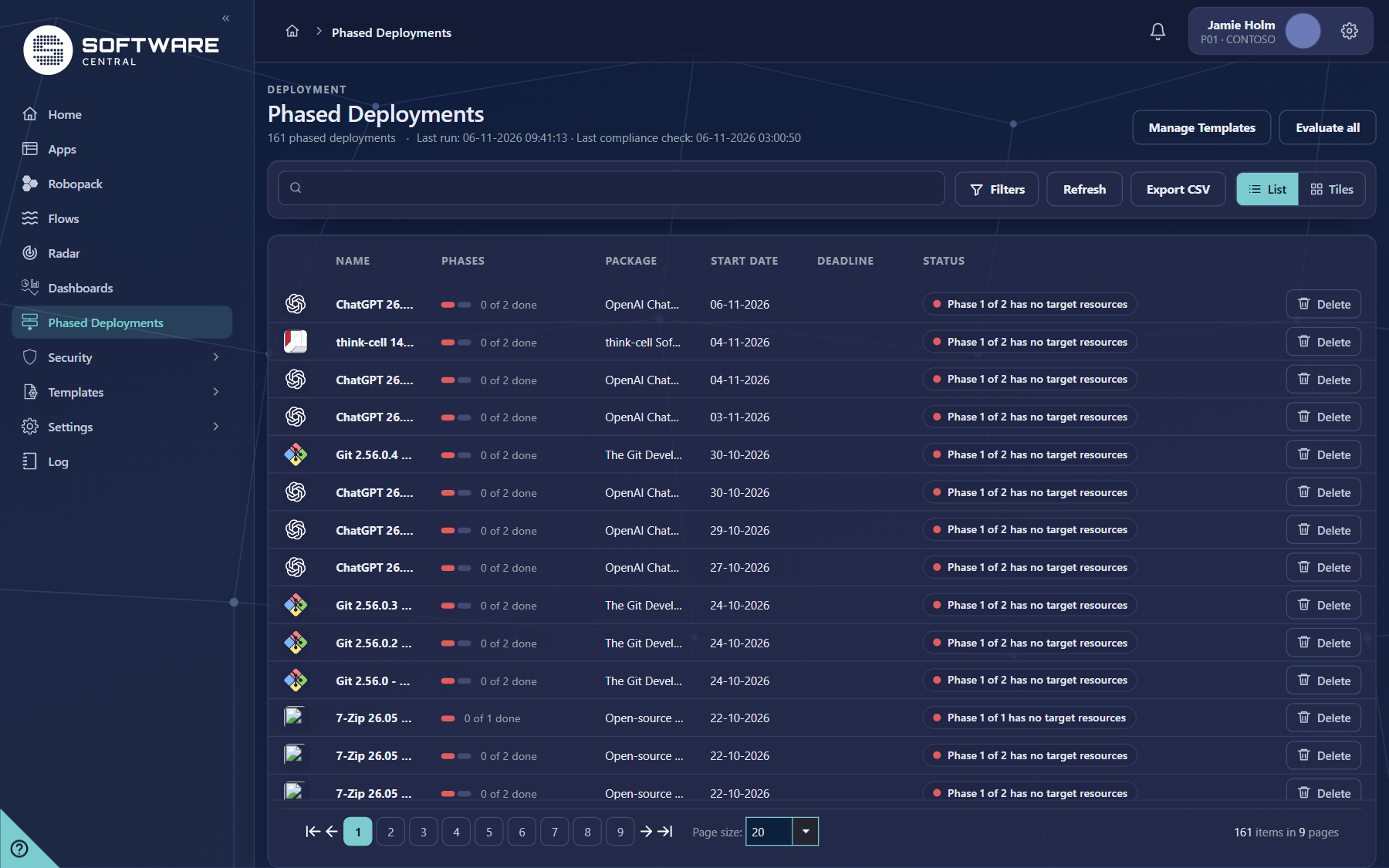
- Each row is one phased deployment, with its package, start date, deadline and status.
- The Phases column shows how many phases are done, for example 0 of 2 done.
- The status window shows every phase as a step, with the devices installed, failed and still pending in each.
This page lists the deployments and shows their progress. Only Delete and Evaluate all change anything.
2 The page at a glance
The header shows the number of phased deployments, the time of the last run and the last compliance check.

3 Find a deployment
- Type in the search box to narrow the list to matching deployments.
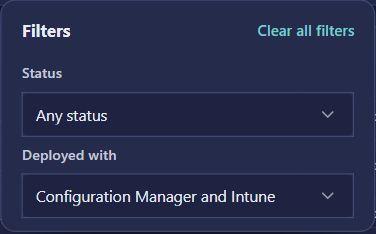
- Click Filters to open the filter panel. The number on the button shows how many filters are in use.
- Choose a Status and, where it is shown, Deployed with. The list updates as you choose.
- Click Clear all filters in the panel to show everything again.
| Filter | Choices |
|---|---|
| Status | Any status, Waiting to start, In progress, Needs attention, Failed, Completed. |
| Deployed with | Configuration Manager and Intune (the default, both), Configuration Manager or Intune. This filter is not shown in an installation that uses Intune only. |
4 Read the status and phases
The Status column shows a coloured dot and a short text, for example Phase 1 of 2 has no target resources. Click the status to open the deployment's status window.
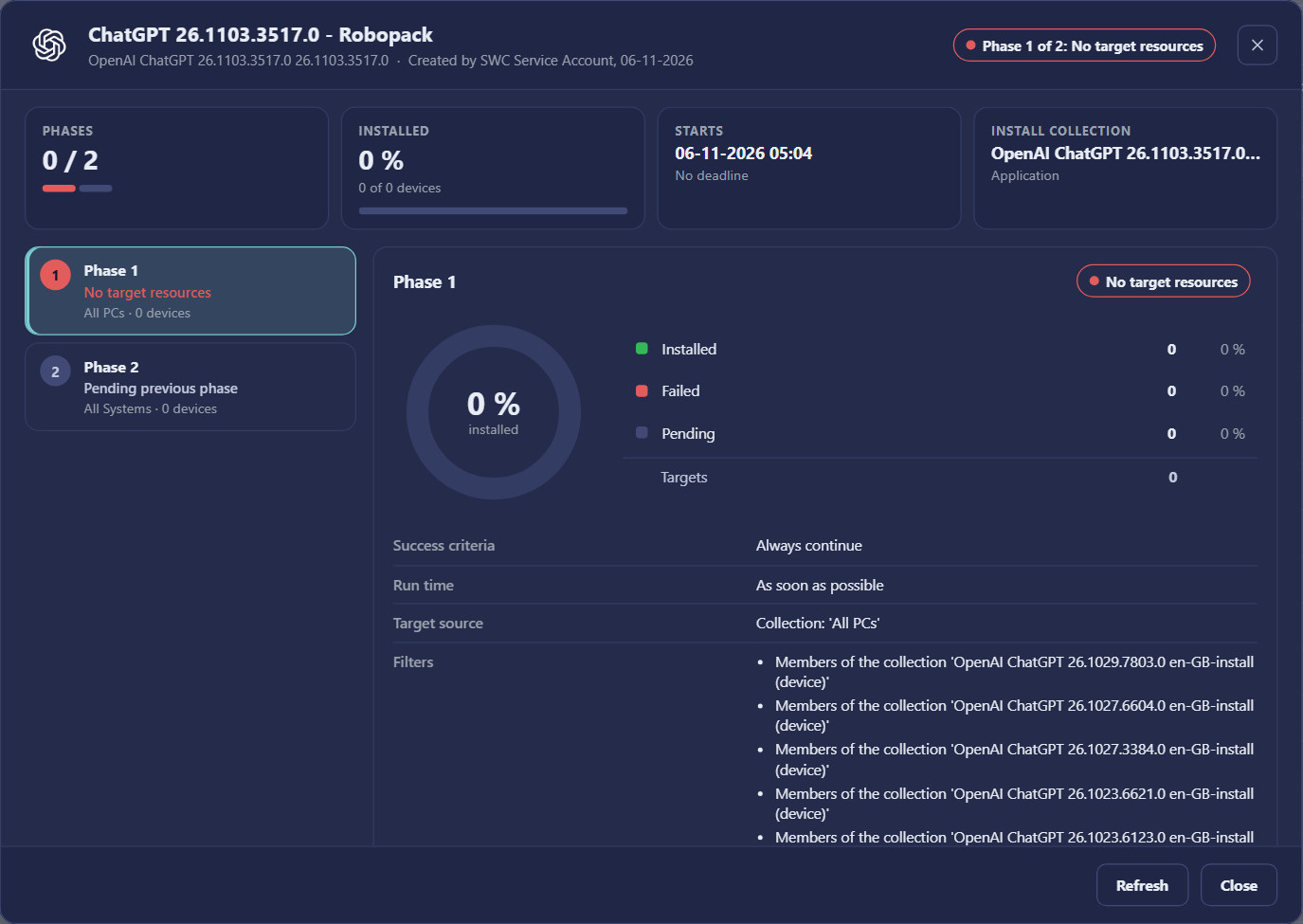
- Phases at the top shows how many phases are complete, for example 0 / 2.
- Starts and Install collection show when the deployment starts and which collection receives the application.
- Select a phase step to see its detail. A phase that is waiting for the one before it is shown as Pending previous phase.
- Use Refresh in the window to read the status again. Close the window with Close or the X.
Read the window before you act
The status window only shows information. When a phase has No target resources, check the phase's Target source and Filters first; the target devices are usually the cause.
5 Fields and buttons
| Element | What it does |
|---|---|
| Manage Templates | Opens the phased deployment templates. |
| Evaluate all | Asks the service to evaluate every phased deployment now. It can take several minutes, so use it only when you need an immediate result. |
| Search | Narrows the list to deployments whose details match the words typed. |
| Filters | Opens the filter panel (Status and Deployed with). |
| Refresh | Reads the phased deployments and their status again. |
| Export CSV | Downloads all deployments that match the search and filters, not only the rows on the current page. |
| List / Tiles | Switches between the table and the tile view. |
| Name | Opens the deployment for editing. |
| Status | Opens the status window with the phases. |
| Delete | Deletes the phased deployment. Use it only when you are sure it is no longer needed. |
6 Best practices
| Topic | Recommendation |
|---|---|
| Check the problems first | Set Status to Needs attention and then to Failed at the start of each day. Those two filters show the deployments that need a decision. |
| Read the phase, not only the list | The list says which phase is holding a deployment. Open the status window to see the devices, the target source and the filters of that phase. |
| Export for reports | Use Export CSV after filtering. It exports every matching deployment, so one export can cover all pages. |
| Refresh after a change | After a change elsewhere, click Refresh so the list shows the current state and the last run time. |
| Evaluate with care | Evaluate all checks every deployment. Press it once and wait for it to finish. |
| Give the team access | Let the people who watch rollouts see the status. Give the Phased Deployments status function in Security Roles to the roles that need it. |
7 Troubleshooting
| Symptom | Cause and what to do |
|---|---|
| The Status column is not shown | Your role does not have the status function for phased deployments. Ask an administrator to tick it for your role in Security Roles, then sign in again. |
| A deployment stays at Waiting to start | No phase has started yet. Check the start date shown in the list and in the status window. |
| Phase 1 of 2 has no target resources | No device matches the first phase. Open the status window, look at the Target source and Filters of the phase, and check that the collection has devices. |
| The list shows No deployments match your criteria | A filter or the search is hiding everything. Click Clear all filters and clear the search box. |
| The Deployed with filter is missing | The installation uses Intune only, so there is only one kind of deployment to filter. |
| The list looks out of date | Click Refresh. The header shows the time of the last run. |
| Toolbar buttons are cut off on the right | Make the browser window wider. |