1 What the Service Manager is for
Many tasks in SoftwareCentral run as jobs in the background, on the server, through the SoftwareCentral Windows service. The Service Manager lists those jobs so you can see what is waiting, what has failed and what has expired.
- Robopack jobs: downloading and importing new application versions, and the Update from Robopack checks (see Automated patch flows).
- Migrating an SCCM application to Intune (the MigrateApplicationToIntuneJob type, which also has a Progress view).
- Creating Win32 apps, mending packages, soft updates, local administrator changes and running licence harvesting rules once.
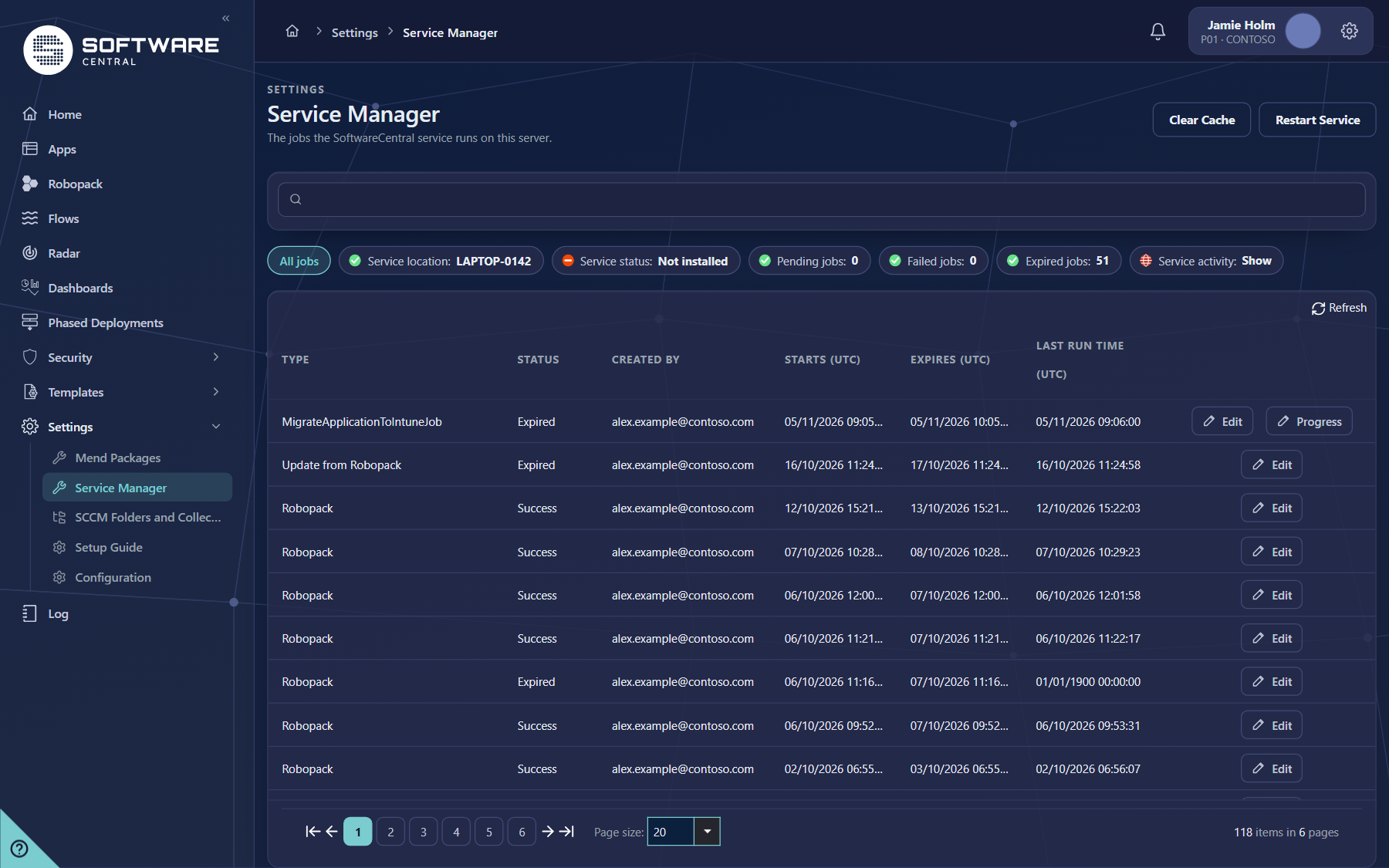
Each job has a Type, a Status, the user who created it, when it starts and expires, and when it last ran. All times in the list are in UTC.
2 The page at a glance
The page has the title, the Clear Cache and Restart Service buttons, a search box, a strip of status pills and the job list.
3 Service status and job counts
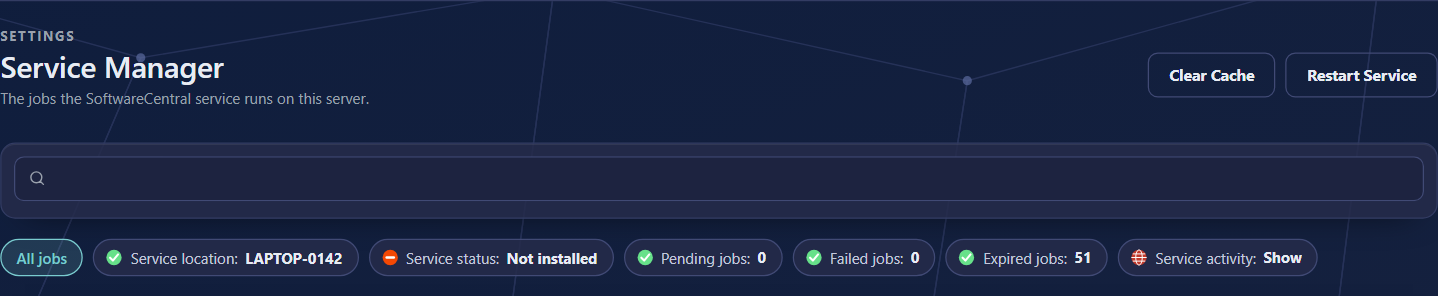
The strip of pills under the search box shows the state of the service. Only the three job pills change what the list shows.
| Pill | What it shows |
|---|---|
| Service location | The server where the SoftwareCentral service runs. This is the server the page reads from. |
| Service status | The state of that service as reported by the server, for example running or not installed. The icon is green, amber or red. |
| Pending jobs | The number of jobs waiting to run. Click the pill to show only these jobs. |
| Failed jobs | The number of jobs that failed. Click the pill to show only these jobs. Its tooltip says that failed jobs will automatically run again. |
| Expired jobs | The number of jobs that have never completed. Click the pill to show only these jobs. |
| Service activity | Show opens a window that shows what the SoftwareCentral service on this server is doing and the CPU, memory and disk it uses. It is only shown to administrators and not in the cloud version. |
4 Filtering with the pills
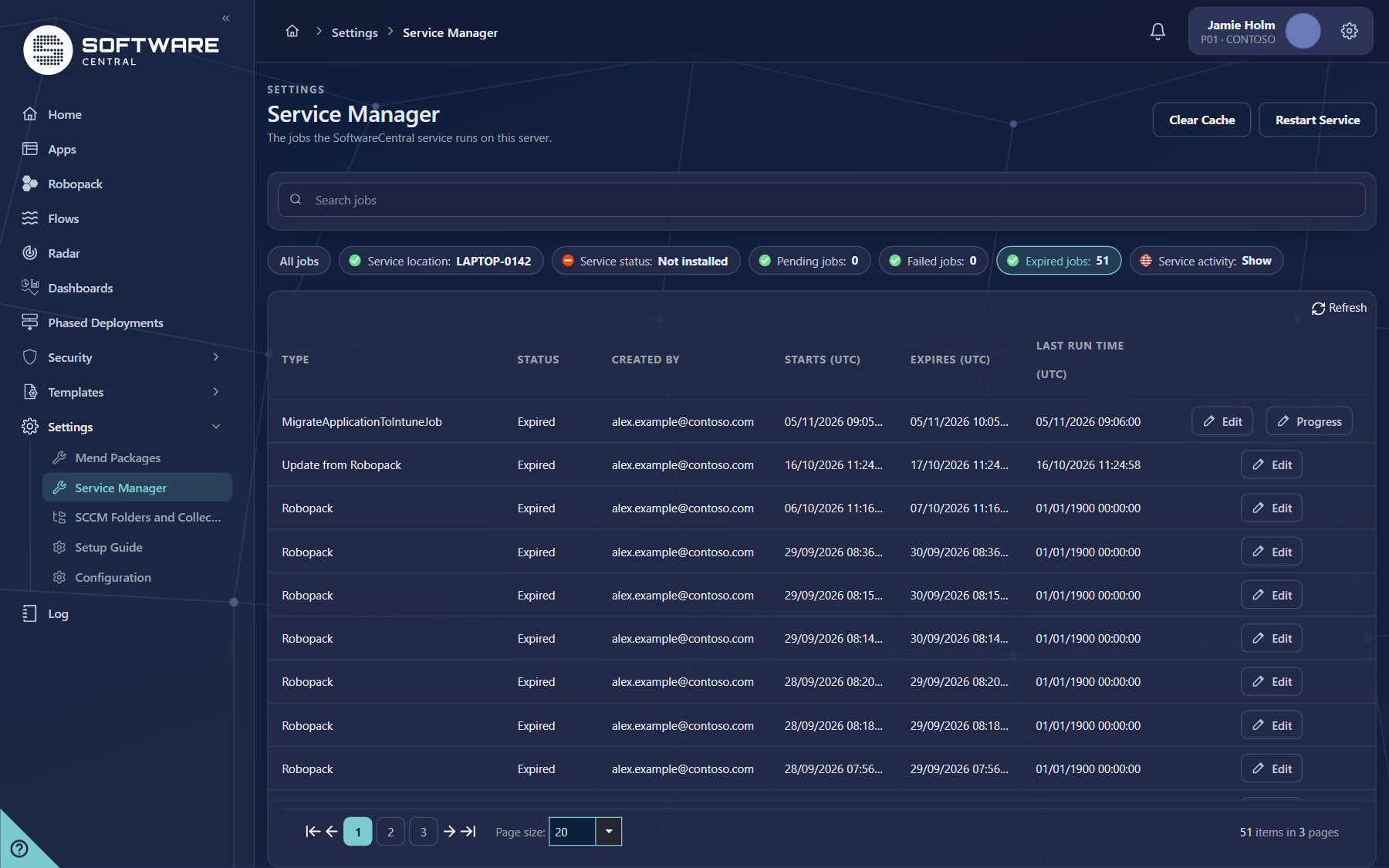
Click Pending jobs, Failed jobs or Expired jobs to show only the jobs in that status. The chosen pill is outlined. All jobs shows every job again.
- Click a pill, for example Expired jobs. The pill is outlined and the list shows only expired jobs.
- Click All jobs to show the full list again.
- Click Refresh above the list to reload the jobs. This also clears the status filter.

5 Reading the job list
- Search jobs: type words to narrow the list. Each word you add narrows the list further. The search looks at the job's own details, such as its type, status and user.
- Columns: Type, Status, Created by, Starts (UTC), Expires (UTC) and Last run time (UTC).
- Edit: on each row. It opens the job's own window.
- Progress: only on migration jobs. It shows the steps of the migration, how long it has run and the time left.
- Paging: choose the number of rows with Page size and move between pages under the list.
6 Clear Cache and Restart Service
Both buttons act on the SoftwareCentral service on the server shown as Service location. Read this section before you use either button.
- Clear Cache sends a command to the service to clear its cache.
- Restart Service stops the service and starts it again. Jobs that have been in progress for more than two hours are first set to Failed. If any job is still in progress, the service is not restarted, and the Log records a warning that you must wait for the jobs to finish.
- Restart Service is not shown in the cloud version.
7 Fields and buttons
| Name on screen | What it does |
|---|---|
| Clear Cache | Asks the service to clear its cache. |
| Restart Service | Restarts the service on this server, when no job is in progress. Not shown in the cloud version. |
| Search jobs | Narrows the job list by the words you type. Each word is an extra condition. |
| All jobs | Clears the status filter. |
| Pending / Failed / Expired jobs | Filters the list to that status. The number is the count of those jobs. |
| Service activity: Show | Opens what the service is doing and what it uses. Administrators only. |
| Refresh | Reloads the job list and clears the status filter. |
| Edit | Opens the job's window for that row. |
| Progress | Shows the steps of a migration to Intune. Only on migration jobs. |
8 Best practices
| Topic | Recommendation |
|---|---|
| Check the counts regularly | Look at the Pending, Failed and Expired counts every few days, and straight after a large change such as a new Robopack flow. |
| Look at Failed first | Use the Failed jobs pill, then open the job's details and the Log to find the cause. |
| Read the dates | An expired job from months ago is history. An expired job from today needs attention. |
| Restart only when idle | Wait until no job is in progress before Restart Service, and check the Log afterwards. |
| Confirm the service is running | After any change to the server or to the service account, check that Service status is running. |
| Narrow with search | Search for a job type such as Robopack or a user name to find the jobs that belong to one task. |
9 Troubleshooting
| Symptom | Cause | What to do |
|---|---|---|
| Service status shows Not installed | The SoftwareCentral Windows service is not installed on the server shown as Service location. | Check the Service location. Install and start the service on that server as described in the installation guide. |
| A job count shows Unknown | The page cannot read the count from the service. | Check the Service status and the Service location. Look at the Log for errors from the service. |
| Many Expired jobs are listed | Jobs that never completed stay in the list as expired. | Check the dates. Old expired jobs do not need action. Recent ones should be checked in the Log. |
| Clicking Restart Service does not restart it; the Log says to wait | One or more jobs are still in progress, so the restart was not done. | Wait for the jobs to finish, then try again. |
| The Log shows Failed to restart the service | The service did not stop or start on the server. | Check the service on the server and the account it runs with. Open the Log entry for details. |
| Restart Service is missing | The cloud version does not offer it. | This is expected in the cloud version. |
| Service activity is missing | It is only shown to administrators, and not in the cloud version. | Ask an administrator to check the service activity. |
| No Progress link on a job | The link is only shown for migration jobs. | This is expected for other job types. |
| The list says No jobs match your criteria | No job has that status, or the search words do not match any job. | Click All jobs, clear the search box or choose another pill. |