1 What mending does
Mending creates SoftwareCentral collections and deployments for a package or application that has none of its own. Nothing is mended automatically: you select the items and click Mend.
For each selected item the background job does the following, in order:
- Folders: creates a folder named after the package in the device software folder of SoftwareCentral, and in the user software folder when user collections are made. If the name is taken, a number is added, such as (2). When collection folders are switched off in the settings, the root folder is used.
- Device collections: creates an install collection and, unless the template uses implicit uninstall, an uninstall collection. Both are named after the package, with the install or uninstall suffix from the settings, and moved into the device folder. When SoftwareCentral is set to check for existing collections, a collection that already exists is reused rather than made again.
- User collections: unless the template says No user collections, or user collections are switched off in the settings, creates a user install collection and a user uninstall collection in the user folder.
- Deployments: for an application, creates the install and uninstall deployments to these collections with the settings of the chosen template (required or available, timing, user notifications and the other deployment settings). For a package, the same is done for each program, as the status message says.
A required deployment installs software
A template set to Required makes devices install the application as soon as the deployment reaches them. Check the template, and the collections it creates, before you mend.
2 The page at a glance
Open Settings › Mend Packages in the menu. The list shows every package and application at the site that does not have SoftwareCentral collections yet.
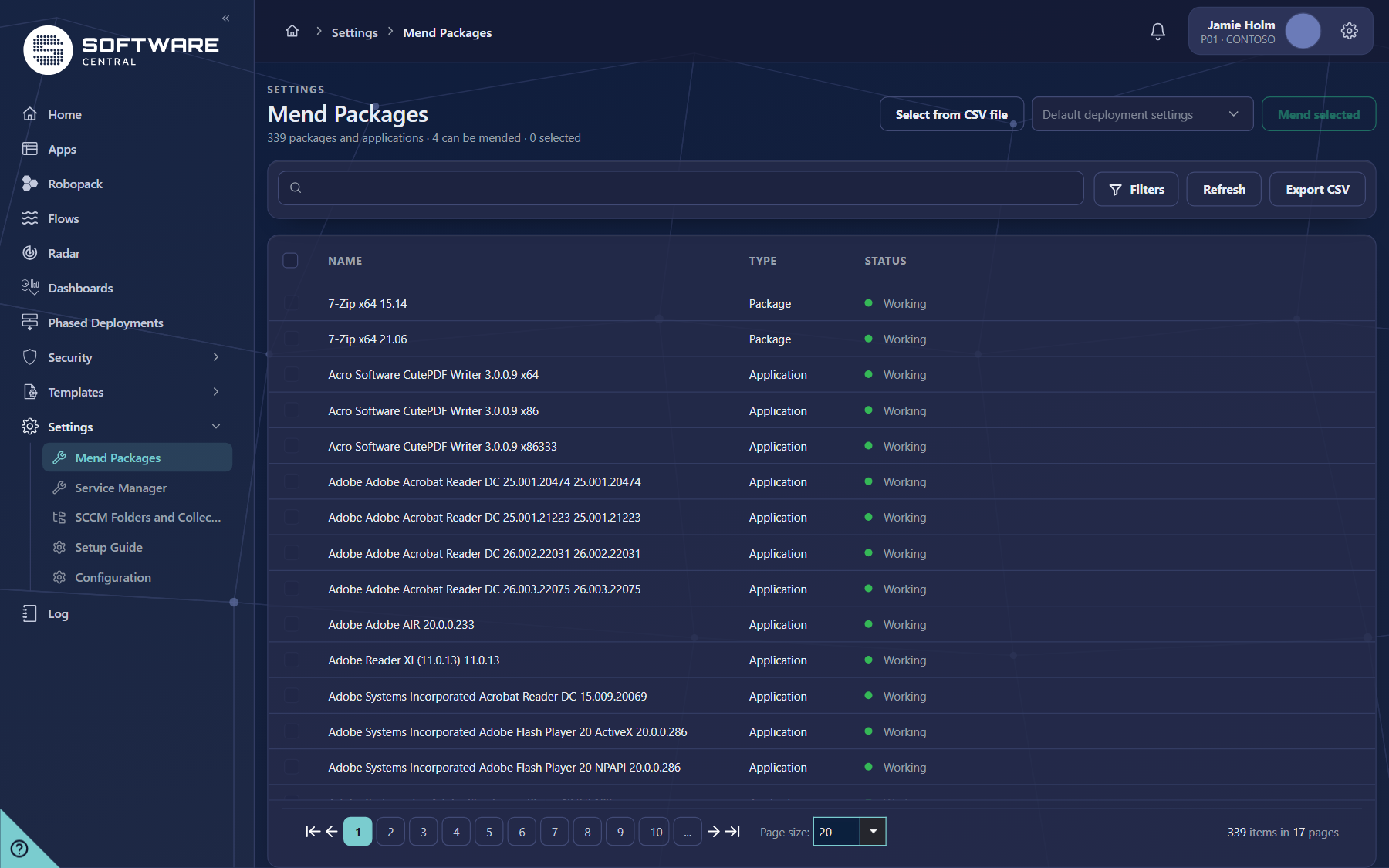
| Column | What it shows |
|---|---|
| Checkbox | Selects the row for mending. It is greyed out when the item cannot be mended. |
| Name | The name of the package or application. Sort by name by clicking the header. |
| Type | Application or Package. |
| Status | What the item needs, as a short message with a coloured dot. See Mend status. Edit Program Names appears on packages whose program names are unknown. |
3 Mend status
Every item has one of these states. Only the two states that can be mended have an active check box; the others say what must be fixed first.
| Status | Can be mended | Meaning and what to do |
|---|---|---|
| No collections | Yes | The item has no SoftwareCentral collections. Mend it to create them. |
| Collections outside SoftwareCentral | Yes | The item is deployed, but its collection is not in the SoftwareCentral folder. The message recommends mending it, so SoftwareCentral creates its own collections. |
| Working | No | The item is already managed by SoftwareCentral. There is nothing to mend. |
| Retired | No | The application is retired in SoftwareCentral. Retired applications cannot be mended. |
| Program names unknown | No | The install program name of the package does not match a program. Set the names first with Edit Program Names, then the package can be mended. The link is shown for packages only. |
| No programs | No | The package has no program. An install program is required; add one to the package in Configuration Manager, then select Refresh. |
4 Filters, search and export
- Search: type part of a name or a package ID in the box on the left and press Enter. Each search value becomes a token.
- Filters: click Filters to open the panel. The number on the button shows how many filters are in use. Clear all filters resets them.
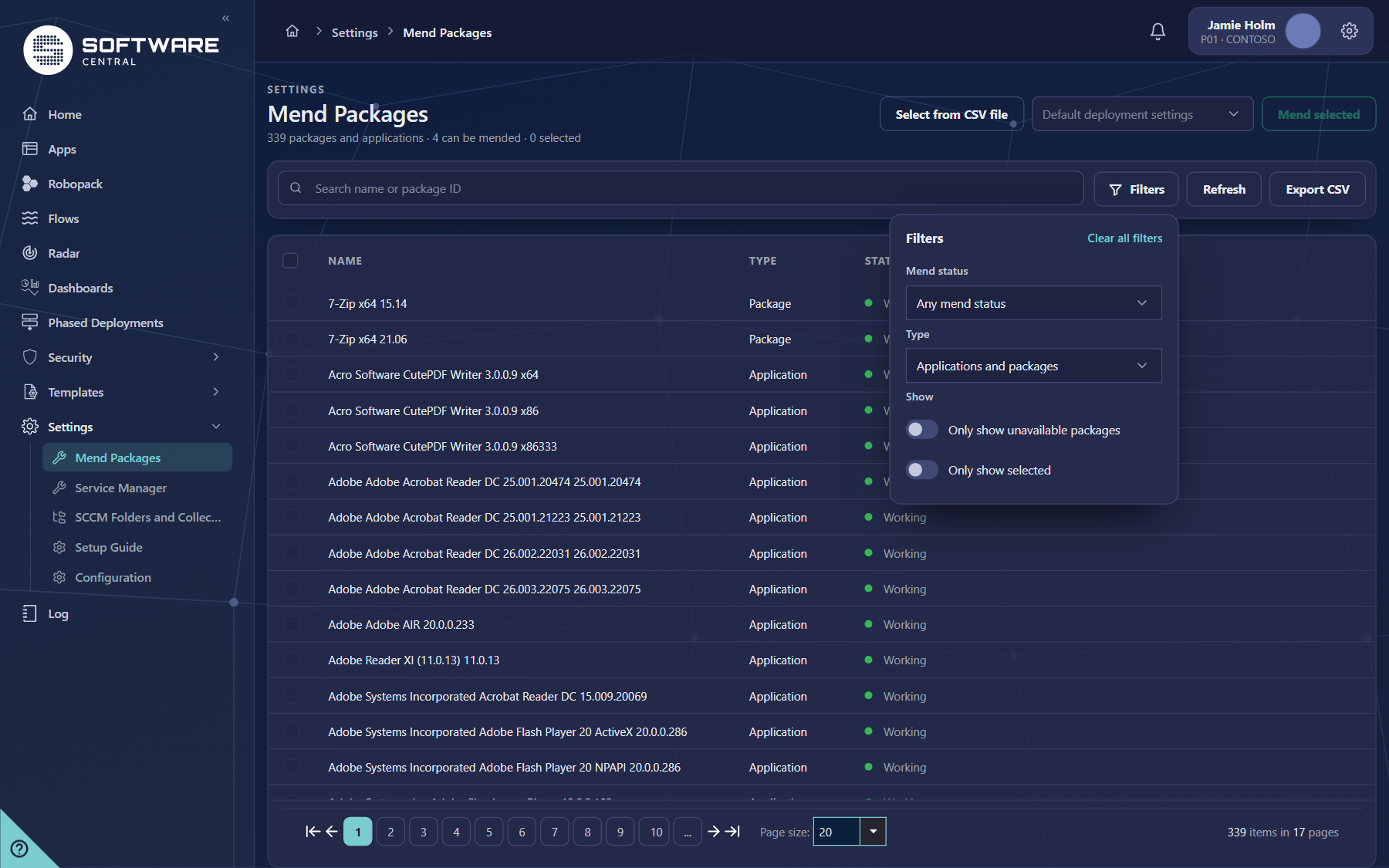
| Filter | What it does |
|---|---|
| Mend status | Shows one state, or Can be mended for every state that can be mended. Each choice shows how many items of the whole list it has. |
| Type | Applications or Packages. Shown only when the site is set up for applications (Configuration Manager 2012 or later). |
| Only show unavailable packages | Hides the packages that SoftwareCentral already shows to users. Use it to find what is not yet in the catalogue. |
| Only show selected | Shows only the items selected for mending. |
Export CSV
Export CSV saves every item that matches the search and the filters, on all pages, with the package ID, the type and the status as text. The package ID is in the file even though the grid hides it. Refresh reads the packages, applications and their status from Configuration Manager again.
5 Select and mend
- Choose the deployment settings on the right. Pick an application template in the list, or leave it on Default deployment settings to use the default template of the site. The template decides required or available, the timing and the user collections.
- Select the items. Tick the rows you want, or tick the header box to select everything that matches the search and the filters and can be mended, on all pages. Rows that cannot be mended stay unticked.
- Optional: click Select from CSV file to select a list. See below.
- Check the count of selected items above the button, then click Mend selected. When more than 21 items are selected, SoftwareCentral first asks you to confirm, because it recommends mending about 20 at a time.
- The Mend status window opens. It shows the item being mended, how long it has run and what is left. Closing the window reads the list again.
Select from CSV file
- The file has one package or application per line, given by its package ID or its name. A file exported from this page works, and so does a plain list of names.
- The delimiter is found by itself: semicolon, tab or comma. The file can be at most 2 MB.
- After the import a window says how many were selected, how many were already selected, which cannot be mended, and which were not found at this site. The list then shows only the selected items.
6 Fields and buttons
| Control | What it does |
|---|---|
| Select from CSV file | Chooses a CSV file and selects the items in it that can be mended. |
| Application template | The deployment settings for the mend. Empty means the default template of the site. |
| Mend selected | Starts the mend of every selected item. It is off until something is selected. |
| Search | Finds items by name or package ID. |
| Filters | Opens the filter panel. See Filters, search and export. |
| Refresh | Reads the packages, applications and their status from Configuration Manager again. |
| Export CSV | Downloads every matching item with its package ID, type and status. |
| Header checkbox | Selects, or clears, everything that matches the search and filters and can be mended. |
7 Best practices
| Topic | Recommendation |
|---|---|
| Mend from the central site | The page warns when the site shown is not the central site. Mend on the central site, as the warning recommends. |
| Check the template first | Choose the application template before you select, and check that it is Required or Available as you intend. |
| Start small | Mend a few items at a time, and about 20 at most. Check the result before you mend the next group. |
| Use the filters to find work | Filter by Can be mended and Only show unavailable packages to see what is left to do. |
| Fix the status first | Set the program names and add missing programs before you mend. The status tells you what is missing. |
| Keep a list | Export the CSV before a large mend. Use the same file with Select from CSV file to repeat the selection. |
| Refresh after changes | The page keeps the list for your session. After you change the packages in Configuration Manager, select Refresh. |
8 Troubleshooting
| Symptom | Cause and what to do |
|---|---|
| Mend selected is greyed out | Nothing is selected, or only items that cannot be mended are ticked. Check the status column. |
| A row has a greyed-out checkbox | Its status is Working, Retired, Program names unknown or No programs. See Mend status for what to do. |
| No Type filter | The site is not set up for applications (Configuration Manager 2012 or later), so only packages exist. |
| Please note that you are not currently on the Central Site. | The warning appears when the site selected is not the central site. Mend on the central site, as recommended. |
| Program names are unknown | Select Edit Program Names on the row (packages only) and set the install and uninstall programs. |
| Application is retired | Retired applications cannot be mended. |
| The CSV file could not be read. The log has the details. | Save the file as CSV or plain text and try again. The details are in the Log. |
| The file is too big. | A CSV file of at most 2 MB can be used. Split the list and select each part. |
| A name in the CSV file is not found at this site | Check the spelling, or use the package ID from an Export CSV file. |
| The list does not show what was changed in Configuration Manager | The page keeps the list for your session. Select Refresh. |
| A mend seems to have stopped | Open the Log and search for MENDING to see which items were processed. |