1 What Radar is
Radar lists the applications detected as installed across your devices, so you can spot software that isn't yet managed and act on it.
2 Layout at a glance
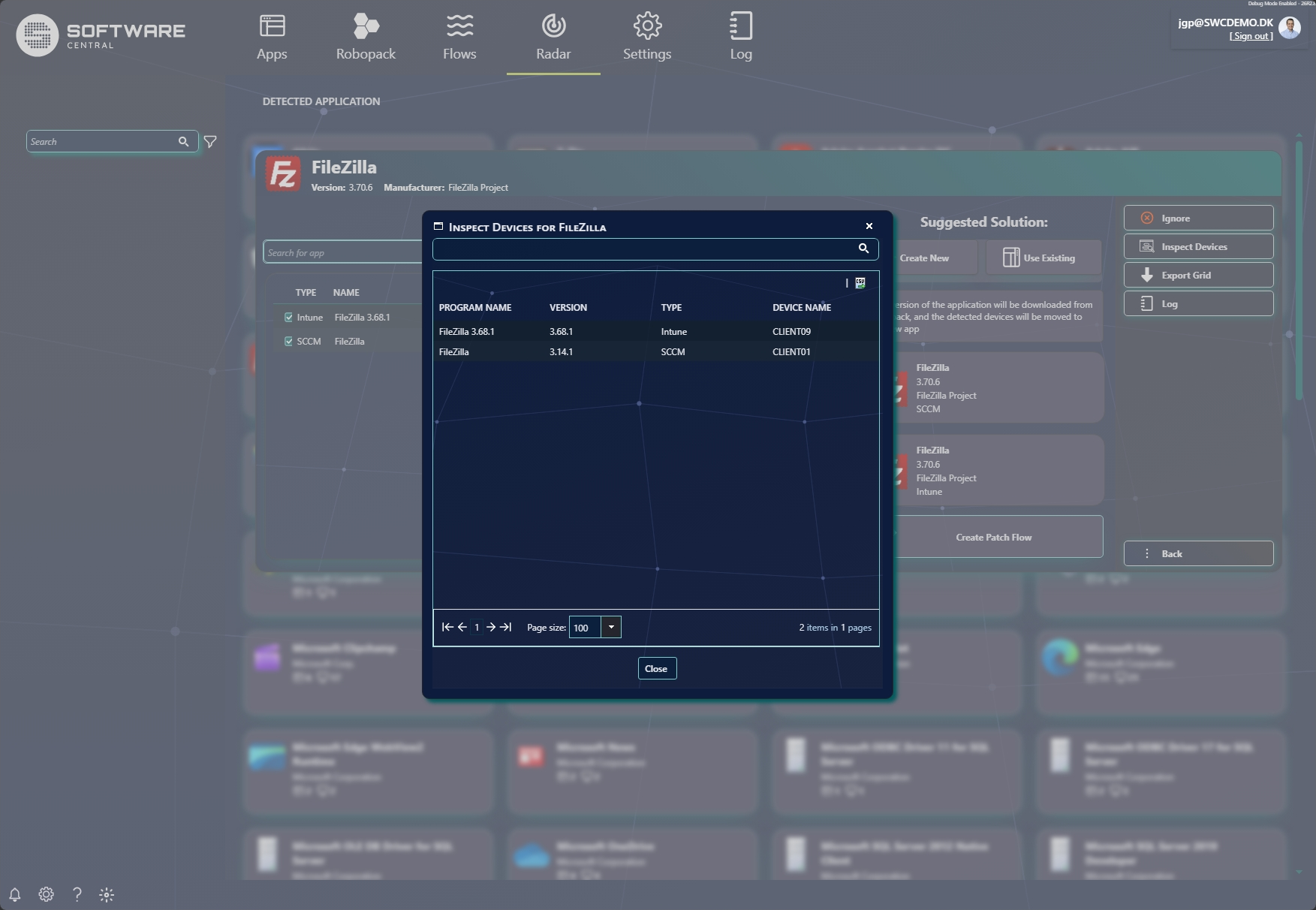
The Detected Application view is a gallery of the software Radar has found. Use Search and the filter (funnel) to narrow it. Each card shows the application, its publisher, and counts of how many detected entries and how many devices it was found on.
3 Detected application details
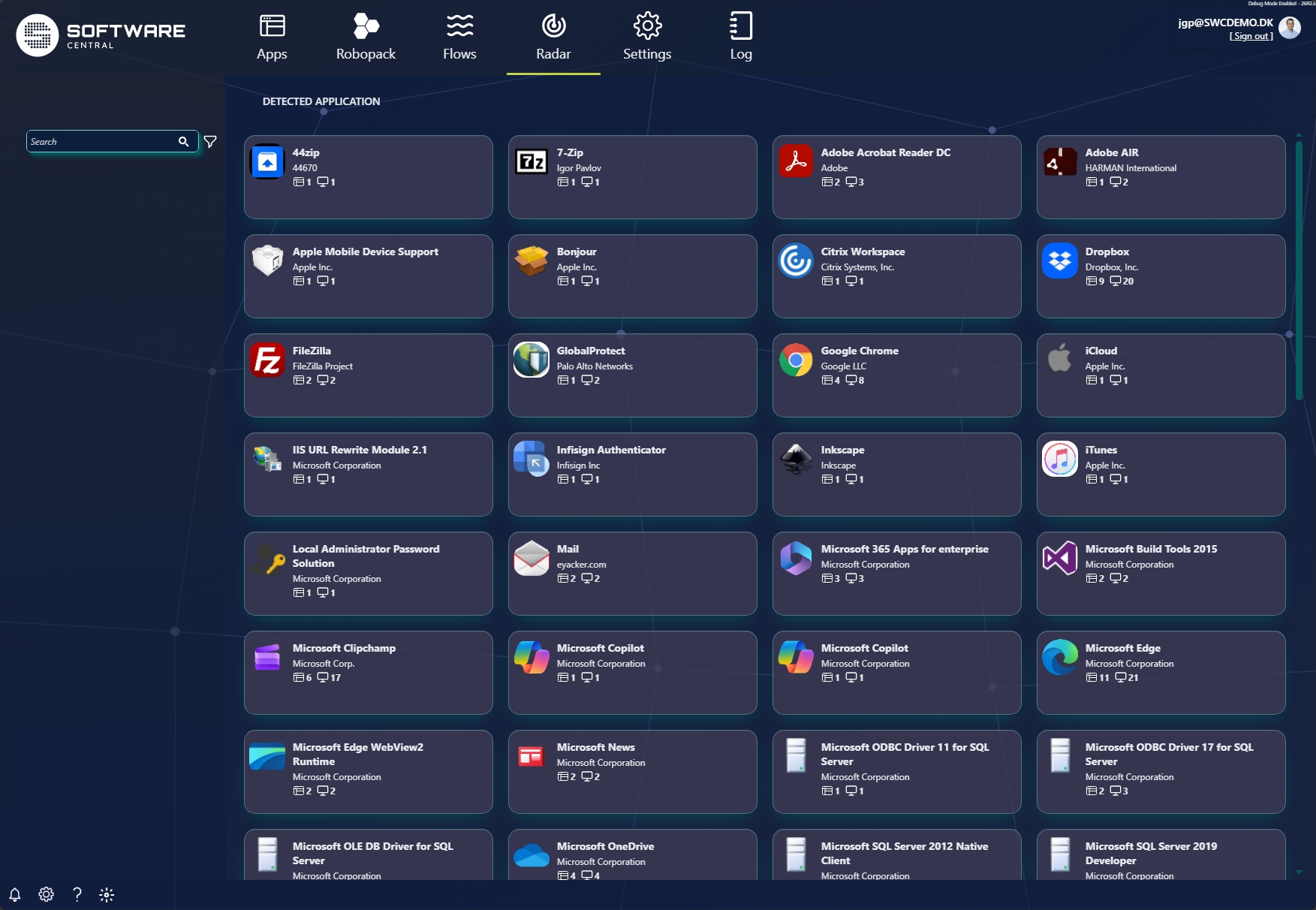
Click a card to open its detail. On the left is the Detected App List — the actual program entries found (with their type, name, version and count). On the right is the Suggested Solution.
| Element | What it does |
|---|---|
| Detected App List | The program entries detected for this application — each with Type (Intune / SCCM), name, version and device Count — with a search box and a per-row inspect icon. |
| Suggested Solution | How to resolve the detection. Create New downloads the application from Robopack and moves the detected devices to the new app; Use Existing matches it to an application you already have. |
| Create Patch Flow | Sets up the download/import and a patch flow so the app is kept current automatically. |
| Ignore | Dismiss this detection so it no longer appears as something to action. |
| Inspect Devices | See exactly which devices reported this software (see below). |
| Export Grid / Log | Export the detected list, or open the log for this item. |
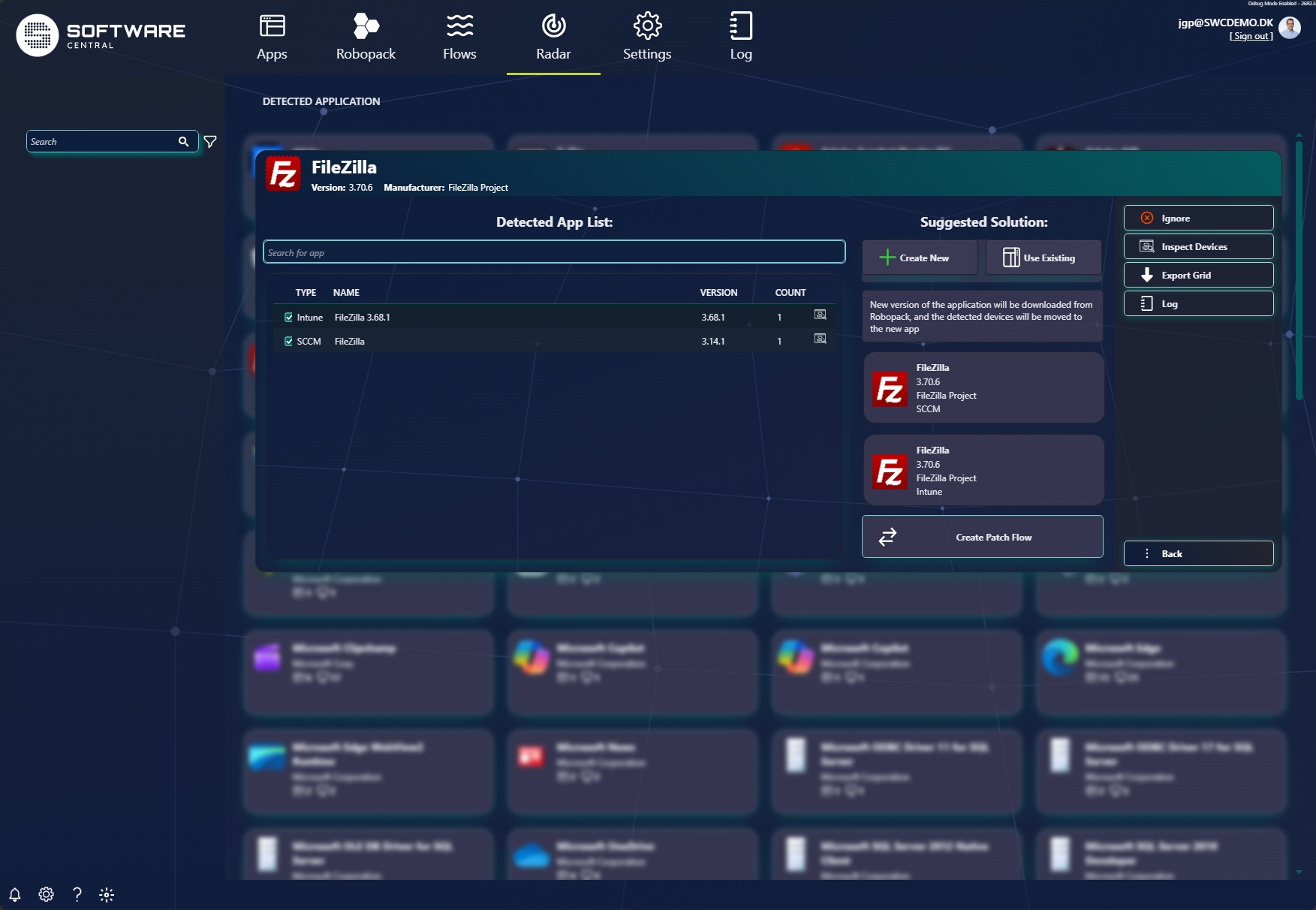
4 Inspect devices
Inspect Devices lists every device that reported this software, with the exact program name, version and type (Intune / SCCM) on each — so you can verify the detection before acting on it.