1 What it is for
The template is the answer sheet for Configuration Manager applications. Its settings are used when an application is made, and when a package is mended with Mend Packages and the template is chosen there.
Robopack has its own templates: Robopack Templates is the third page under Templates, described in Deployment templates.
- Programs: the MSI and script/EXE arguments, and the install, uninstall and repair programs.
- Deployments: whether devices and users get the application as Required or Available, how the deployment is timed, and the user notifications.
- Content: the distribution points and distribution point groups the content goes to, and the package security groups.
- Return codes: what each exit code of the installer means.
- Who can use it: the security roles that may use the template.
2 The page at a glance
Open Templates › Application Templates in the menu. The page lists the templates you are allowed to see.
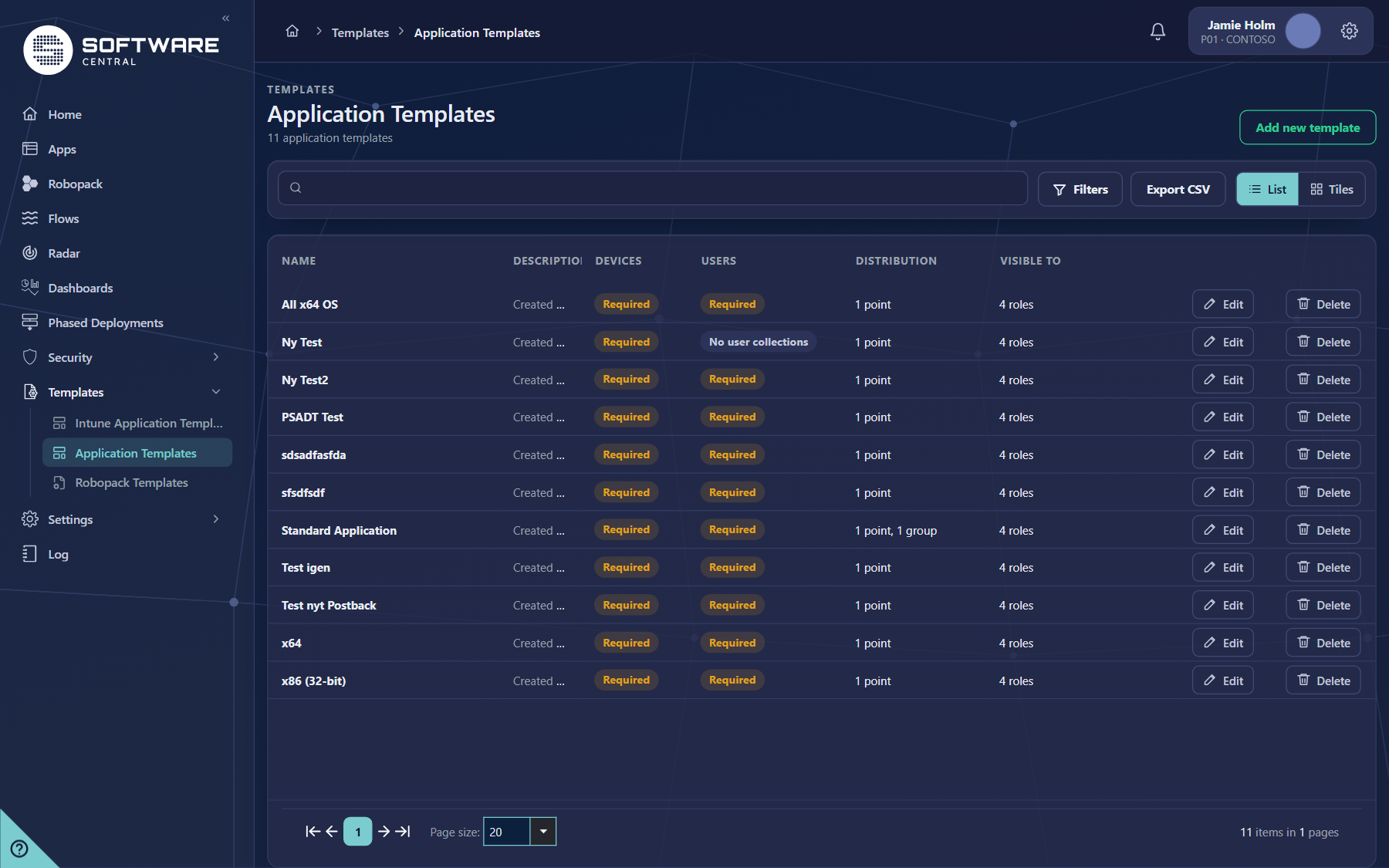
| Column | What it shows |
|---|---|
| Name | The template name. Click it, or Edit, to open the template window. |
| Description | The description, or a dash when there is none. |
| Devices | Required or Available: how devices get the application. |
| Users | Required, Available or No user collections: how users get the application. |
| Distribution | The number of distribution points and distribution point groups, for example 2 points, 1 group. The tooltip lists the groups and the servers. |
| Visible to | The security roles that may use the template, up to three names, or the count. A role marked (all templates) in the role filter sees every template. A dash means no role is given the template. |
The count above the list follows the search and the filters. Use List and Tiles to change how the templates are shown.
3 Search, filters and export
- Search: type a part of the name in the box on the left and press Enter. Each search value becomes a token; a template is listed when its name contains every token.
- Filters: click Filters to open the panel. The number on the button shows how many filters are in use. Clear all filters resets them.
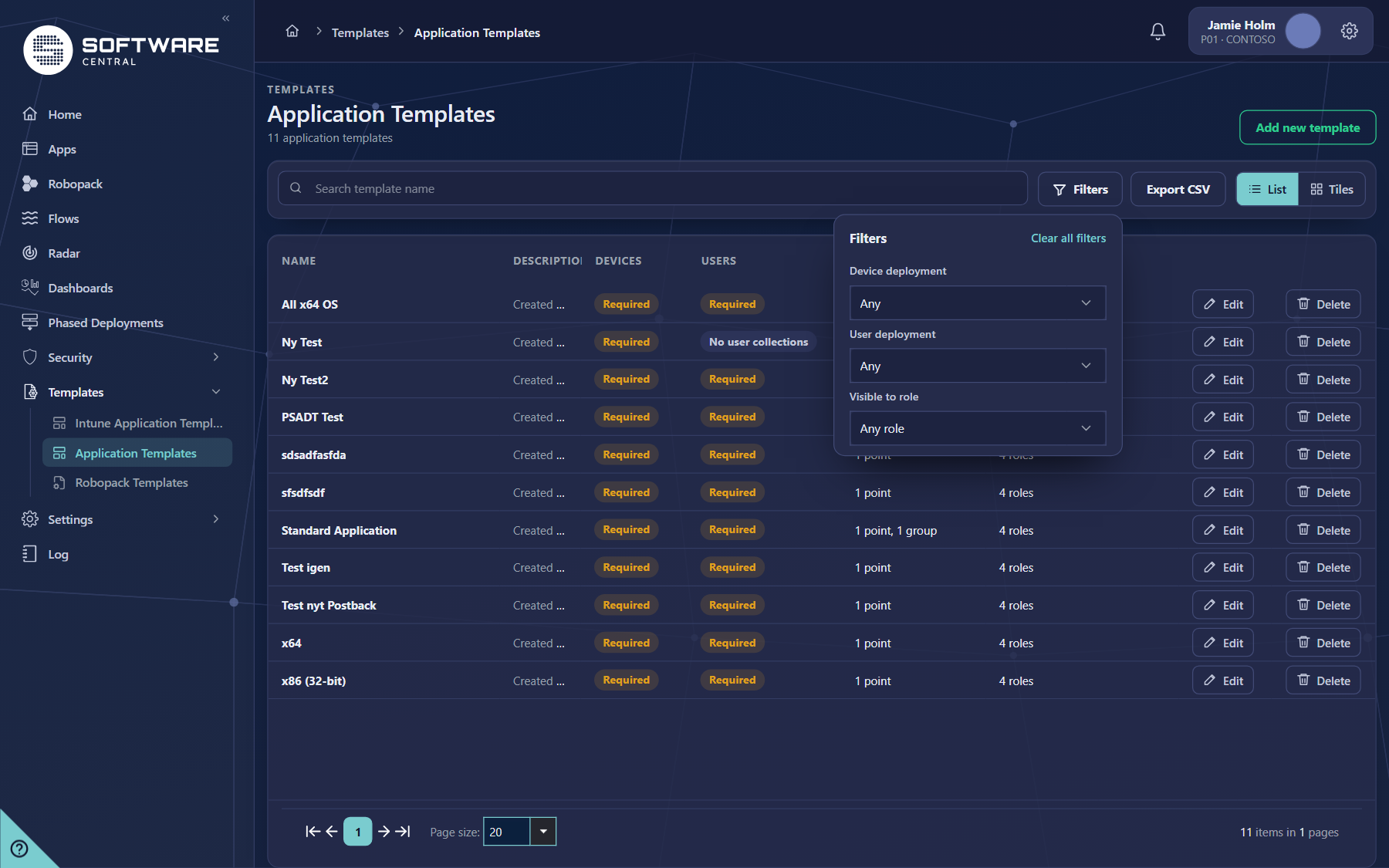
| Filter | Shows the templates that |
|---|---|
| Device deployment | deploy to devices as Required or as Available. |
| User deployment | deploy to users as Required, as Available, or make No user collections. |
| Visible to role | the chosen role may use. A role that sees all templates matches every template. |
The filters and the search work together: a template must match all of them to be listed.
4 The template window
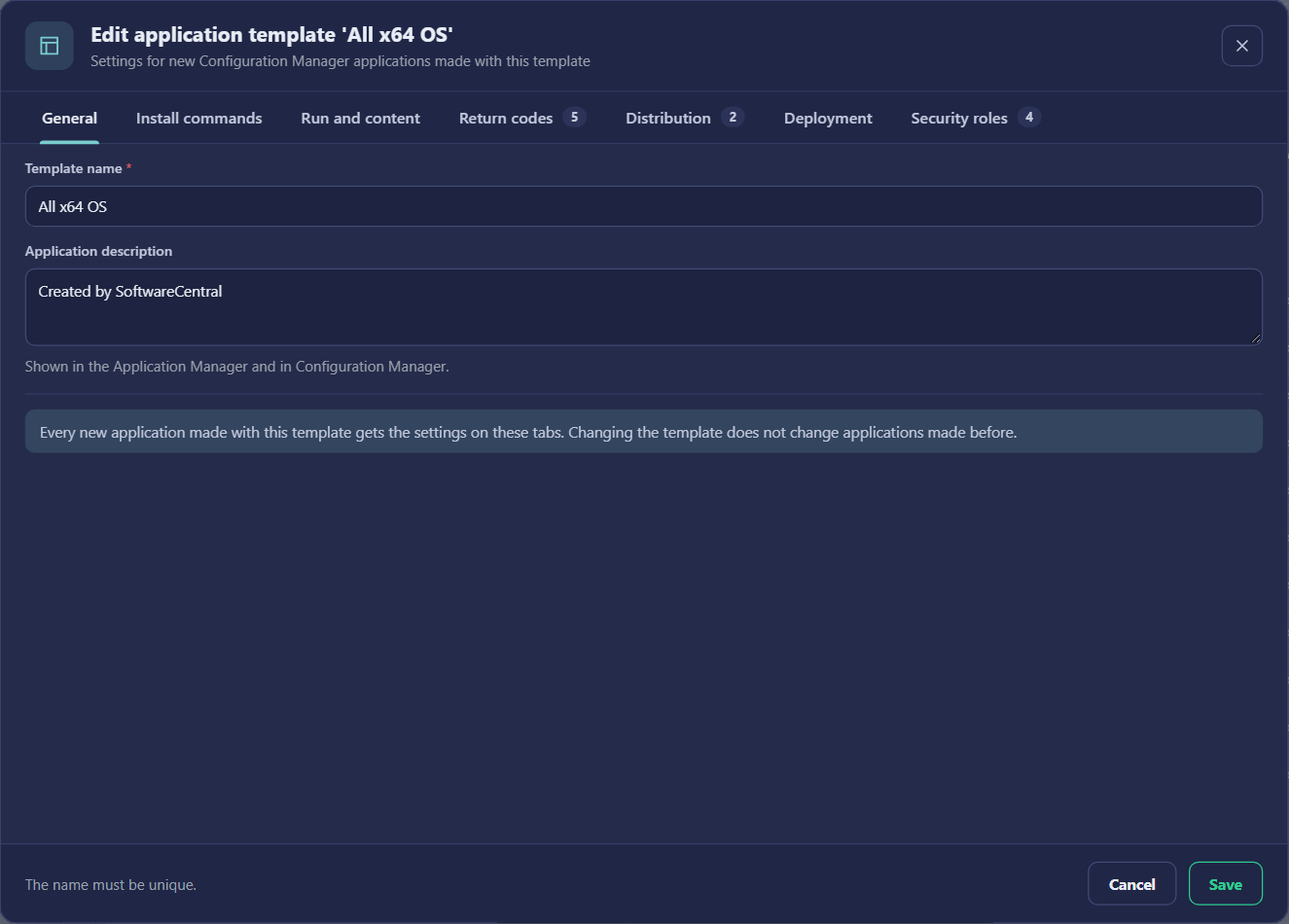
Click Add new template to make a template, or Edit on a row to change one. The window has seven tabs. Cancel closes it without saving. Save stores the template and closes the window.
| Tab | What it holds |
|---|---|
| General | The template name (required, must be unique) and the description. |
| Install commands | The MSI additional commands and repair program, and the install, uninstall and repair arguments for scripts and EXE files. |
| Run and content | How the installation runs on the client: installation behaviour, logon requirement, program visibility, what happens after the install, the maximum and estimated run time, and the deployment options for the content. |
| Return codes | The exit codes of the installer with their name and class. The codes are saved with the template. |
| Distribution | The distribution points and distribution point groups, the package security groups, the Configuration Manager application folder, the distribution settings and the security scopes. |
| Deployment | The deployments to devices and users, the time base, the user notifications, and the collections (with the option to make no device uninstall collections). Domain and organisational unit are asked only when AD deployment is on. |
| Security roles | The roles that may use the template. Roles that see every template are shown as locked. Your own role is always added. |
5 Fields and buttons
| Control | What it does |
|---|---|
| Add new template | Opens an empty template window. |
| Search | Finds templates by name. Press Enter to add the search value as a token. |
| Filters | Opens the filter panel. Clear all filters resets it. |
| Export CSV | Downloads every matching template with the Template ID and the full lists. |
| List / Tiles | Changes the view. Tiles show each template as a card. |
| Edit | Opens the template window for the row. |
| Delete | Opens the Delete window for the template. |
| Cancel / Save | In the template window: leave without changes, or store the template and close the window. |
6 Best practices
| Topic | Recommendation |
|---|---|
| Match the template to the install | Use one template for MSI installers and another for EXE or script installers, so the command lines are right from the start. |
| Choose the deployment once | Decide whether devices and users get the application as Required or Available in the template, and use No user collections for device-only software. |
| Keep distribution close to the devices | Add the distribution point groups the devices use, and check the list in the tooltip of Distribution. |
| Limit who can use it | Give the template only to the roles that need it. Use Visible to role to review it. |
| Set return codes once | Add only the exit codes your installer uses, with the class that matches what the code means. |
| Keep a template ID list | Use Export CSV to keep a copy of the templates and their IDs. |
7 Troubleshooting
| Symptom | Cause and what to do |
|---|---|
| No templates match your criteria | The search or a filter hides every template. Click Clear all filters and clear the search tokens. |
| A template is not in the list | The list shows only the templates your role may use. Ask an administrator to check the Security roles tab of the template, or your role on the Security roles page. |
| Template name cannot be empty | Type a name in Template name on the General tab. |
| Visible to shows a dash | No role has been given the template. Add the roles on the Security roles tab. |
| The CSV file has fewer templates than the page | The export follows the search and filters. Clear them, then export again. |