1 What Robopack is
The Robopack view is a curated catalogue of common applications. Instead of packaging software yourself, you pick a title and SoftwareCentral downloads it, imports it into ConfigMgr (SCCM) and/or Intune using your templates, and can deploy it — all in one step. Robopack keeps the catalogue versions current, so it is also the basis for automatic update patch flows.
2 Layout at a glance
The catalogue fills the page as a gallery of cards; the left panel holds the search box and the Downloads and Templates buttons.
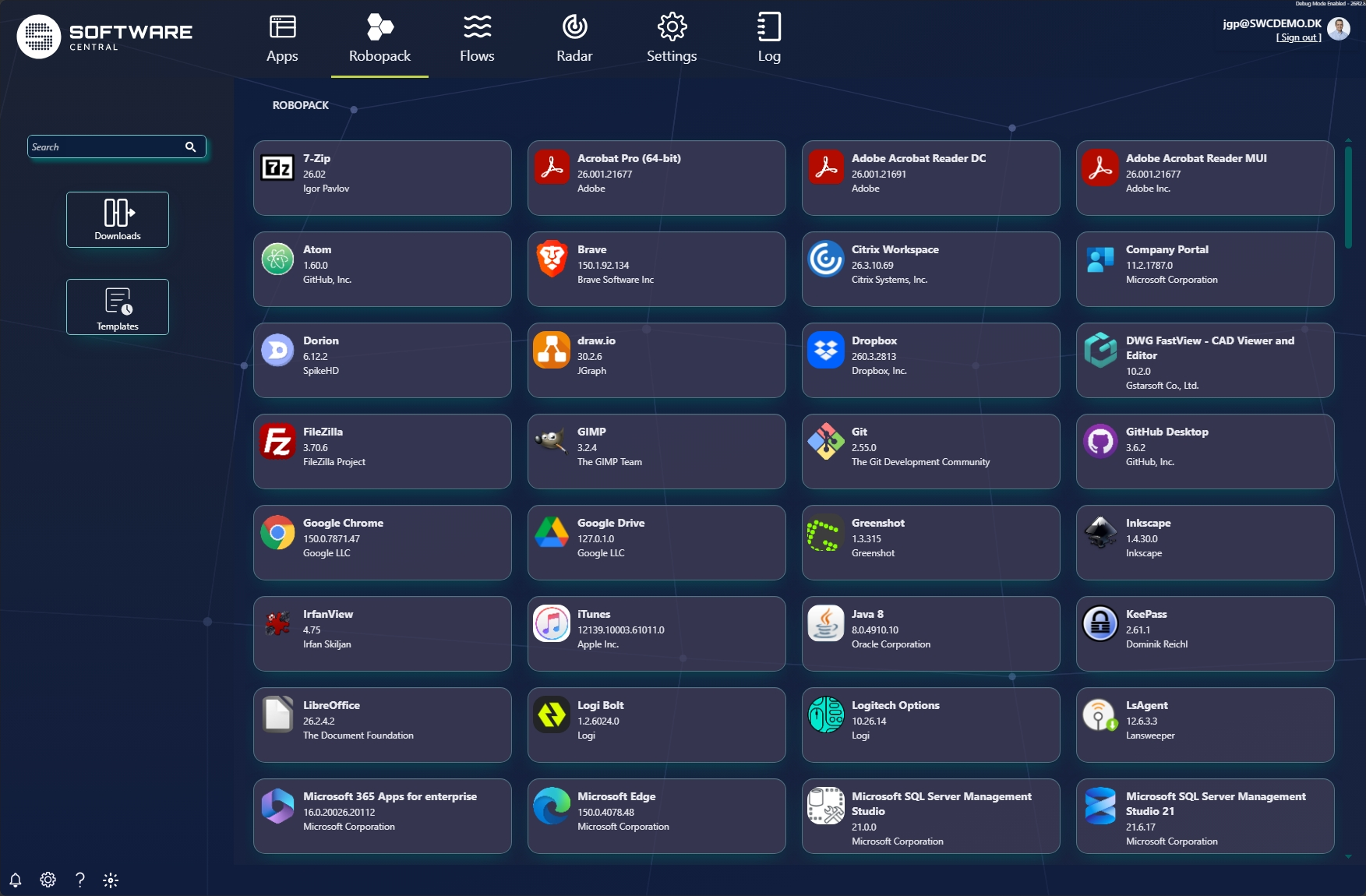
| Element | What it does |
|---|---|
| 🔍 Search | Filter the catalogue by application name. |
| ⬇️ Downloads | Switch to the Downloaded apps view — everything you have already downloaded/imported. |
| 🗓️ Templates | Manage Robopack deployment templates. |
| 🗂️ Catalogue card | Click a card to download & import that application. |
3 Download & import an app
Click any catalogue card to open the Download and import dialog. What you see depends on whether a default Robopack template is set: with a default template it opens as a simple summary view; without one, the full wizard opens instead so you can choose a template.
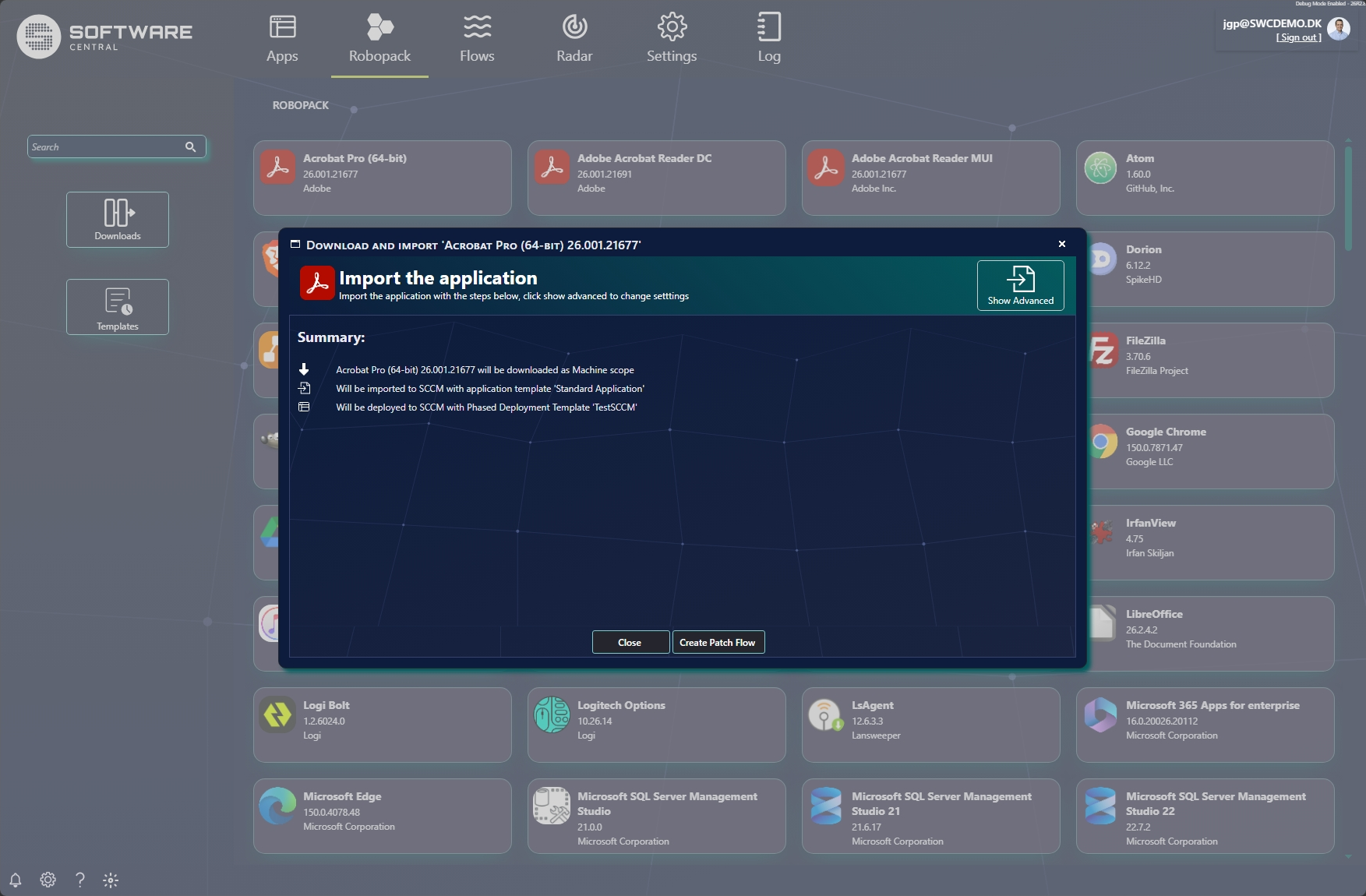
The summary typically shows:
- How the app will be downloaded (e.g. Machine scope).
- The import target and application template (e.g. SCCM with Standard Application).
- The deployment template that will be applied (e.g. a Phased Deployment Template).
4 Advanced download wizard
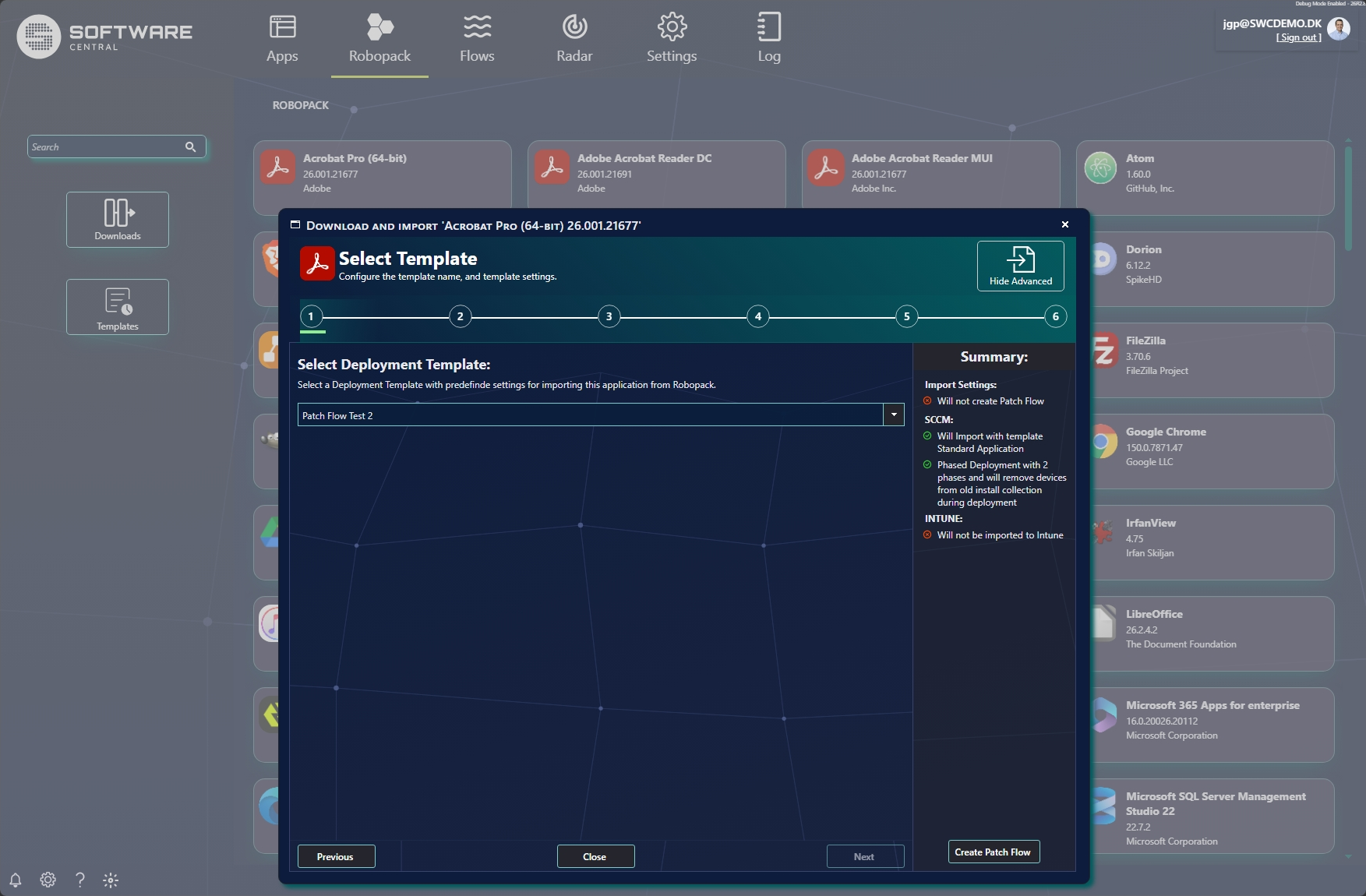
Click Show Advanced to expand the dialog into a full step-by-step wizard (this is also what opens automatically when no default template is set). A live Summary on the right shows what will be imported to SCCM and/or Intune.
5 Downloaded apps
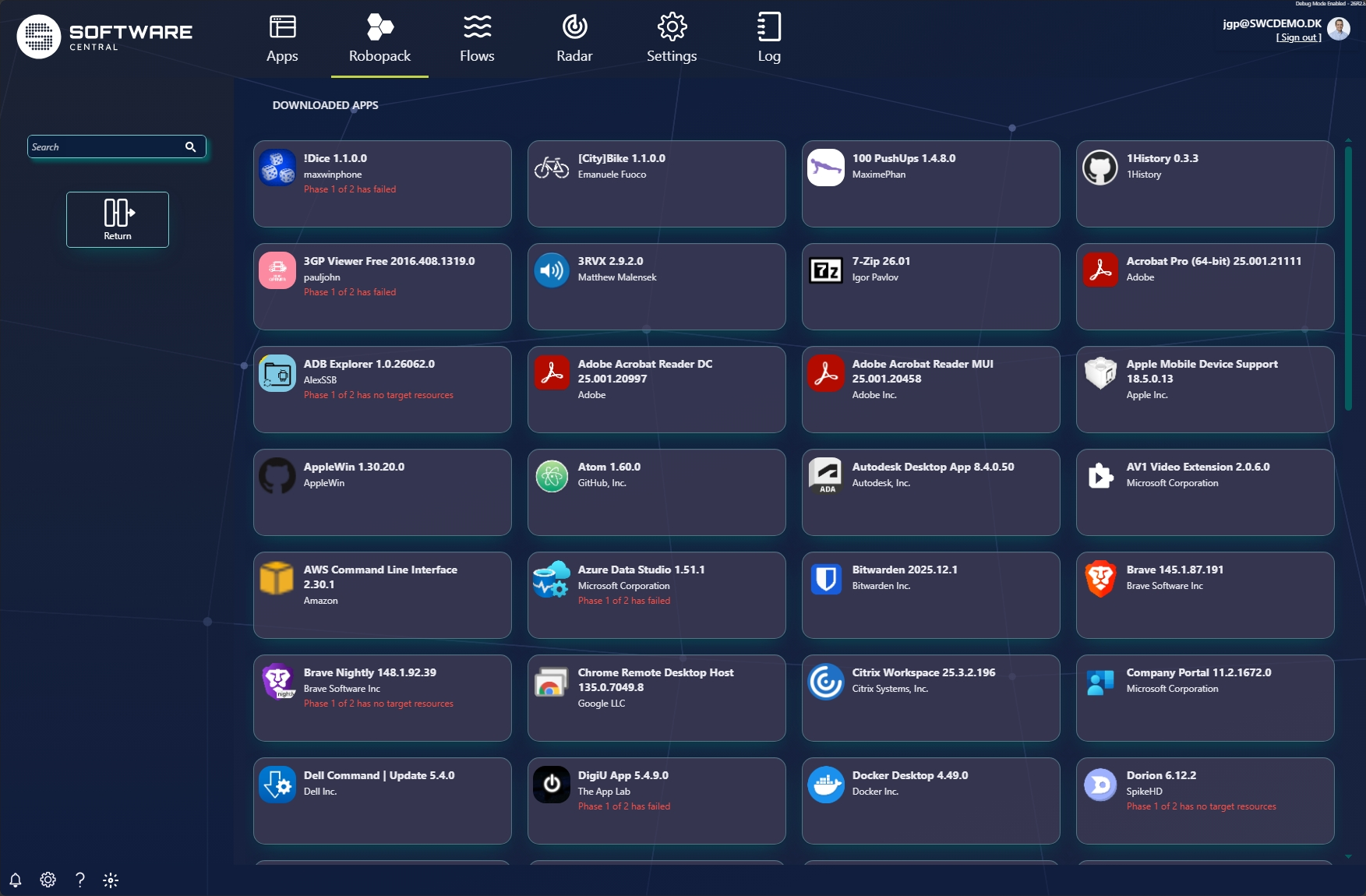
Click Downloads in the left panel to see every application you have downloaded and imported from Robopack. Each card shows its current state, and any problems are flagged in red (for example Phase 1 of 2 has failed or no target resources). Return goes back to the catalogue.
6 Downloaded app details
Click a downloaded app to open its detail view — the download/import job result plus the deployment status.
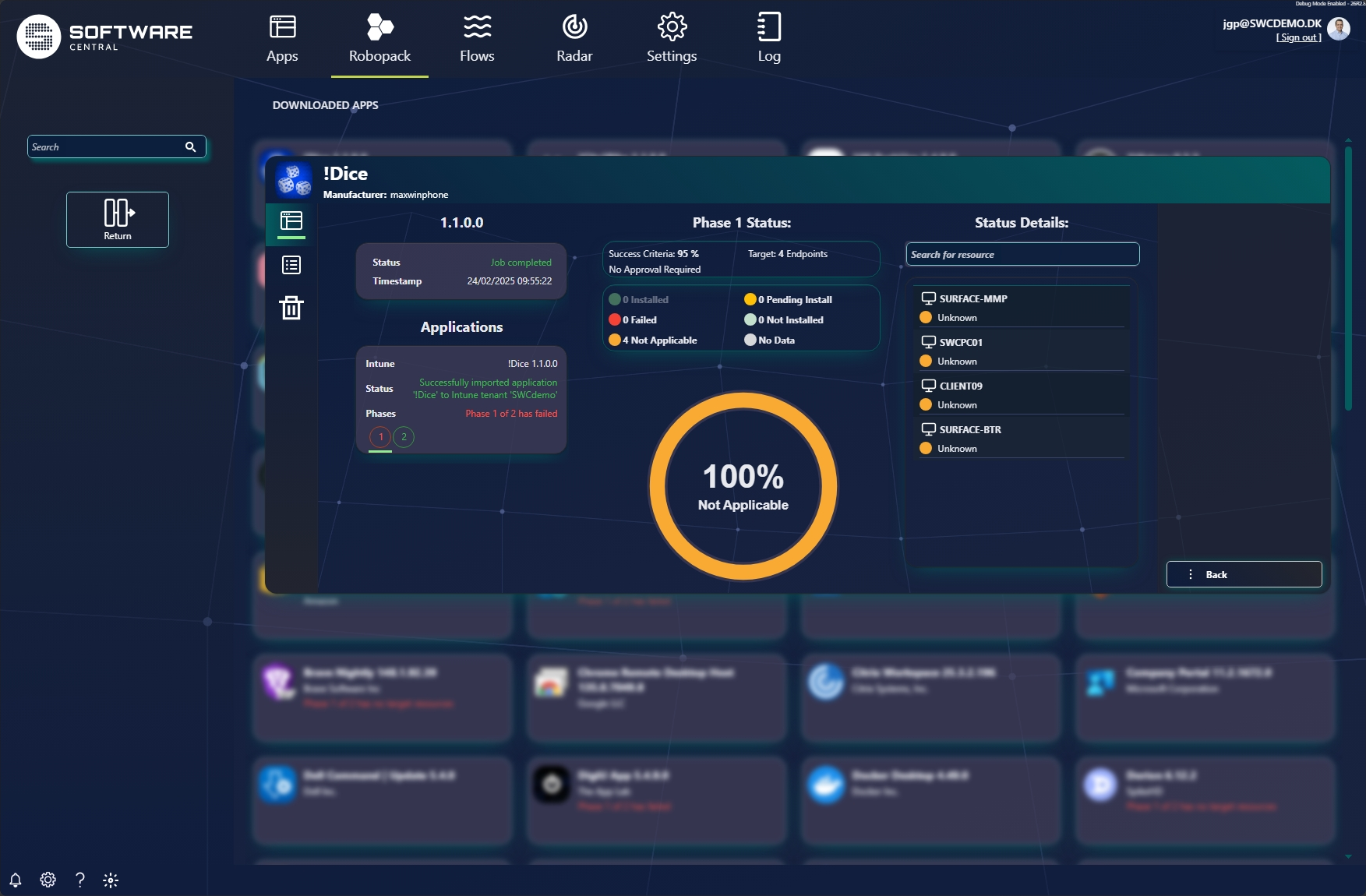
- Status — whether the download/import job completed, and when.
- Applications — each imported app, its target (SCCM / Intune tenant), and phase progress; failures are shown in red.
- Phase Status — success criteria, target count, and the install-result breakdown (Installed, Failed, Not Applicable, Pending Install, Not Installed, No Data).
- Status Details — the result for each individual device/resource, searchable.
7 Templates
A Robopack template holds the predefined settings the download dialog applies when importing an app. The Templates button manages them; at least one is required, and you can create one here or during the Setup Guide.
A template can define, per platform:
- SCCM an SCCM application template (the ConfigMgr application settings) and, optionally, an SCCM phased deployment.
- Intune an Intune application template (the Intune application settings) and, optionally, an Intune phased deployment.
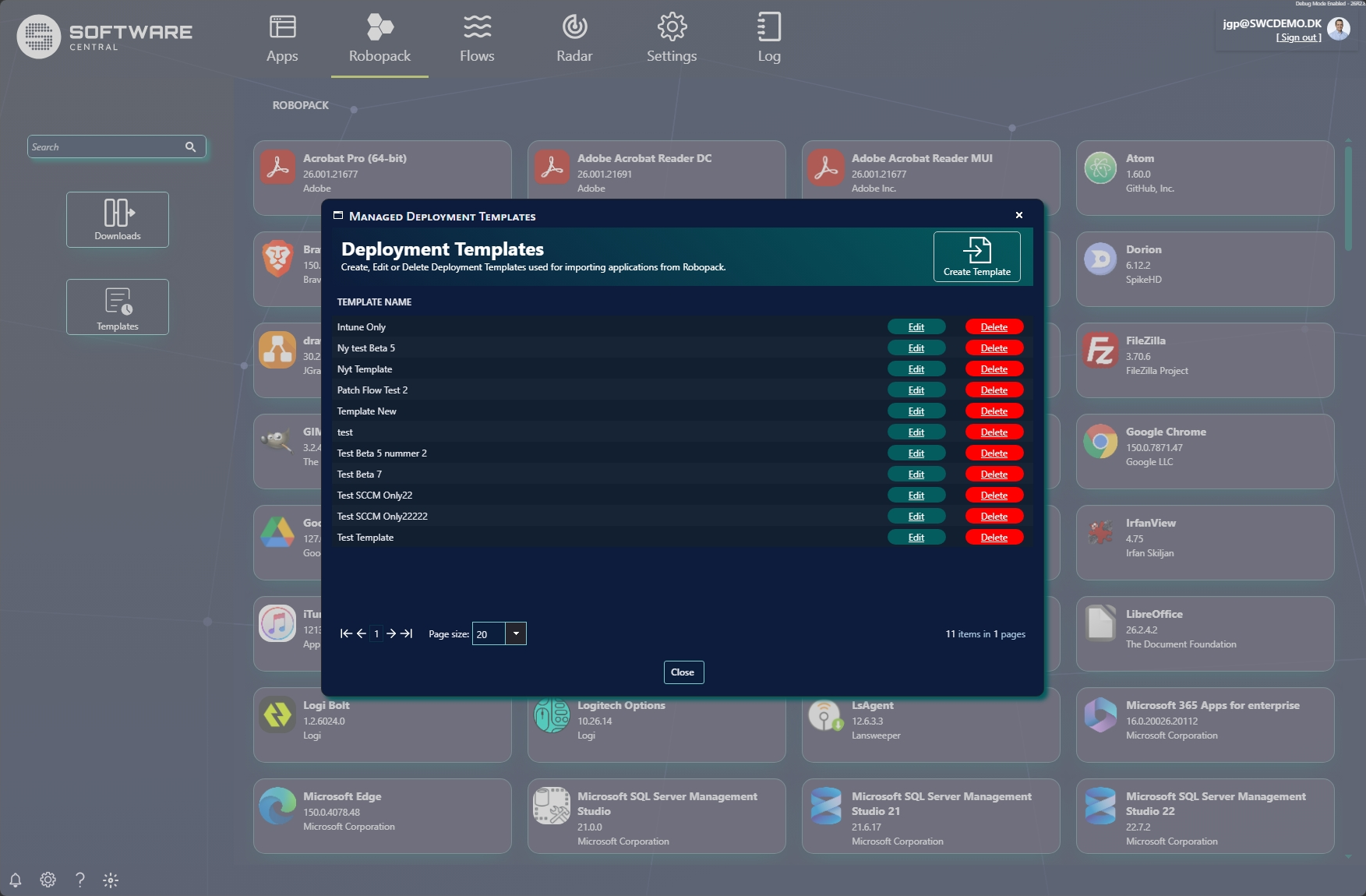
Edit (or Create Template) opens the template wizard. Step 1 sets the name and the core options, while the Summary on the right spells out exactly how the template will import to SCCM and/or Intune — the application template, machine/user scope, and any phased deployment.
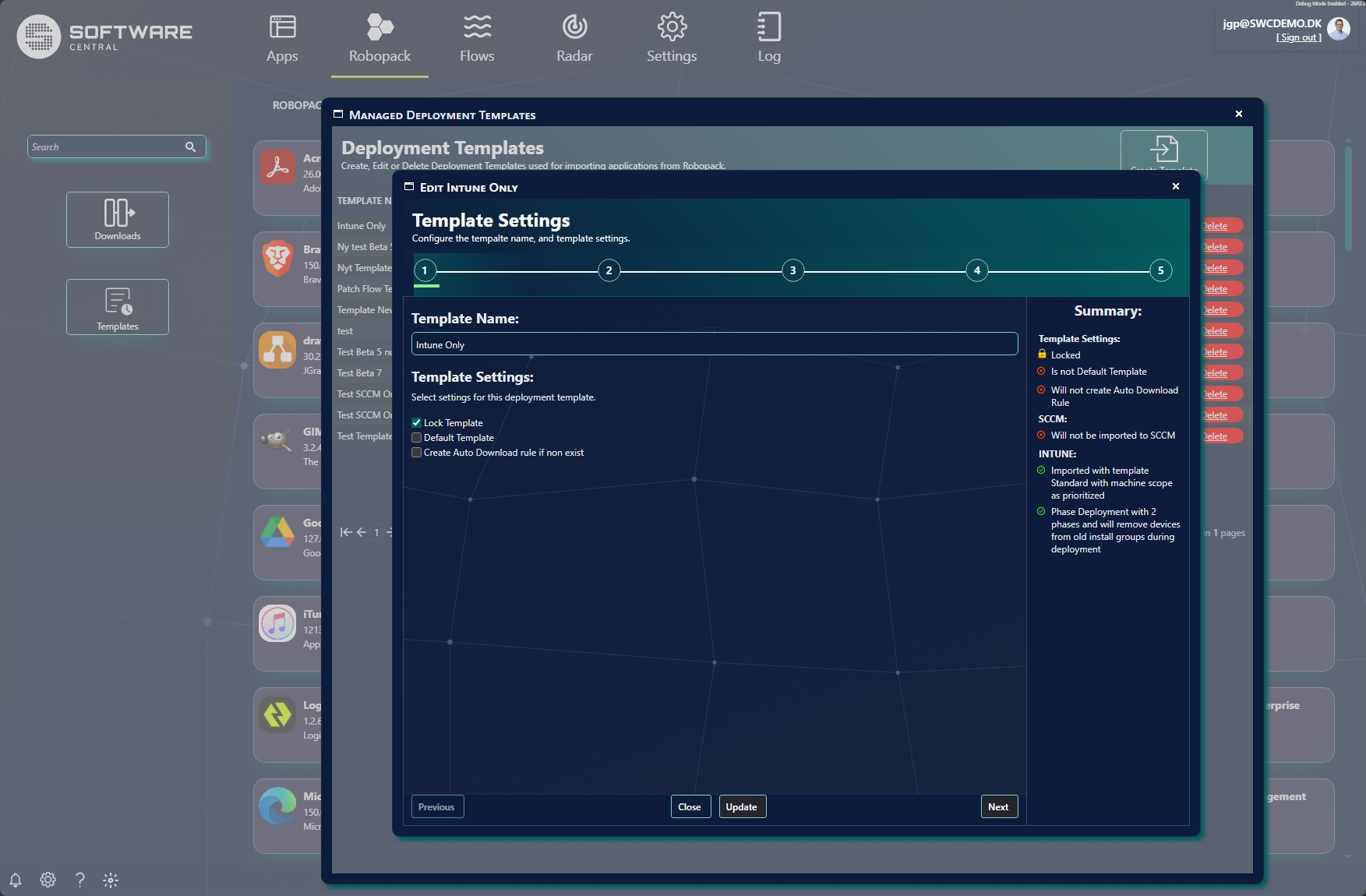
| Option | What it does |
|---|---|
| Lock Template | Protects the template from being changed. |
| Default Template | Makes this the template the quick simple download view uses. |
| Create Auto Download rule if non exist | Sets up automatic downloading so new versions are pulled in without manual steps. |