1 What Flows are
A Patch Flow is created for a Robopack application (in the last step of the download & import wizard). Once a flow exists, SoftwareCentral monitors that app: whenever Robopack publishes a newer version it is downloaded and imported automatically, using the same settings. The Flows view — the Patch Flow Manager — is where you see all of these flows, the versions each has processed, and their status.
2 Layout at a glance
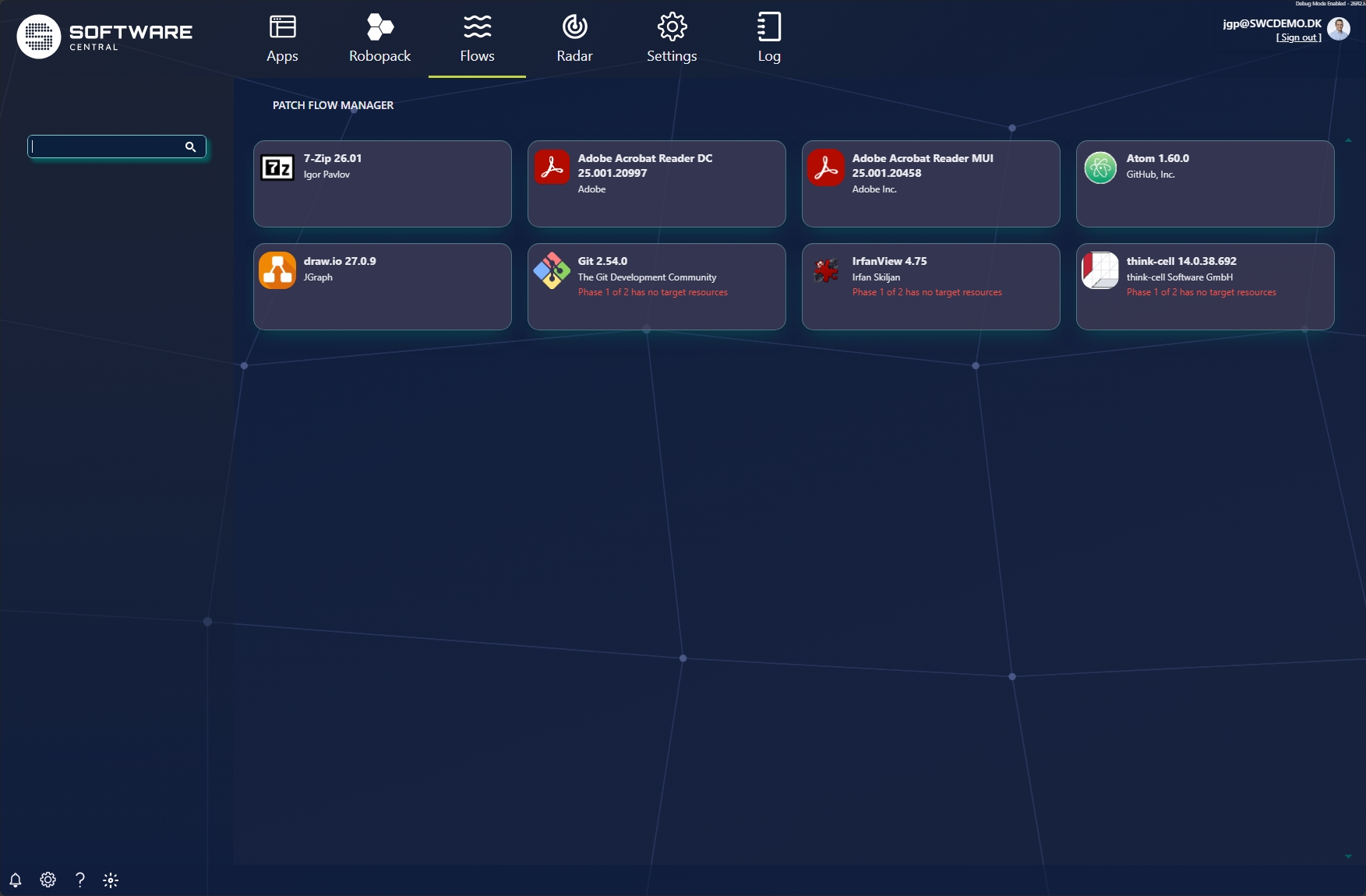
The manager is a gallery of the applications that have a patch flow. Each card shows the app and its current state; problems are flagged in red (for example Phase 1 of 2 has no target resources). Use Search to find an app.
3 Flow details (Quick View)
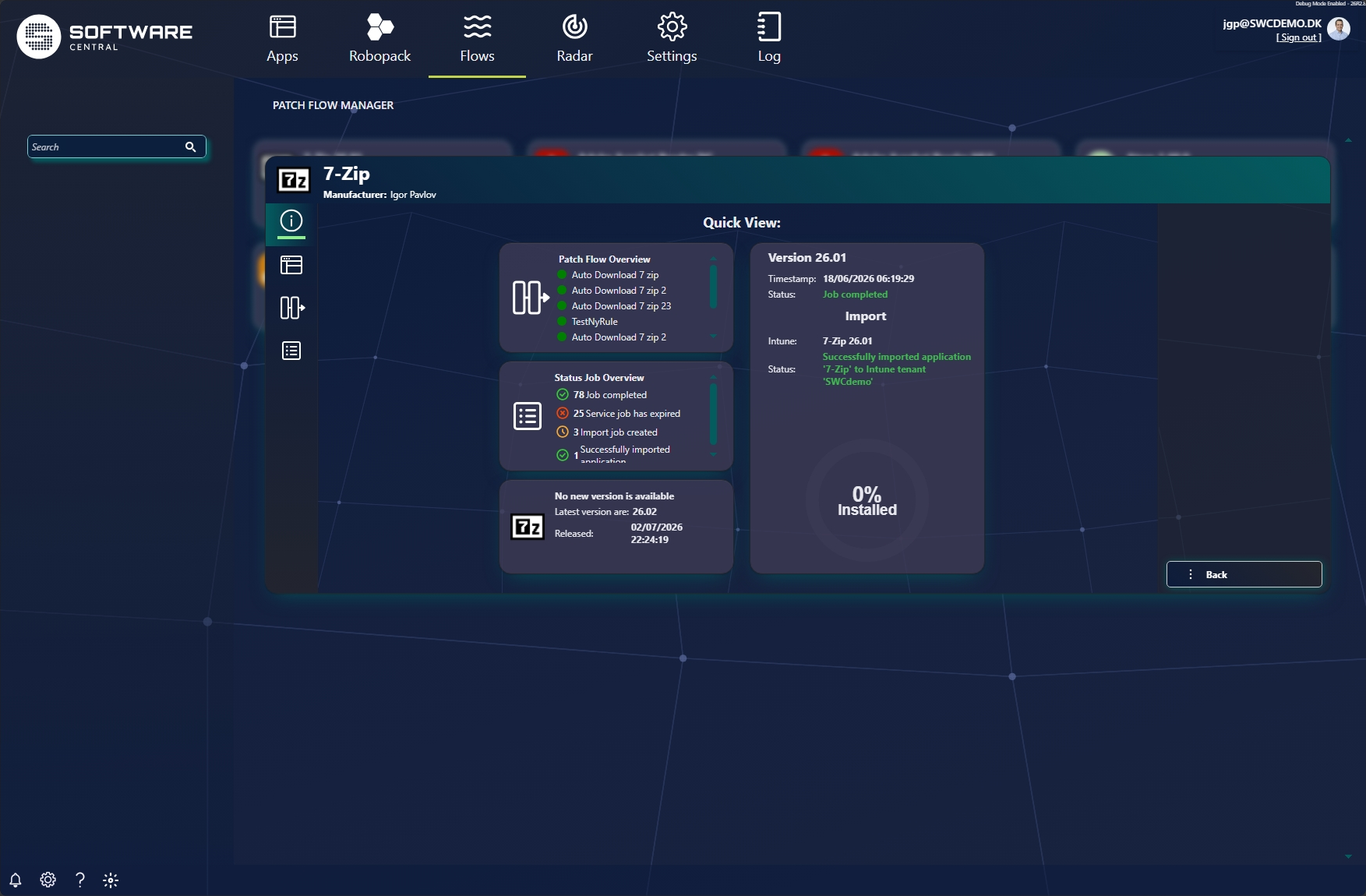
Click a flow to open its detail. The Quick View summarises the flow, its jobs and its version status; the icons on the left switch to the other views (including the Status Log).
| Card | What it shows |
|---|---|
| Patch Flow Overview | The download rules/runs that make up this flow (e.g. the auto-download rules), each with a status dot. |
| Status Job Overview | Totals across all the flow's jobs — e.g. jobs completed, service jobs expired, import jobs created, applications imported. |
| Version monitoring | Whether a new version is available, the latest version Robopack has, and when it was released. |
| Latest version / Import | The most recent version processed — its timestamp, job status, where it was imported (e.g. an Intune tenant) and the install ring. |
4 Status log & downloaded versions
The Status Log view lists every version the flow has downloaded and every run it has performed — with the time, version and status message. Use the Filters on the left (and the search box) to narrow the log to a particular outcome.
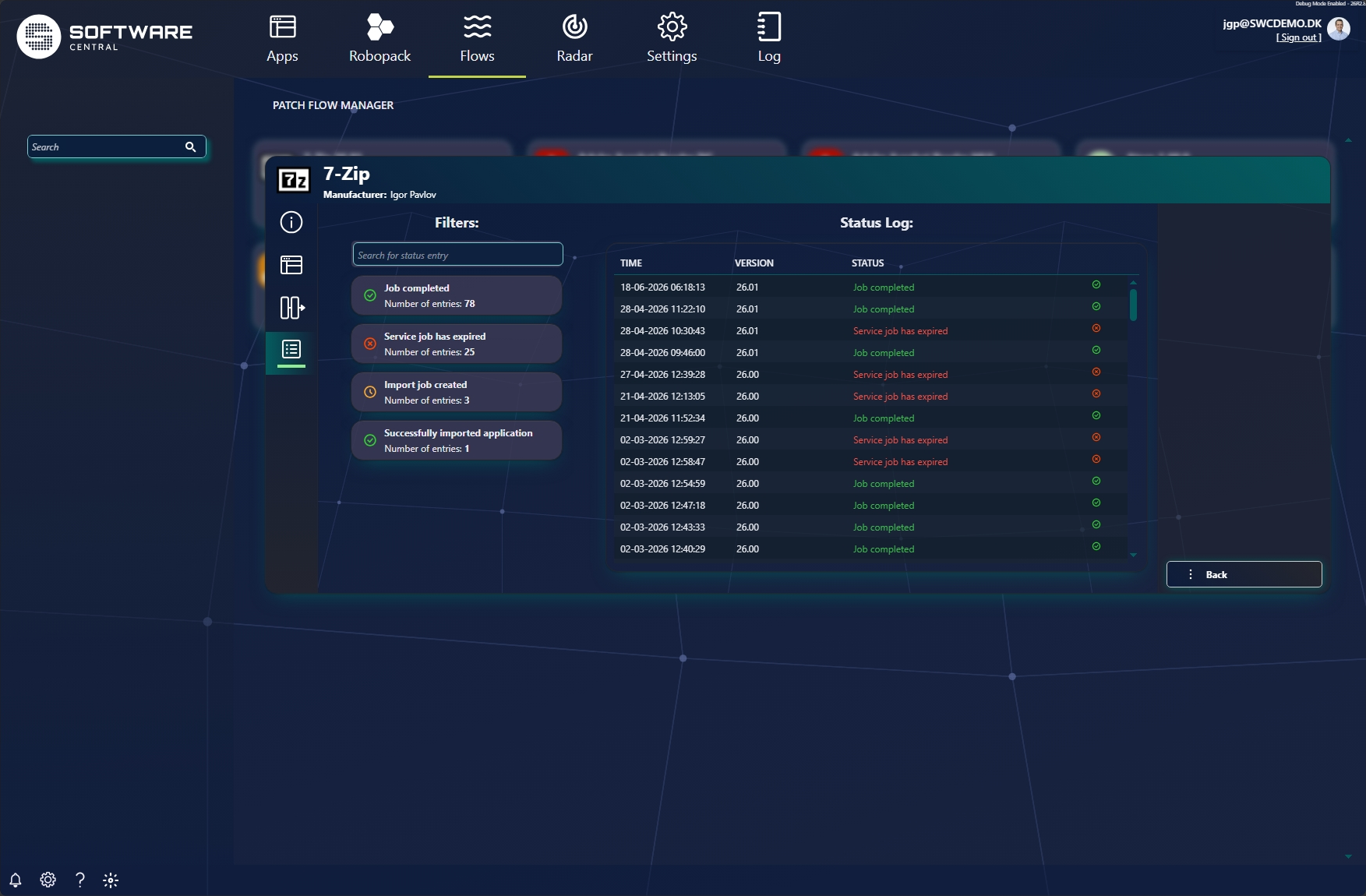
- Search for status entry — free-text filter of the log.
- Filter chips — one per outcome (e.g. Job completed, Service job has expired, Import job created, Successfully imported application) with the count of matching entries; click to filter.
- Status Log table — Time, Version and Status for every run, newest first.