1 What the page is for
When SoftwareCentral creates an application, a package or a deployment in SCCM, it needs to know which collections and folders to use. This page holds those choices. Once they are saved, SoftwareCentral uses them for new work; check your existing deployments before you change a root.
The page has a site selector at the top right. The collections and folders you see are the ones of the selected SCCM site.
2 The page at a glance
The header has the create buttons on the left and Save on the right. Under it are the five root tabs, and the tab that is open shows its tree.
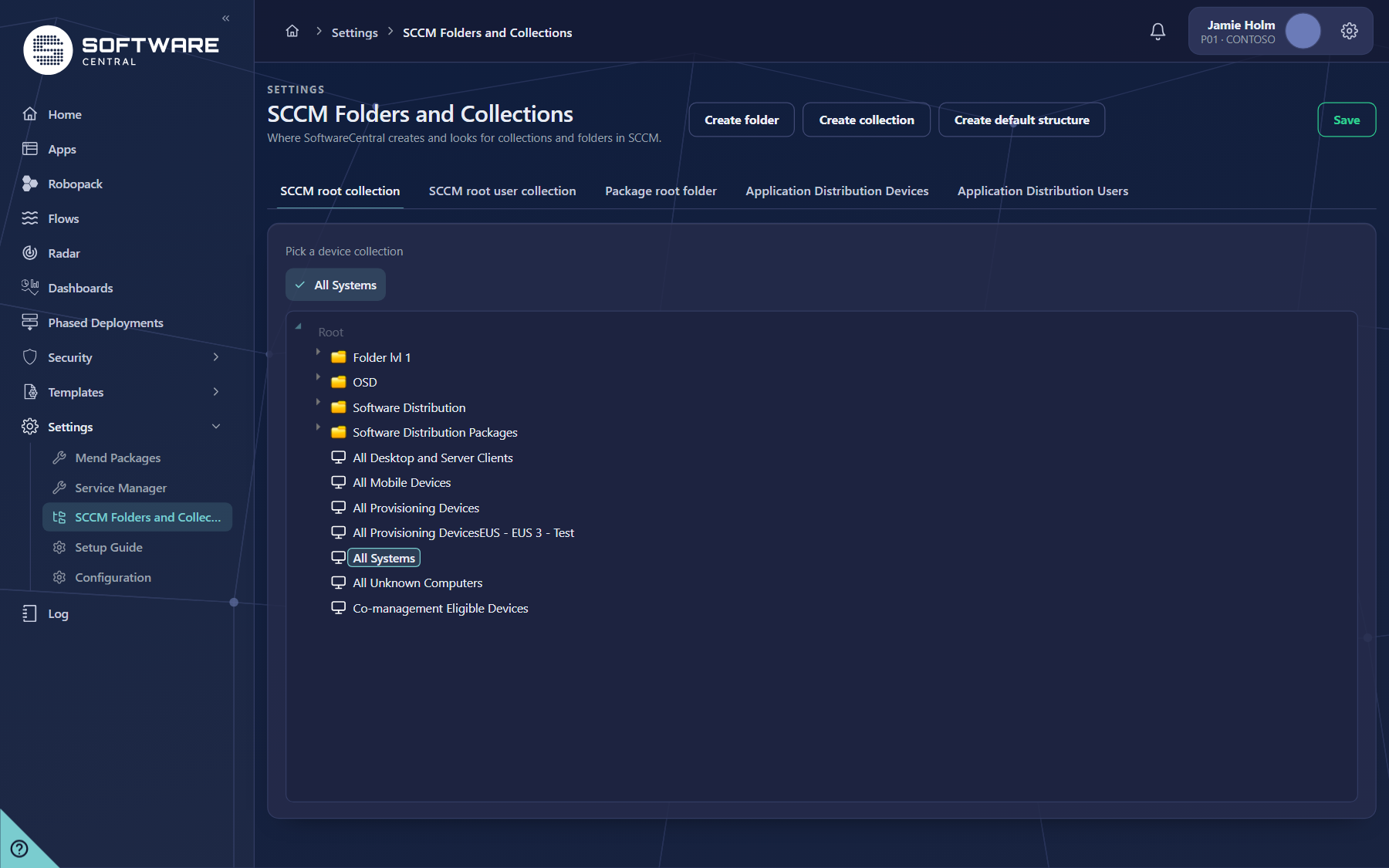
3 The five roots
Each tab is one root. Only one root is open at a time. The tab you leave open is remembered in the same browser tab.
| Tab | What you pick | What it is used for |
|---|---|---|
| SCCM root collection | A device collection | The root collection for devices. A folder is not accepted here. |
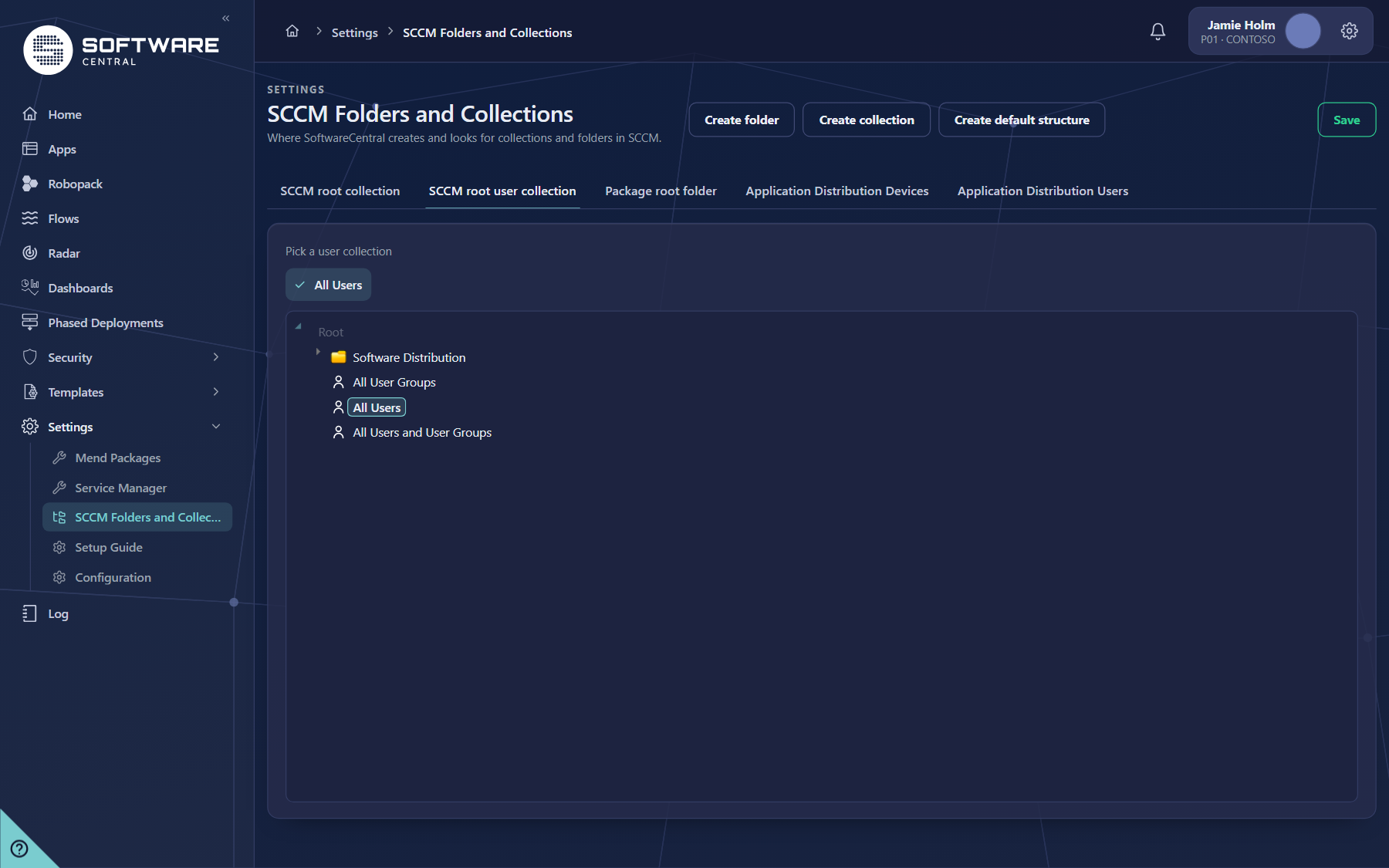
| SCCM root user collection | A user collection | The root collection for users. A folder is not accepted here. |
| Package root folder | A device collection folder | The root folder for packages. |
| Application Distribution Devices | A device collection folder | The folder for application deployments to devices. |
| Application Distribution Users | A user collection folder | The folder for application deployments to users. |
The tree on the tab shows folders with an arrow to open them and collections without one. The three folder tabs only show folders.
4 Picking a collection or folder
- Open a tab, for example SCCM root user collection.
- Open the folders in the tree with their arrows until you reach the one you want, then click it.
- Under the tab's title, the current choice is shown as a path, for example Software Distribution › Packages. If nothing is chosen it shows Not set.
- A tab whose choice has changed is marked. The counter next to Save shows how many tabs have unsaved changes.
- Open the next tab and repeat. Use the arrow keys to move between the tabs.

5 Creating folders and collections
- Create folder and Create collection open a window to create a new folder or collection in SCCM. Use the window's own Cancel to leave without creating anything.
- Create default structure asks you to confirm. It then creates the folders Software Distribution (for users and for devices) and Software Distribution Packages (for devices), but only the ones that do not exist yet. Existing folders are not changed.
6 Saving
Save stores all five choices in one go. Nothing is stored until you press Save.
- If a choice is not allowed, a message appears next to Save. Two messages are possible: Root collection can't be a folder (tabs 1 and 2) and Package root folder and application distribution devices folder can't be the same.
- After a successful save the page reloads.
7 Fields and buttons
| Name on screen | What it does |
|---|---|
| Select site | Chooses the SCCM site whose collections and folders are shown. |
| Create folder | Opens a window to create a folder in SCCM. |
| Create collection | Opens a window to create a collection in SCCM. |
| Create default structure | Creates the missing default folders, after a confirmation. |
| Five root tabs | Open one root at a time. The path under each tab is the current choice. |
| Save | Stores all five choices. The counter beside it shows the number of tabs changed. |
8 Best practices
| Topic | Recommendation |
|---|---|
| Check the site first | Make sure the Select site box shows the site you want before you pick anything. |
| Use separate folders | Keep the package root folder and the distribution folders different, so packages and deployments do not mix. |
| Pick all five, then save once | Check each tab's path and the counter, then press Save once. |
| Be careful when you change a root | New applications and deployments use the new root. Existing deployments stay where they are; check them in SCCM after a change. |
| Create the default structure on a new site | It creates only what is missing, so it is safe to use again on a site that already has some folders. |
9 Troubleshooting
| Symptom | Cause | What to do |
|---|---|---|
| A tab shows Not set | Nothing has been chosen for that root yet, or the collection saved before was deleted in SCCM. | Open the tab, pick a collection or folder, and press Save. |
| Root collection can't be a folder | A folder was picked on the device or user root collection tab. | Open the tab and pick a collection, not a folder. |
| Package root folder and application distribution devices folder can't be the same | The two chosen roots are the same. | Pick a different folder on one of the tabs and press Save again. |
| The tree is empty | The selected site has no collections or folders, or the wrong site is selected. | Check Select site. If the site is correct, create the folders with Create folder or Create default structure. |
| Create default structure does not create a folder | The folder already exists. Only missing folders are created. | Expand the tree to check the folders. |
| The counter shows changes you did not expect | A tab shows a different choice from the one you saved. | Open the tab and check the path. Press Save only when the paths are right. |