1 The list
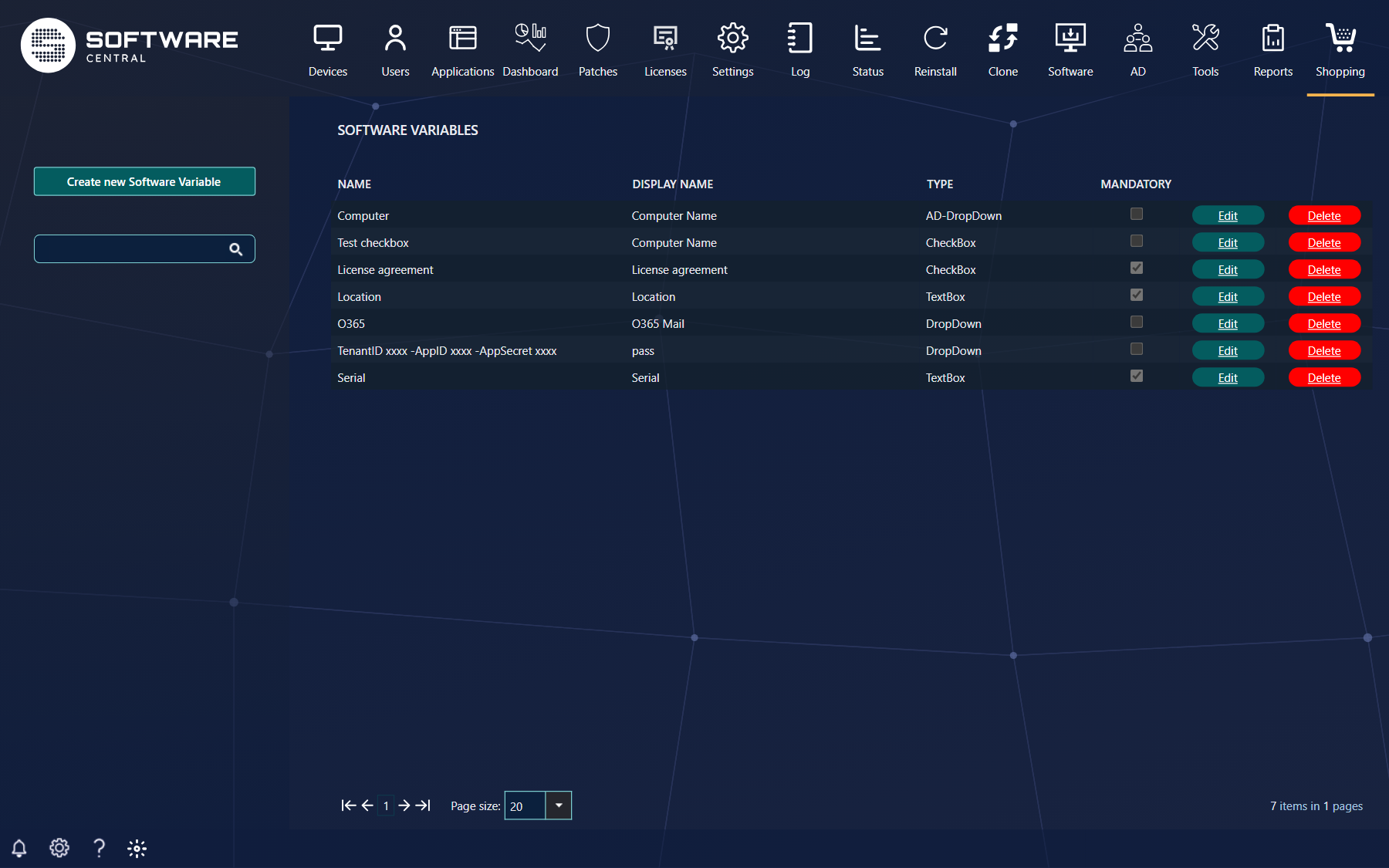
Each row is a variable with its name, display name, type and whether it is mandatory. Click the name or Edit to change it; Delete asks before it removes one.
2 Creating a variable
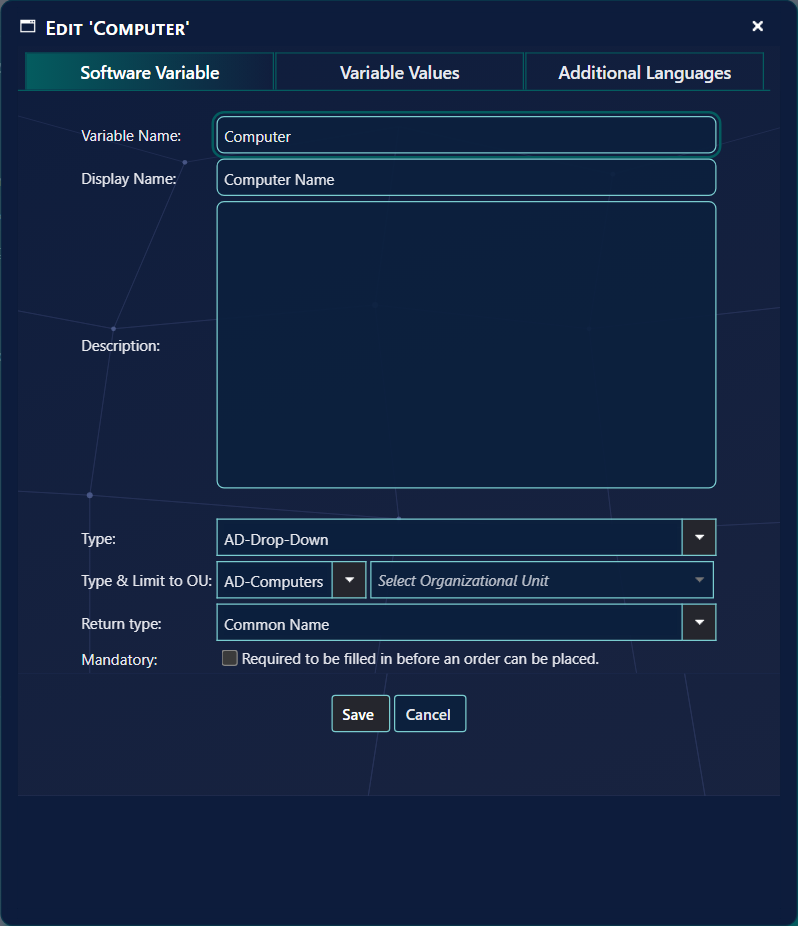
| Field | What it does |
|---|---|
| Variable Name | The name in this list, and what approvers see next to the answer. Required. |
| Display Name | The label shoppers see, when their language has no translation. Required. |
| Description | The explanation under the label, likewise. |
| Type | How the shopper answers; see below. |
| Mandatory | The shopper must answer before ordering. |
| Length of text | For text: the required length — exactly that many characters, or at least that many when Software Variables length uses minimum length is on (Settings › Shop). |
Click Create new Software Variable, fill in the fields and click Save.
3 Variable types
| Type | The shopper |
|---|---|
| TextBox | Types text or numbers. |
| Checkbox | Ticks yes. A mandatory checkbox must be ticked — useful for accepting a licence. |
| Drop-Down | Picks one of the values you enter on the Variable Values tab. |
| AD-Drop-Down | Picks a user, group or computer from Active Directory, optionally limited to an OU. Return type decides what is stored: distinguished name, sAMAccountName, UPN or common name. |
| Drop-Down with dynamic data source | Picks from a list your PowerShell script returns; see below. |
| Computer Template | Picks a computer template. |
| Organizational Unit | Picks an OU from a tree. |
| Office 365 Drop-Down | Picks a mailbox or distribution list of the chosen kind. |
Types that do not fit your setup are hidden — for example the AD types when users come from Entra only.
4 Variable values
For a Drop-Down, each value has a Display Name — what shoppers see — and a Value — what approvers and administrators see. Fill in both and click Add New; values are shown in the order you add them. Select a value in the list to change or Remove it. Values are stored when you save the variable.
Upload a CSV file
To add many values at once, upload a CSV file with one value per line, in the format displayname,value.
A line whose display name already exists replaces that value. Save the file as UTF-8 so special characters come
through. You can still add, change and remove values afterwards.
5 PowerShell as data source
Drop-Down with dynamic data source fills the list from a PowerShell script — for example values from a database, a share or Office 365.
| Field | Enter |
|---|---|
| Script path | The path to the script, for example \\Server\Share\Script.ps1. |
| Display name attribute | The property of the returned objects shoppers see, for example FullName. |
| Value attribute | The property stored with the order, for example ID. |
The script must return a list of objects — for example the files and folders in a directory.
6 Additional languages
The Additional Languages tab translates the display name and description. Choose a language and write them; a shopper whose language is empty sees the default. Get Default Values copies the default text in.
7 Assigning variables
In the shop settings of an application (Software Administration) or a custom shop item, tick Show Software Variables, click Select visible variables, tick the variables and drag them into order. The shopper then sees them as the Order details form, and approvers see the answers with the order.
8 Best practice
- Enter a Variable Name and a Display Name before you save. Without either one the window does not save, and it says which one is missing.
- Save the CSV file as UTF-8. The upload reads the file as UTF-8, so special characters only come through when the file is saved that way.
- Read the count after a CSV upload. Each line that does not hold exactly two values is skipped, and the number of skipped lines is shown.
- Use the minimum length setting if a text answer may be longer. With Software Variables length uses minimum length on, a text answer must have at least the length you set. Without it, the answer must have exactly that length.
- Test a PowerShell data source before you use it. Save does not check the script path. The script runs when a shopper opens the order form, so a wrong path is first noticed then, and the reason is written to the Log.
- Mark a licence acceptance as mandatory. A mandatory checkbox must be ticked before the item can go into the basket.
9 Troubleshooting
| Symptom | Cause | What to do |
|---|---|---|
| “Additional information is required. A name is required.” | The Variable Name box is empty. | Type a Variable Name, then click Save. |
| “Additional information is required. A display name is required.” | The Display Name box is empty. If both boxes are empty, both sentences are shown. | Type a Display Name, then click Save. |
| “n lines were in an incorrect format and were not uploaded.” | A line in the CSV file does not hold exactly two values separated by a comma or a semicolon. | Correct those lines to displayname,value, save the file as UTF-8 and upload it again. |
| The drop-down with a dynamic data source is empty for the shopper. | The script did not run. The Log has a critical entry “Failed to execute PowerShell script 'path'.” with the reason. The reasons the product writes include “Script path and name is undefined.” and “Script does not exist or the service account does not have read and execute permission.” | Fill in the Script path. Check that the account that runs the script (the SoftwareCentral server, or the CloudConnector) can read and run it. Then read the Log entry. |
| The Log shows “The returned object of type ... does not contain a property named 'name'.” | The name in Display name attribute or Value attribute is not a property of the objects the script returns. | Enter one of the property names listed after “The available properties are” in that box. |
| The type you want is not in the list. | Some types are hidden on purpose. On an Intune-only installation, Computer Template and Office 365 Drop-Down are hidden. On an Entra ID-only installation, AD-Drop-Down and Organizational Unit are hidden. | Nothing to do. Choose a type that fits your setup. |