1 Why the shop asks
Your organisation lets you shop for the devices registered to you as their main user, in Configuration Manager or in Intune. With one device, the shop picks it and opens straight away. With more than one, it cannot tell which one you are using, so it asks.
2 Choosing the device
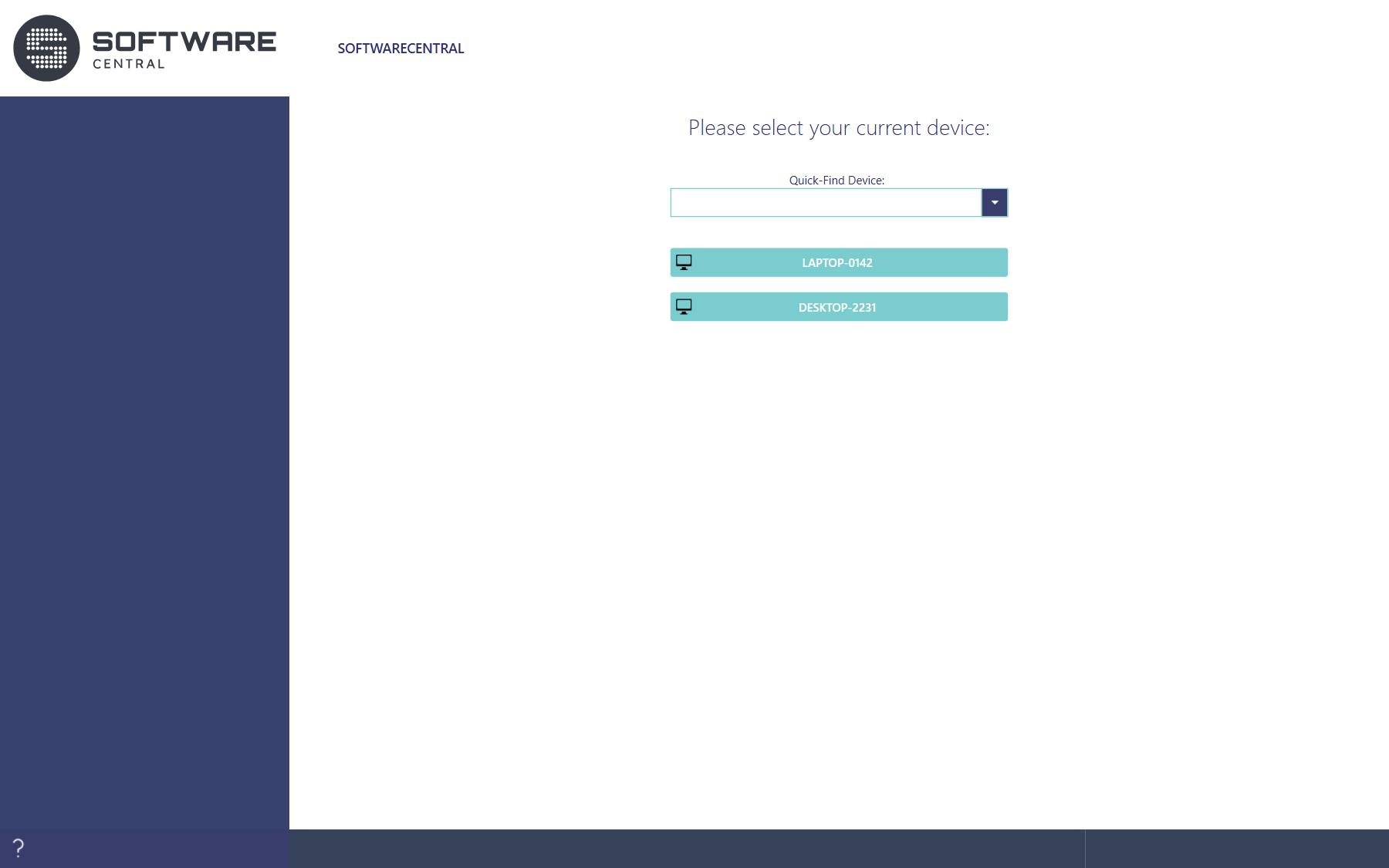
Click the device you want to shop for. The shop opens and shows the software for that device, including what is already installed on it. With a long list, type part of the name in Quick-Find Device and choose it there.
The shop asks again the next time you open it, so you can shop for another device then.
3 A device is missing
The list only has devices where you are registered as the main user. Mobile phones may be left out by your organisation. If a device you use is missing, ask your IT department to register you as its user.
4 Best practice
- Type part of the name in Quick-Find Device when you have a long list of devices.
5 Troubleshooting
| Symptom | Cause | What to do |
|---|---|---|
| A device you use is missing from the list. | Mobile phones are hidden when Hide mobile phones from primary devices is on. The list only shows devices where you are the main user. | Ask your IT department to turn the option off, or to register you as the device's user. |
| The page shows no list, and the log holds “Failed to retrieve primary devices.” | SoftwareCentral could not read your devices. | Open the Log, read the entry, and try again. |