1 The list
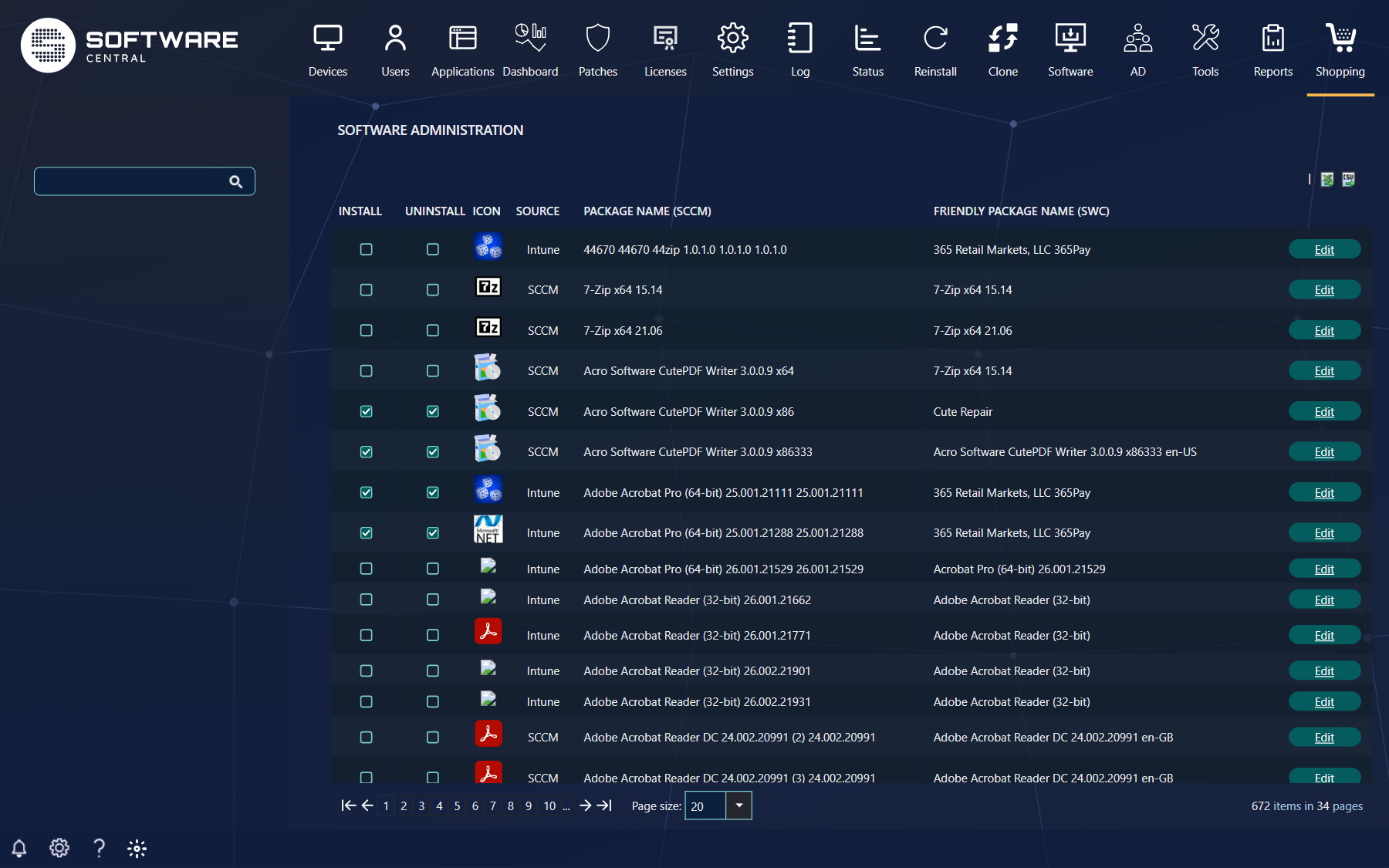
| Column | What it tells you |
|---|---|
| Install, Uninstall | Whether shoppers may install and uninstall it. See below. |
| Icon | The picture in the shop. |
| Source | Configuration Manager (SCCM) or Intune, when both are used. |
| Package Name (SCCM) | The name in Configuration Manager — App name (Intune) when SoftwareCentral only manages Intune. |
| Friendly Package Name (SWC) | The name shoppers see. |
| ServiceNow | Whether orders create a ServiceNow ticket, when ServiceNow is set up. |
| Available to | The groups and user collections the application is available to. |
Search at the left, choose the site or Intune tenant at the top, and export the list with the CSV and Excel buttons above it.
2 Install and uninstall
Install is the minimum: an application without it is not in the shop at all. Uninstall lets shoppers remove it again; software groups cannot be uninstalled. The checkboxes save at once — there is no Save button for them — and only roles allowed to change install permissions can use them.
3 Editing an application
Click the name or Edit to open Edit properties. It has six tabs; your security role decides which you see and whether you can change them. Nothing is stored until you click Save.
4 Software Properties
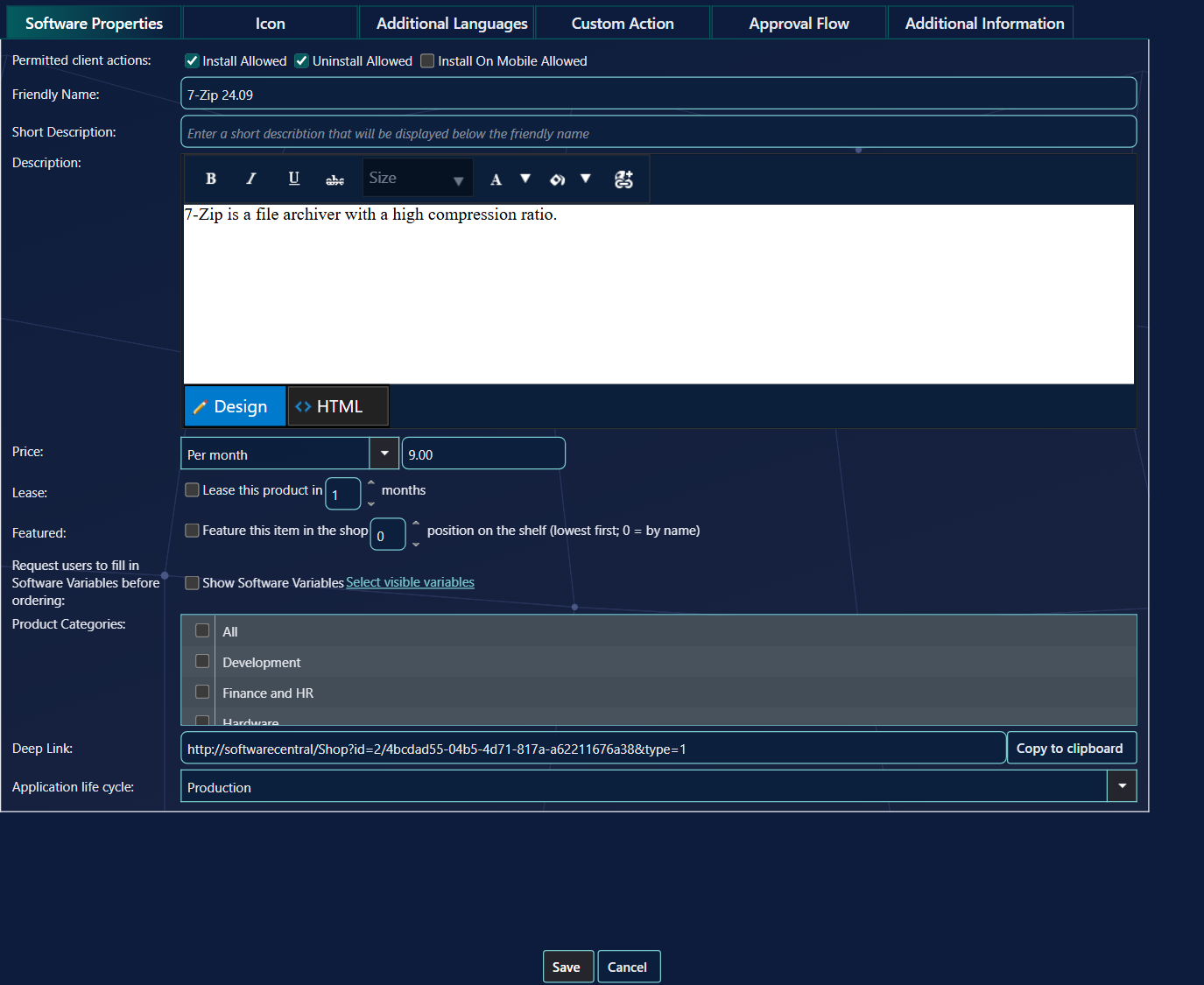
| Field | What it does |
|---|---|
| Permitted client actions | Install, uninstall, and whether it can be ordered for a phone. |
| Friendly Name | The name in the shop. |
| Short Description | One line under the name. In the new shop it replaces the publisher on the card. |
| Description | The full text. Switch to HTML to add tables, links, images or video — see HTML in descriptions. |
| Price | A price, or Free, Unknown, per year, per month or a one-time cost. |
| Lease | Tick Lease this product in and choose 1–24 months (Lease in months). The software is installed immediately or when approved, and is uninstalled automatically after the selected number of months. The button becomes Lease. |
| Featured | Puts it on the new shop's Featured shelf, at the position given. See Featured and Trending. |
| Show Software Variables | Asks the shopper questions before ordering. Select visible variables chooses which, and in which order (drag them). See Software Variables. |
| Product Categories | The categories it is listed under. See Product Categories. |
| Deep Link | A link that opens the shop on this application. Copy to clipboard copies it. |
| Application life cycle | Production is normal. Maintenance and Inactive are shown but cannot be ordered. Test is marked as test in the classic shop. |
| ServiceNow | Creates a ServiceNow ticket for each order, when ServiceNow is set up. |
5 Icon
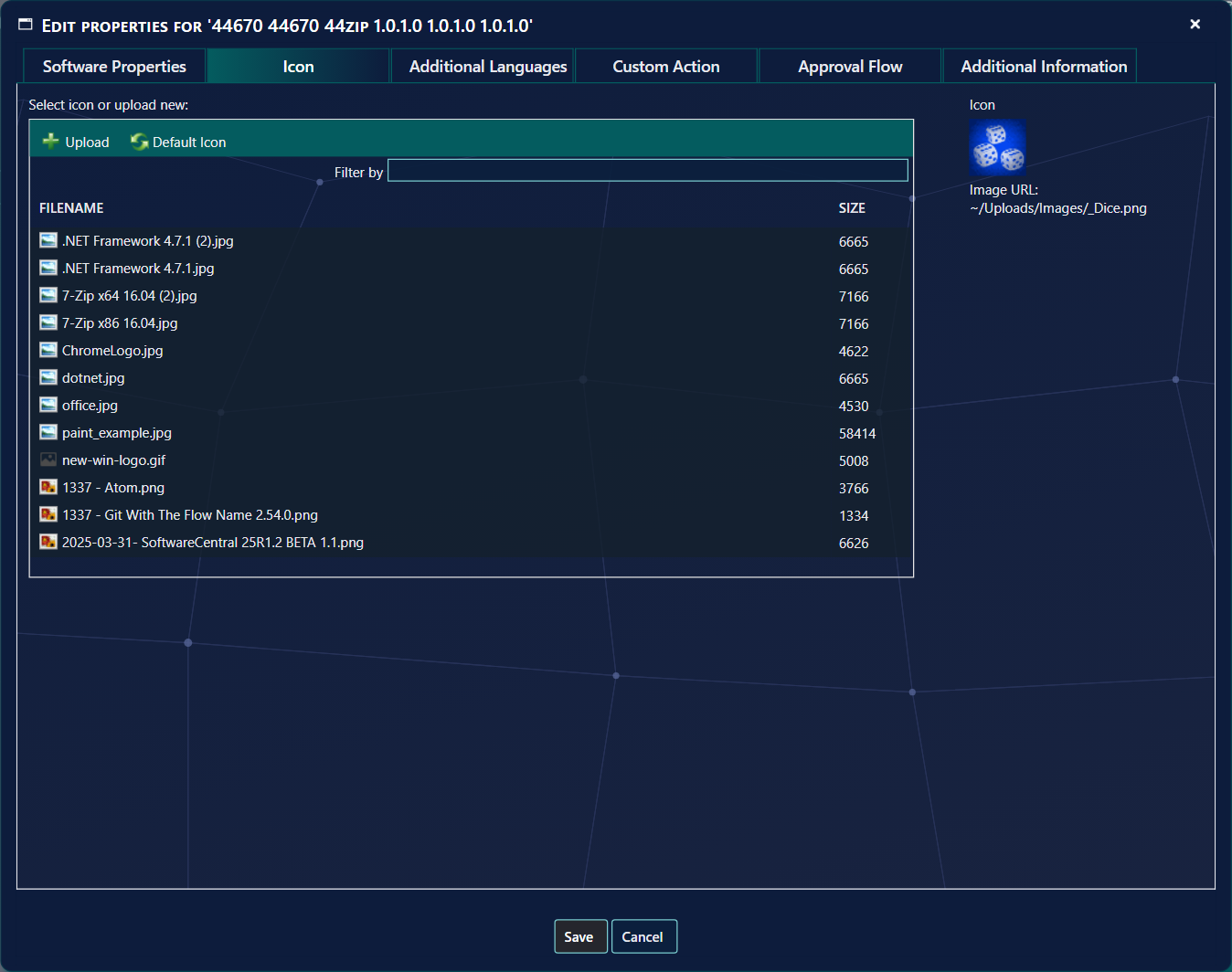
Choose an image from the uploaded images, or Upload a new one. Default Icon goes back to the standard picture. Use square images; the shop shows them small, so keep the files small too — SoftwareCentral can offer to shrink large icons for you.
6 Additional Languages
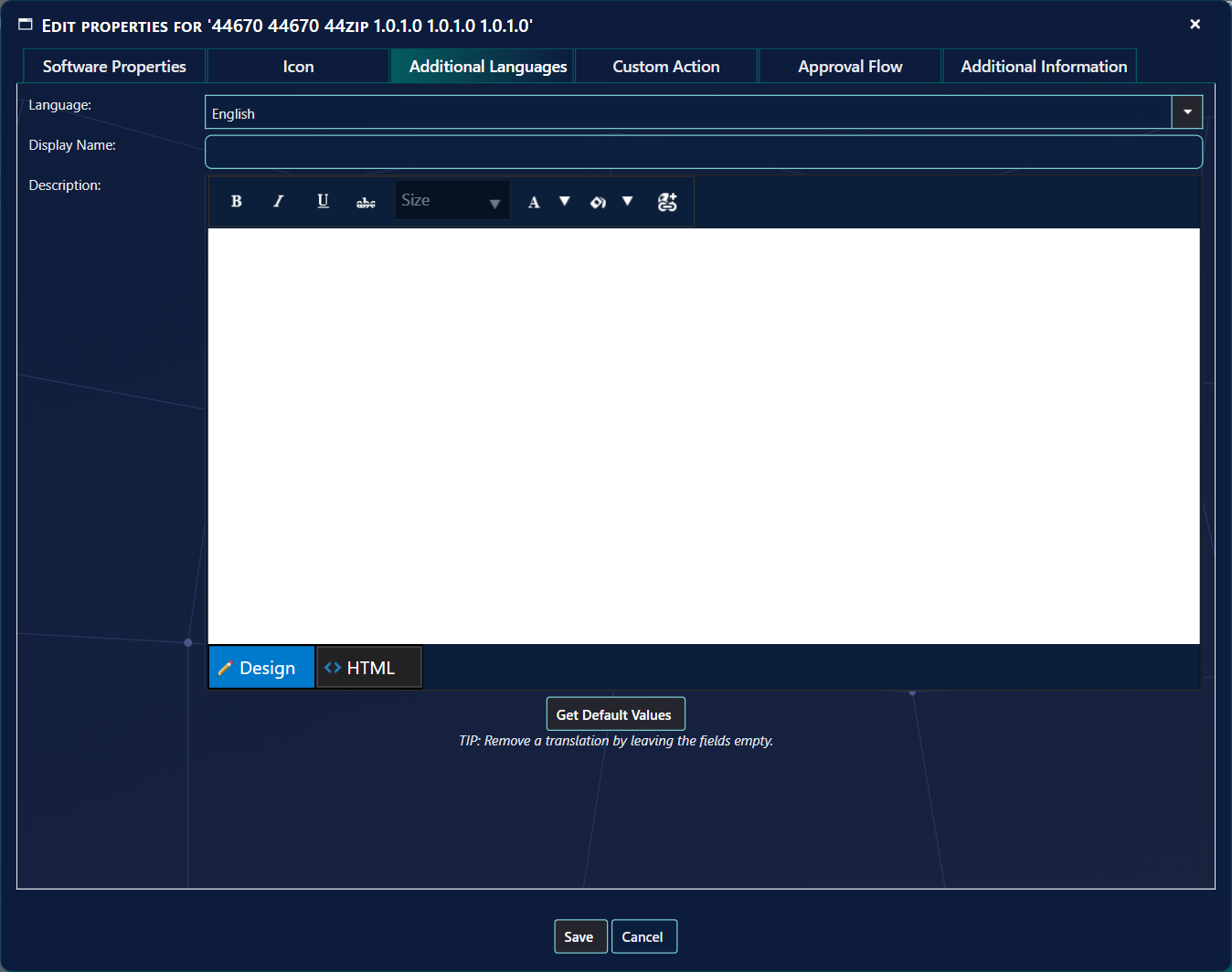
Choose a language and write the name and description in it. A shopper whose language is empty sees the default text. Get Default Values copies the default text in as a starting point.
7 The other tabs
| Tab | See |
|---|---|
| Custom Action | Scripts that run when the application is ordered, approved or declined — Custom Actions. |
| Approval Flow | Who approves — Approval Flow. |
| Additional Information | Contacts (super users, support, prime contact, technical know-how, application owner), administrator comments that are never shown in the shop, search tags and your own info fields — Preparing applications. |
8 Best practice
- Give every item a Friendly Name and a Short Description, so shoppers recognise it without the SCCM package name.
- Tick Install only when an item is ready: an item without it is not in the shop at all, and ticking it saves at once.
- Remember that Install alone does not show the item to everybody. Check Available to or the package security group as well.
- Use Application life cycle to take an item out of use without deleting it: Maintenance and Inactive items are shown but cannot be ordered.
- Use small, square icons. When Analyze shop settings is on under Settings › General Settings › Maintenance, SoftwareCentral offers to shrink large images, and keeps a zipped backup of the originals in the Uploads folder.
- Click Save in Edit properties: nothing in the window is stored until you do, and only the tabs your security role shows can be changed.
9 Troubleshooting
| Symptom | Cause | What to do |
|---|---|---|
| “This user does not have a mail address registered in Entra ID.” is shown when you add an approver. | Approvers are read from Entra ID, and the user you chose has no mail address there, so the approver cannot be added. | Add a mail address to the user in Entra ID, or choose another approver. |
| The Software Properties and Icon tabs are missing. | Your security role has no right to view or change software properties, so the tabs are hidden. | Ask your SoftwareCentral administrator to give your role the right you need. |
| The fields in Software Properties are greyed out and there is no Save button. | Your role can view the software but cannot change it. The Save button is hidden when your role cannot change any tab. | Ask your administrator to give your role the right to change the tabs you need. |
| Install Allowed or Uninstall Allowed is greyed out. | Your security role does not have the right to edit install and uninstall permissions. | Ask your administrator for that right, or ask them to make the change. |
| You want a lease longer than 24 months, or shorter than 1 month. | A lease can only be set from 1 to 24 months. | Choose a period from 1 to 24 months. |
| “Are you sure you want to overwrite the approval flow for n packages?” appears when you click Save. | Replicate Approval Flow is set, so the approval flow is copied to the other selected packages and replaces the flow they have now. | Click Cancel to stop the copy. Click OK only if every selected package should get this approval flow. |