1 The form
Click Install on the program. Order details opens with the questions your IT department has set up for it. Answer them and click Add to basket.
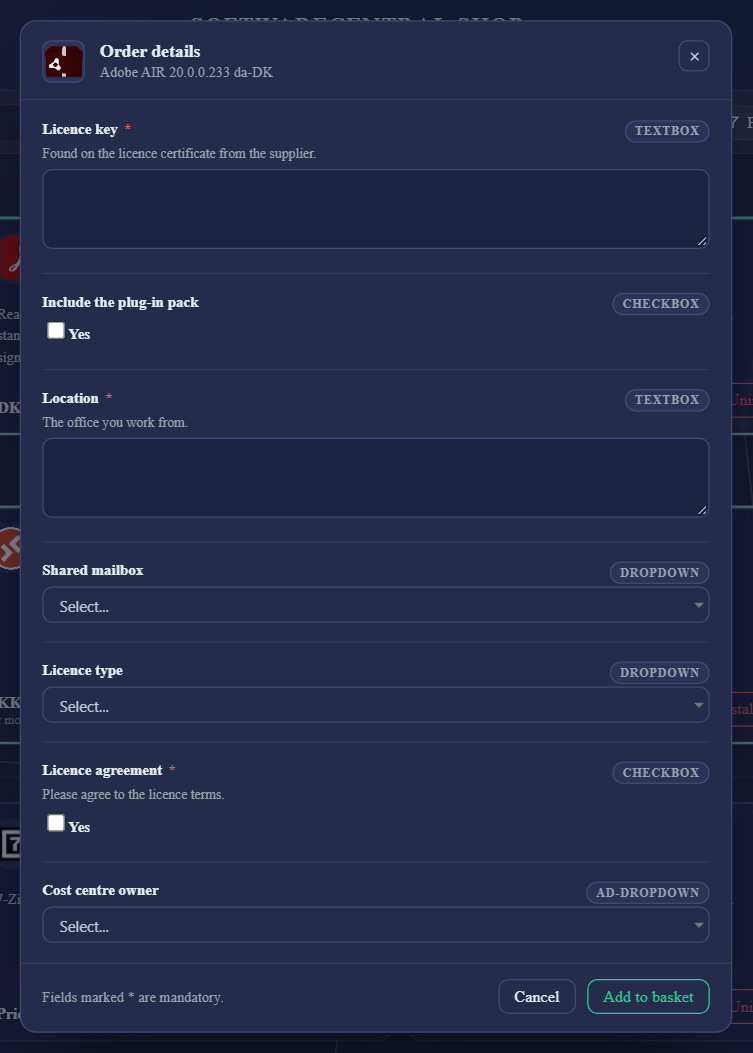
Each field has a name, often a short explanation under it, and a small tag on the right that says what kind of field it is.
Fields marked with a red * are required; the others you can leave empty.
Nothing is ordered yet when you click Add to basket: the program and your answers wait in the basket until you check out. Cancel or × closes the form without adding anything.
Your answers go with the order to the approvers, who see them under Show details.
2 Kinds of fields
| Tag | How you answer |
|---|---|
| TextBox | Type the answer. Some fields need a certain number of characters, such as a licence key; the form tells you if yours is too short. |
| CheckBox | Tick Yes. A required tick box, such as a licence agreement, must be ticked before you can order. |
| DropDown | Pick from a list. Start typing to narrow it; the list shows the entries that contain what you type. |
| AD-DropDown, SCCM-User-DropDown | Pick a person. Type part of the name to find them. |
| Office365-DropDown | Pick from your organisation's Microsoft 365, for example a mailbox or a group. |
| ComputerTemplate | Pick a computer template, when you order a new computer. |
| OU | Pick a place in the organisation's directory from a tree. Expand a branch to go deeper. |
| DropDownScript | Pick from a list your IT department fetches for you when the form opens. |
3 When something is missing
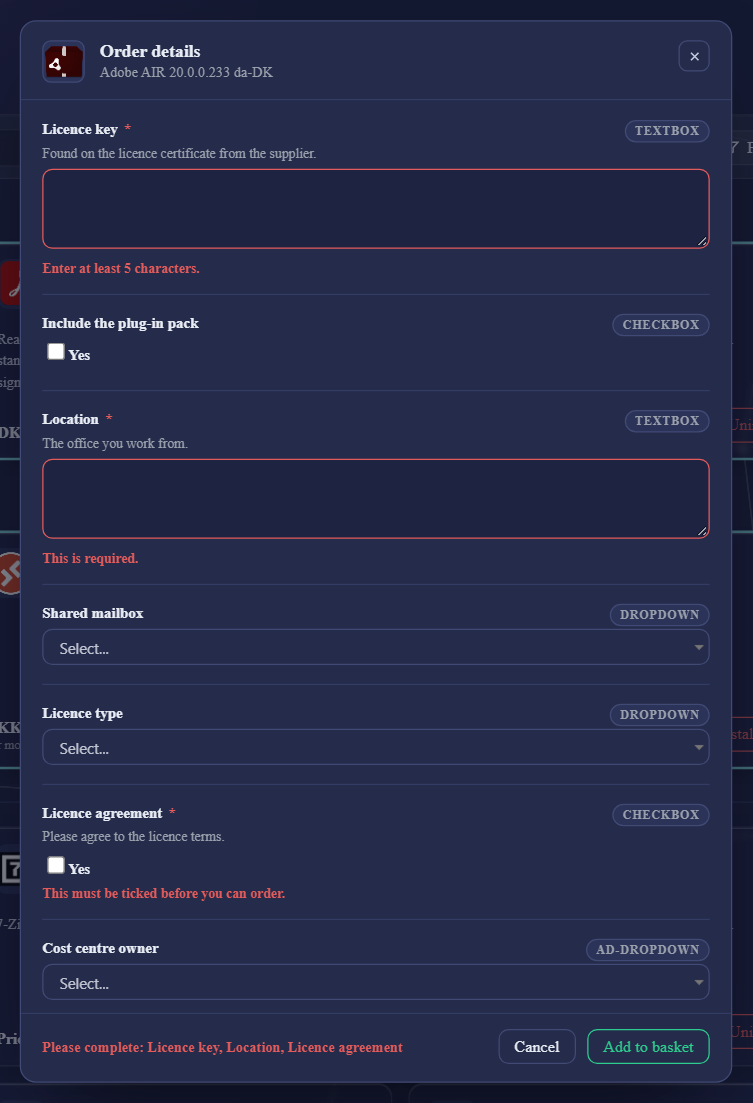
If you click Add to basket before everything is in place, the form stays open. The bottom line lists what to fix, for example Please complete: Licence key, Location, Licence agreement, and each field says what it needs:
| Message | Fix |
|---|---|
| This is required. | Fill in the field. |
| Enter at least n characters. | The answer is too short. |
| Enter exactly n characters. | The answer must have that exact length. |
| This must be ticked before you can order. | Tick Yes. |
The red mark disappears as soon as you change the field.
4 After you have added it
| When | What you can do |
|---|---|
| Before you check out | Open the basket and click Edit order details under the program. The form opens with your answers; change them and click Add to basket again. |
| After you have checked out | The answers are part of the order and cannot be changed. |
| An approver sends it back | The program returns to your basket with the approver's message. Click Edit order details, change what was asked for, and check out again. See When an order is sent back. |