1 Package Security Group
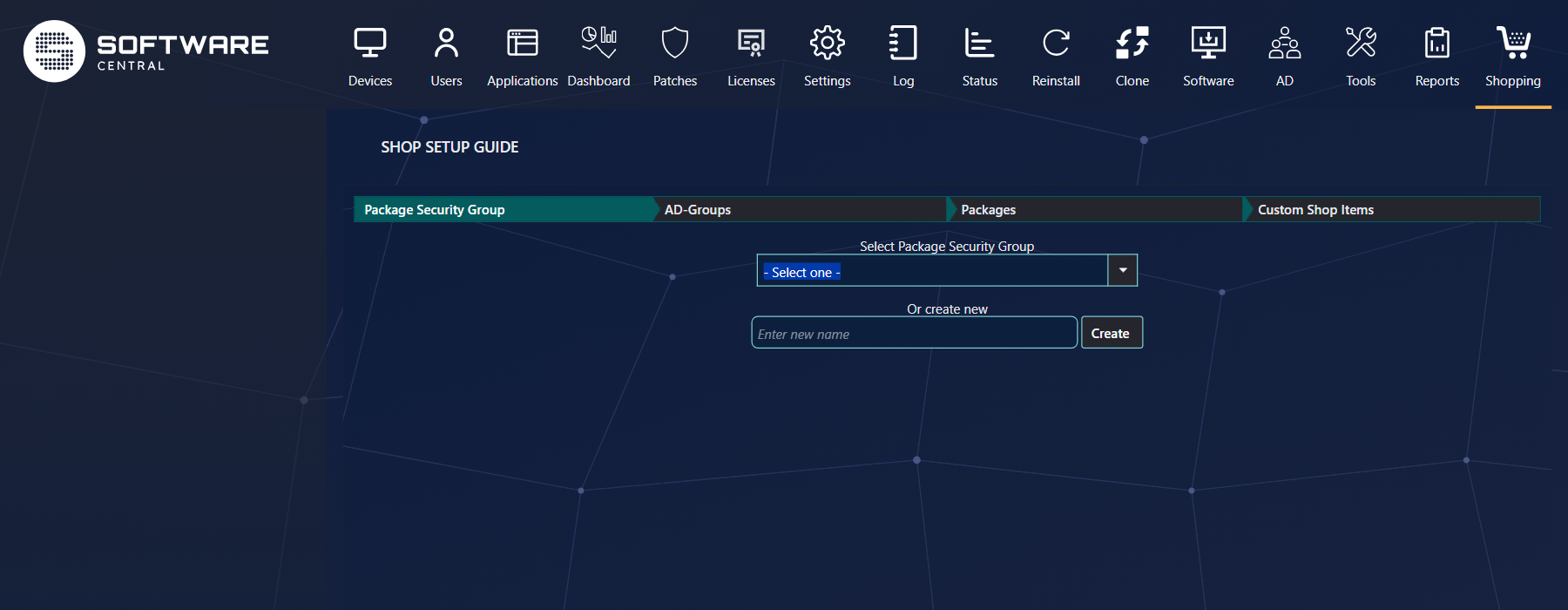
Choose an existing package security group to change it, or type a name under Or create new and click
Create. Start the name with SHOPPING - to make the group affect only the shop. After you choose or
create a group, the guide moves on to step 2 by itself. With several sites or Intune tenants, choose the site or tenant
at the top first.
2 AD-Groups and collections
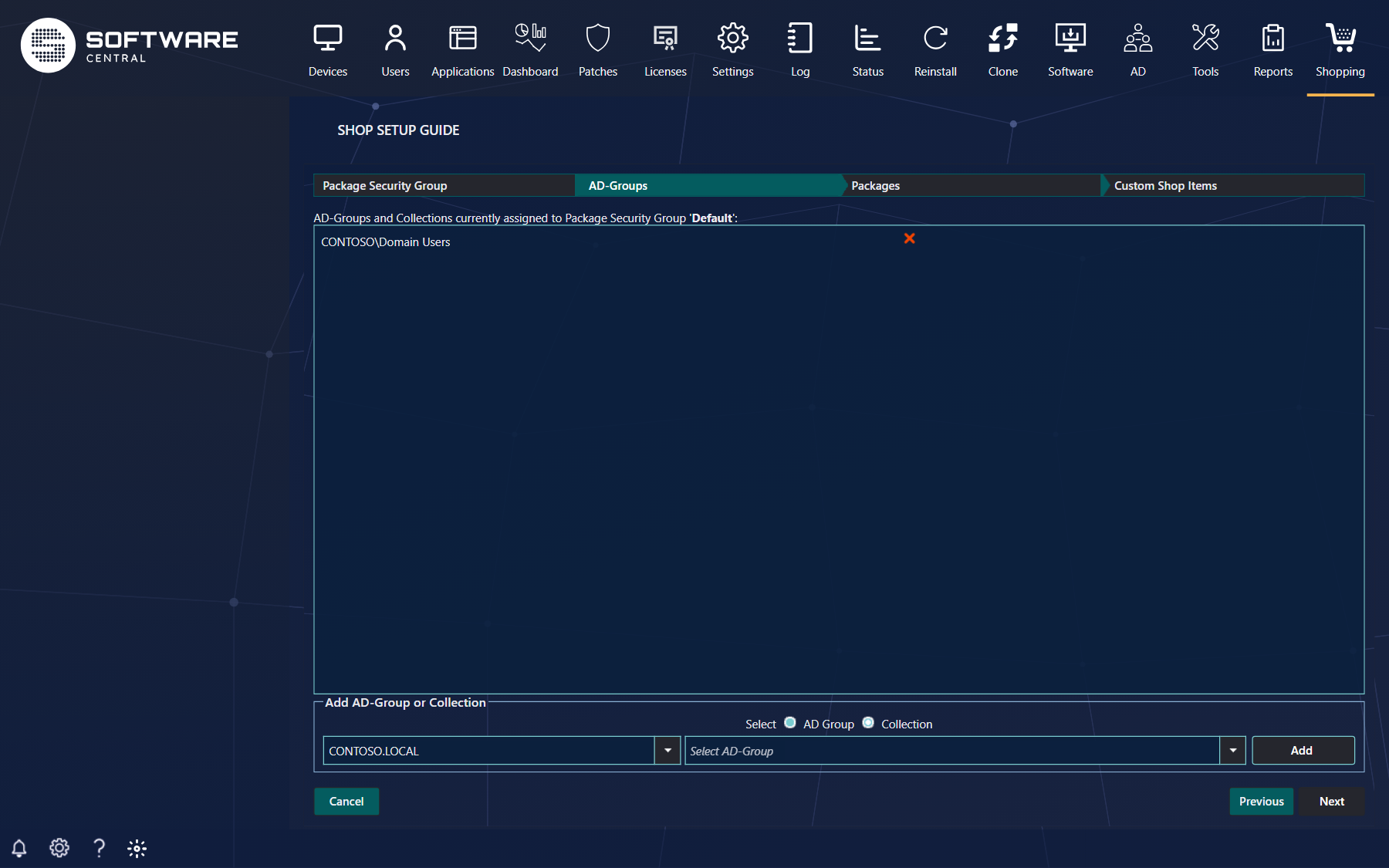
Choose AD Group, pick the domain and the group, and click Add — or choose Collection and pick a user collection. Add as many as you need; a group can be in several package security groups. The red × removes one. Adding and removing take effect at once. Then click Next, or the Packages step at the top.
3 Packages
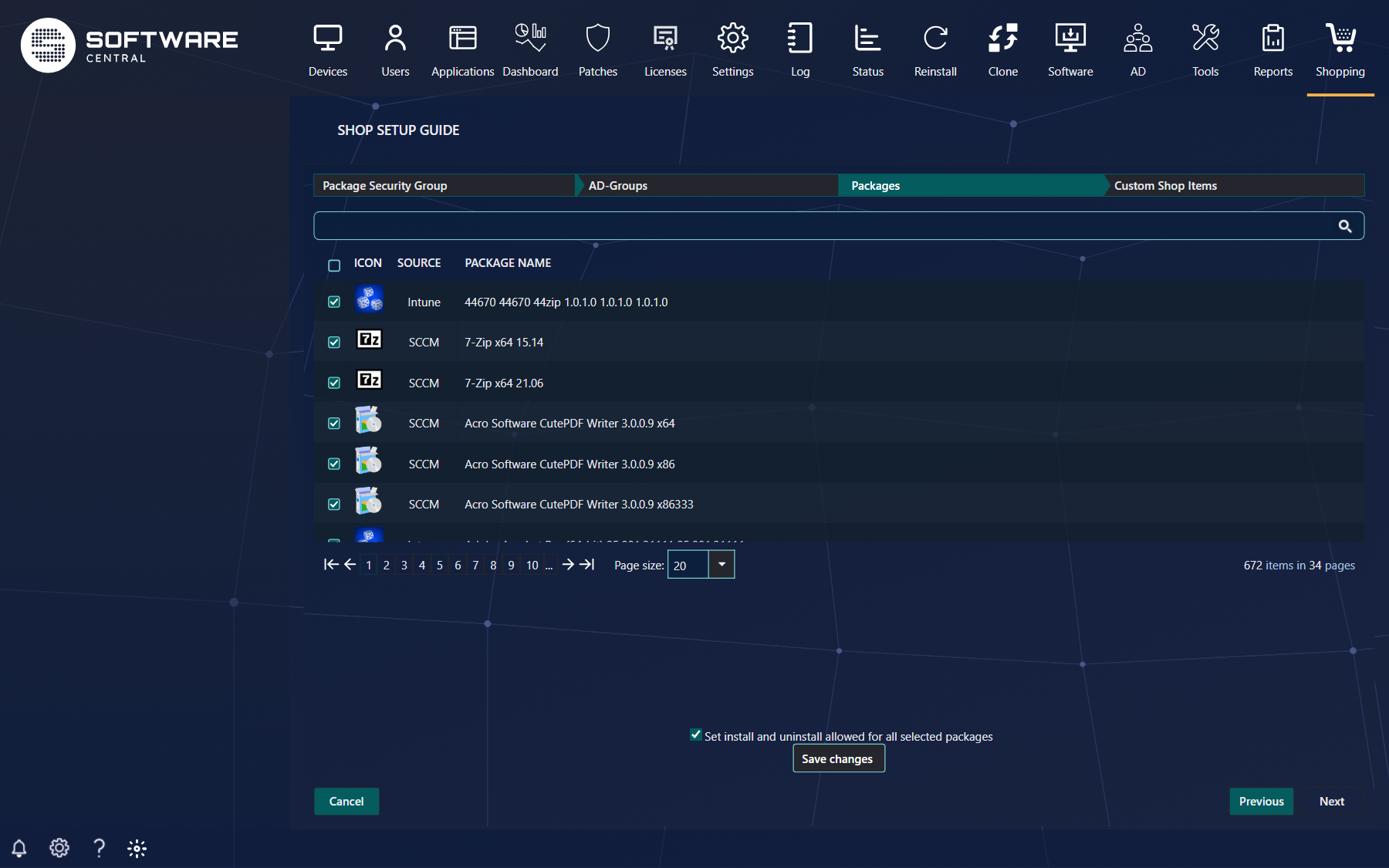
Tick the packages and applications — search to find them; the ticks are kept while you search and page. Tick Set install and uninstall allowed for all selected packages so shoppers can install and uninstall them. If you have no custom shop items, click Save changes; otherwise continue to step 4.
4 Custom Shop Items
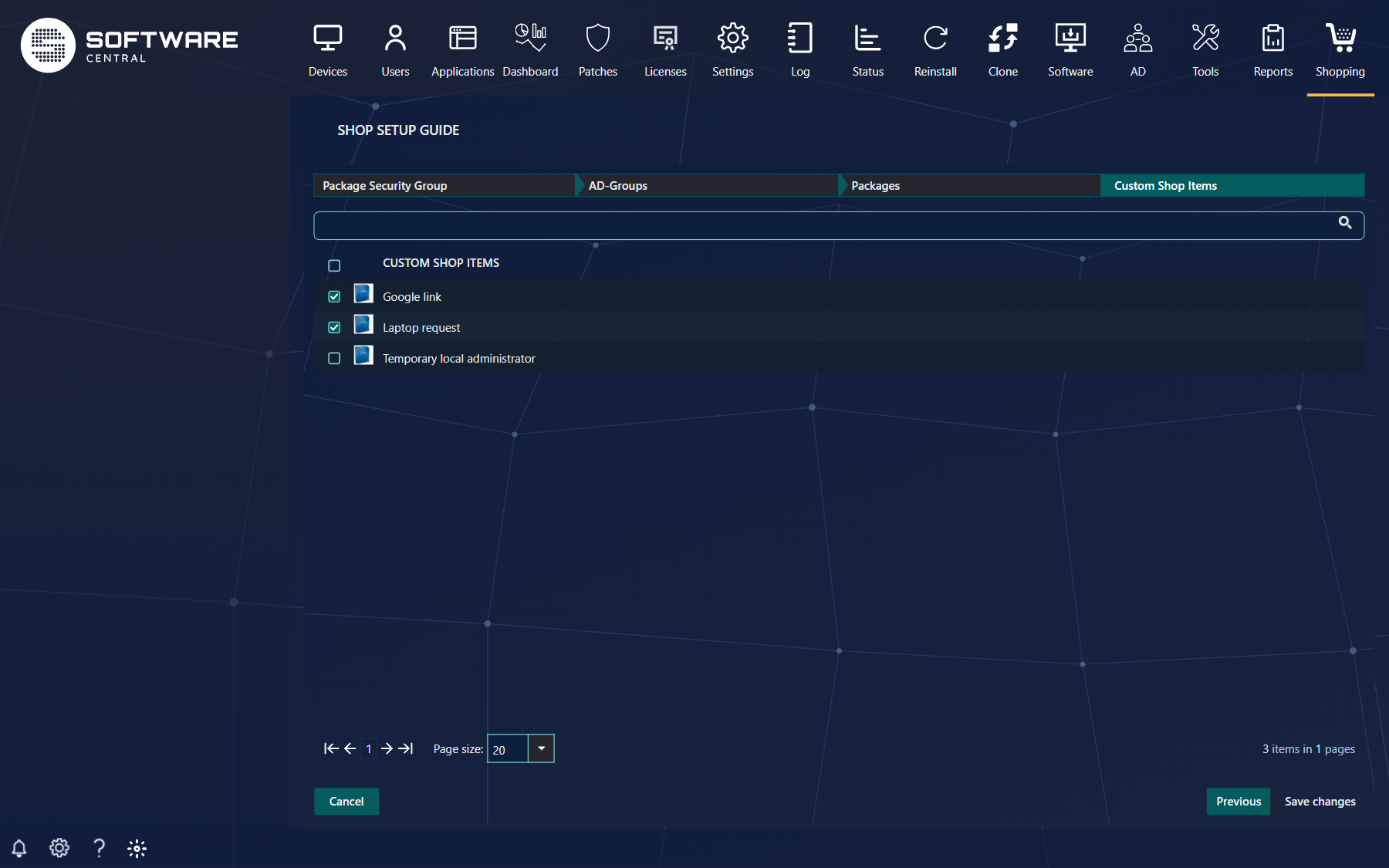
Tick the custom shop items the group may order, and click Save changes.
5 Changing it later
Run the guide again whenever you want to change who may order what: choose the group in step 1 and work through the steps. Package security groups can also be managed on their own in Package Security Groups. Cancel leaves the guide without saving what you ticked.
6 Best practice
- Choose or create the Package Security Group first. The later steps do not open until a group has been chosen.
- Keep Set install and uninstall allowed for all selected packages ticked if shoppers should install and uninstall the packages you select. The box is ticked by default.
7 Troubleshooting
| Symptom | Cause | What to do |
|---|---|---|
| “Please enter a name.” | You clicked Create with the box under Or create new empty. | Type a name in the box, then click Create. |
| “A Package Security Group with this name already exists.” | The name is already used by another group. | Choose the existing group in the list, or type a different name. |
| “Please select or create a Package Security Group.” | The guide was moved to a later step before a group was chosen. | Choose or create the group in step 1, then continue. |