1 The settings
Every row of the Shop and New Shop tabs — what it does, its default, and which settings only the classic shop uses — is described in New shop settings. Click Save Settings after changing them.
The three editors below each have a language choice at the top: write the text in each language you need; English is used where a language is empty.
2 Left-menu text
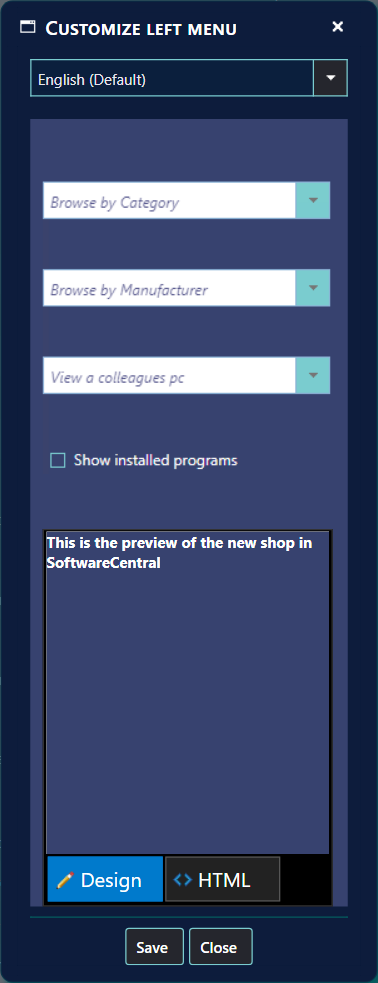
Customize left menu opens an editor that looks like the classic shop's left menu. Type the text under the filters, or switch to HTML for links, lists and images — see HTML in descriptions. Large content can slow the shop down.
In the new shop this text is shown as a message from IT, but only while there are no shop messages.
3 Button texts
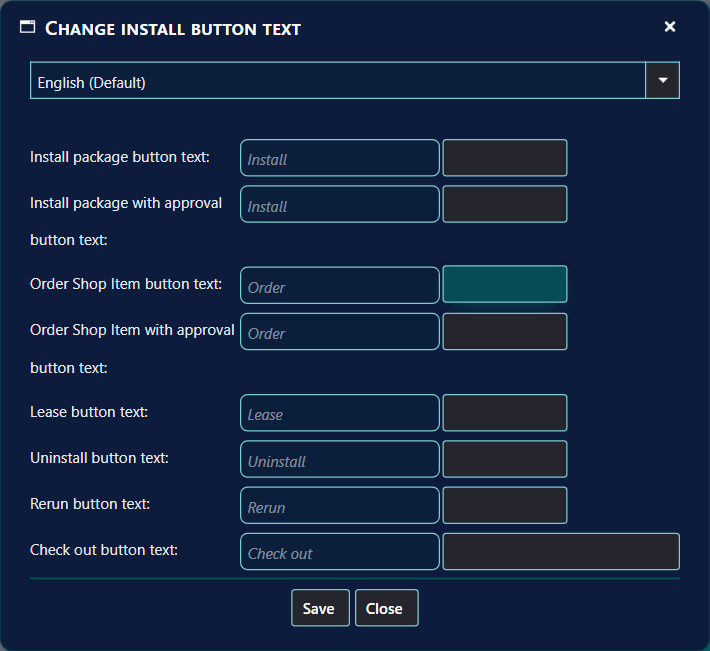
Change install button text sets your own words for the buttons in both shops, with a preview of each:
- Install, and Install for applications that need approval
- Order, and Order with approval, for custom shop items
- Lease, Uninstall and Rerun (reinstall or repair)
- Check out
Leave a field empty to keep the standard text.
4 Check-out message
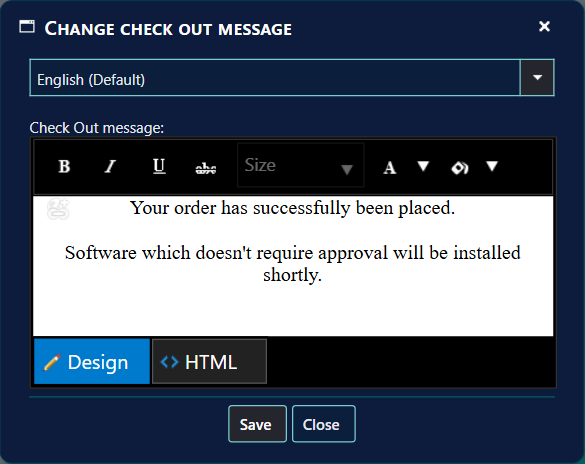
Change check out message sets the text shoppers see after checking out, for example Your order has been placed. Software that does not need approval will be installed shortly. Both shops show it.
5 Best practice
- Write the English text first. A language that has no text of its own shows the English (en-GB) text in the shop.
- Use the preview. The button text window shows each button as you type, so you can see how the text fits.
6 Troubleshooting
| Symptom | Cause | What to do |
|---|---|---|
| The shop still shows the old button or menu text. | The shop keeps the button texts for the session it was opened in. | Open the shop again in a new browser session, for example in a private window. |
| The shop shows English text in one language. | No text was entered for that language, so the English text is used. | Choose the language at the top of the editor, type the text, and save. |