1 The New Shop tab
Everything here applies only to the new shop, its approvals page and My Account.
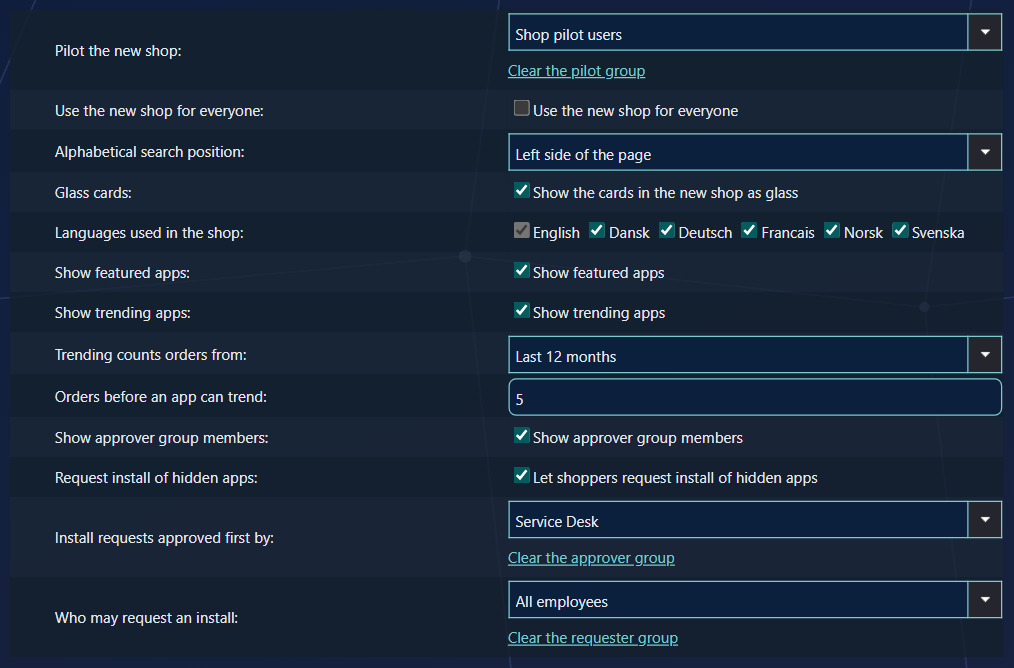
| Setting | Default | What it does |
|---|---|---|
| Pilot the new shop | No group | Members of this group get the new shop at the usual addresses. See Rolling out. Clear the pilot group removes it. |
| Use the new shop for everyone | Off | Everyone gets the new shop; the pilot group no longer matters. |
| Alphabetical search position | Left side of the page | Where the A–Z letters are: a column down the left, or centred or left-aligned under the search box. On a narrow screen the column moves under the search box. The letters themselves are switched on with Show Alphabetical Search on the Shop tab. |
| Glass cards | On | Translucent cards. Only Chrome and Edge can draw them; other browsers show the normal card. |
| Languages used in the shop | All six | The languages shoppers can choose, and the languages you write search tags in. English cannot be switched off. Switching a language off deletes no text. With one language, the language choice is hidden. |
| Show featured apps | On | The Featured shelf. Switching it off also hides the Feature this item option in the applications' shop settings. |
| Show trending apps | On | The Trending shelf: the software ordered most in your organisation. |
| Trending counts orders from | Last month | How far back Trending counts: the last month, 3 months or 12 months. |
| Orders before an app can trend | 5 | The minimum number of orders before an application can appear on Trending. It protects shoppers' privacy: the lower it is, the easier it is to guess one person's order. In a quiet shop, choose a longer period rather than a lower number. |
| Show approver group members | On | Lets requesters see who is in an approver group, in the shop and in My Account. The approvals page always shows members. |
| Request install of hidden apps | Off | The install-request feature. It only works when both groups below are set. |
| Install requests approved first by | No group | The team that decides install requests first. |
| Who may request an install | No group | The shoppers who may send install requests. No group means nobody. |
2 Shop tab: look and layout
| Setting | In the new shop |
|---|---|
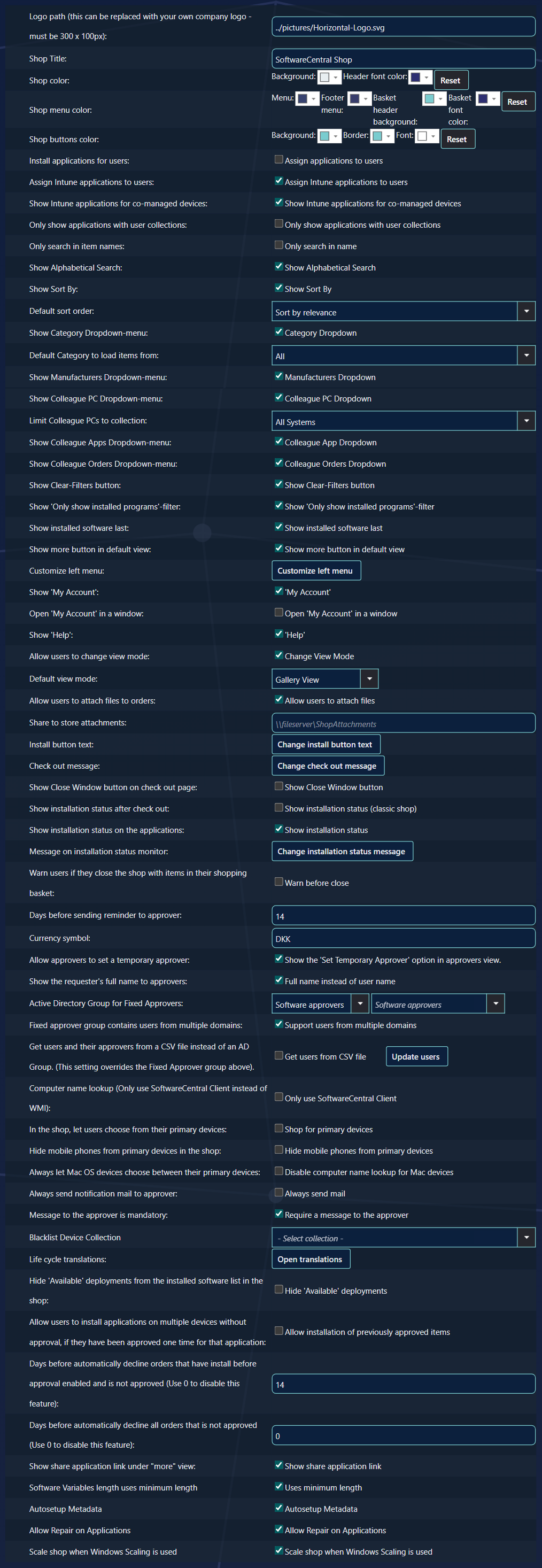
| Logo path | The logo on the shop, the approvals page and My Account. A colour theme can have its own logo. |
| Shop Title | The title in the header and the browser tab. |
| Show Alphabetical Search | Shows the A–Z letters; their position is on the New Shop tab. |
| Allow users to change view mode | Shows the three view buttons. |
| Default view mode | The view the shop opens in. Shoppers can change it, but each visit starts here. |
| Show 'Help' | The ? button that opens the user guide. |
| Show 'My Account' | Makes the shopper's name a link to My Account. |
| Open 'My Account' in a window | Opens My Account on top of the shop instead of in a new tab. |
| Show more button in default view | The Details button in the list view. |
| Customize left menu | The old single message. The new shop shows it only when there are no messages in Manage Shop Messages. |
3 Shop tab: the catalogue
| Setting | In the new shop |
|---|---|
| Install applications for users, Assign Intune applications to users | Offers applications assigned to the user, not only to the device. |
| Show Intune applications for co-managed devices | Offers Intune applications on co-managed devices. |
| Only show applications with user collections | Limits the catalogue to applications deployed to user collections. |
| Only search in item names | Search looks at names, search tags and searchable info fields, not at the publisher and description. |
| Show Sort By, Default sort order | The Order by button, and the order the shop starts in. |
| Show Category Dropdown, Default Category | The category filter, and the category the shop opens with. |
| Show Manufacturers Dropdown | The publisher filter. |
| Show Colleague PC, Colleague Apps, Colleague Orders | The three View a colleague's … choices in the Filters panel. Limit Colleague PCs to collection narrows the PC list. |
| Show Clear-Filters button | Clear all filters in the Filters panel. |
| Show 'Only show installed programs'-filter | The Show installed programs filter. |
| Show installed software last | Puts installed programs after the rest. |
| Show installation status on the applications | What the device reported — Installed, Failed, Pending — on the cards and in the details. On by default. |
| Hide 'Available' deployments | Leaves available deployments out of the installed software. |
| Blacklist Device Collection | Devices in this collection cannot open the shop. |
4 Shop tab: ordering
| Setting | In the new shop |
|---|---|
| Install button text | Your own words for Install, Uninstall, Lease, Reinstall and the other buttons, per language, with separate texts for applications that need approval. |
| Check out message | The message on the page shoppers see after checking out. |
| Allow users to attach files, Share to store attachments | The paper clip in the basket, and the share the files are saved to. Files are kept only for orders that need approval. |
| Warn before close | Warns shoppers who leave the shop with programs in the basket. |
| Currency symbol | The currency on every price. |
| Message to the approver is mandatory | Shoppers must write a message for every program that needs approval before they can check out. |
| Software Variables length uses minimum length | A text field in the order details with a length needs at least that many characters instead of exactly that many. |
| Allow Repair on Applications | Offers Repair for applications that have a repair command. |
| Show share application link | The Link to this item row, with a Copy button, in the details. |
5 Shop tab: approvals
| Setting | In the new shop |
|---|---|
| Days before sending reminder to approver | When an approver is reminded of an order still waiting. |
| Allow approvers to set a temporary approver | The temporary-approver button on the approvals page. |
| Show the requester's full name to approvers | Approvers see full names instead of user names. |
| Active Directory Group for Fixed Approvers and the CSV option | Where approvers and their users come from. |
| Always send notification mail to approver | Normally an approver who has already been mailed about orders that are still waiting is not mailed again for new ones. With this on, every order sends a mail. |
| Allow installation of previously approved items | A shopper approved for an application before is not asked again. |
| Days before automatically declining (two settings) | Declines orders nobody decided: those installed before approval, and all others. 0 switches it off. |
6 Shop tab: the device
| Setting | In the new shop |
|---|---|
| Computer name lookup (Only use SoftwareCentral Client) | The device must come from the SoftwareCentral client; the shop does not look the computer up on the network. |
| Shop for primary devices | Shoppers choose between their primary devices in Configuration Manager and Intune. |
| Hide mobile phones from primary devices | Leaves phones out of that choice. |
| Always let Mac OS devices choose between their primary devices | Macs always get the choice of primary devices. |
See The SoftwareCentral client and Setting up the client, and Your device for what shoppers see.
7 Not used by the new shop
These settings belong to the classic shop and change nothing in the new one:
- Shop color, Shop menu color, Shop buttons color — the new shop's colours come from the Shop Designer.
- Show Close Window button on check out page.
- Show installation status after check out (classic shop) and its message — the new shop's confirmation page always lists the status of each program.
- Scale shop when Windows Scaling is used.
8 Best practice
- Require a message to the approver where approval matters. With Require a message to the approver ticked, shoppers must write a message before they can check out an item that needs approval.
- Set both auto-decline days on purpose. One box covers orders for programs installed before approval that are still not approved; the other covers all other orders that are not approved. 0 switches each one off.
- Enter the reminder in whole days. A value that is not a whole number is not saved; see the troubleshooting table.
9 Troubleshooting
| Symptom | Cause | What to do |
|---|---|---|
| “Failed to save 'Days before sending reminder to approver' - it must be a number” in the log, and the reminder keeps its old value. | The box does not hold a whole number. The other settings on the page are still saved. | Type a whole number of days, click Save Settings, and check the Log if the value still does not change. |
| Orders that nobody approved are no longer declined after the days you set. | One of the auto-decline boxes is empty or 0. An empty box is saved as 0, and 0 switches that feature off. | Enter the number of days in the box and click Save Settings. Use 0 only if you want the feature off. |
| Shoppers can check out an item that needs approval without writing a message. | Require a message to the approver is not ticked. | Tick Require a message to the approver and click Save Settings. |