1 Open the window
The window is the same whichever way you open it:
| You open it from… | It is used to… |
|---|---|
| A tile on the Robopack page | Import an application from the catalogue. The title shows the application and version, for example Import 7-Zip 26.05. |
| Update available on a downloaded application | Import the newer version that Robopack has. |
| An application found by Radar | Import an application that was found on your devices. |
| A Patch Flow on the Flows page | Change the settings of that flow. The window opens with the flow’s settings. |
2 The window at a glance
The window has a header with the application and its publisher, two tabs (Overview and Settings), and Use the settings from at the top right. The buttons are at the bottom.
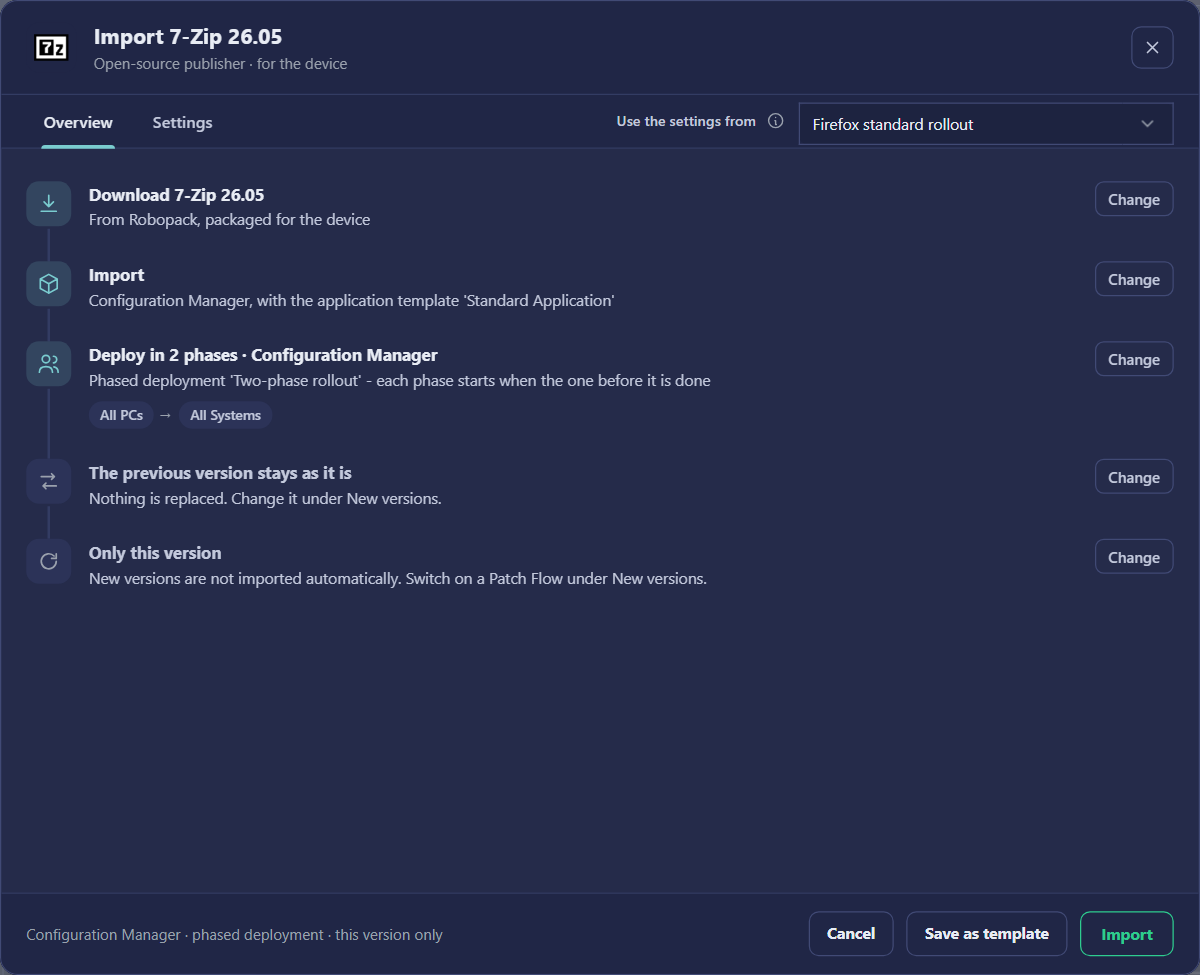
| Element | What it does |
|---|---|
| Use the settings from | The Robopack template that fills in every setting. Choose another template to start again from it. Change any part under Settings before you import. |
| Overview / Settings | The summary of what will happen, and the choices themselves. |
| Cancel | Closes the window without changing anything. |
| Save as template | Keeps the settings as a new Robopack template. See Import, Save as template, Cancel. |
| Import | Starts the import with the settings shown. See What happens when you click Import. |
3 Overview
The Overview says in plain words what will happen. Each line has a Change button that opens the matching part of the Settings tab:
| Line | Example, and what it means |
|---|---|
| Download | Download 7-Zip 26.05 — From Robopack, packaged for the device. The version and the scope. |
| Import | Configuration Manager, with the application template ‘Standard Application’. One line per place the application goes to. |
| Deploy in N phases | Phased deployment ‘Two-phase rollout’ — each phase starts when the one before it is done. The phases are shown as chips. |
| The previous version | Either stays as it is (nothing is replaced) or what will be replaced. |
| New versions | Only this version (no Patch Flow), or the Patch Flow that imports every new version. |
4 Settings
The Settings tab holds the same choices in three numbered parts. Each part has a Change button that opens it, and Collapse closes it again. The sentence under each title always describes the current choice.
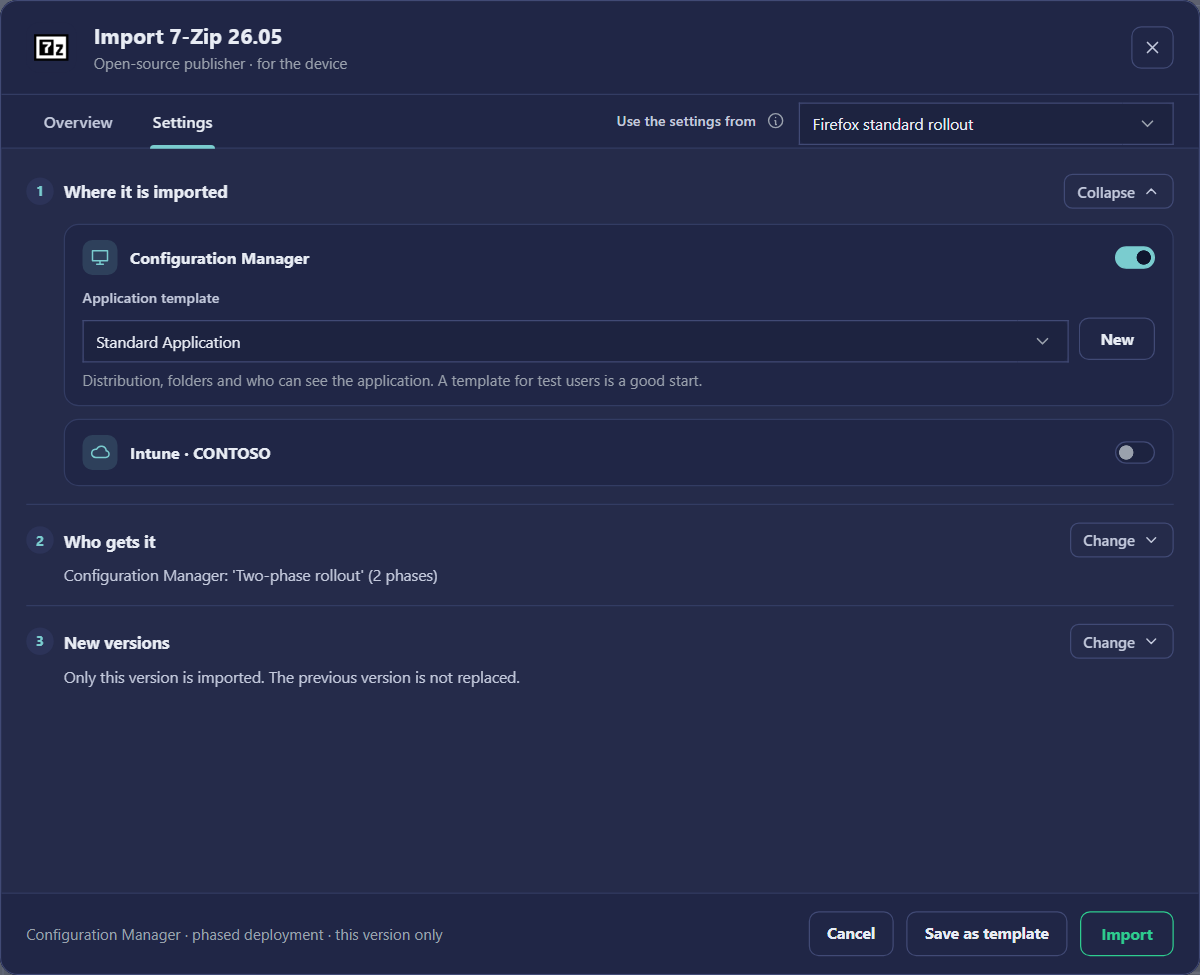
5 Part 1 – Where it is imported
| Setting | What it does |
|---|---|
| Use WinGet | Shown when the application is both a WinGet package and a Microsoft Store app. On (the default) downloads the WinGet version; off takes the Store version. |
| Configuration Manager switch and Application template | Turn the import to Configuration Manager on or off. The application template is the one that creates the application (distribution, deployment types, security group). Use New to create one. Use a template whose security group is only available to testers. |
| Intune · tenant switch, Application template and scope | One card per Intune tenant. Turn it on to import to that tenant, then choose its application template. The scope is The device (machine) or The user. |
6 Part 2 – Who gets it
Who receives the application, through a phased deployment: a few devices first, then the rest, and each phase only starts when the one before it has succeeded. The phases themselves, their success criteria, notifications and approvals are set in the phased deployment template. See Phased deployments.
| Setting | What it does |
|---|---|
| Phased deployment template (Configuration Manager and Intune) | The template for the phases. Use New to create one. The Overview shows the phases as chips, for example All PCs → All Systems. |
| Remove the devices from the previous version’s install collection (or install group) | When a device receives the new version, it is removed from the old version’s collection or group, so it does not keep the old one. |
| Only devices in | Only devices that are also members of one of the previous versions’ collections or groups take part. Devices that already had the application are the ones that are upgraded. |
| Only devices with the program | Only devices that have this program installed, as seen in Configuration Manager or Intune. Type the program name (for example firefox.exe) or use Browse to pick it from a device. |
| Permanent collection (Configuration Manager) | Devices that were added directly to the previous version’s collection (for example with Assign Software) are also added to this collection for every new version. Use it as the source of a phase. If it no longer exists, the step is skipped and the log has a warning. |
7 Limit which devices a phase gets
A phase normally gets every device in its collection (Configuration Manager) or group (Intune). The More options: limit devices panels in part 2 narrow that down. When you switch a limit on, a device in the phase’s collection or group is kept only if it passes at least one of the limits. A limit never adds a device that is outside the phase’s own collection or group.
Where the options are
Open the import window, go to Settings, and open part 2 Who gets it with Change. Each system has its own card, and each card has its own More options: limit devices panel.
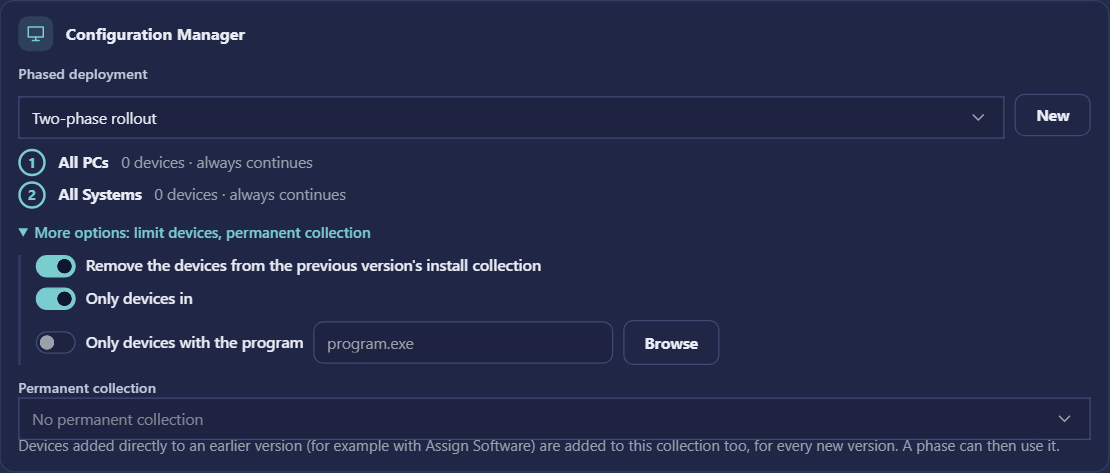
The options
| Option | Applies to | What it does |
|---|---|---|
| Remove the devices from the previous version’s install collection (Intune: install group) | Both | When a device receives the new version, it is removed from the previous version’s install collection or group. It does not decide which devices are kept. |
| Only devices in (with a collection or group chosen) | Both | Keeps a device that is a member of the chosen collection or group. When the switch is on, a device in the install collection (Configuration Manager) or in a Required or Available assignment group (Intune) of any earlier version of this application imported from Robopack is kept too. |
| Only devices with the program (with a program name, or Browse) | Both | Keeps a device that has this program. The name is matched against the programs that Configuration Manager or Intune has found on the device. See The program name. |
| Permanent collection | Configuration Manager | Devices added directly to an earlier version (for example with Assign Software) are added to this collection for every new version. A phase can then use it as its source. This is not a limit; it is a collection that follows the application. |
How a device is decided
The same rule applies to every device in the phase’s collection or group. Read the diagram from the top.
the program name matches (Only devices with the program)
a member of the Only devices in collection or group
only when Only devices in is on
A device outside the phase’s collection or group is never added, whatever the options say.
“Has the program?” reads the programs in Add/Remove Programs from the inventory that Configuration Manager’s clients last reported.
“Has the program?” reads the apps Intune has discovered on the devices, as last reported to Intune.
A worked example
The phase is Production devices (Configuration Manager). Two limits are on: Only devices with the program Mozilla Firefox%, and Only devices in Pilot devices. The earlier version’s install collection is Firefox 127 install, so it is included by the Only devices in switch.
| Device | Has a program starting with Mozilla Firefox? | In Pilot devices? | In Firefox 127 install? | Kept? |
|---|---|---|---|---|
LAPTOP-0142 | Yes (Mozilla Firefox 128.0) | No | No | Kept: it has the program. |
DESKTOP-2231 | No | Yes | No | Kept: it is in the chosen collection, even without the program. |
PC-EXAMPLE-03 | No | No | Yes | Kept: it is in the earlier version’s install collection. |
PC-EXAMPLE-04 | No | No | No | Not kept: none of the three is true. |
All four devices are members of Production devices, so all four are candidates. The limits decide which of them stay.
The program name
The text you type after Only devices with the program is matched against a list of program names. Where that list comes from depends on the system:
Configuration Manager
The name is matched against the program names in Add/Remove Programs, as Configuration Manager’s hardware inventory reports them (the SCCM database view v_Add_Remove_Programs, column DisplayName0).
The data is only as fresh as the clients’ last hardware inventory.
Browse: choose a device. The window lists that device’s installed programs. Pick one and its name is filled in and the switch is turned on.
Intune
The name is matched against the apps that Intune has discovered on the devices.
The data is only as fresh as the devices’ last report to Intune.
Browse: the window lists all of Intune’s discovered apps. Pick one and its name is filled in and the switch is turned on.
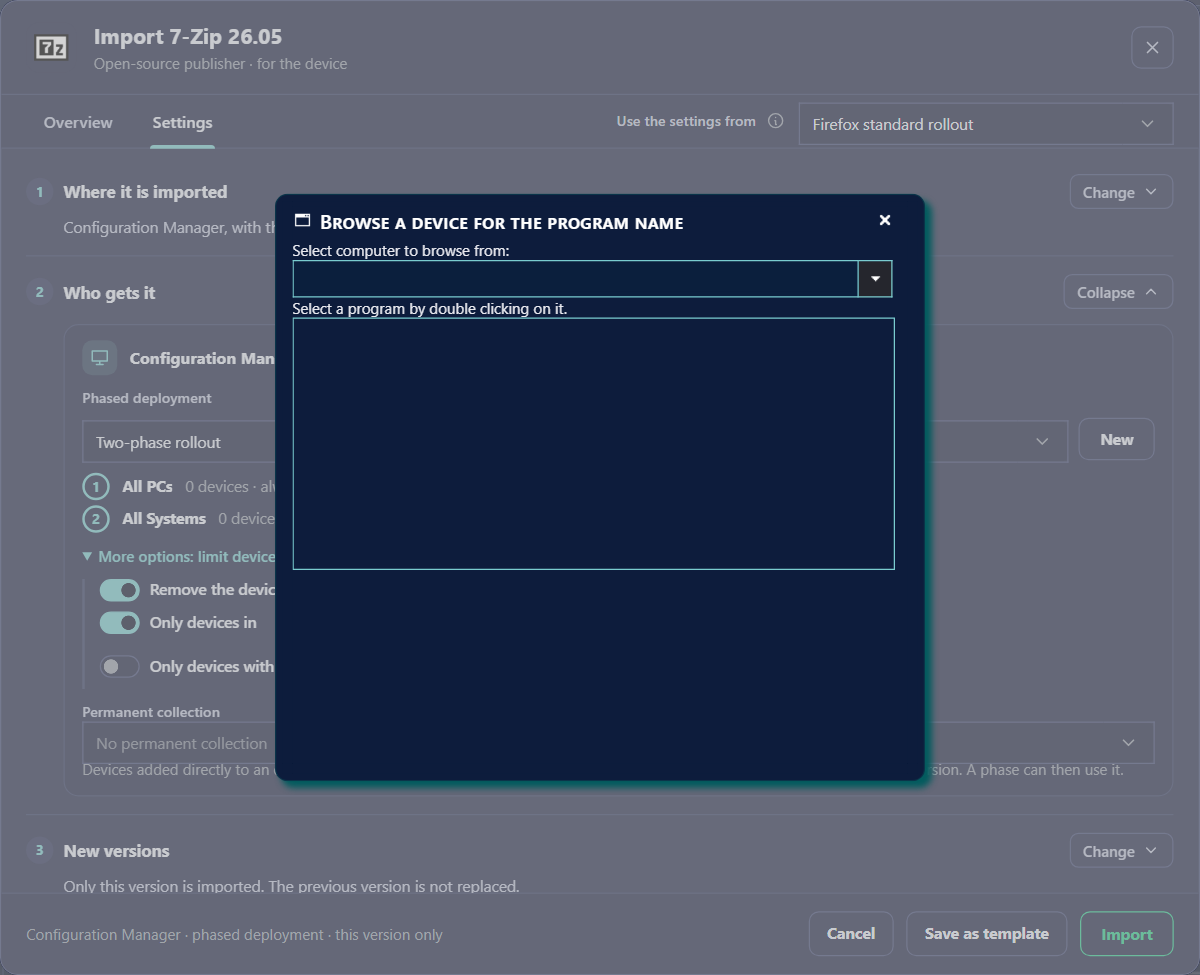
program.exe, but that is only a hint. What you enter is the program’s display name as it appears in Add/Remove Programs or in Intune, not the name of an .exe file. Use Browse if you are not sure of the exact name.
| You type | Configuration Manager | Intune |
|---|---|---|
Mozilla Firefox (x64 en-US) | Matches only a program whose display name is exactly this text. | Matches only the discovered app with exactly this name. Case does not matter. |
Mozilla Firefox% | Matches any program whose name begins with Mozilla Firefox. | Matches any discovered app whose name begins with Mozilla Firefox. |
%Firefox% | Matches any program whose name contains Firefox. | Not supported. A % is only allowed at the end of an Intune name. |
When the limits are worked out
- The import window shows a device count for each phase with the limits you chose. This is a preview. Check it before you click Import.
- The count is worked out again when each phase starts, with the inventory as it is at that moment. A device that gets the program after the count was made is not counted for an earlier phase, but is included in a later phase once it has the program.
- If the limits leave a phase with no devices, that phase targets nobody. Check the preview counts for every phase.
Typical use
Mozilla Firefox%. The pilot and production collections then do not give Firefox to devices that never had it. Check the counts in the preview before you import.
8 Part 3 – New versions
What happens when a new version arrives. This part holds the Patch Flow switch and the replace settings.
| Setting | What it does |
|---|---|
| Keep it up to date: import new versions automatically (a Patch Flow) with Patch Flow name | The switch that creates a Patch Flow. SoftwareCentral then watches Robopack and imports every new version with the settings of this window. Type a name for the flow. Switch it off to import only this version. |
| Notice This is your own package in Robopack | Shown for an application you uploaded to Robopack yourself. Only this version is imported, and it does not replace an earlier one. |
| When a new version is imported to Configuration Manager | Replace settings for Configuration Manager: Replace the previous version (supersede), with Uninstall the previous version first under it; Move the devices to the new version’s install collection. |
| When a new version is imported to Intune | Replace settings for Intune: Replace the previous version (supersede), with Uninstall the previous version first under it. |
9 Import, Save as template, Cancel
| Button | What it does |
|---|---|
| Import | Starts the import with the settings shown. The text at the bottom left says where the application goes, for example Configuration Manager · phased deployment · this version only. |
| Save as template | Opens a bar: Also save these settings as a template named, with a name box and Cancel. The name is saved together with the import, as a new Robopack template. |
| Cancel | Closes the window. Nothing is imported or saved. |
10 What happens when you click Import
- SoftwareCentral stores a status entry for the application and a job for the SoftwareCentral Windows service.
- If you typed a Patch Flow name, the flow is saved and enabled. If you typed a template name, the template is saved.
- The service asks Robopack to prepare the package. A package that has not been prepared before can take a while; the service waits up to 15 minutes, then tries again later.
- The service downloads the package and imports it to Configuration Manager and/or each Intune tenant, creates the phased deployment and runs the replace steps.
11 Best practices
- Read the Overview before you click Import. It is the last check of what will happen.
- Test first. Use an application template and a phased deployment whose first phase is a small test group.
- Make the change once in the template. Use Save as template for settings you want again, rather than typing them every time.
- Keep the Patch Flow for applications that change often. Turn it off for one-off applications.
- Keep the replace settings consistent. Choose the same replace method for each application that is updated the same way.
- Limit by program or by collection. To upgrade only devices that already have the application, switch on Only devices with the program. See Limit which devices a phase gets.
- Check the device counts. The import window counts the devices of each phase. A phase with no devices targets nobody.
12 Troubleshooting
| You see | Likely cause and what to do |
|---|---|
| The window does not open | The Robopack module is not licensed or not connected. See Robopack settings. |
| The Robopack API key is not configured in the status | The API key is missing. Enter it in Robopack settings. |
| The Overview says Only this version although you wanted a Patch Flow | The Patch Flow switch in part 3 is off. Turn it on and type a Patch Flow name. |
| No old version found in the replace line | Normal for the first import. The replace settings start with the second version. |
| The preview shows 0 devices for a phase | Cause: the program name does not match. Without a % the name must be the whole display name, and the inventory may be old. What to do: use Browse to pick the name, or end the name with % (for example Mozilla Firefox%). |
| An Intune phase cannot be built with a program name that no device has | Cause: an exact name that matches no discovered app. What to do: use Browse to pick a discovered app, or end the name with % so that it matches by its start. |
| Devices that have the program are missing from a phase | Cause: the Configuration Manager hardware inventory or the Intune discovered apps have not been updated yet, so the program is not seen. What to do: wait for the next inventory or report. The count is worked out again when the phase starts. |
| A phase has more devices than expected | Cause: the limits are combined with OR, so a device in the chosen collection or group is kept even without the program. What to do: switch off Only devices in if the program should be the only test. |