1 How it works
Two parts of SoftwareCentral work together: the web interface, where you create the flow, and the SoftwareCentral Windows service, which does the work in the background.
A flow stores a copy of all the wizard settings (application templates, phased deployment, replace settings) at the time you created or last edited it. Every new version is imported with exactly those settings.
2 Requirements checklist
All of these must be true for a flow to run unattended. The first three are installation-wide; the rest are per flow.
| Requirement | Where and why | |
|---|---|---|
| 1 | Robopack module is licensed | The Robopack views and the wizard refuse to open without the licence. |
| 2 | Robopack API URL and API key are set | Settings › Configuration › Robopack. The service only checks for new versions when both are filled in. It reads them again at every check, so you do not need to restart anything after you enter them. |
| 3 | The SoftwareCentral Windows service is running with its daily tasks switched on | The version check, the Radar scan and the phased-deployment engine all run inside the service. The daily tasks are on by default; they are off only if ServiceConfiguration.xml in the SoftwareCentral root folder contains RunDailyTasks set to false. The service must run with the account that is allowed to create applications in SCCM and to write to the package share. |
| 4 | An application template for every place you import to | An SCCM application template and/or an Intune application template. Without one, the application is only downloaded. If the template is deleted later, new versions are downloaded but not imported to that place. |
| 5 | Intune: the app registration has the application permissions, and the tenant is enabled | See Intune permissions. Without them the upload to Intune fails. |
| 6 | A package share the service can write to and SCCM can read | Normally the site’s package share; set Robopack Package Share in Robopack settings if Robopack downloads should go somewhere else. SCCM reads the source files from there when it distributes the content. |
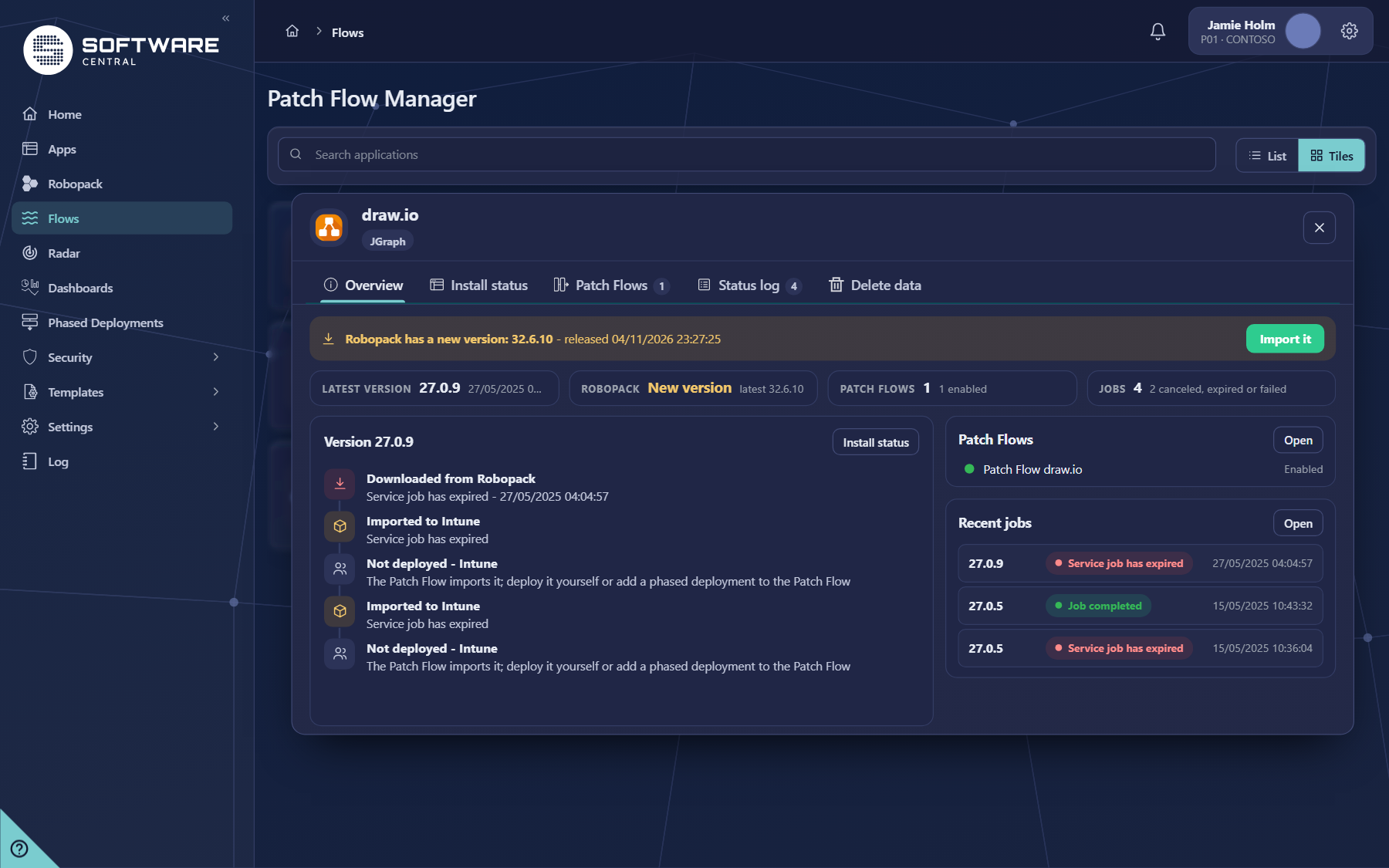
| 7 | A Patch Flow exists and is enabled | Created with the switch Keep it up to date: import new versions automatically (a Patch Flow) under Part 3 – New versions of the import window, or through a template with Create Auto Download rule if it does not exist. A disabled flow is skipped (see Flows). |
| 8 | The first version was imported through that flow | The service follows the newest download that belongs to the flow. Create the flow when you download the application, not afterwards. |
| 9 | Recommended: a phased deployment template with a pilot phase, and a default deployment template | So new versions reach a few devices first, and so everyone creates flows with the same settings. See Phased deployment templates. |
3 Set up the first flow
- Enter the API URL and key in Robopack settings and save.
- Create the application templates (SCCM and/or Intune) and the phased deployment template you want. The Setup Guide walks through the first of each.
- Create a deployment template from them and tick Default Template.
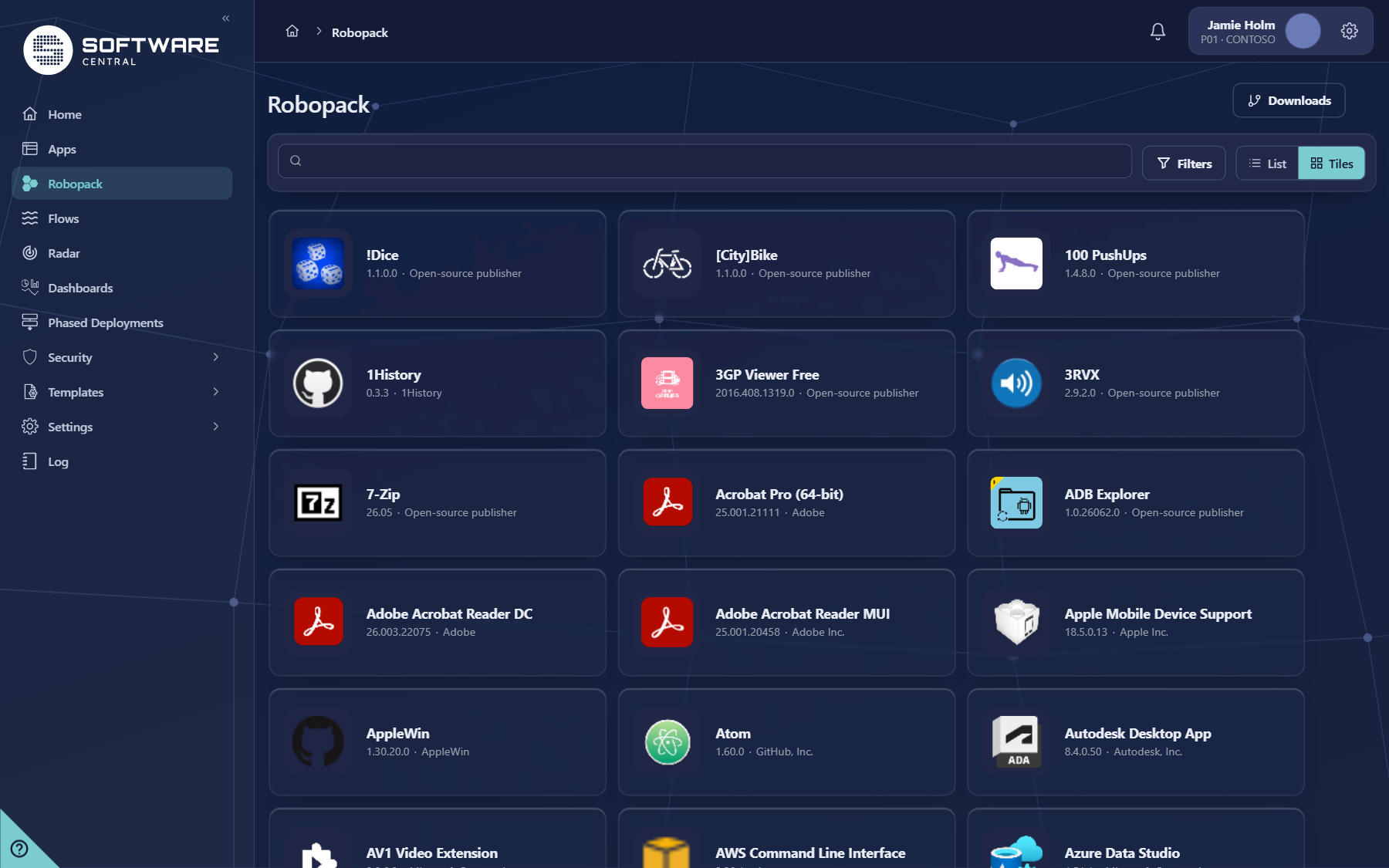
- In the Robopack view, click an application — for example Mozilla Firefox. The simple summary shows what will happen.
- Click Show Advanced, go to the last step, type a Patch Flow Name and click Create Patch Flow.
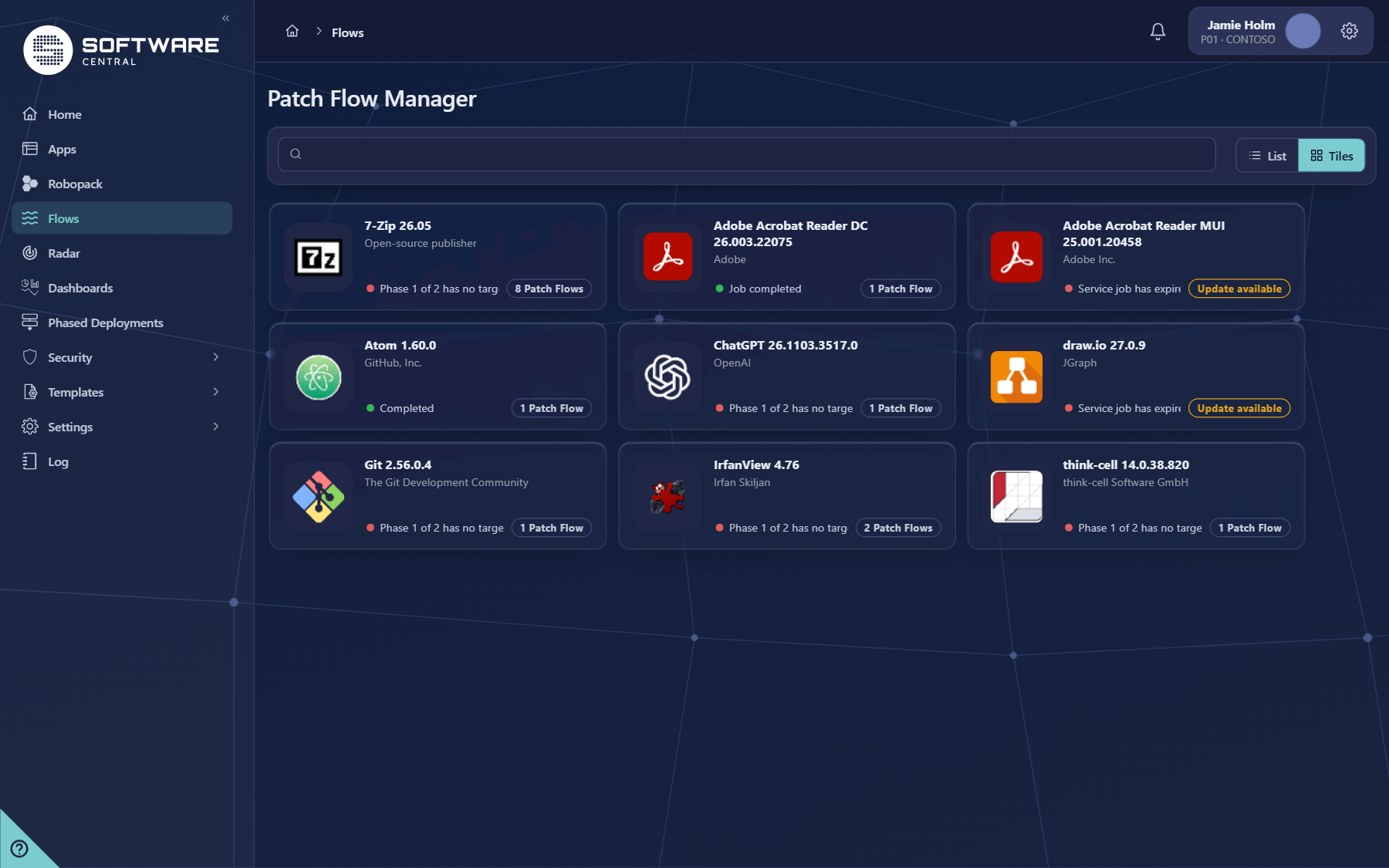
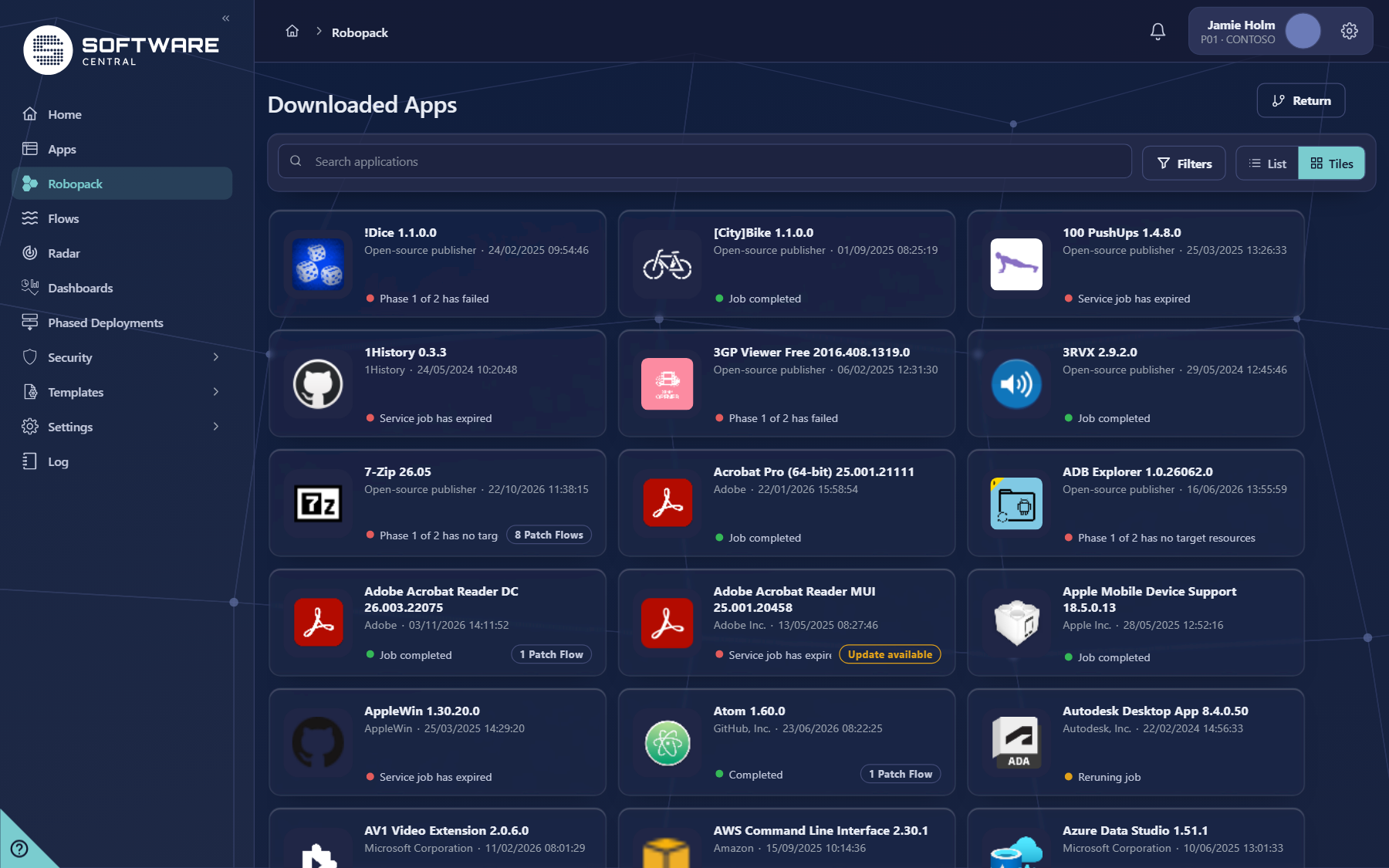
- Follow the first import on Downloaded Apps, then see the flow on Flows.
4 When a new version arrives
The service asks Robopack about every application that has a Patch Flow every 30 minutes. This is what it decides:
| Situation | What the service does |
|---|---|
| Robopack reports a newer version and the flow is enabled | Creates a new import job with the flow’s settings. The job downloads the version, imports it and starts the phased deployment. |
| The flow is disabled | Does nothing and writes an entry to the log saying the version is not downloaded because the flow is disabled. History and settings are kept. |
| The previous version is still being imported | Waits. The new version is picked up at the next check, 30 minutes later. |
| The previous version failed or never completed | The failed version is skipped: its retries are cancelled so it cannot be imported later on top of the new one, and the new version is downloaded instead. Devices stay on the last version that did import successfully until the new one is ready. |
| Robopack reports a version that is not in its own version list, or the version that was already downloaded | Does not download anything and writes a warning. It looks again at the next check. |
| The version does not support the scope you chose for an Intune tenant | That tenant is left out for this version; the others are imported. |
| The SCCM application template of the flow no longer exists | The version is downloaded but not imported to SCCM, and a warning asks you to select an existing template in the flow. |
When the job runs, the service performs the same steps as the wizard: Robopack prepares the package (waiting up to 15 minutes, then trying again later), the package is downloaded, imported, and the replace settings are applied. The phased deployment then advances by itself as each phase’s success criteria are met, and the people in its notification list are told.
5 When something fails
- The import to one place fails (for example SCCM) while another succeeds: each place is tracked separately. Fix the cause and use Rerun Job on the Install Overview; only the failed places are tried again.
- The application was imported but a follow-up step failed (replace in shop, move members, enrolment status pages): the import is not repeated; the entry says which kind of step failed and the log has the details. The part that leaves devices on the old version is treated as a failure; the part that does not (for example the shop) as a warning.
- Moving devices to the new Intune group: the new application is assigned first and the devices are only removed from the old group afterwards, so a device is never left without a version.
- Robopack cannot be reached: the check is simply tried again 30 minutes later. Nothing needs to be restarted.
6 Best practices
| Topic | Recommendation |
|---|---|
| Start small | Begin with two or three applications that update often, such as a browser and a PDF reader. Add more once you trust the process. Use Radar to find the applications that are installed everywhere and not managed yet. |
| Always test first | Use an application template whose package security group is only available to testers, and a phased deployment whose first phase is a small pilot collection. Widen in the later phases. |
| Success criteria and approval | Give each phase a compliance percentage that proves the version works, and set approval required on the phase that reaches the whole company if a person should sign off. Set a notification mailbox so failures are seen. |
| Choose the replace strategy once | For Windows applications that upgrade in place, Supersede the previous version is simplest. Use Move resource to new install collection (or Move Endpoints to new install group) when you manage who has the application through collections or groups. Add Replace in Shop so users always see the newest version. |
| Use a permanent collection | If devices get the application through Assign Software, set a Permanent Collection so one collection follows the application across versions and can be the source of the first phase. |
| Limit by program name | When a phased deployment should only upgrade devices that already have the application, tick Limit devices to program name (or Limit devices to install collections) so the rollout never installs it on devices that never had it. |
| Keep a few versions | Set Patch Flow versions to keep to 2 or 3. That keeps one version to fall back to and stops the package share and SCCM or Intune from filling up with every build. The version just imported and the newest version are never deleted. |
| Name things clearly | Name flows after the application (for example Firefox) and templates after the rollout (Pilot then production). |
| Pause with Disable, not Delete | To stop automatic updates for a while, Disable the flow. Delete removes the flow; downloaded applications are not removed, but nothing is updated any more. |
| Edit the flow, not the template | Changing a template does not change existing flows. Use Edit on the flow when its settings should change. |
| Machine scope for system software | Use Machine for software that installs for the device and User only for per-user software. SoftwareCentral follows the application’s own scope when it only supports one. |
7 Monitoring
- Every few days, open Flows and look for red lines on the cards.
- Open the application in Flows and look at Recent jobs: a flow whose latest job is weeks old on a frequently updated application deserves a look.
- The SoftwareCentral Log shows every check and every step. Search for Robopack; the service writes CHECKING ROBOPACK FOR NEW VERSIONS at each check.
- Make sure the phased-deployment notification mails reach someone who reads them.
8 Troubleshooting
| You see | Likely cause and what to do |
|---|---|
| Nothing is ever downloaded automatically | Check, in order: API URL and key are set; the Windows service is running and its daily tasks are on; the flow shows Enabled on the Patch Flows tab of its application in Flows; the first version was imported through the flow. The log entry The Robopack integration is not configured confirms the first cause. |
| Version … is skipped, because the import job … did not complete successfully | An earlier import failed. This is expected: the flow moves on to the newer version. Look at the failed job on Downloaded Apps to find out why it failed. |
| … is not downloaded yet … because the import job has the status Pending | The previous import is still running or waiting for the service. It is checked again after 30 minutes. If it never finishes, use Rerun Job. |
| The SCCM application template with ID … was not found | Someone deleted the template. Edit the flow and select an existing SCCM application template. |
| Phase 1 of 2 has no target resources | No device matches the first phase. Check the collection of the phase and any limits (program name, install collections) set in the wizard. |
| No old version found … replace will work when second version is downloaded | Normal for the first import; see above. |
| Radar shows nothing | Application Detector Enabled must be ticked in Robopack settings; the scan runs every 6 hours. |
| Intune import fails with an authorisation error | The app registration is missing a permission. See Intune permissions. |