1 Finding the program
Search for the program by name, with at least three letters. Programs that match, but are not in your shop, are listed under the results as Available on request.
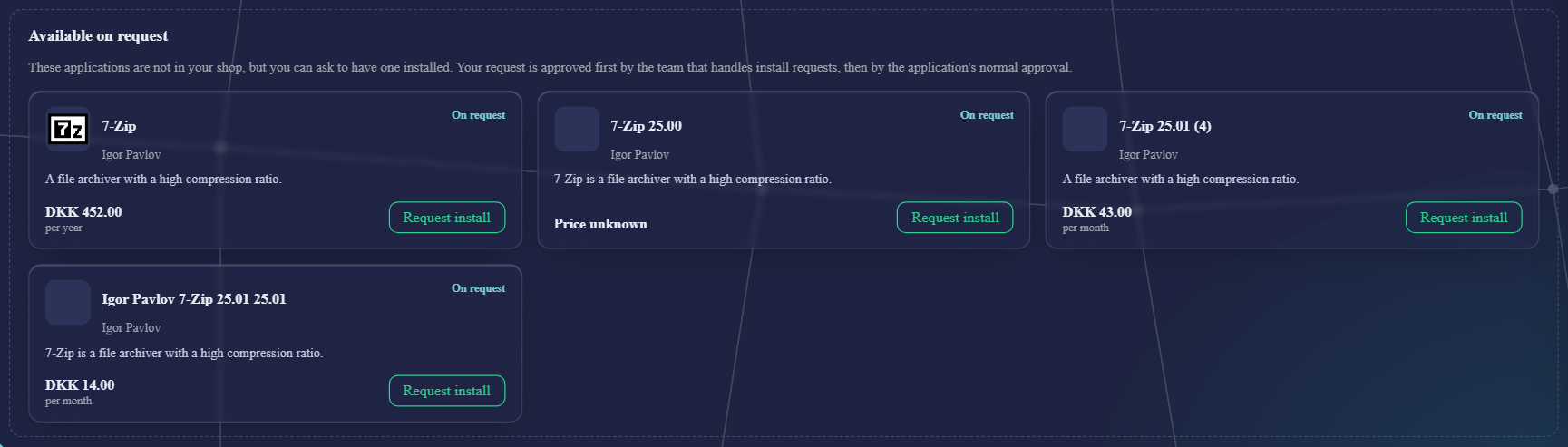
The cards look like any other, with the price and publisher, but are marked On request and have a Request install button. Click the name to read the details first. At most five programs are offered per search; if the one you want is not among them, search for more of its name.
2 Sending a request
Click Request install, say why you need the program, and click Send request.
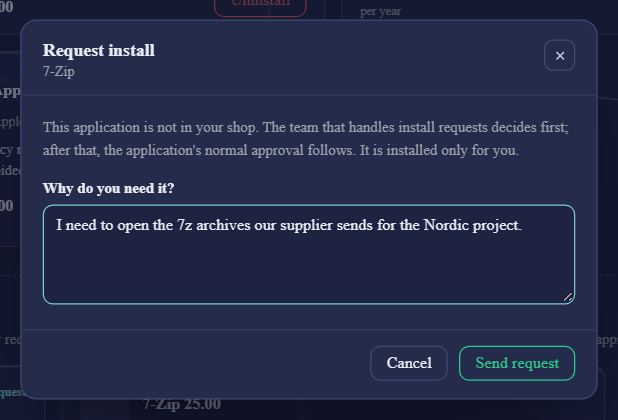
Why do you need it? is required: the team that handles install requests reads it to decide. Keep it short and concrete (up to 1,000 characters). The request is sent straight away; it does not go through the basket. The shop confirms: Your request for … has been sent. You can follow it in My Account.
3 What happens next
| Step | What happens |
|---|---|
| 1. The install-request team | Decides first, based on your reason. |
| 2. The program's own approval | If the program normally needs approval, its approvers decide next, as for any other order. |
| 3. Installation | The program is installed on your device, for you only. |
You follow a request like any order: the card then shows Install requested, the bell tells you when it is decided, and My Account shows its approval flow, which starts with Install request: the install-request team approves first; then the application's own approval follows.
4 Good to know
| Case | Good to know |
|---|---|
| Only for you | A request is installed for you alone. It does not add the program to your shop, or to anyone else's. |
| Approve or decline | Approvers can approve or decline a request, but not send it back to you. If they need more, they decline and you can send a new request with a better reason. |
| Ordering for someone else | Requests are not available while you order on behalf of another person. |