1 The layout
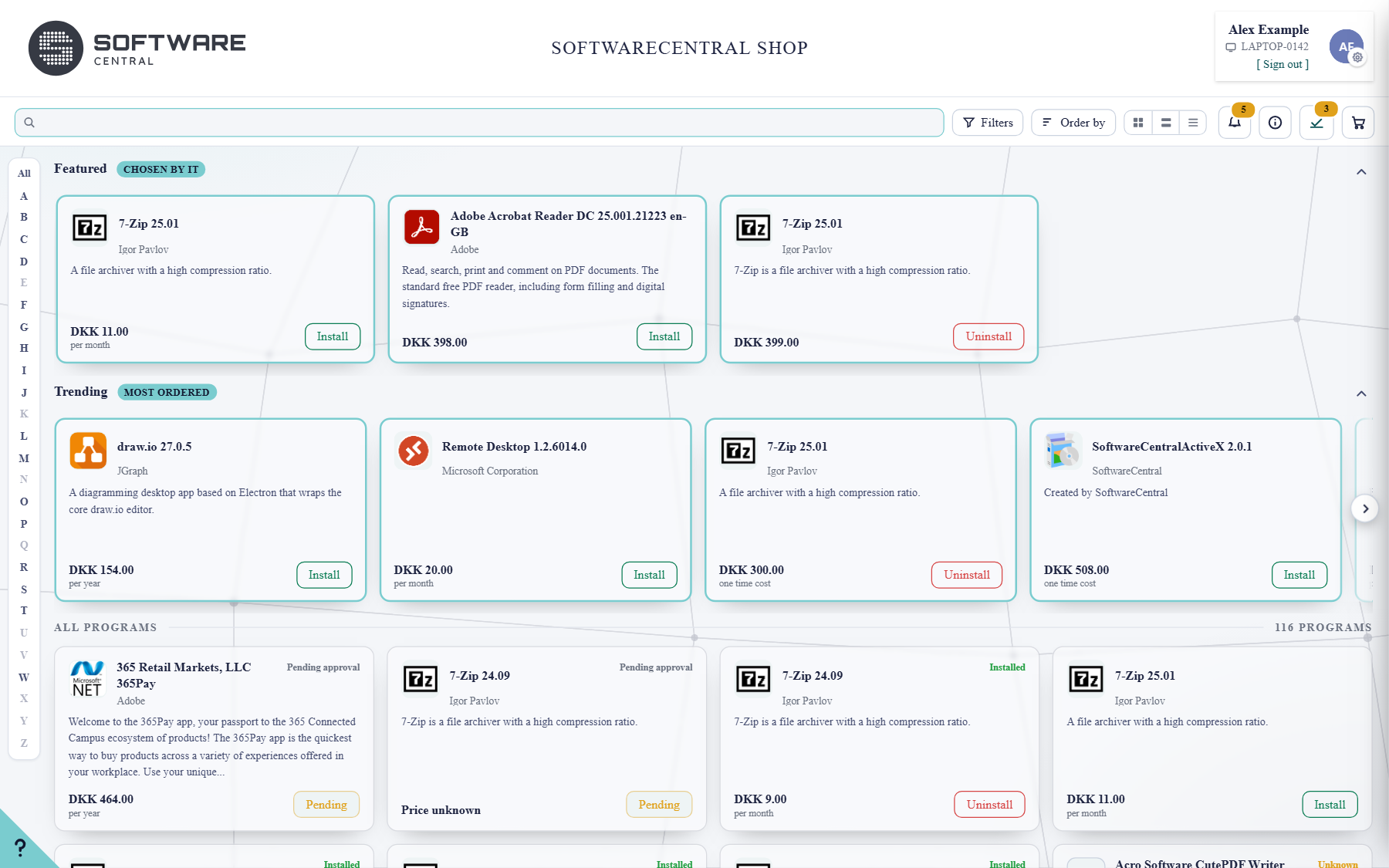
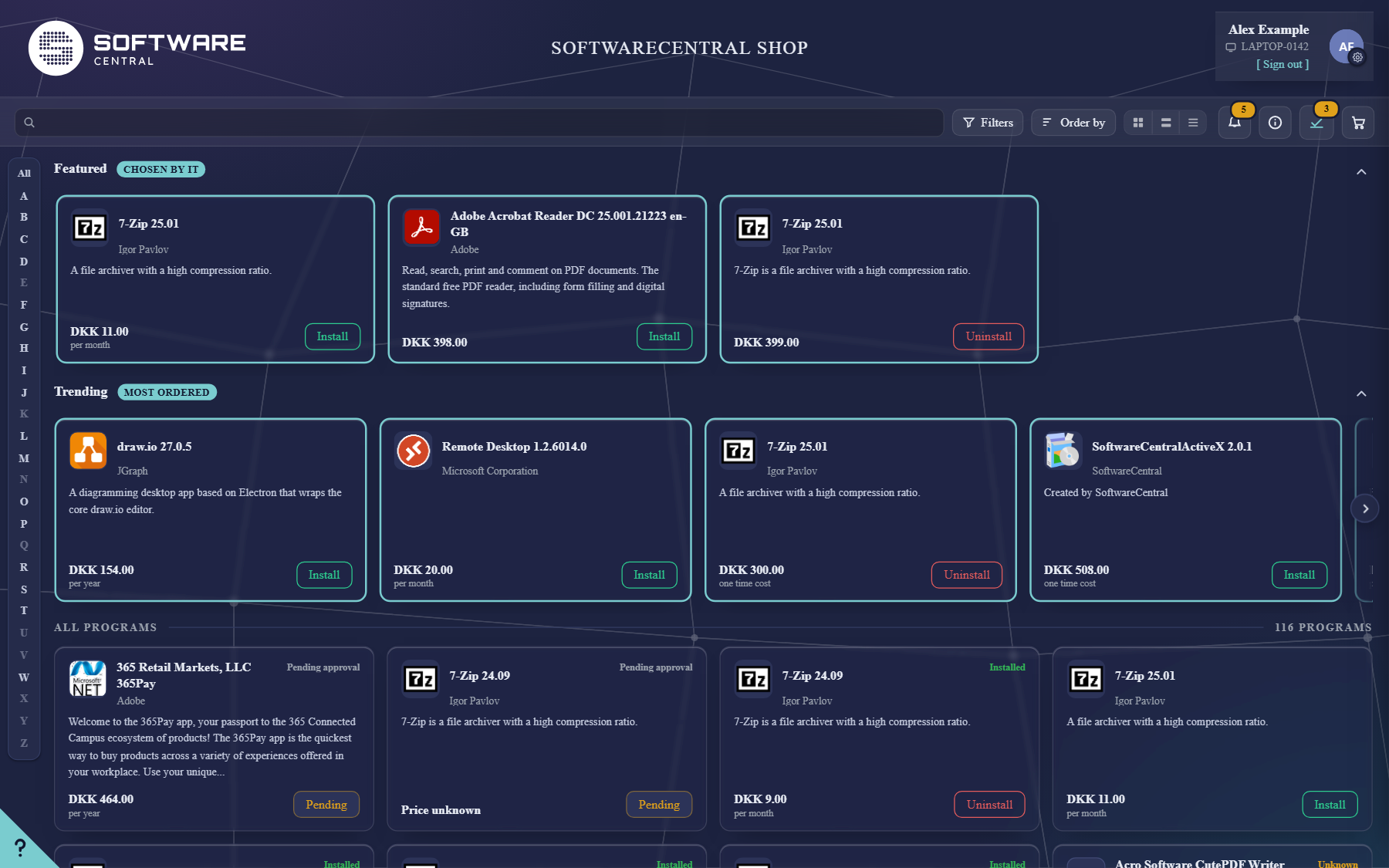
Everything happens on one page. At the top are your name and device and the tool band; below them the shop shows its shelves and the full list of programs you can order.
| Area | What it is |
|---|---|
| Your profile (top right) | Your name and the device you are ordering for. Click your name to open My Account, click the device to choose another one, and use the gear for your settings. |
| Tool band | Search, filters, sorting, the view buttons, your notifications and your basket. See The tool band. |
| A–Z (left) | Click a letter to show only programs whose name starts with it. All shows everything again. Greyed-out letters have no programs. |
| Featured and Trending | Shelves of software picked by your IT department, and of software your colleagues order most. See Shelves and programs. |
| All programs | Every program you can order, with the number of programs on the right. |
| ? (bottom left) | Opens this guide. |
2 The tool band
The band under the title stays at the top of the page while you scroll.

| Button | What it does |
|---|---|
| Search | Type what you are looking for, for example part of a name. Suggestions appear under the box as you type; press Enter to show every match. |
| Filters | Narrow the list by category, publisher and more. The number on the button shows how many filters are on. |
| Order by | Change the order of the programs, for example by name. |
| View buttons | Show the programs as tiles, as wide rows with the full description, or as a compact list. |
| Bell | Things that need your attention: orders that were approved or declined in the last two days, and orders an approver sent back to you. The number shows how many. |
| Information (i) | Shows the messages from your IT department you have already hidden; the number is how many you have not read. It only appears when there are messages for you. See Messages from IT. |
| Approvals (tick) | Only shown when orders from others are waiting for your decision; the number is how many. The button opens the approvals page. |
| Basket | The software you have chosen but not ordered yet. Open it to check out. |
3 Shelves and programs
Two shelves above the full list help you find common software quickly. Your organisation decides whether they are shown.
Featured (chosen by IT)
Software your IT department wants you to see first. Scroll the shelf sideways with the arrow at its end, or fold it away with the arrow at the top right.
Trending (most ordered)
The software ordered most across your organisation recently. It only lists software you are allowed to order, and never shows who ordered it.
When you search or use a filter, the shelves step aside and the shop shows only the programs that match, with your search and filters as chips you can remove one by one. Clear them to see the shelves again.
4 Reading an app card
Each program is a card. Everything you need to decide is on it.

| Part | What it tells you |
|---|---|
| Icon, name and version | Click the name to open the details: the full description, the price, contacts, the approver and more. |
| Publisher | The company that makes the software. |
| Description | A short summary. The full text is in the details. |
| Price | What the software costs your organisation, and whether that is per month, per year or a one time cost. Free means no cost; Price unknown means no price has been set. |
| Status (top right) | Installed when the software is on your device, Pending approval while an order waits for an approver. Unknown means your device has not reported a status yet. |
| Button | Install puts the program in your basket. Uninstall removes installed software. Pending opens the approval flow of your order, so you can see who it is waiting for. |
5 Your settings
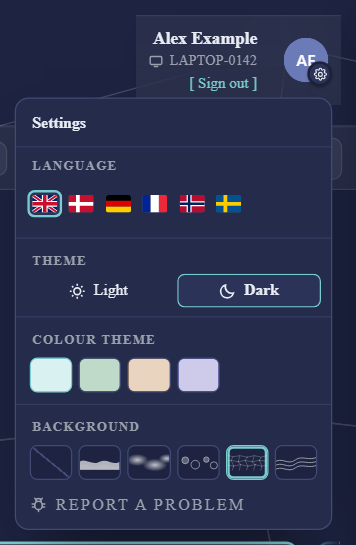
The gear on your profile opens your personal settings. They are remembered in your browser.
| Setting | What it does |
|---|---|
| Language | The language of the shop. |
| Theme | Light or dark. |
| Colour theme | The accent colour, when your organisation offers a choice. |
| Background | The pattern behind the shop, or none. |
| Report a problem | When something in the shop looks wrong, this sends a report to your IT department with what the shop saw. It is only shown when your organisation has turned it on. |