1 Which device you shop for
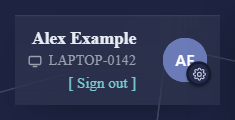
The device name under your name at the top right is where your orders are installed. The shop finds it by itself, from the computer you are using or from the devices registered to you.
If you have several devices and the shop cannot tell which one you mean, it asks you when you open it. It remembers your choice, so you are only asked again when something changes.
2 Choosing another device
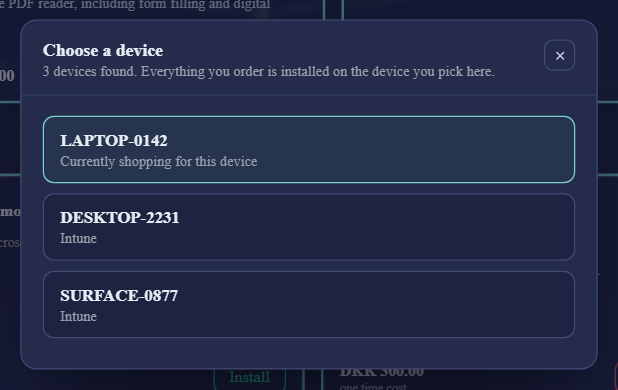
Click the device name under your name. Choose a device lists the devices you can shop for.
| In the list | What it is |
|---|---|
| Your devices | The devices registered to you as their main user, in Configuration Manager or Intune. The line under the name says where each one comes from. |
| This computer | The computer you are using now, when the shop can see it. |
| Currently shopping for this device | The device your orders go to now. |
Click a device to switch. The shop reloads and shows the software available for that device, including what is already installed on it. Your choice is remembered next time, also when you open the shop from somewhere else.
You can only choose devices from this list. If a device you use is missing, or the list says We could not find any devices registered to you, ask your IT department to register you as its user.
3 When the shop reminds you
The shop checks your devices now and then. When something has changed, the bell shows Check which device you are shopping for.
| What changed | The notice says |
|---|---|
| The device is no longer yours | It no longer appears to be one of your devices; choose the device you want to shop for. |
| You have a new device | How many devices you now have, and which one you are shopping for — change it if that is not the one you want. |
Click the notice to open Choose a device. The notice is shown once.
4 Ordering for someone else
Managers can order software for the people who report to them, for example to get a new colleague ready. Your organisation tells you where to find this; it is not a button in the shop.
- Choose the person. The list contains the people who report to you.
- Choose their device. If they have only one, it is picked for you.
- Shop as usual. The shop shows the software that person may order, and the bottom of the basket shows Ordering to with their name and device.
The order is placed in the other person's name, and the software is installed on their device. Your own name stays at the top of the page. Request install for programs that are not in the shop is not available while you order for someone else.
5 My Computers
When your organisation has turned it on, Filters has a My Computers link. It lists the computers registered to you in Configuration Manager.
Use it to hand a computer over to someone else: Reassign makes another person the computer's main user. Depending on your organisation, this happens straight away or needs an approval first; while it waits, the button shows Pending approval.
6 If the shop cannot find your device
| You see | What to do |
|---|---|
| We were unable to resolve your computername | The shop could not see which computer you use. Open the shop from your work computer, or ask your IT department. |
| The device must exist in either SCCM or Intune to be able to access the shop | The device is not managed yet. Ask your IT department. |
| Your computer … is not allowed to access the shop | Your organisation has closed the shop for this device. |
7 Best practice
- Wait for a pending reassignment to be decided. While a computer's reassignment waits for approval, its Reassign button is disabled and shows Pending approval, so the same request cannot be sent again.
8 Troubleshooting
| Symptom | Cause | What to do |
|---|---|---|
| “We could not find any devices registered to you. Contact your IT department” | No device in Configuration Manager or Intune has you as its main user. | Ask your IT department to register you as the main user of the device, then open Choose a device again. |
| The Reassign button shows Pending approval. | A reassignment request for that computer is waiting for an approver, and the button is disabled. | Wait for the approver to decide. Do not send another request for the same computer. |