1 Where messages appear
Messages sit in a row under the tool band, above the Featured shelf.
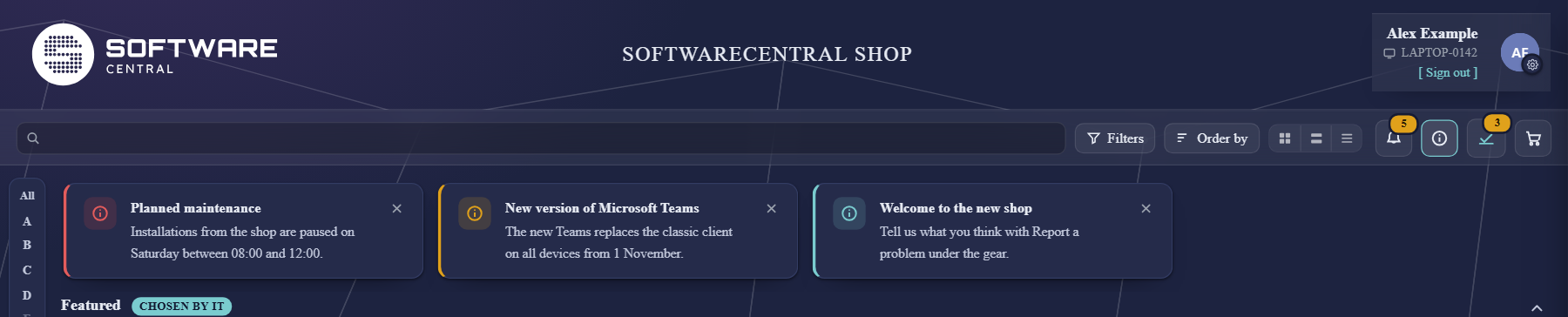
| Colour | Meaning |
|---|---|
| Red | Critical — read this first. Critical messages come first in the row. |
| Orange | A warning, such as a change that affects you. |
| Blue | Information. |
When there are more messages than fit, use the arrows at the ends of the row. Messages can be meant for everyone or only for some groups, and can be shown for a limited period, so colleagues may see different messages than you.
2 Hiding and showing again
Click × on a message when you have read it. It stays hidden the next time you open the shop — unless your IT department changes its text, then it is shown again.
The information button (i) in the tool band is there whenever there are messages for you. Its number is how many you have not read yet. Click it to show the messages you have hidden, and click it again to hide them.
3 After you check out
Your organisation can also show a message on the page you see after you check out, for example about how long an installation usually takes or who to contact. It is shown under Your order has been placed.