1 Opening My Account
In the shop, click your name at the top right. My Account opens in a new window, or on top of the shop, depending on your organisation.
[ Back to the shop ] under your name, or Close in the tool band, takes you back. If your name is not a link, your organisation has not turned My Account on.
2 Your orders
One list with every order you have placed, newest first.
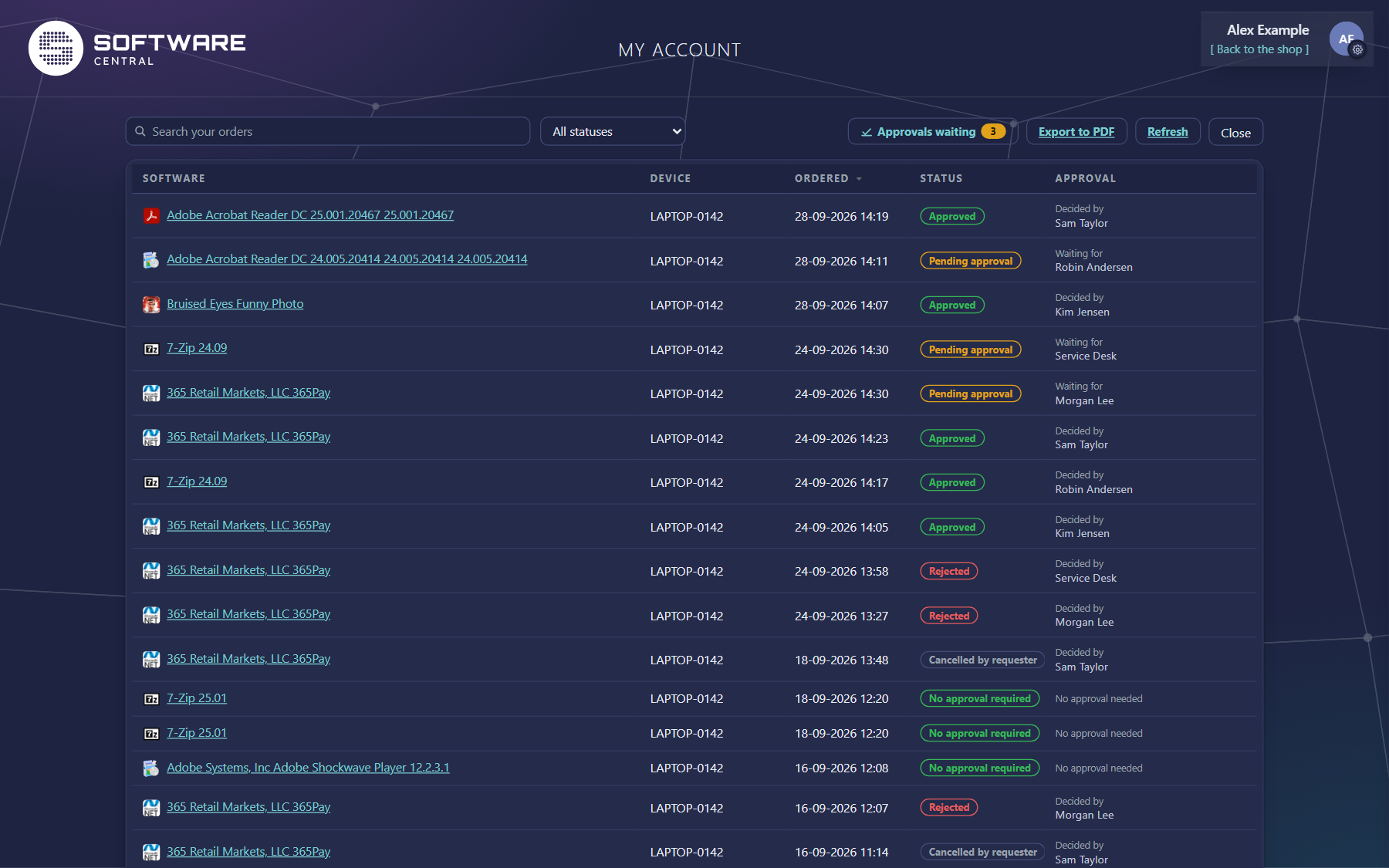
| Column | What it shows |
|---|---|
| Software | The program. Click the name for more about it. |
| Device | The device it was ordered for. |
| Ordered | When you ordered it. |
| Status | Where the order stands; see below. |
| Approval | Waiting for the approver who has to decide next, Decided by the approver who decided, Sent back by the approver who returned it to you, or No approval needed. |
Click a column heading to sort by it. The list shows 25 orders per page; the pager at the bottom changes that.
3 What the status means
| Status | Meaning |
|---|---|
| Pending approval | Waiting for an approver. |
| Pending requester | An approver sent it back to you. Open the shop: the program is in your basket with the approver's message. |
| Approved | Approved; the program is on its way to the device. |
| No approval required | Sent to the device straight away. |
| Rejected | Declined. The program is not installed. |
| Cancelled by requester | The order was cancelled. |
4 Finding an order
| Use | To |
|---|---|
| Search your orders | Find orders by program, device or status. |
| All statuses | Show only orders that are waiting for approval, approved, rejected or cancelled. |
5 Details and approval flow
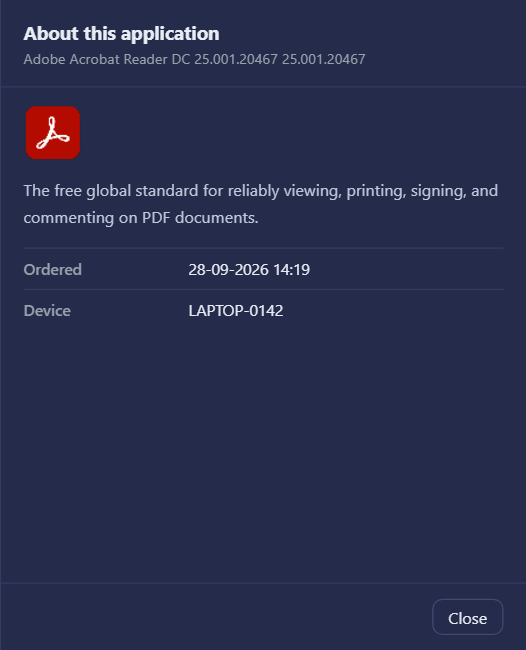
Click a program's name to open About this application at the side: its description, the people to contact about it, and when and for which device you ordered it.
See all approvers appears under the approver when an order has more than one approval step. It opens the whole approval flow: each step, who approves it, when, and its status — the same view as Pending in the shop. If an approver wrote you a message, it is shown at the top.
Close the side panel with Close, a click beside it, or Esc.
6 Approvals, export and refresh
| Button | What it does |
|---|---|
| Approvals waiting | Only shown when orders from others are waiting for your decision; the number is how many. It opens the approvals page. |
| Export to PDF | Saves the list as a PDF, with the search and status filter you have chosen. |
| Refresh | Loads your orders again, for example after an approver has decided. |
My Account only shows your orders. Nothing here changes them: to order again, uninstall or answer an order that was sent back, go back to the shop.