1 Adding to the basket
Click Install on a program's card. The program goes into your basket and the number on the basket button goes up; nothing is ordered yet.
Keep shopping and add as many programs as you need, then check out once. Your organisation may use other words on the button, such as Order for hardware or Lease for software you rent for a period.
2 The basket
The basket button at the far right of the tool band opens your basket from the side.
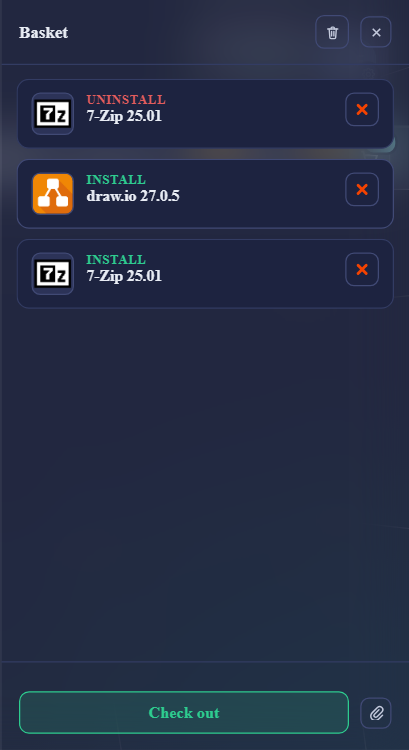
| Part | What it does |
|---|---|
| Label | What will happen: Install, Uninstall, Repair, Reinstall, Order or Lease. |
| × on a row | Takes that program out of the basket. |
| Bin (top) | Empties the whole basket. |
| Message to the approver | Shown on programs that need approval. Say why you need it; your organisation may make this required. |
| Edit order details | Change your answers for a program that has order details. |
| Paper clip | Attach files for the approver, such as a quote. Only shown when your organisation allows attachments. |
| Check out | Places the order. |
The basket is kept while you use the shop. If you leave the page with programs still in it, your browser warns you first. After a long break you may be signed out, and the basket is emptied; the shop tells you when that has happened.
If you order for someone else, the bottom of the basket shows Ordering to with the person and the device the software will be installed on.
3 Checking out
Click Check out. The shop places the order and shows Your order has been placed.
| Where | What happens |
|---|---|
| On screen | A confirmation with your recent orders and the status of each program. Continue shopping takes you back. |
| By mail | You receive an order confirmation. |
| No approval needed | Installation starts straight away. The program appears on your device as soon as it has been delivered to it. |
| Approval needed | The approvers are notified by mail, and the card shows Pending until they have decided. |
4 Approval
Some programs need an approval, for example because they cost money or need a licence. Click Pending on the card to see where your order is.
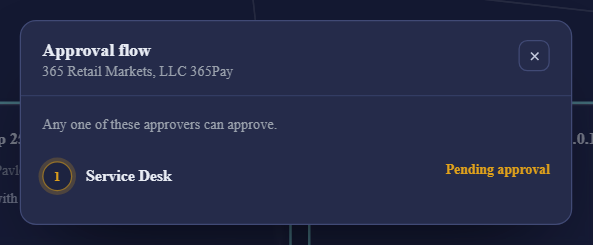
The approval flow lists each step, who approves it, its status and when it was decided. A line at the top tells you how the approvers work together: any one of these approvers can approve, every approver must approve, or each approver must approve, in order. When an approver is a group, Show members lists the people in it, if your organisation shows them.
| Case | Good to know |
|---|---|
| Approved before | If you were approved for the same program before, your organisation can let it install without a new approval. |
| Installed before approval | Some programs are installed straight away while the approval runs. If nobody approves in time, the order can be declined automatically. |
| Declined | The program is not installed. The bell tells you, and the approval flow shows who declined it. |
5 Following your orders
The bell collects what needs your attention. The number on it shows how many things there are.
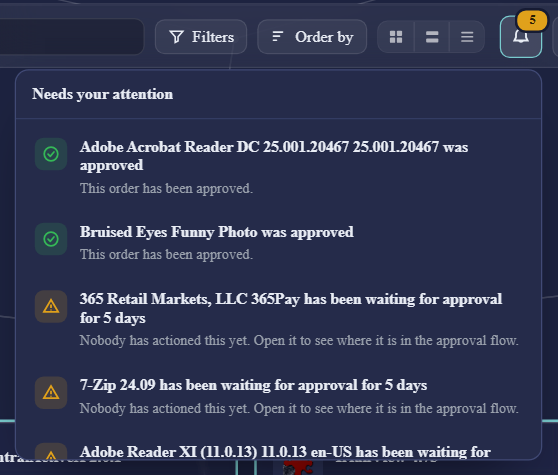
| Notice | Click it to |
|---|---|
| … was approved / … was declined | See the approval flow. Shown for two days after the decision. |
| … has been waiting for approval for n days | See who the order is waiting for. Shown after three days. |
| … was sent back to you | Open your basket. See below. |
| Your … lease expires in n days | See your installed software. Shown in the last 30 days of a lease. |
| Check which device you are shopping for | Choose the device your orders are installed on. |
When an order is sent back
An approver can send an order back to you instead of deciding, for example to ask for more information. The program is put back in your basket with the approver's message and the note An approver sent this back to you. Change what was asked for, often with Edit order details, and check out again.
Your full order history is in My Account: click your name at the top right.
6 Uninstall, repair and reinstall
Removing or fixing software goes through the basket too, and never needs an approval.
| Button | What it does |
|---|---|
| Uninstall | Puts the program in your basket as Uninstall. It is removed when you check out. Until then nothing happens, so you can still change your mind. |
| Repair | Repairs an installed program that no longer works properly. Only offered when the program supports it and your organisation allows it. |
| Reinstall | Runs the installation of an installed program again. |
After you have ordered an uninstall, the card shows Waiting for uninstall while your device removes the program. Not every program can be uninstalled from the shop; if there is no Uninstall button, ask your IT department.