1 Search
Start typing in the search box. Suggestions appear under it as you type, each with the publisher, the price and whether the program is already installed on your device.
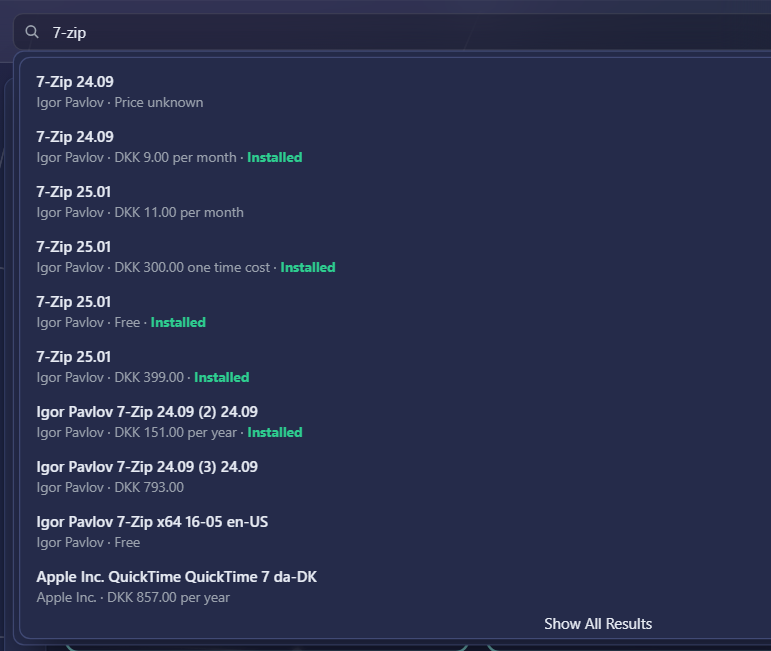
| To | Do this |
|---|---|
| See one suggestion | Click it. The shop searches for that program's name. |
| See every match | Press Enter, or click Show All Results at the bottom of the suggestions. |
| Start again | Empty the search box, or remove the search chip (see below). |
What the search looks at
The search looks at the program's name and its search tags, and usually also at the publisher and the description. Your organisation can limit it to names only. Upper and lower case do not matter, and each word you type is matched on its own, so the words do not have to be next to each other in the name. Small typing mistakes are forgiven, and the best matches are shown first.
Your organisation can also make extra information findable, such as a licence number, a cost centre or the team that owns a program. When your search matches one of those, the card shows a small tag with the name of the field; point at it to see the value that matched.
2 Search results and chips
While you search or filter, the Featured and Trending shelves step aside and the shop shows only the programs that match, with the number of programs on the right.
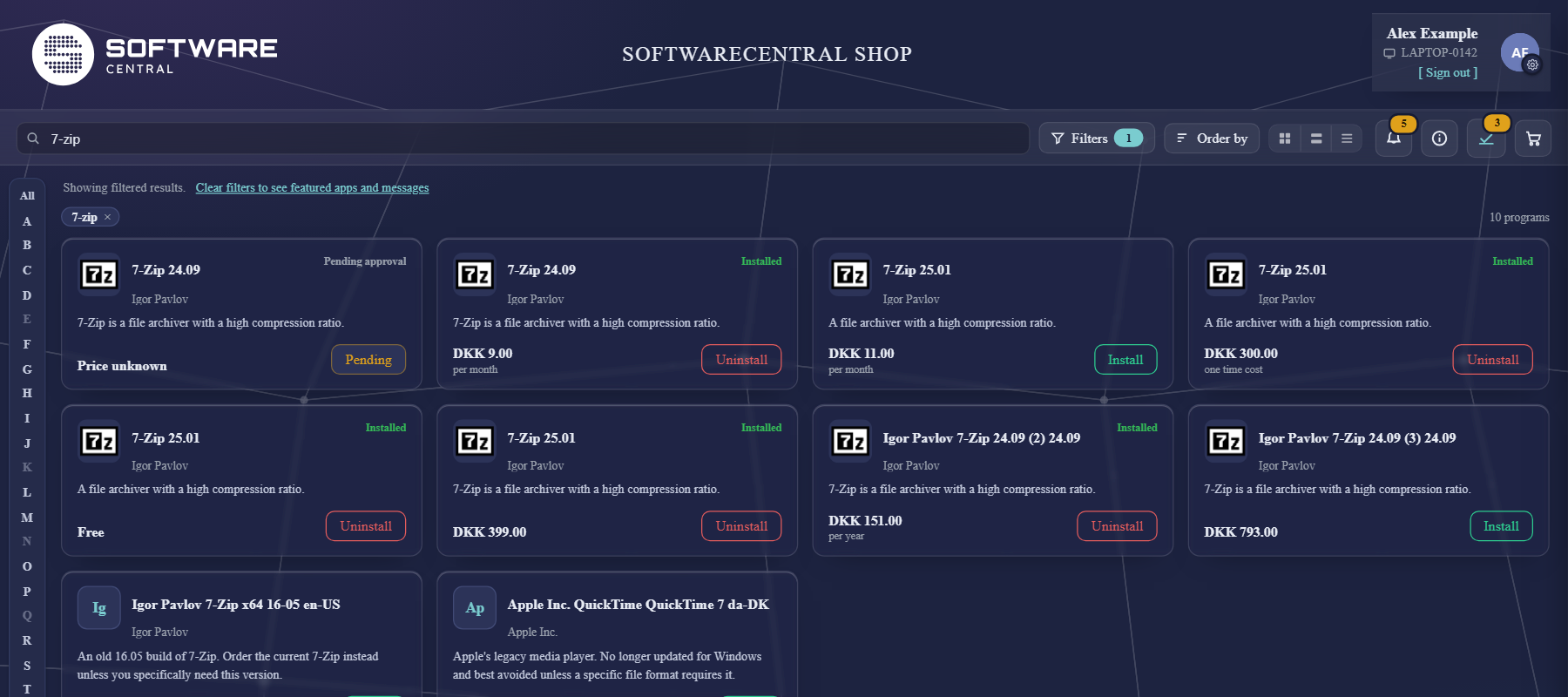
Your search and every filter you use appear as chips above the results. Click the × on a chip to remove just that one. Clear filters to see featured apps and messages removes them all and brings the shelves back.
Available on request
If your organisation has turned it on, a search can also show programs that are not in your shop under Available on request. You can ask to have one of those installed; see Requesting a program that is not in your shop.
3 Filters
Filters opens a panel for browsing. Your organisation decides which filters you see, so your panel may have fewer or more than this one.
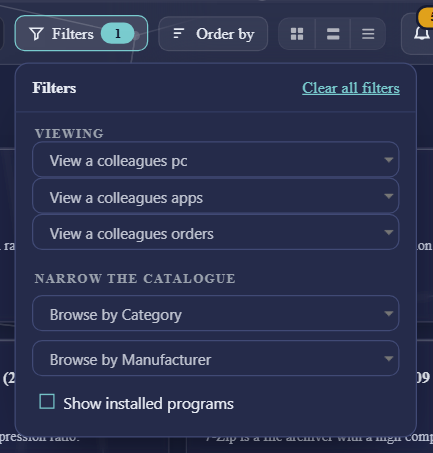
| Filter | Shows |
|---|---|
| Category | Programs in one category. |
| Manufacturer | Programs from one publisher. |
| Show installed programs | Only the programs installed on your device. |
Viewing what a colleague has
Setting up a new colleague, or need the same tools as someone on your team? The Viewing group, when it is shown, lets you look at the shop through someone else's eyes:
| Choice | Shows |
|---|---|
| View a colleague's PC | The programs assigned to that computer. |
| View a colleague's apps | The programs assigned to that person. |
| View a colleague's orders | The programs that person has ordered. |
| My Computers | Opens the list of your own computers. |
You can then order the same programs for yourself. The choices in the Viewing group, and Show installed programs, replace each other and the other filters rather than adding up.
4 The A–Z letters
Click a letter to show only programs whose name starts with it; All shows everything again.
Greyed-out letters have no programs among the ones you are looking at, and cannot be clicked. A letter does not get a chip; the letter itself stays highlighted. Depending on your organisation, the letters sit down the left side or under the search box.
5 Order by
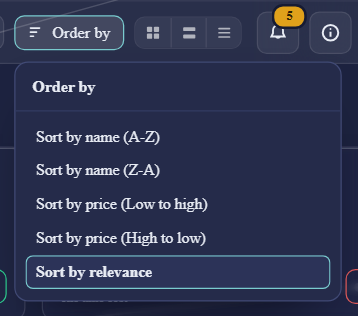
Choose how the programs are sorted: by name, by price, or by relevance.
Relevance puts the best matches for your search first; without a search, the programs are shown by name. The shop keeps your choice for the rest of your visit.
6 Three ways to view
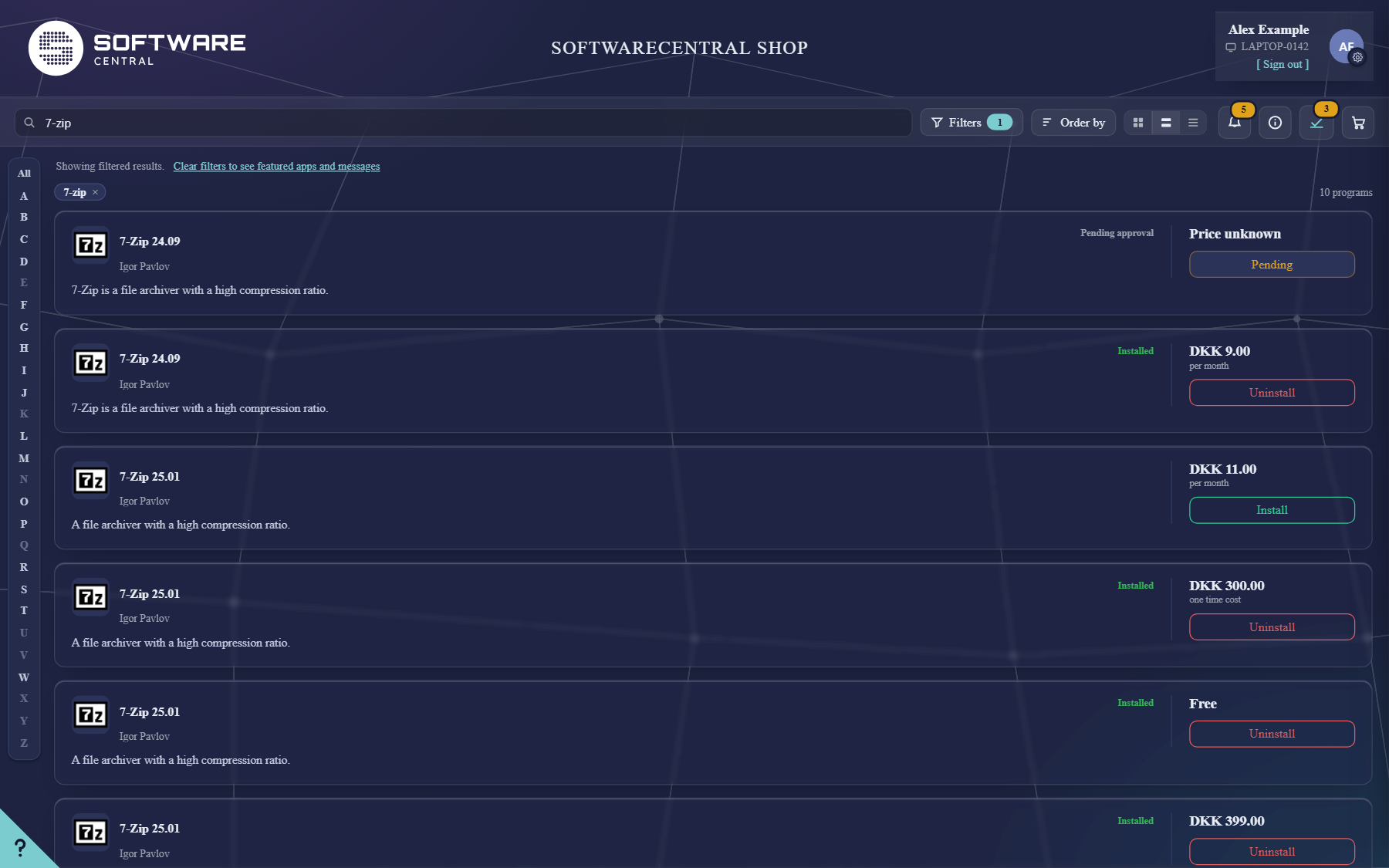
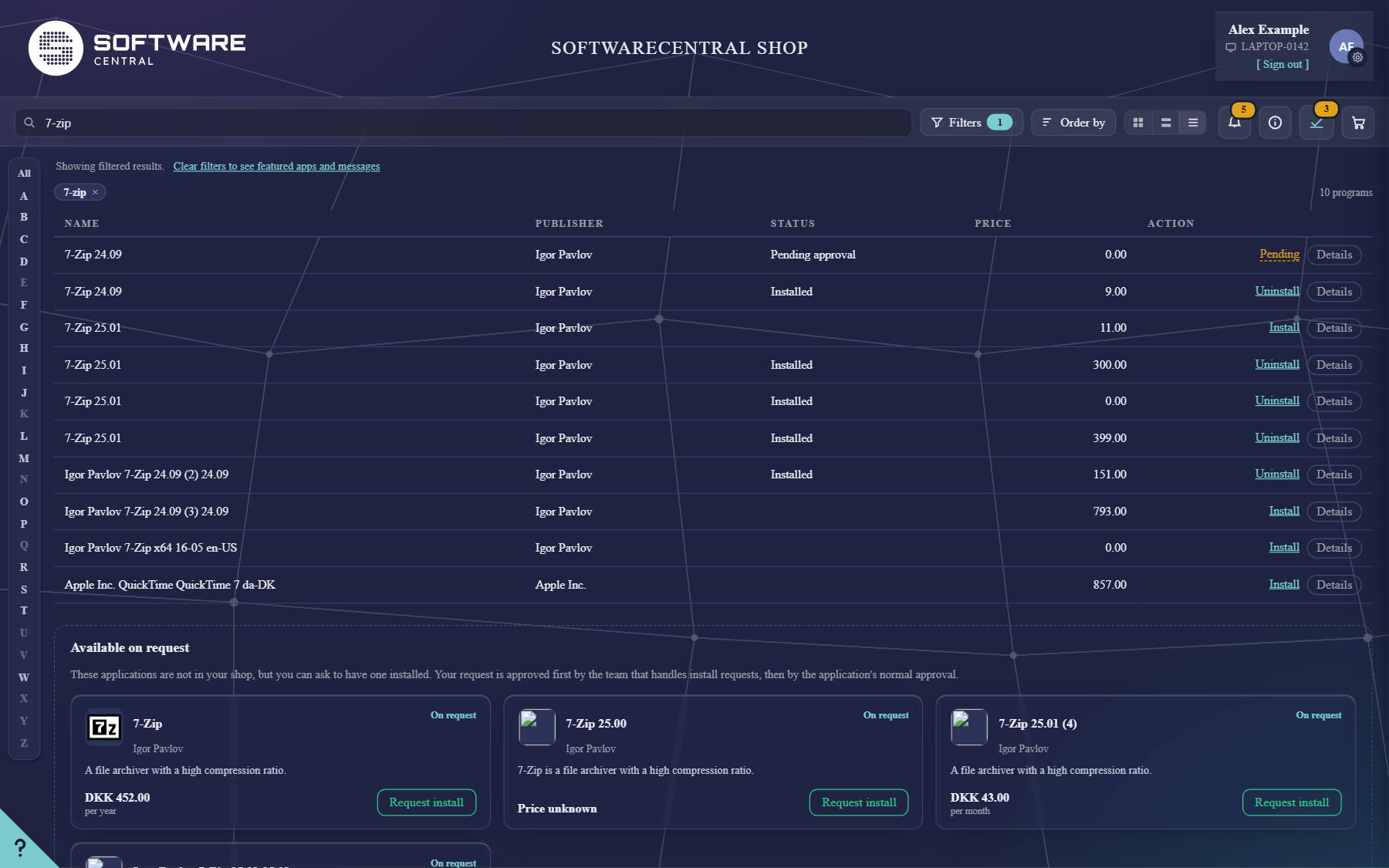
The three buttons next to Order by change how the programs are shown. Use whichever suits you; the next time you open the shop it starts in your organisation's default view.
| View | Best for |
|---|---|
| Tiles (first button) | Browsing: several cards side by side, as in Reading an app card. |
| Wide rows (second) | Reading: one program per row, with the price and button on the right. |
| List (third) | Comparing: a compact table with name, publisher, status, price and the action. |
7 The details of a program
Click a program's name, or anywhere on its card that is not a button, to open its details.
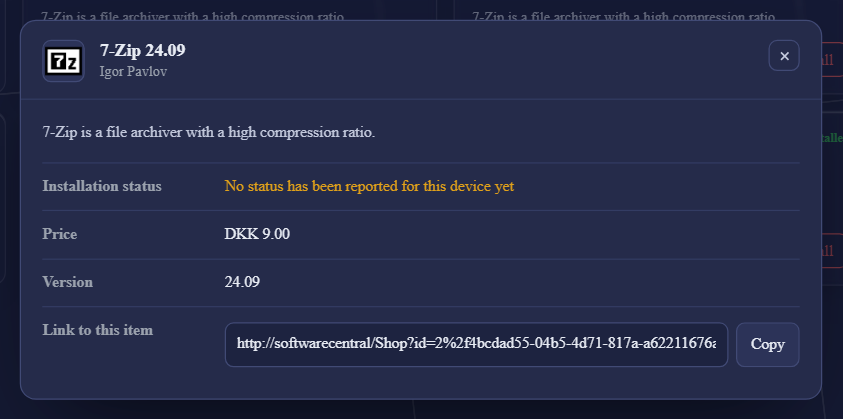
The details show only what is known about the program, so the rows differ from program to program:
| Row | What it tells you |
|---|---|
| Description | The full description. |
| Installation status | What your device last reported about this program. |
| Price | What the program costs your organisation. |
| Contacts | The prime contact, support, technical know-how, super users and the application owner — the people to ask about the program. |
| Approver | Who approves your order, when the program needs an approval. |
| Version and language | Which build you get. |
| More information | Extra rows your organisation has added, for example a licence number, a team or a link to an internal page. Links open in a new tab. |
| Tags | The program's search tags. |
| Contains | For a bundle, the programs it installs. |
| Link to this item | A direct link to the program. Copy it to send to a colleague. |
The details are for reading; to order, close them with × and use the button on the card.