1 What it does
Open it from Software › Deployment Manager. The Deployment Manager has two jobs: it deploys software and operating systems from a Deployment Plan, and it monitors all deployments, even those started from Manage Software, Reinstall Computer or Import Computer.
| Tab | What it shows |
|---|---|
| Deployments | Software deployed, with Client Count and a View button that opens the Deployment Monitor. |
| Deployment Jobs | Each deployment plan with Created, Name, Start and End, and buttons to open, edit or delete it. Deleting a job removes it from the list; it does not cancel the deployment. |
| All SCCM Deployments | Every deployment in Configuration Manager with its compliance. The figures are summarised in advance, so they can differ from the details window; the Last Update column says when. |
| Prioritized SCCM Deployments | The deployments you have marked as prioritised. |
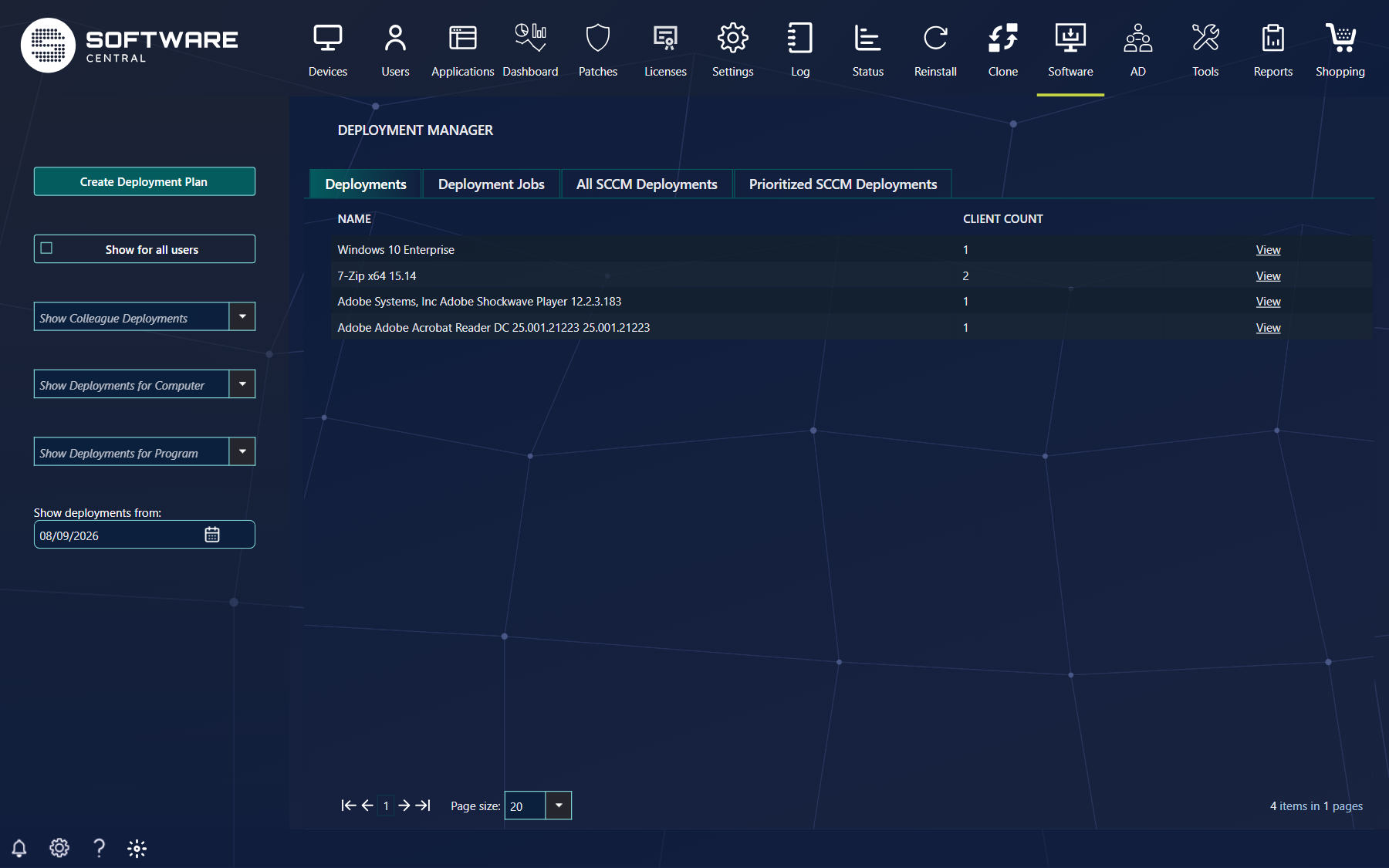
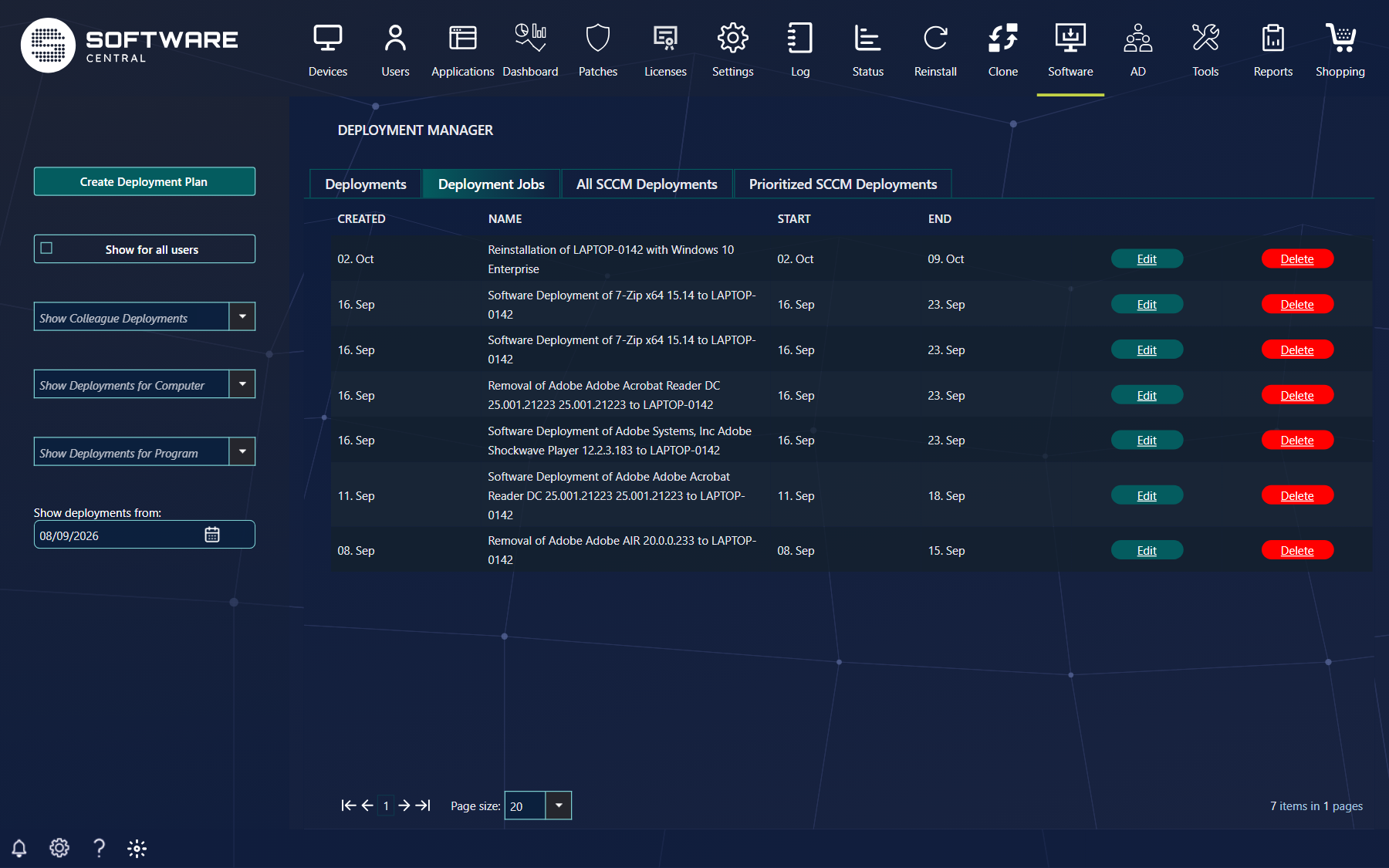
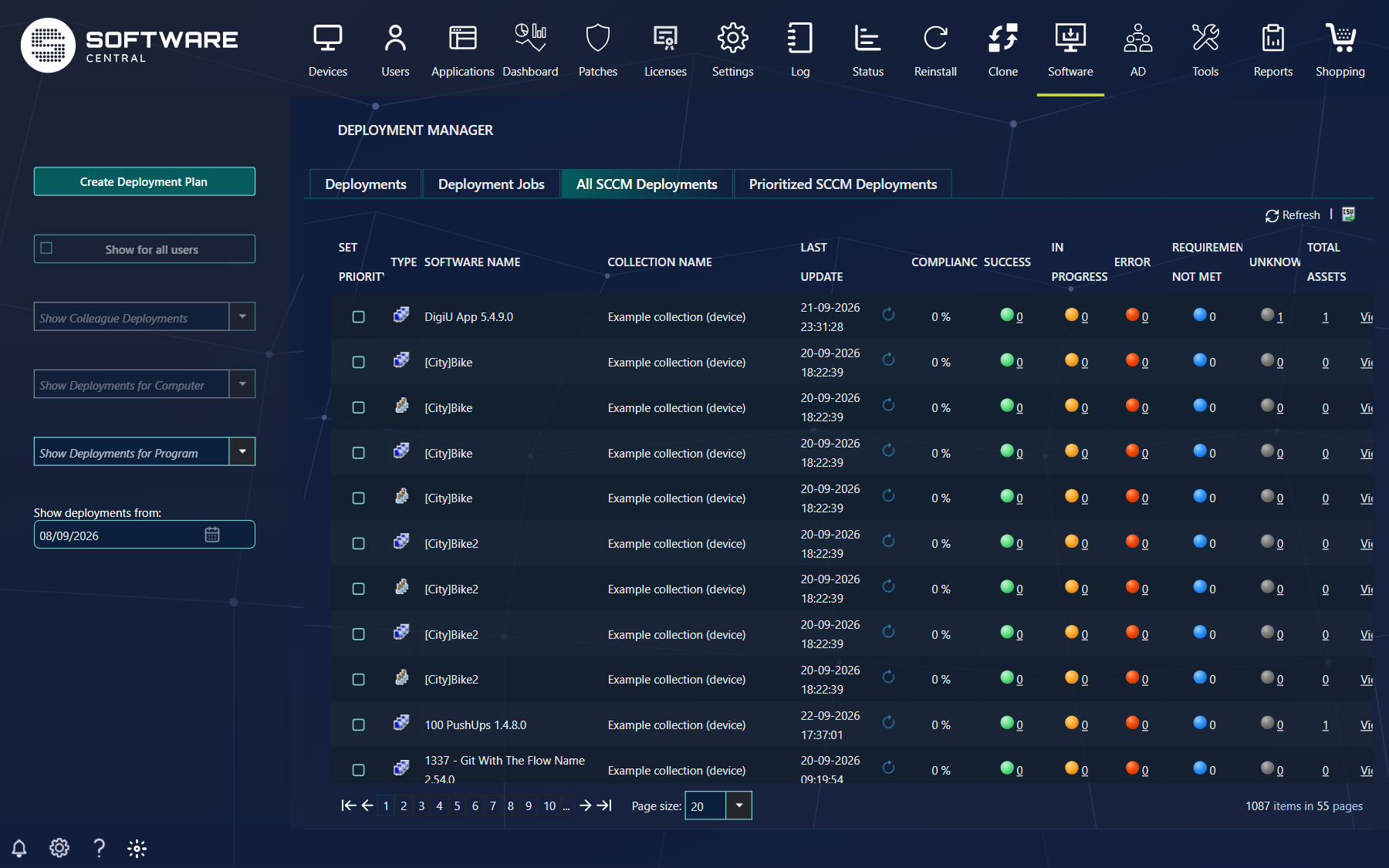
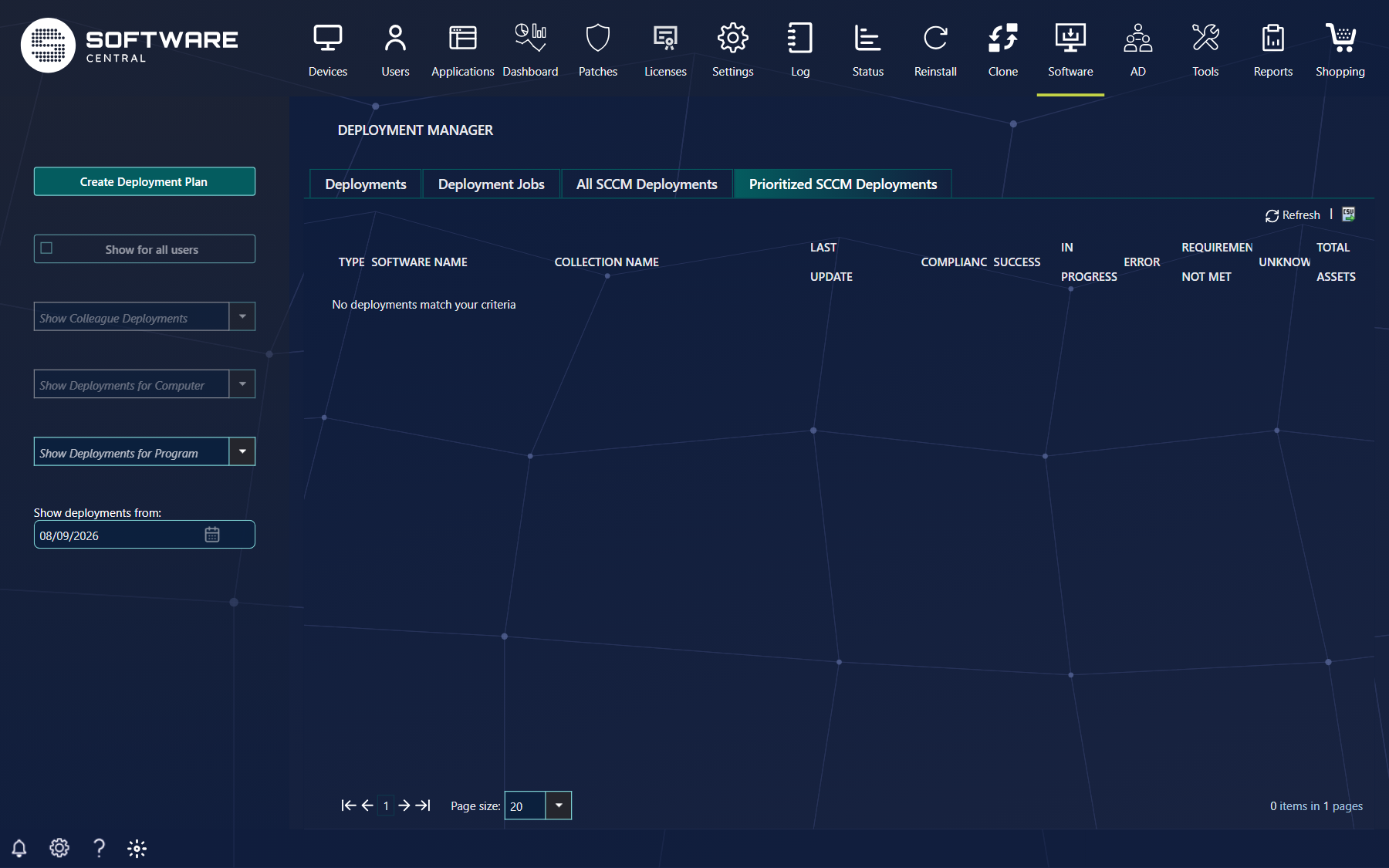
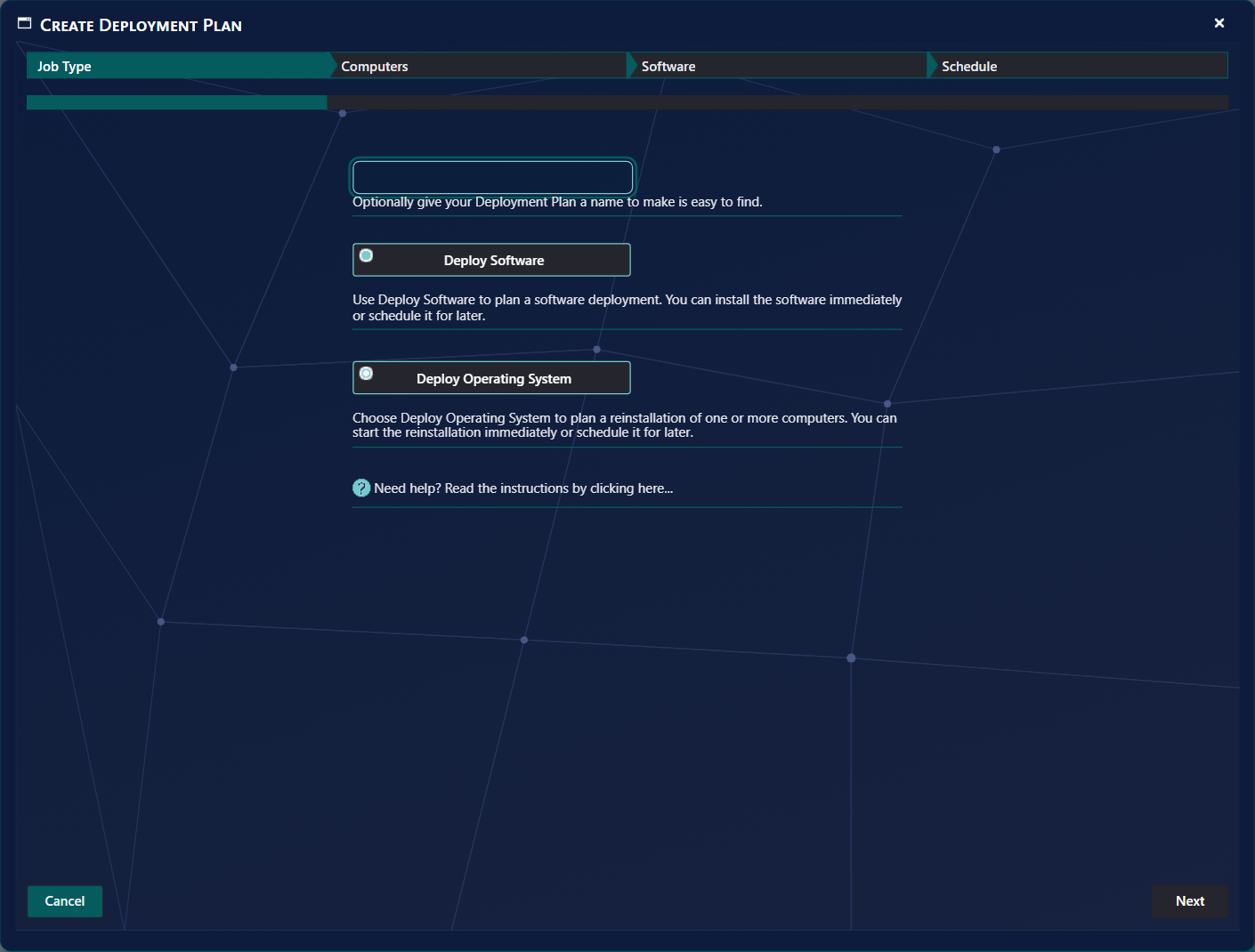
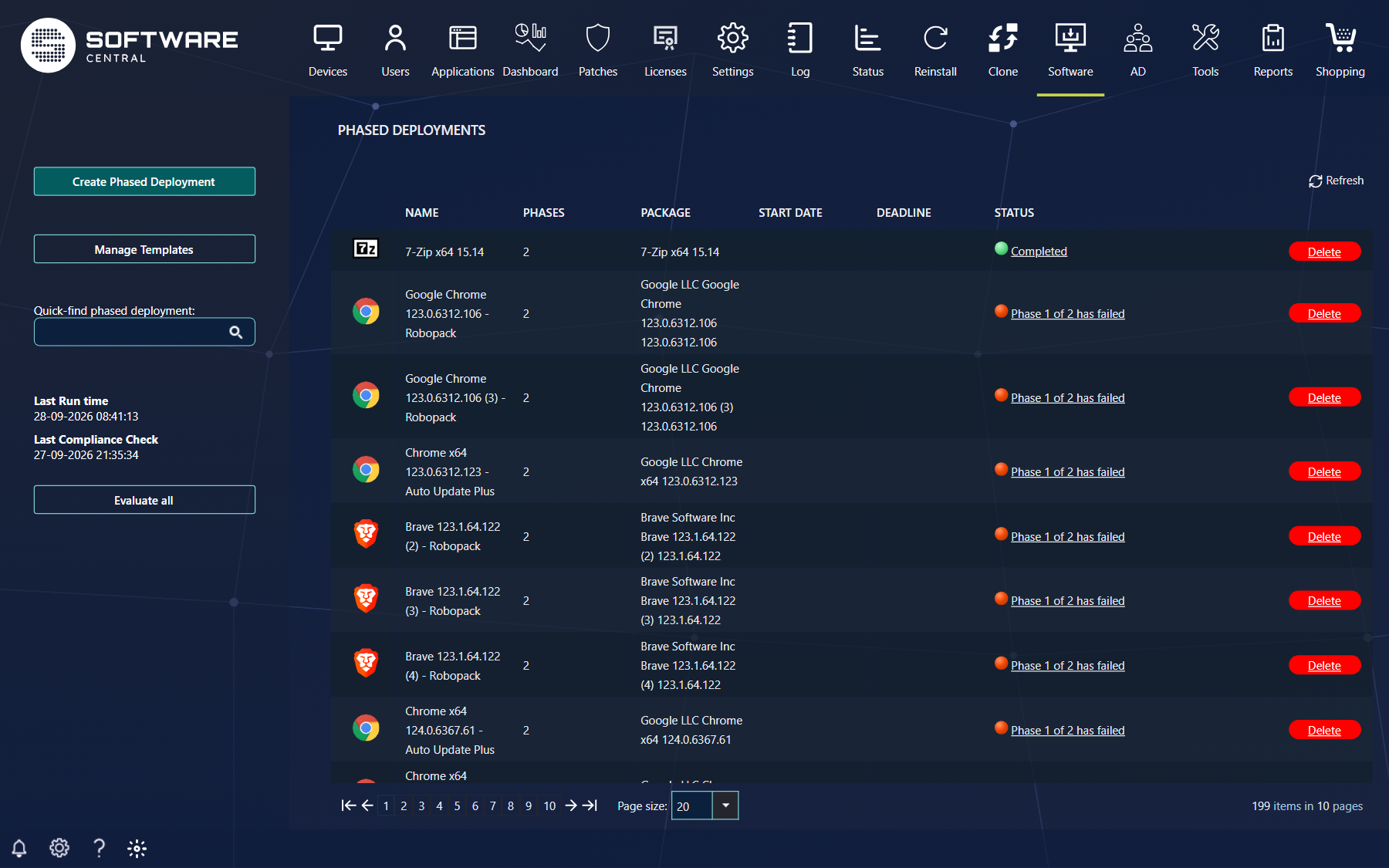
How to use the Deployment Manager is described in Deployment Manager; this page only covers how to set it up.
2 Requirements
| Requirement | Why |
|---|---|
| A working Configuration Manager site and clients | Deployments are made to SCCM collections and read back from SCCM. The Deployment Manager has a site selector at the top; devices from other sites are only included when Show devices from all sites is on (Settings › SCCM › Clients). |
| Software that is set up for SoftwareCentral | Packages and applications need their install and uninstall collections, see Mend Packages and Applications. |
| For operating systems: a prepared task sequence | See Task Sequence Configuration. |
| Optional: Remote Registry on the clients | Gives more exact deployment status messages, see Remote Registry Service Enabled below. |
3 Security roles
What an operator sees in the Deployment Manager depends on the menu buttons their security role holds. Give the role the Deployment Manager menu entry first, then the buttons below.
| An operator with the matching permission | Can |
|---|---|
| Deploy software, or reinstall an operating system | Sees the Create Deployment Plan button. Without either permission the button is hidden and the operator can only monitor. |
| View colleagues' deployments | Sees Show Colleague Deployments and Show for all users. Without it, an operator sees only their own deployments. Show for all users can be slow to load. |
| Set priority on SCCM deployments | Sees the Set priority tick box on All SCCM Deployments. Without it the column is hidden. |
Which devices and software an operator can deploy to or of is controlled by the collections and Package Security Groups assigned to the role, as everywhere else in SoftwareCentral.
4 The settings
Change them under Settings, then click Save Settings. The menu path is in the first column.
| Where | Setting | What it does |
|---|---|---|
| SoftwareCentral › Interface Settings | Enable Deployment Monitor | Shows the Deployment Monitor in the lower left corner for users who have access to the Deployment Manager. |
| SoftwareCentral › Interface Settings | Open Deployment Monitor (Automatically open the Deployment Monitor when a deployment is added) | Opens the monitor by itself for each new deployment. The monitor must be enabled. |
| SoftwareCentral › Interface Settings | Default settings in Replace Package: Add to prioritized deployment list | Adds the replacement's deployment to the prioritised list. Prioritised deployments are not installed any faster; the list is only for follow-up. |
| SCCM › Clients | Remote Registry Service Enabled | Tick it if the Remote Registry service is enabled on your clients. SoftwareCentral then reads the clients' registry for more precise deployment messages. |
| SCCM › Clients | Use live data (Use live data in Manage Software) | Pulls deployment status messages directly from the client when SCCM does not have them yet. |
| SCCM › Clients | Use SCCM Client Online Status | Lets SCCM decide whether a client is online. Needs SCCM 1602 or newer. |
| SCCM › Clients | Use SCCM Client Notifications (instead of Refresh Machine Policy) | Tells clients through SCCM to check in. Applies to Manage Software on a single and on multiple resources, and to the Deployment Manager. |
| SCCM › Clients | Max number of clients to use SCCM Client Notifications | Limits how many clients client notifications are used for. 0 means unlimited. |
| SCCM › Clients | Refresh Machine Policy Delay in seconds | Waiting time before the machine policy is refreshed. Expect at least 30 seconds extra on top. |
| Domain › Active Directory | Use AD-Deployment | Adds devices to Active Directory groups instead of collections. The install and uninstall collections need a query rule that points at the AD group. |
| Domain › Active Directory | Refresh Collection Membership (only with AD-Deployment) | Refreshes the collection so devices join their deploy collection sooner. Many deployments in a short time put load on the collection evaluator. |
5 Keeping it tidy
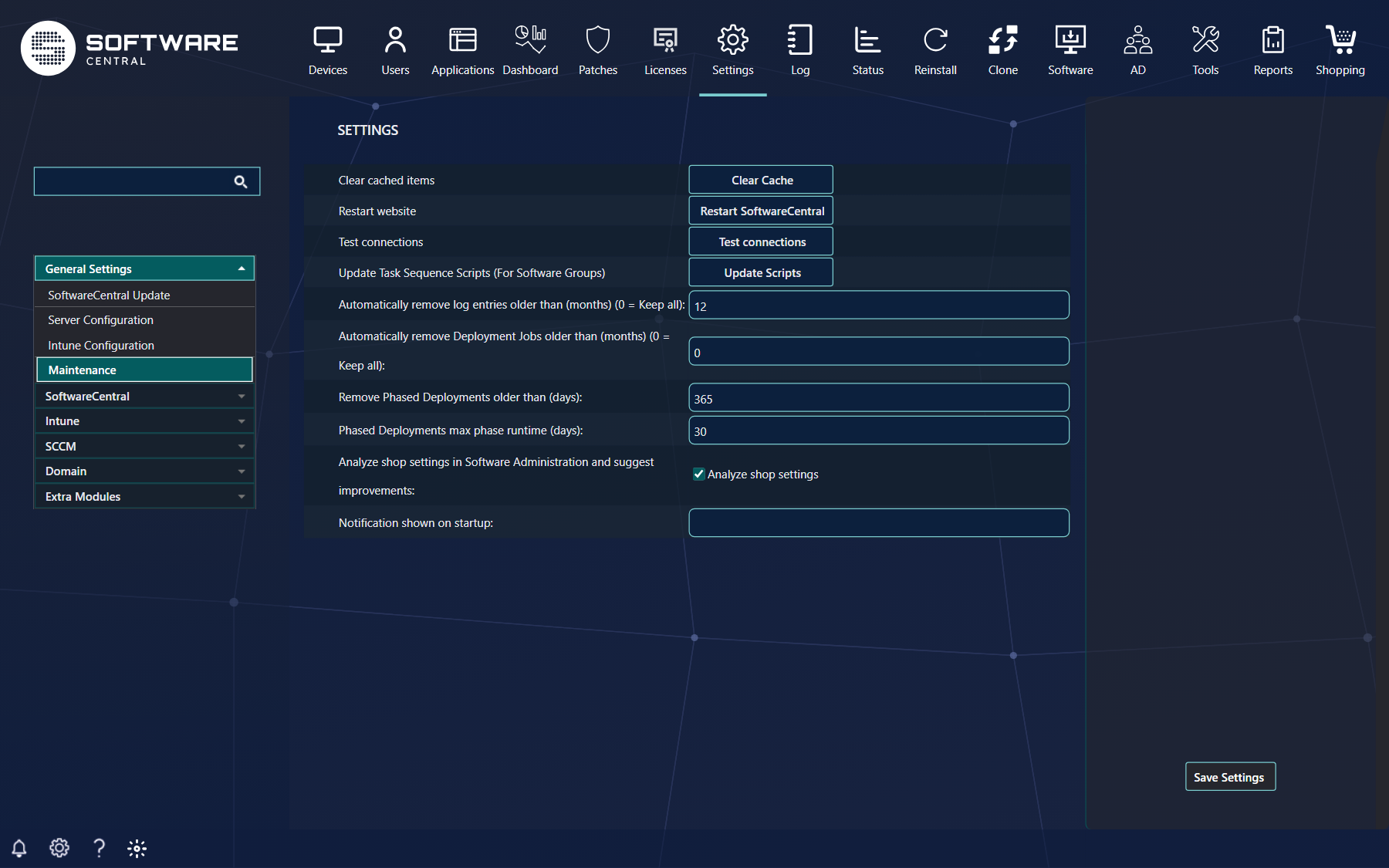
Under Settings › General Settings › Maintenance:
| Setting | What it does |
|---|---|
| Automatically remove Deployment Jobs older than (months) (0 = Keep all) | Removes old deployment jobs from the list. 0 keeps them for ever. |
| Remove Phased Deployments older than (days) | Deletes phased deployments older than this, whatever state they are in, to free resources. 30 to 1461 days. |
| Phased Deployments max phase runtime (days) | A phase that has run longer than this is marked as failed. 1 to 365 days. |
On All SCCM Deployments, the compliance figures come from summarisation. The Last Update column says when they were calculated; the summarise button on a row recalculates it in the background, which can take a while, and the grid's Refresh button then shows the new numbers.
6 Best practice
- Give people the least. Most operators only need to monitor. Keep Create Deployment Plan and Show for all users for the roles that need them.
- Keep priority for the people who follow up. The prioritised list is a to-do list for administrators, not a faster install.
- Use client notifications with a cap on large estates: set Max number of clients to use SCCM Client Notifications so one huge deployment does not flood the site.
- Be careful with AD-Deployment and collection refresh. Leave Refresh Collection Membership off if you make many deployments in a row.
- Set a retention period for deployment jobs and phased deployments instead of 0, and ask operators to delete finished jobs.
- Test first. Create a plan for one test device, watch it in the monitor, then widen it.
7 Troubleshooting
| You see | Check |
|---|---|
| No Create Deployment Plan button | The role lacks the deploy permission, see section 3. |
| No Show Colleague Deployments or Show for all users | The role lacks the colleague permission. |
| No Deployment Monitor in the lower left corner | Enable Deployment Monitor is off, or the user has no access to the Deployment Manager. |
| Compliance numbers differ from the details window | They are summarised in advance. Check Last Update and recalculate. |
| A deployment is missing from the list | The Show deployments from date hides older ones (the default is the last month), or a filter on computer or program is active, or the job was removed by the retention setting. |
| Status stays at unknown for a long time | Try Use live data and Remote Registry Service Enabled, and check that the client can reach its management point. |
See also: Deployment Manager · Introduction to the Deployment Manager · Security Roles · Maintenance