1 Why clean up
The Deployment Manager saves lots of data in the SoftwareCentral database. Over time this will cause SoftwareCentral to slow down.
To avoid this, SoftwareCentral can automatically remove old deployment jobs. It can also remove old log entries and old Phased Deployments. Each of these is set on the Maintenance panel.
2 Open the panel
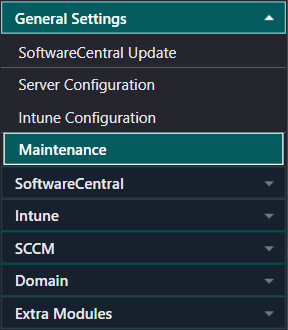
From the Settings menu, open General Settings › Maintenance.
3 Deployment jobs and log entries
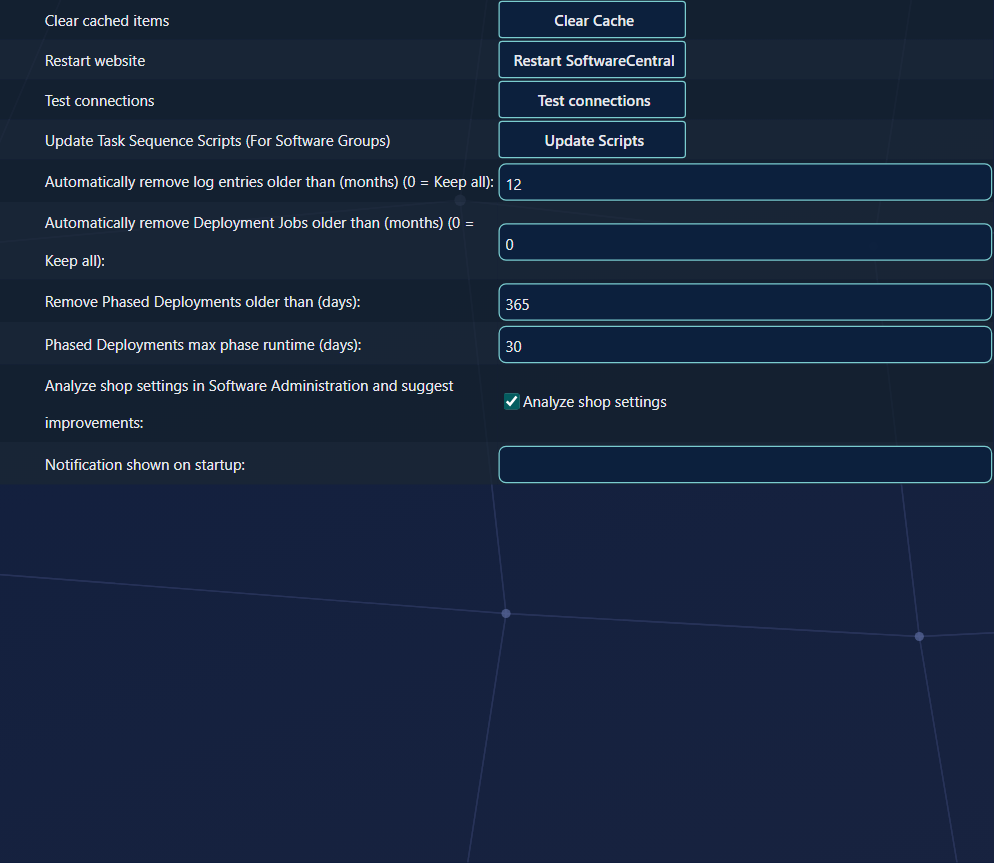
From the Settings menu under General Settings/Maintenance you can set how long deployment jobs will be saved.
| Setting | What it does |
|---|---|
| Automatically remove Deployment Jobs older than (months) (0 = Keep all) | Removes the deployment jobs that are older than this number of months, with their deployment operations and targets. The age is counted from the last time the job ran. Use 0 to keep deployment jobs indefinitely. This row is not shown when SoftwareCentral is used as Application Manager only. |
| Automatically remove log entries older than (months) (0 = Keep all) | Removes the log entries that are older than this number of months. Use 0 to keep log entries indefinitely. |
The clean-up runs once a day in the background, in the SoftwareCentral service. A removed entry or job cannot be restored. Enter a whole number from 0 to 2399. A larger number, or text, is not saved and the old value stays (see Troubleshooting).
4 Phased Deployments
These two settings control the Phased Deployments made in the Deployment Manager.
| Setting | What it does |
|---|---|
| Remove Phased Deployments older than (days) | Deletes a phased deployment when nothing has changed in it, or in any of its phases, for this many days. The deletion happens whatever state the deployment is in. Old phased deployments must be removed to free up system resources. The box accepts 30 to 1461 days; the default is 365. |
| Phased Deployments max phase runtime (days) | The maximum number of days SoftwareCentral keeps a phase running. A phase that runs longer is marked as failed, and a failure notification is sent if the phased deployment has it turned on. The box accepts 1 to 365 days; the default is 30. |
5 The buttons
The rows below the settings hold buttons for maintenance tasks. Each button only does its own task.
| Row and button | What it does |
|---|---|
| Clear cached items · Clear Cache | Clears all cached items for the website and the service. |
| Restart website · Restart SoftwareCentral | Restarts the website. All users are disconnected and all operations that are running are ended. You are asked to confirm first. |
| Test connections · Test connections | Opens the connection test window. It measures each connection that SoftwareCentral uses, including how the proxy affects Microsoft Graph, and compares the result with earlier runs. Save your settings first: the test uses the saved settings. |
| Update Task Sequence Scripts (For Software Groups) · Update Scripts | Updates the SoftwareCentral Tasksequence Scripts package. This row is not shown when SoftwareCentral is used as Application Manager only. |
6 Save
Change the values, then click Save Settings on the right.
The Maintenance values are saved with the other settings on the page. The buttons in section 5 work straight away and do not need saving.
7 Best practice
- Choose the months before the database grows. Removed deployment jobs and log entries are deleted from the database and cannot be recovered. Decide how long your team needs the history, then set the months.
- Keep the default of 0 for anything you need for audits. The value 0 keeps everything. Use a number only when you have agreed how long the history must be kept.
- Do not set the Phased Deployments days lower than you need. Phased deployments older than the limit are deleted whatever their state, and the box does not accept fewer than 30 days.
- Set the max phase runtime for your longest phase. A phase still running after this many days is marked as failed.
- Save before you test. Test connections uses the saved settings, so save a changed proxy or connection setting first, then run the test.
- Restart only when needed. A restart disconnects all users and ends the operations that are running.
8 Troubleshooting
| Symptom | Cause | What to do |
|---|---|---|
| The old deployment jobs or log entries are still there after the clean-up time | The clean-up runs in the SoftwareCentral service. It does not run if the service is stopped, or if the file ServiceConfiguration.xml in the SoftwareCentral root folder has RunDailyTasks set to false. A deployment job is only removed when its last run is older than the limit. | Check that the SoftwareCentral service is running and that RunDailyTasks is not set to false. When the clean-up has run, the Log shows "Successfully removed Deployment Jobs older than N months." or "Successfully removed N log entries older than N months." |
| "Failed to truncate log." in the Log | The clean-up failed, usually because of a database error. | Open the Log entry and read the error. Fix the database problem. The clean-up runs again on its next daily run. |
| A value you saved goes back to the old value | The value is 2400 or more, or it is not a whole number. SoftwareCentral does not save it and shows no message. | Enter a whole number from 0 to 2399 for the log entries or Deployment Jobs setting. |
| The Phased Deployments box shows 365 after you cleared it | An empty box is saved as 365 days. | Enter the number of days you want. |
| The Maintenance panel is not in the menu | The cloud version of SoftwareCentral does not show the Maintenance panel. | Change these settings on an on-premises installation. |
See also: Deployment Manager · Deployment Manager configuration · Phased Deployment · Settings