1 How it works
A task sequence only shows up in SoftwareCentral when it is deployed to a collection, and only one task sequence should be deployed to each collection. The operator does not see the task sequence: the Operating System list in Import Computer and Reinstall Computer shows the name of the collection it is deployed to.

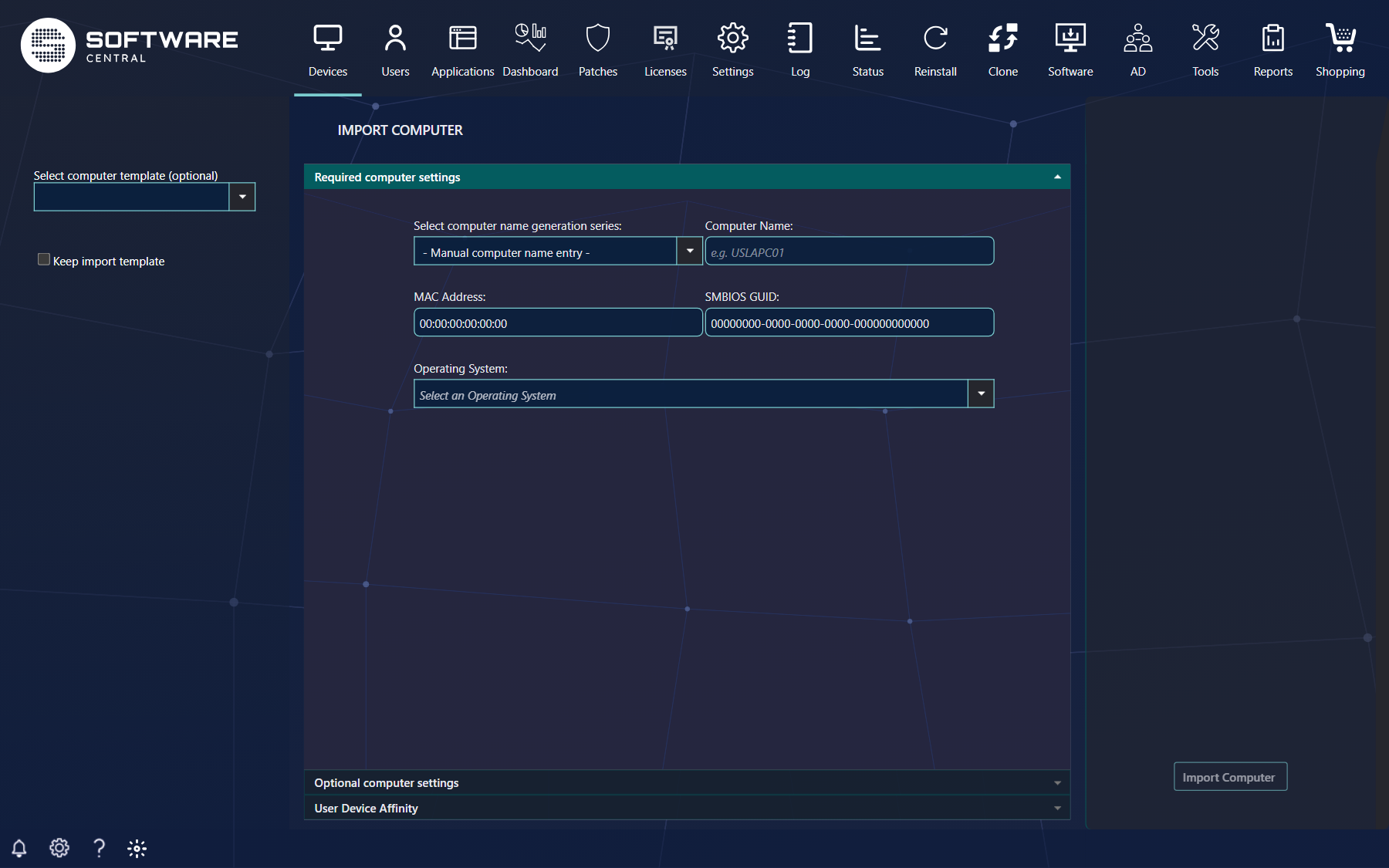
Import Computer has two groups of settings. The required computer settings are the name and the MAC address, which SoftwareCentral uses to create the computer in Configuration Manager on the site selected at the top right, and the Operating System. The optional computer settings are written to the computer object as machine variables. Your task sequence reads those variables to customise each installation, so one task sequence can serve many kinds of computer.
Uploads\TsVbScripts\. The button
Update Scripts under Settings › General Settings › Maintenance updates the
‘SoftwareCentral Tasksequence Scripts’ package in Configuration Manager; use it
when the scripts have changed, instead of editing copies by hand.
2 The machine variables
Each optional setting becomes one variable. The names live in the SoftwareCentral database, in the table MachineVariableType, column VariableName. You may rename a variable there; change nothing else in that table. The standard variables are:
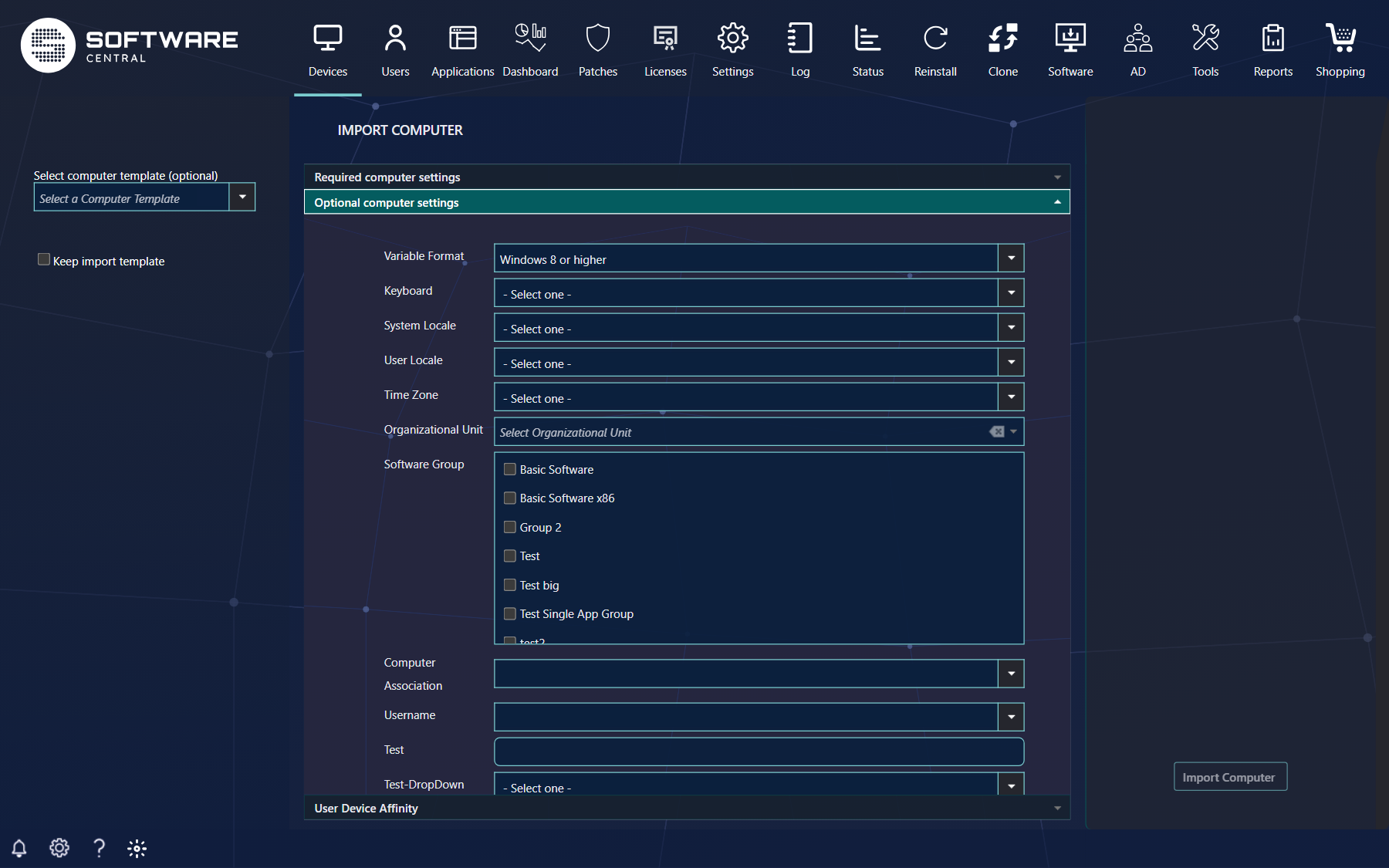

OSDTimeZone.| Setting in the interface | Variable | How the task sequence reads it |
|---|---|---|
| Operating System | LAB_OperatingSystem | Decides the format of the other variables, because Windows XP uses a different kind. SoftwareCentral converts the values for XP itself; you do not need to handle this variable. |
| Keyboard | LAB_InputLocale | Through an unattended answer file, see section 3. |
| System Local | LAB_SystemLocale | Through the answer file. |
| User Local | LAB_UserLocale | Through the answer file. |
| Time Zone | OSDTimeZone (type LAB_TimeZone) | Through the answer file, as %OSDTimeZone%. |
| Organizational Unit | LAB_OrganizationUnit | In the Apply Network Settings step, section 4. |
| Software Groups | LAB_SoftwareGroup001, 002 …, plus the package and application variables | With the Install Package and Install Application steps, section 5. |
| Language code | LAB_LanguageCode | Currently not used. |
3 Locale, keyboard and time zone
These four are read through an unattended answer file, for instance Unattend.xml.
- In the task sequence open the step Apply Operating System Image and set it to use an unattended or sysprep answer file.
- In that answer file, use the task sequence variables in the places Windows expects them:
InputLocale=%LAB_InputLocale%(keyboard),SystemLocale=%LAB_SystemLocale%,UserLocaleandUILanguage=%LAB_UserLocale%, andTimeZone=%OSDTimeZone%.

Unattend.xml).
Unattend.xml.4 Organizational Unit
- Add an Apply Network Settings step to the task sequence.
- In its Domain OU field enter the variable
%LAB_OrganizationUnit%. The step then reads the OU from the machine variables of the computer. - After the Configuration Manager client has been installed, add a Run Command Line step that runs the script
MoveClientToCorrectOU.vbswith the OU variable as its argument:cscript.exe MoveClientToCorrectOU.vbs "%LAB_OrganizationUnit%". It moves the client to the assigned OU.

%LAB_OrganizationUnit%.
5 Software Groups
A Software Group is a set of packages or applications that are installed in a given order. A group can be deployed to an existing computer, or used while a computer is imported or reinstalled. To make your task sequence install the groups, add three things after the operating system has been installed and configured.
| Step | Add to the task sequence | Set it up like this |
|---|---|---|
| 1 | Install Package | Choose Install software packages according to a dynamic variable list. SoftwareCentral adds the packages of the group as variables on the computer. Use as Base variable name the name you have under Software Group Package Base Variable Name. |
| 2 | Install Application, after the Install Package step | Use as Base variable name the name you have under Software Group Application Base Variable Name. |
| 3 | Run Command Line | Run the script AddToSoftwareInstallCollectionSccm2012.vbs. It adds the computer to the individual install collection of each package and application, so they stay installed and managed afterwards. |

LAB_SoftwareGroupApp.
LAB_ApplicationBaseVariable.
Both base variable names are under Settings › SCCM › Packages. The names used in the screenshots above, and the usual
values, are LAB_SoftwareGroupApp for packages and LAB_ApplicationBaseVariable for
applications. SoftwareCentral appends a three-digit number to the base name for each item (001,
002 and so on), which is what the dynamic variable list reads.
The setting Add non-Software Group packages as Machine Variables under Settings › Variables makes SoftwareCentral also install the computer's individual packages from the task sequence, and remove the computer from their individual install collections. Turn it on only when every package and application can be installed by a task sequence.
6 Reinstall options
| Option in Reinstall Computer | What SoftwareCentral does, and what to do |
|---|---|
| Migrate User State | When ticked, SoftwareCentral adds the variable LAB_USMT with the value True to the computer. Change your task sequence so it migrates the user state (USMT) when that variable exists. The tick box is shown when Show USMT is on under Settings › SoftwareCentral › Interface Settings. |
| A naming schema (rename) | SoftwareCentral sets the variable OSDComputerName on the computer to the next name in the schema. The task sequence applies it in its Apply Windows Settings step: the step uses the variable as the computer name. |
If you have followed the steps above, your task sequence is fully compatible with the default import and reinstall settings of SoftwareCentral. For the full list of variables and what they contain, see Machine Variable Names.
7 Best practice
- Work on a copy. Duplicate the task sequence, add the SoftwareCentral steps to the copy, and keep the original as a fallback.
- One task sequence, one collection. Give each collection a clear, operator-friendly name: that is what the operator sees in the Operating System list.
- Keep the variable names in step. If you rename a variable in MachineVariableType or change a base variable name in Settings, change the same name in every task sequence, answer file and script that uses it.
- Leave the scripts alone. Use Update Scripts rather than editing copies of the scripts in the task sequence package.
- Test on a virtual machine first. Import a test computer, deploy, and check that locale, OU, software groups, USMT and the computer name all arrive as expected before you let operators use it.
- Make the account rights match. The accounts the task sequence uses to join the domain and move the client need rights on the target OU.
- Check the log. SoftwareCentral writes what it did for each import and reinstall to its log.
8 Troubleshooting
| You see | Check |
|---|---|
| An operating system is missing from the Operating System list | The task sequence is not deployed to a collection, or the collection does not follow SoftwareCentral's structure. |
| The computer installs with the wrong keyboard, locale or time zone | The answer file does not use the variables, or is not set on the Apply Operating System Image step. |
| The computer lands in the default OU | The Apply Network Settings step does not have %LAB_OrganizationUnit% in Domain OU, or MoveClientToCorrectOU.vbs was not run. |
| No software from the Software Group is installed | The base variable names in the Install Package and Install Application steps differ from the names in Settings. |
| User data is not migrated | The task sequence does not test for LAB_USMT. |
| The computer keeps its old name | The step that applies the name does not read OSDComputerName. |
See also: Machine Variable Names · Import Computer · Reinstall Computers