1 Overview
For a package to work with SoftwareCentral it requires an install program, advertised to a collection. To uninstall a package, an uninstall program, advertised to another collection is also needed.
SoftwareCentral deploys a package by creating a Direct Rule Membership on the install collection and then requests a Refresh Machine Policy on the client.
SoftwareCentral automatically creates this structure for packages created in SoftwareCentral.
To keep track of all SoftwareCentral collections, they are created under a customer defined Software Root Collection.
In SCCM 2007 the collection structure for a single package is shown below.

There is a parent collection with the same name as the package. This collection will by default have two child collections, one for the install program and one for the uninstall program.
Additional collections will be created under the parent collection for scheduled jobs.
In SCCM 2012 the parent collections are replaced by folders:

The above principals are the same for applications in SCCM 2012. Applications does however have a different root folder than packages and they also have a root folder for user collections to enable user based deployment.
SoftwareCentral supports many other types of setups. The general rules are:
- Packages will require an install program deployed to a collection.
- Applications requires at least one deployment type and they must be deployed with the install action to one device collection.
For setups other than the SoftwareCentral setup, some features might be limited. This includes:
- Scheduled deployments
- Uninstallations
- License Harvesting
- Package/Application editing and removal
If multiple packages/applications are deployed to the same collection, it will cause unintended installations when a software order is given from SoftwareCentral.
If you have a setup that isn’t supported by SoftwareCentral or want to run with your own setup parallel to SoftwareCentral, you can use “Mend Packages” (“Mend Packages and Applications” in SCCM 2012).
2 The Mend interface
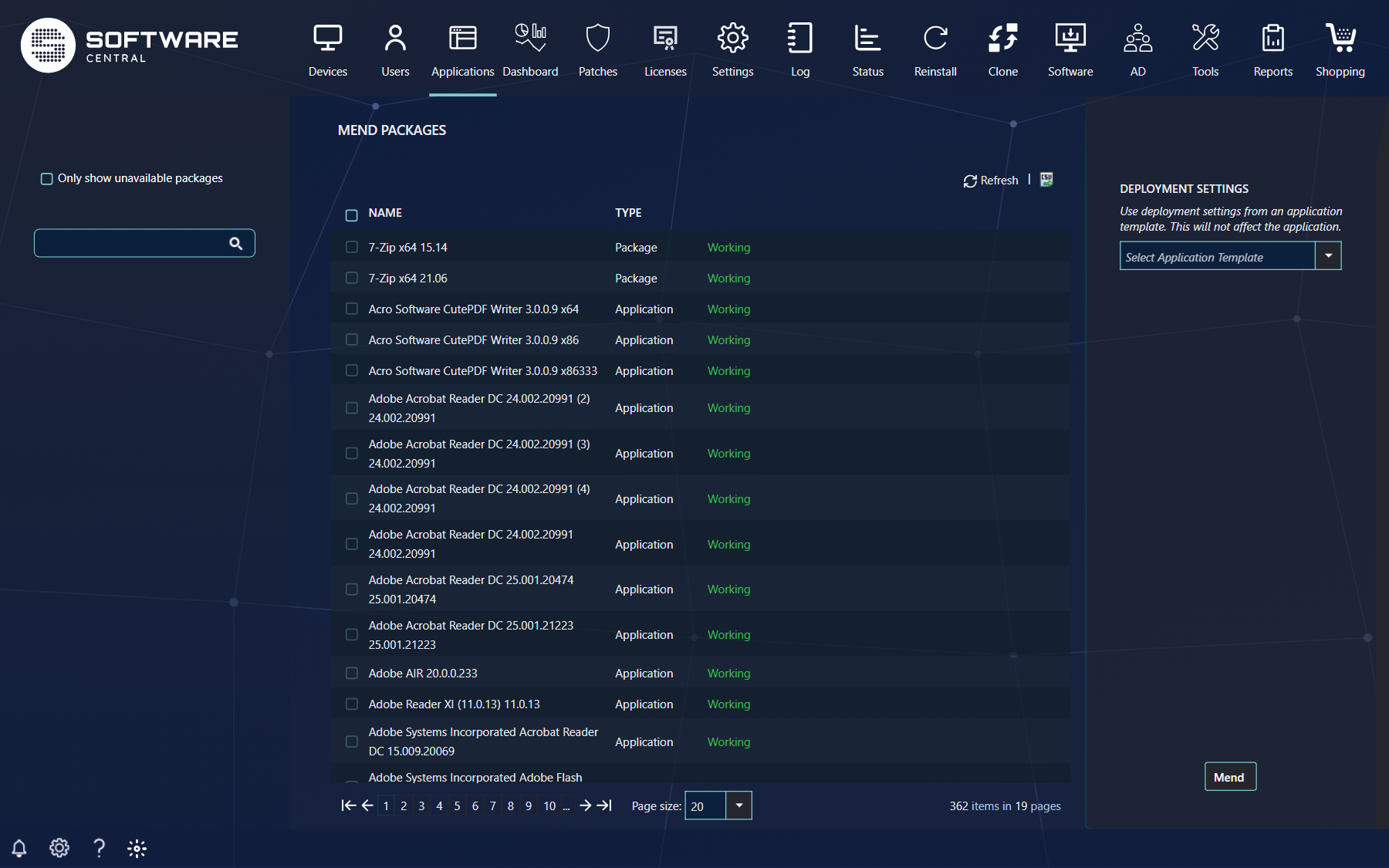
If you are missing a package or application in SoftwareCentral, this is a good place to look. It displays all packages and applications found in the SCCM. (Please note that applications with no deployment types won’t be shown.)
| Control | What it does |
|---|---|
| Site selector (top) | Chooses the site. Mend on the central site: if you are on another site, SoftwareCentral warns Please note that you are not currently on the Central Site. It is highly recommended to mend packages on the central site. |
| Only show unavailable packages | The checkbox in the left menu hides all packages and applications already available in SoftwareCentral. |
| Search | Type part of a name and press Enter. Each value becomes a token and narrows the list. |
| Check boxes | Select what to mend. The box in the header selects every item in the (searched) list that can be mended. Items that cannot be mended have a disabled box with a tooltip saying why. |
| Name and Type | The package or application, and whether it is a Package or an Application. |
| Status message | Describes what is needed or recommended (see below). |
| Refresh and CSV export (above the grid) | Reload the list, or export it to a CSV file (SoftwareCentral Mend Status Report). |
| Deployment Settings (right menu) | Optionally select an application template. Its deployment settings are used for the collections and deployments that mend creates; it does not change the application itself. With no template, the default settings are used. |
| Mend | Mends the selected items in the background. If you select more than 20 you are warned: SoftwareCentral recommends a maximum of 20 at a time so the job completes successfully. Follow the progress in the log. |
3 Status messages
The messages are divided into three categories:
- Green: the package/application is working and can not be mended (Working).
- Blue: the package/application should be mended.
- Red: further actions are needed before the package/application can be mended.
| Colour | Message | What to do |
|---|---|---|
| Blue | No collections found. Mend this package to create collections and advertisements for each program. / No collections found. Mend this application to create collections and deployments. | Select it and click Mend. |
| Blue | No device collections found. Mend this application to create collections and deployments. | Mend it. |
| Blue | Collection ‘…’ does not belong to the SoftwareCentral root collection (folder). It is recommended to mend this package (application) to avoid unintended deployments. | Mend it, so it gets collections in the SoftwareCentral structure. |
| Blue | Application is retired. | Retired applications can not be mended. Reinstate it in Application Management first. |
| Red | Program names are unknown. Please define them before mending this package. | Click the red Edit Program Names link and choose the install and uninstall programs (see below). |
| Red | No programs found. An install program is required. | Add an install program to the package in ConfigMgr. |
4 Example: a package with no collections
To explain how Mend Packages work, we will consider a package with no collections or advertisements called “PackageToMend”. It has 3 programs, Install, Install Silent and Uninstall.

This Package won’t show up in SoftwareCentral, except for in the Mend Packages interface. If we select the package from the interface and click on the “Mend” button in the lower right hand side, all what is needed will be automatically created in the SCCM.
It will create one parent collection with the same name as the package. It will put this collection in your defined Software Root Collection. If it is a SCCM 2012 server it will create a folder.
It will also create a collection for each program in the package, with the package name followed by the program name:

Each program will be advertised to its collection, ending with the program name:

It’s the same for applications. Except that there will be created one install and one uninstall device and user collection.
5 Packages with more than two programs
If the package had the two standard programs, “Install” and “Uninstall” the process would be done by now.
However the package we just mended has too many programs and therefore SoftwareCentral won’t know which ones to use. So the package still won’t appear in SoftwareCentral.
To solve this, go to “Edit Package” where the package will be displayed, but with a red warning tag:
From here, click the Edit Program Names link. A new window will open where you can select which programs are used to install and uninstall the package. Click Save when done. The same Edit Program Names link is also shown in red in the Mend interface.
Edit Package will now refresh, and the package will no longer be marked with a red flag.
If you edit a package with more programs than two, only the two defined install and uninstall programs will be affected by the changes made in SoftwareCentral.
The package is now ready for use in all SoftwareCentral interfaces.
6 See also
7 Best practice
- Mend on the central site, and mend in small batches (20 at a time at most).
- Choose an application template before mending applications, so the new deployments get your normal settings (distribution, required or available, notifications).
- Fix red messages first: define the install and uninstall program names, then mend.
- Use Only show unavailable packages to see what is still missing, and export the list to CSV before and after as a record of what was changed.
- Make sure no two deployments point at the same collection before you mend; see How does SoftwareCentral work?.