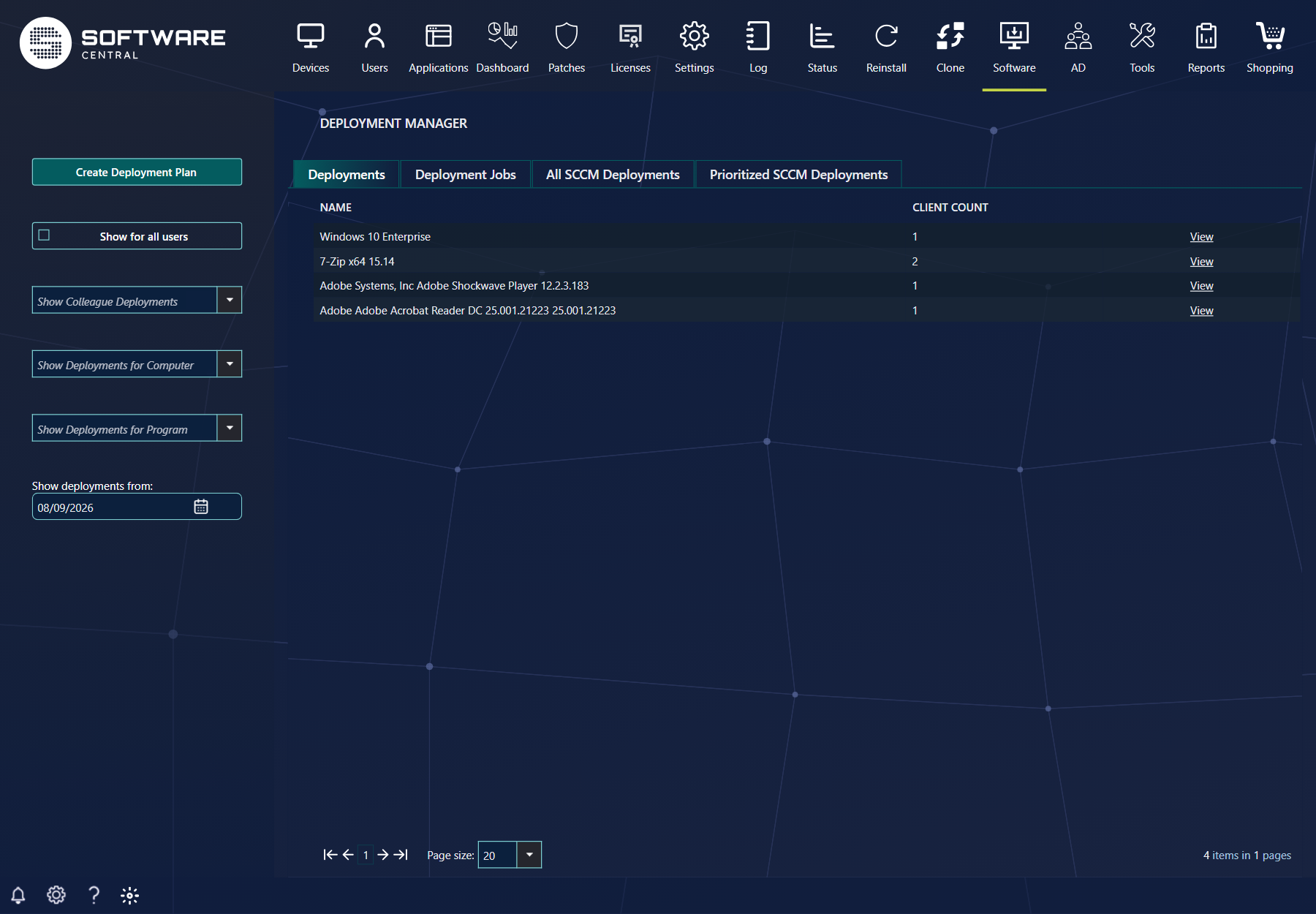
The Deployment Manager is where you deploy software and operating systems, and where you follow every deployment you have made, including deployments made from Manage Software, Reinstall Computer or Import Computer.
Earlier version of the Software menu, with Deployment Manager as the last item. The menu in the current version may list the items differently.
2 What it does
The Deployment Manager has two major functions:
Function
What you do
Deploy software and operating systems
To install or uninstall software, or to install an operating system, create a deployment plan with Create Deployment Plan. See Deployment Plan. Phased deployments are described in Phased Deployment.
Monitor all your deployments with live client data
Every deployment is listed, including deployments from Manage Software, Reinstall Computer or Import Computer. Open one with View to see the status of each computer. See Deployment Monitor.
3 The tabs
The tabs across the top of the window show different lists. The Deployments tab opens first.
The Deployments tab. Each row is one deployment, with its Client Count. Click View to open the Deployment Monitor for that deployment.
Tab
What it lists
Deployments
One row per deployment, with Name, Client Count and View.
Deployment Jobs
The deployment jobs, with Created, Name, Start and End, and an Edit and Delete link on each job. When you view a colleague's deployments, the Delete link is hidden.
All SCCM Deployments
One row per Configuration Manager deployment, with the software name, the collection, the feature type, the deadline, and the counts for Compliance, Success, In Progress, Error, Requirements Not Met, Unknown and Total Assets. Each count opens the monitor for that group of computers.
Prioritized SCCM Deployments
The same list as All SCCM Deployments, with a Set priority column of tick boxes. The column is shown only to roles with the SetPriorityOnSCCMDeployments button. The setting tooltip in Settings notes that prioritized deployments are not installed faster.
4 Filters and buttons
The left side of the window holds the buttons and filters. Some of them appear only for certain roles.
Control
What it does
Create Deployment Plan
Starts the wizard that creates a deployment plan. The button is shown to roles that can deploy software or reinstall an operating system.
Show for all users
Lists the deployments of all users, not only yours. It may take a while to load. Shown to roles that can view colleagues' deployments.
Show Colleague Deployments
Lists the deployments of one colleague. Shown with Show for all users, to the same roles.
Show Deployments for Computer
Lists the deployments that include one computer.
Show Deployments for Program
Lists the deployments of one program.
Show deployments from
The date from which deployments are listed. Use the calendar to change it.
5 Where to go next
To do this
Read
Create a deployment of software or an operating system
Give deployment rights only where they are needed.Create Deployment Plan appears only for roles with the DeploymentSoftware or ReinstallOperatingSystem button. Give those to the people who deploy, not to every operator.
Give colleague views on purpose.Show for all users and the colleague list need the DMViewColleagueDeployments button. Use them when you need to check a colleague's deployments, because the list can be slow to load.
Do not expect priority to speed up installation. The Settings tooltip for adding a program to the prioritized list says that prioritized deployments are not installed faster. Give the SetPriorityOnSCCMDeployments button only to the people who manage the order.
Check the status before you change anything. Open the Deployment Monitor from View first, read the status of each computer, and only then rerun or mark a computer.
7 Troubleshooting
Symptom
Cause
What to do
There is no Create Deployment Plan button
Your role does not have the DeploymentSoftware or ReinstallOperatingSystem button.
Ask your administrator to add the button to your security role.
There is no Show for all users button or colleague list
Your role does not have the DMViewColleagueDeployments button.
Ask your administrator to add the button to your security role.
The Set priority column is missing
Your role does not have the SetPriorityOnSCCMDeployments button.
Ask your administrator to add the button to your security role.
A message "Failed to initialize interface." appears in Notifications when you open a monitor, and the monitor is empty
SoftwareCentral could not read the deployment status from Configuration Manager.
Check the Configuration Manager settings in Deployment Manager Configuration. If the monitor stays empty, contact your administrator.