1 The left menu and filters
The left menu holds the button that starts a deployment and the filters that choose which deployments the centre of the window lists.
| Control | What it does |
|---|---|
| Create Deployment Plan | Opens the window where you can install or uninstall software and reinstall computers. It is shown only to roles with the DeploymentSoftware or ReinstallOperatingSystem button. |
| Show for all users | Shows all deployments made by all users. This filter can be mixed with the computer and program filters. It is shown only to roles with the DMViewColleagueDeployments button. Ticking it clears any colleague you have chosen. |
| Show Colleague Deployments | Shows deployments made by other users. It is shown to the same roles as Show for all users. |
| Show Deployments for Computer | Shows your own deployments to a given computer. |
| Show Deployments for Program | Shows your own deployments of a given piece of software. |
| Show deployments from | Shows deployments from this date and newer. This filter is always applied. By default, it shows deployments from the last month. |
The SCCM tabs use their own list
On All SCCM Deployments and Prioritized SCCM Deployments, the colleague, computer, all-users and date filters are greyed out. Only Show Deployments for Program still applies.
2 Deployments tab
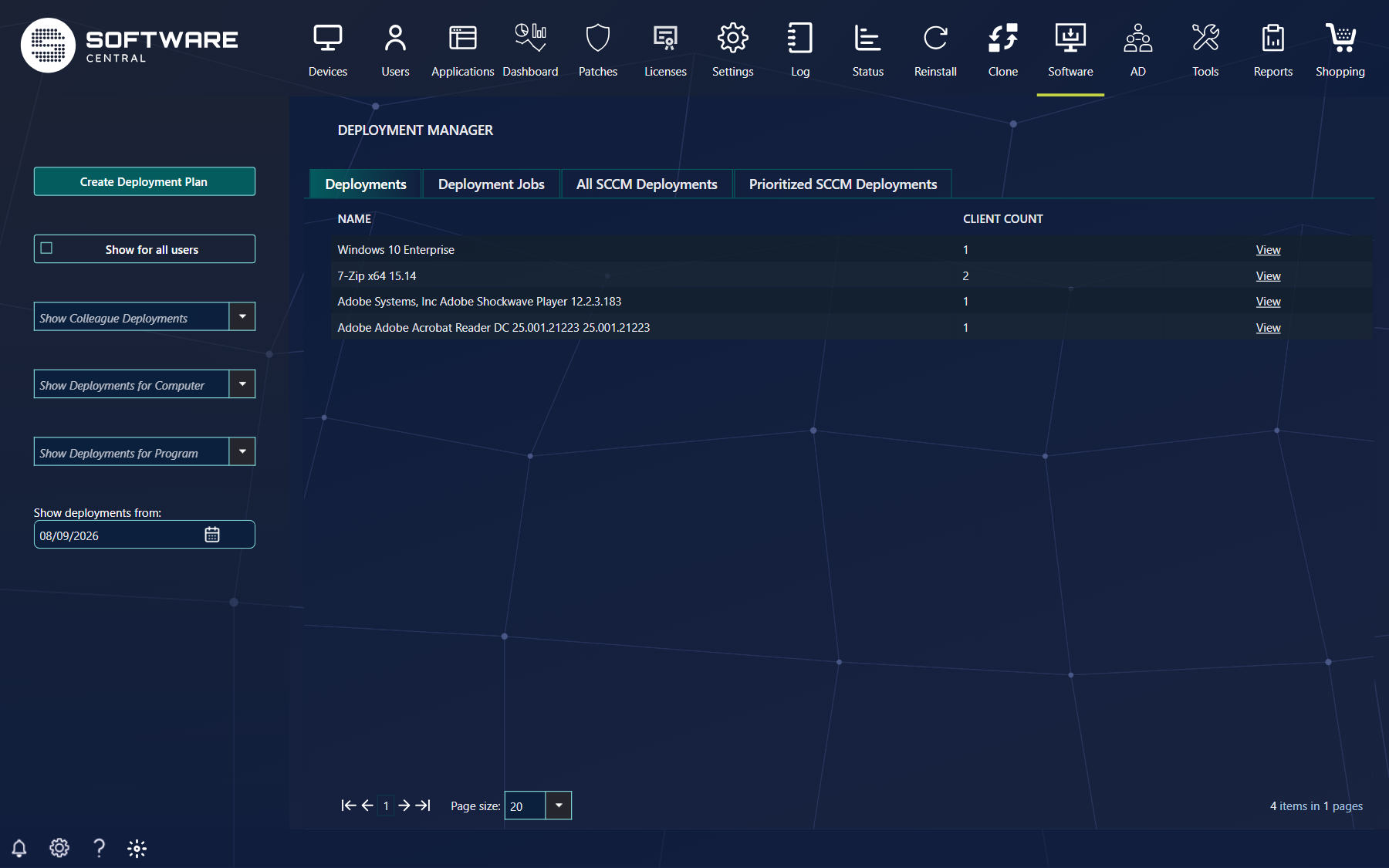
The Deployments tab lists all install deployments, filtered by software. There is one row per program.
| Column | What it shows |
|---|---|
| Name | The name of the software deployed. |
| Client Count | The number of clients deployed to this program. |
| View | Opens the Deployment Monitor with the status for each computer. |
3 Deployment Jobs tab
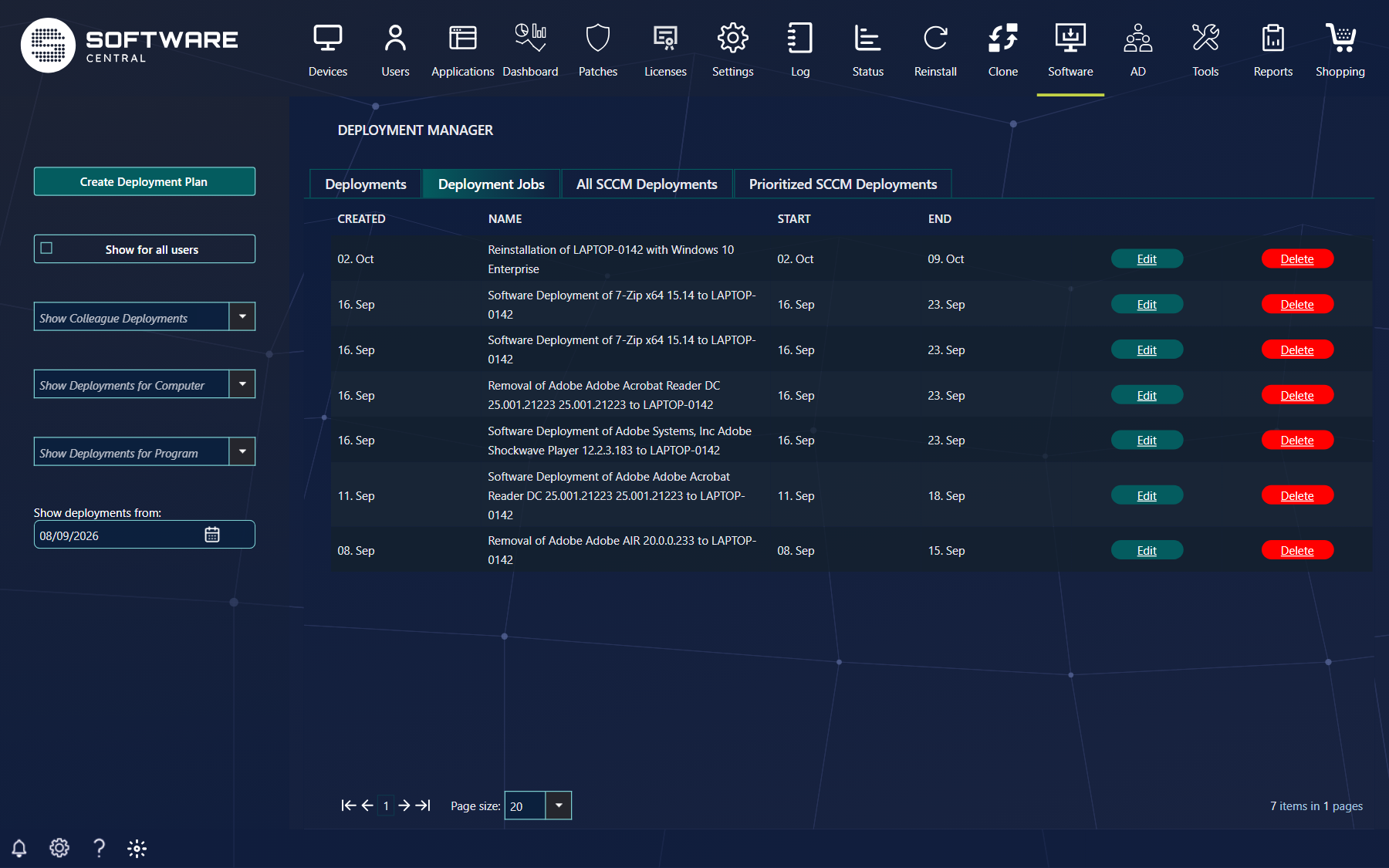
The Deployment Jobs tab lists the deployments, filtered by the same left menu. It contains all deployments made by you, or by a colleague if a filter is applied.
| Column or button | What it shows or does |
|---|---|
| Created | The creation date of the deployment. |
| Name | The name of the deployment. This is either user defined or auto generated. |
| Start | The start time of the deployment. |
| End | The latest runtime of the deployment. For deployments which were started immediately, without a schedule, it defaults to 7 days after the start time. |
| Edit | Opens the Deployment Monitor for that deployment, showing the status of each computer. |
| Delete | Removes the deployment from your list. Click Remove in the confirmation to do it. Removing does not cancel the deployment. You should remove finished deployments. The button is hidden while you view a colleague's deployments, because you cannot remove a colleague's deployment. |
Removing is not cancelling
The confirmation says that removing a deployment plan does not cancel a scheduled installation. To stop a scheduled installation, go to Tools › Edit Schedule.
4 All SCCM Deployments tab
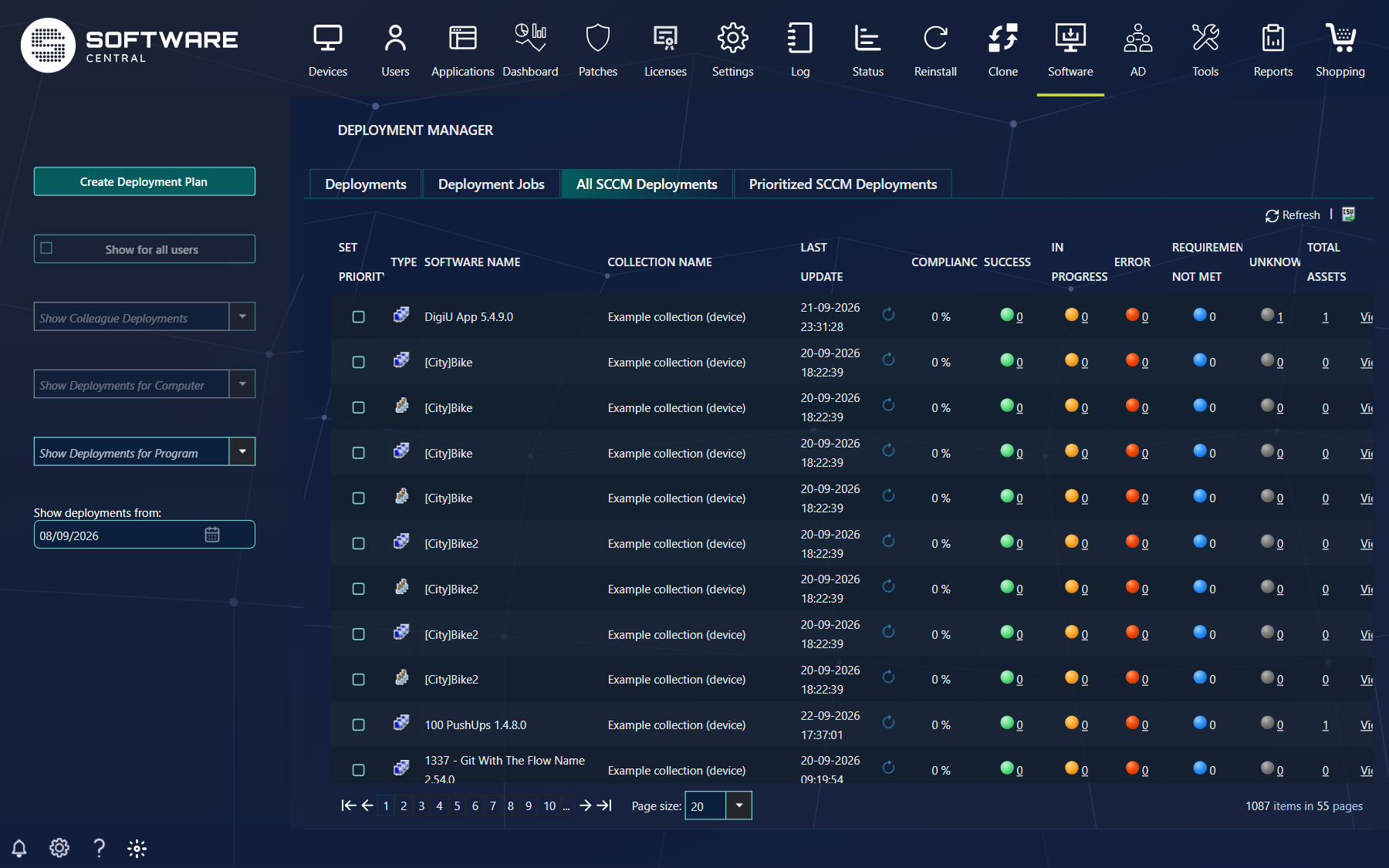
This tab displays all deployments in Configuration Manager and their compliance.
- The data source is summarized earlier and may differ from the actual number of devices and users displayed when opening the details window.
- The last summarization time is listed in the Last Update column. Use the blue recycle button in that column to summarize that deployment now (its tooltip is Run Summarization). Note that this operation may take a while.
- Use the Refresh button in the upper right corner of the grid to display the new summarized results.
- The counts Compliance, Success, In Progress, Error, Requirements Not Met, Unknown and Total Assets show how the computers are doing. Each count is a link to the monitor for that group of computers.
- The export icon next to Refresh exports the grid to CSV.
- The Set priority tick boxes are shown only to roles with the SetPriorityOnSCCMDeployments button.
5 Prioritized SCCM Deployments tab
The Prioritized SCCM Deployments tab shows the same columns as All SCCM Deployments, without the Set priority column. Choose the priority on the All SCCM Deployments tab with the Set priority tick box. This needs the SetPriorityOnSCCMDeployments button.
6 Where to go next
| To do this | Read |
|---|---|
| An overview of what the Deployment Manager does | Introduction to the Deployment Manager |
| Create a deployment plan | Deployment Plan |
| See the status of each computer | Deployment Monitor |
| Set how the Deployment Manager behaves | Deployment Manager Configuration |
7 Best practice
- Use the all-users and colleague filters only when you need them. They need the DMViewColleagueDeployments button, and the full list can take a while to load.
- Refresh before you read the counts. The SCCM counts come from a summary, so they can differ from what the monitor shows. Run the summary for one deployment with the recycle button, then click Refresh.
- Remove finished jobs from your list. Use Delete on the Deployment Jobs tab, and check the schedule first, because removing does not cancel a scheduled installation.
8 Troubleshooting
| Symptom | Cause | What to do |
|---|---|---|
| There is no Create Deployment Plan button | Your role does not have the DeploymentSoftware or ReinstallOperatingSystem button. | Ask your administrator to add the button to your security role. |
| There is no Show for all users button and no colleague list | Your role does not have the DMViewColleagueDeployments button. | Ask your administrator to add the button to your security role. |
| There is no Delete button on a row | A colleague is selected in the filters, and you cannot remove a colleague's deployment. | Clear the colleague filter to see your own deployments again. |
| The Set priority column is missing | Your role does not have the SetPriorityOnSCCMDeployments button. | Ask your administrator to add the button to your security role. |
| The colleague, computer and date filters are greyed out | You are on All SCCM Deployments or Prioritized SCCM Deployments, which use their own list. | Go back to the Deployments or Deployment Jobs tab to use those filters. |
| A monitor opens with "Failed to initialize interface." and no rows | SoftwareCentral could not read the deployment status from Configuration Manager. | Check the Configuration Manager settings in Deployment Manager Configuration. If the monitor stays empty, contact your administrator. |