1 How external tools work
A web page cannot start a program on its own. SoftwareCentral solves that with a small helper, the
SoftwareCentral Client, and a link type, SoftwareCentral:, registered on the computer. When an
operator opens a tool, the browser hands the request to the client through that link, and the client starts the program
on that operator's computer, with the operator's own rights.
| Part | Role |
|---|---|
| The SoftwareCentral Client | The program (SoftwareCentralClient.exe) that receives the request and launches the tool. It is kept on a network share, or in a local folder. |
| The URI scheme | The registry entries that tie SoftwareCentral: links to the client. SoftwareCentral registers them by itself the first time they are needed, or you register them. |
| The tool | An entry under Tools that you create in Manage Tools, shown in the Tools menu of the roles it is assigned to. |
2 What to set up
- Put the client on a share (or a local folder) and give the users read and execute rights. Copy
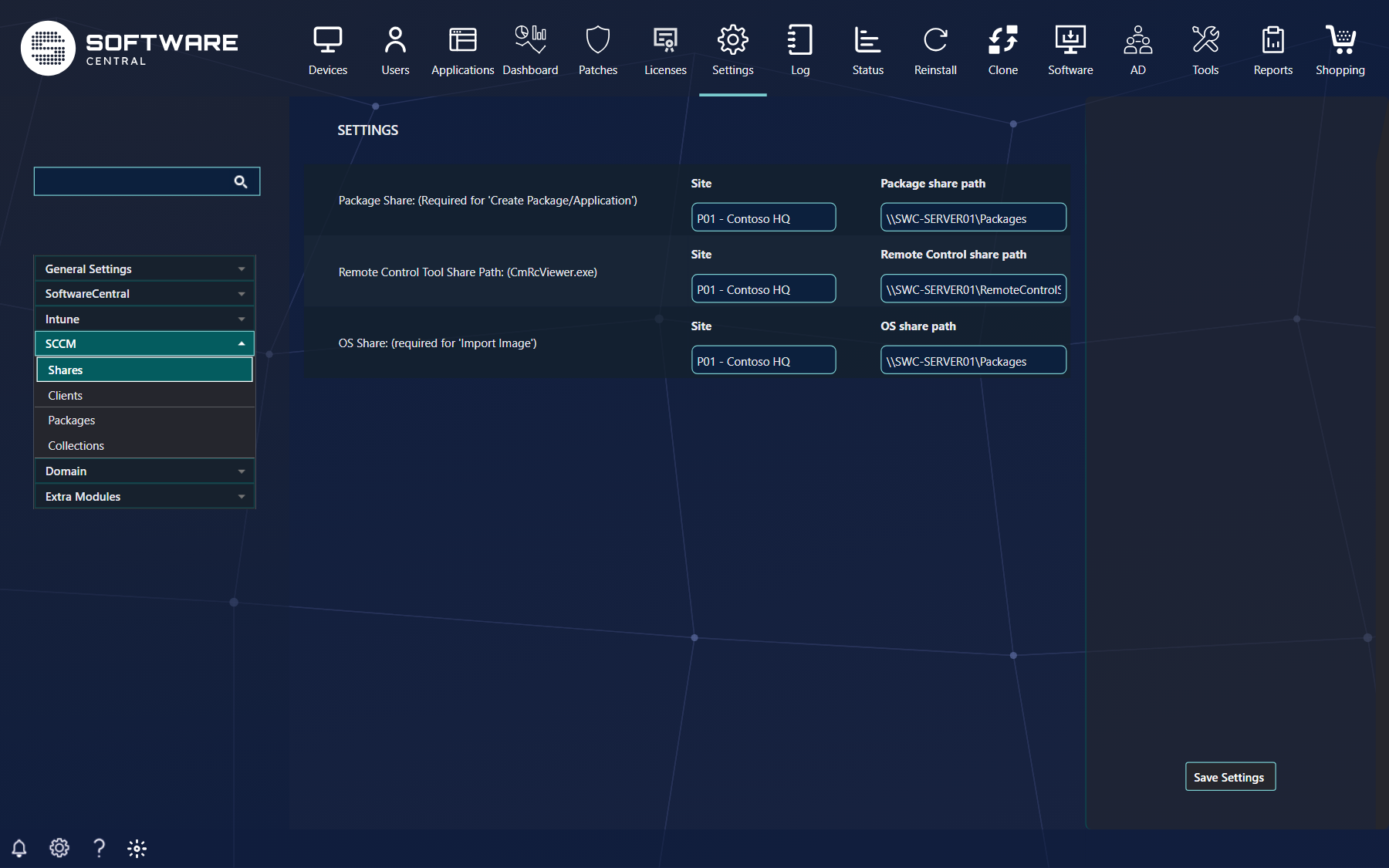
Tools\CmRcViewer\from the installation folder, and enter the path toCmRcViewer.exeunder Settings › SCCM › Shares › Remote Control Tool Share Path, for each site. Details: Installing the client. - Register the
SoftwareCentral:link. By default SoftwareCentral does it itself. Tick Manually register SoftwareCentral to a URI Scheme if you would rather do it yourself on every device. Details: Configuration of the SoftwareCentral Client. - Remove the browser question so operators are not asked to allow the program every time: Removing the browser question.
- Prepare Configuration Manager for remote control, if you use the Remote Control Tool: Remote Control Tool Configuration, then Remote Control Tool to use it.
- Add your own tools in Manage Tools: Manage Tools.
- Give the tools to the right roles: Assign Tools to Security Roles.
3 The settings
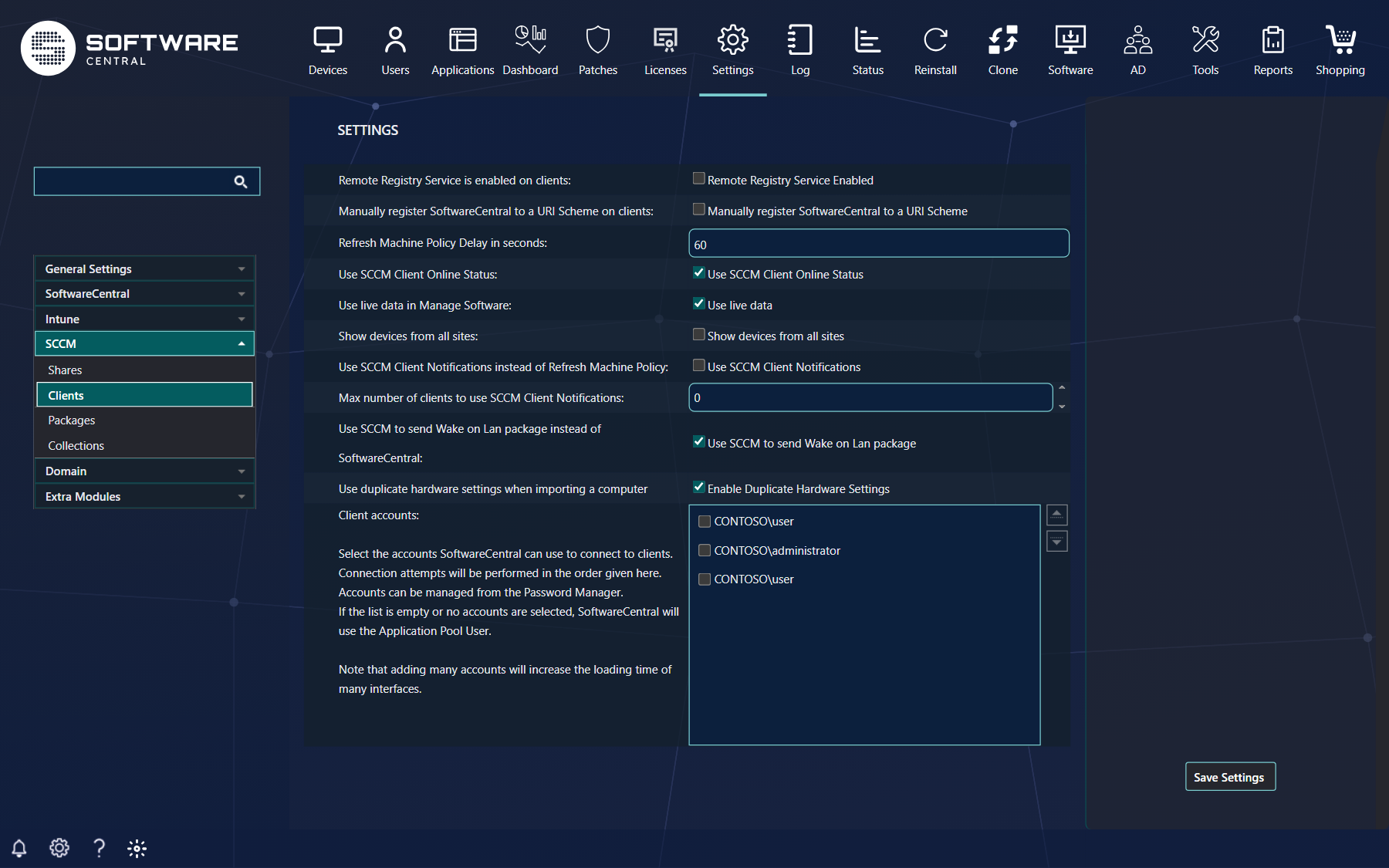
Under Settings › SCCM › Clients and Shares, then Save Settings.
| Setting | What it does |
|---|---|
| Remote Control Tool Share Path (Shares) | Where CmRcViewer.exe is, per site. The Remote Control Tool and your tools use it to find the client. |
| Manually register SoftwareCentral to a URI Scheme (Clients) | Tick it if you do not want SoftwareCentral to register the link on computers automatically. Then you must register it on every computer yourself. It is on for installations that only manage Intune devices. |
| Remote Registry Service Enabled (Clients) | Tick it if the Remote Registry service runs on all your clients, so automatic registration can use it instead of WMI. |
4 Kinds of tool
In Manage Tools each tool has a Type. Run Locally tools are the ones that need the client on the operator's computer; Run on Server runs a script on the SoftwareCentral server instead.
| Type | Where it runs, and what you enter |
|---|---|
| Run on Server | A VBScript or PowerShell script (.vbs or .ps1) on the SoftwareCentral server. Upload a script or choose an existing one, set Arguments and the user it Run as. See Run on Server. |
| Run Locally | A program or script on the operator's own computer, in the operator's context. Enter Path (local or UNC) and Arguments. See Run Locally. |
| Open URL | Opens an address in the operator's browser. Enter the URL. See Open URL. |
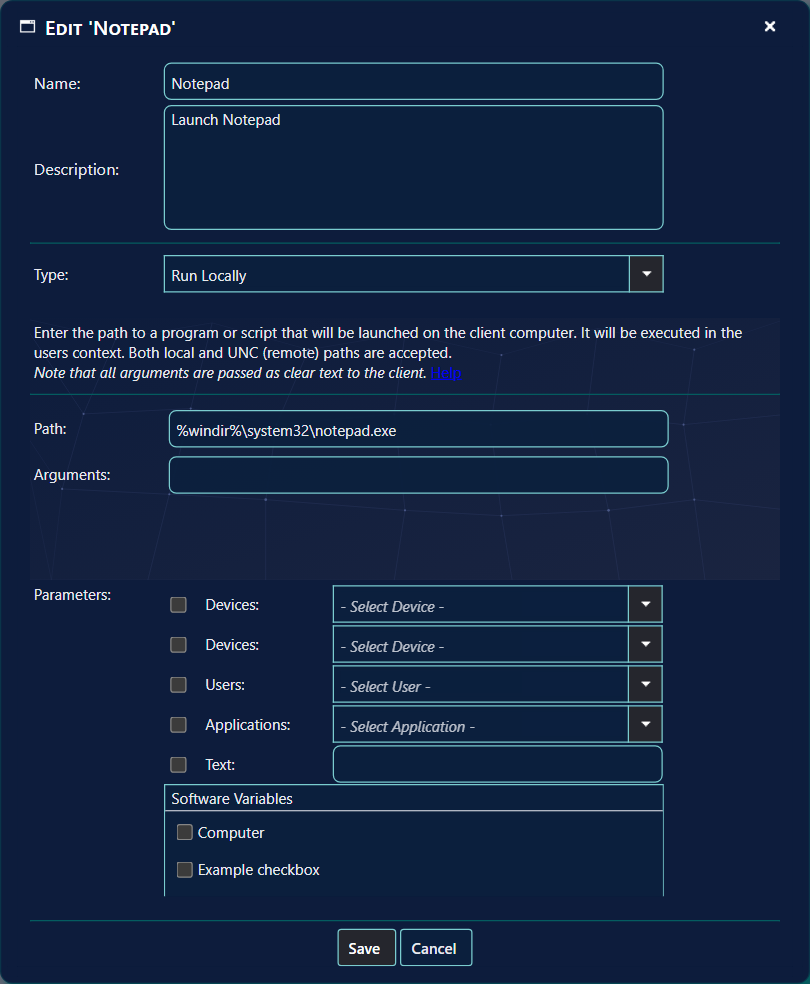
A tool can also show Parameters for the operator to fill in before it runs: Devices, Users,
Applications, Text and Software Variables. They reach the program as /ResourceID,
/Username and /PackageID, then your text.
5 Best practice
- A tool runs with the operator's rights. A Run Locally tool can do anything the operator can do on their computer, so only add programs and scripts you trust and control.
- Arguments travel as clear text. Never put a password or secret in a tool's Arguments. Use a script that reads its secrets from a protected place instead.
- Use UNC paths you control. If Path points to a share, make that share read-only for everyone except the administrators who maintain the tool.
- Hand out tools through security roles. Assign a tool only to the role that needs it, and keep powerful tools (remote control, scripts that change devices) for senior roles.
- Treat Run on Server scripts as code. They run on your server. Review them, use the lowest-privileged Run as account that works, and keep the originals in version control.
- Roll out in the right order. Install the client and register the link on one test computer, test a tool, then deploy the registration to everyone, then remove the browser question.
- Keep the client current. When a new version of the client is announced in the release notes, replace it on the share or deploy it to the local folder.
6 Troubleshooting
| You see | Check |
|---|---|
| Nothing happens when the tool is opened | The SoftwareCentral: link is not registered on that computer, or the path in it does not exist. Type SoftwareCentral: in the Windows Run box: when it is registered, the client starts and says that no arguments were passed to it. |
| The browser asks for permission every time | Add the allow rule for that browser: Removing the browser question. |
| The Remote Control Tool does not start | Check the Remote Control Tool Share Path for the site, and that the user can read the share. |
| A tool is missing from the Tools menu | It is not assigned to your security role. |
| A Run on Server tool fails | The script's return code is written to the SoftwareCentral log. Check the Run as account's rights. |
See also: Manage Tools · Installing the client · Remote Control Tool · Log