1 What Auto Update Plus does
The Auto Update Plus interface sets up rules that automatically download new versions of software and deploy them to a predefined group of devices. At the end, a status report is sent to the administrator, and you can replace the older version of the package, depending on the compliance of the test deployment.
Auto Update Plus is part of SoftwareCentral Plus ! and requires an active SoftwareCentral Plus ! subscription. You find it under the Applications menu button.
2 The list of rules
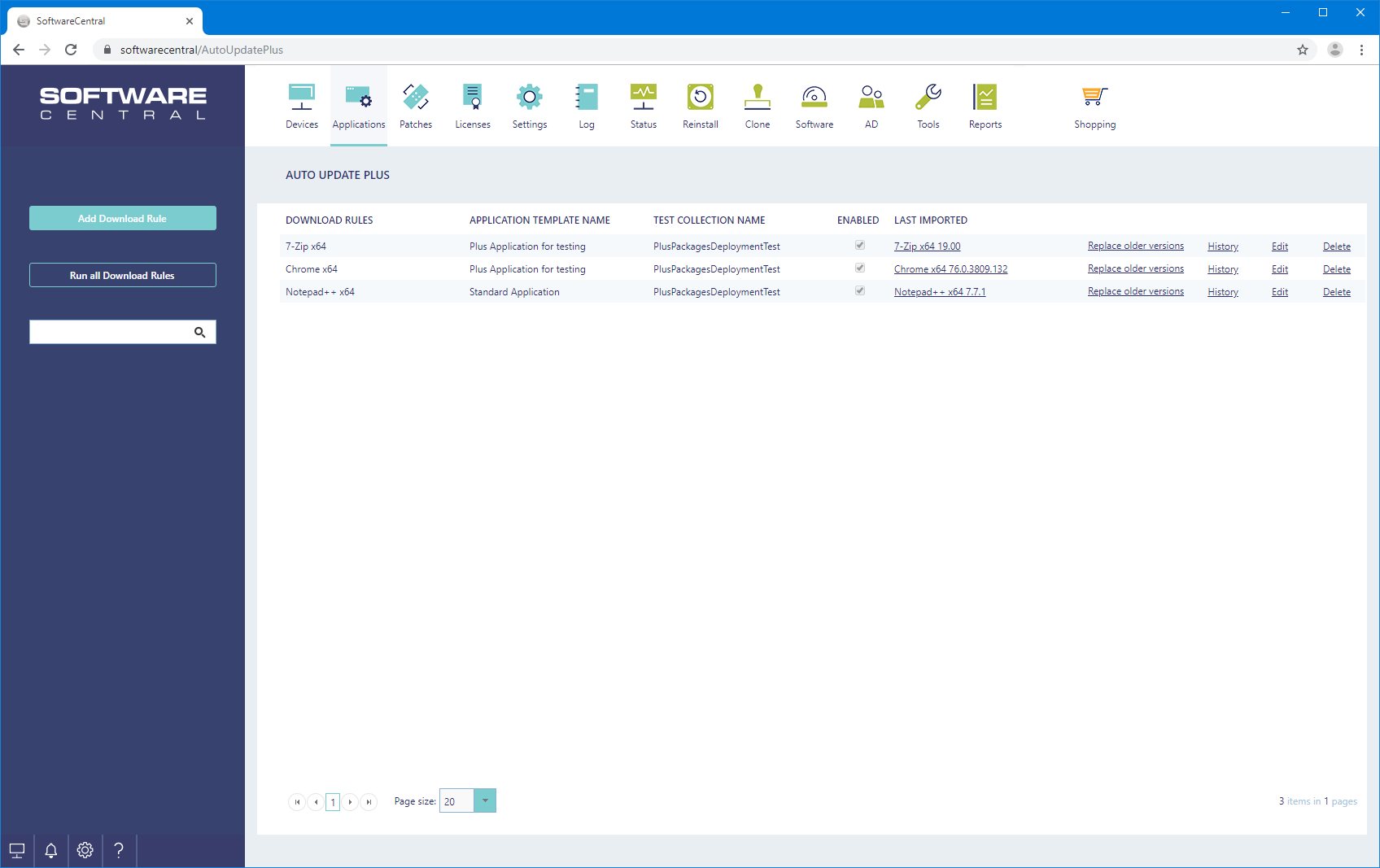
The main interface shows an overview of all existing rules.
3 Add a download rule
Click Add Download Rule in the left menu. A new window opens.
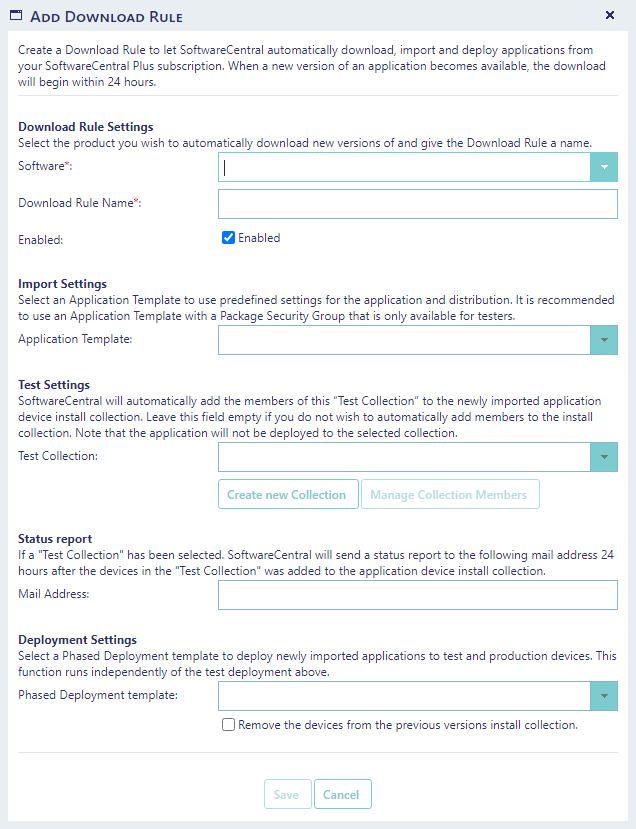
Download Rule Settings
Select the software you want to automatically download new versions of, in Software. The list is loaded from SoftwareCentral Plus, which can take a while.
The rule automatically gets the name of the software in Download Rule Name. You can optionally change this name. Names must be unique.
By default the rule is enabled: the Enabled checkbox is ticked. You can deselect the Enabled checkbox if you want the rule to be inactive. Inactive rules will not download software automatically.
Import Settings
You can optionally select an Application Template to apply predefined settings for the new applications.
This can include settings for the application, distribution points and security.
It is recommended to use an Application Template with a Package Security Group for testing, and then add the application to a production Package Security Group after testing.
Test Settings
After a new application has been downloaded and distributed, it can automatically be deployed to some predefined devices.
Select a Test Collection that holds the devices for testing. You can also create a new collection from this interface with Create new Collection, and manage its members with Manage Collection Members. The second button is available once a collection is selected.
After the import, the devices in the test collection will automatically be added to the new application's install collection. Note that all members will be added as direct members.
The application will not be deployed to the actual test collection.
Status report
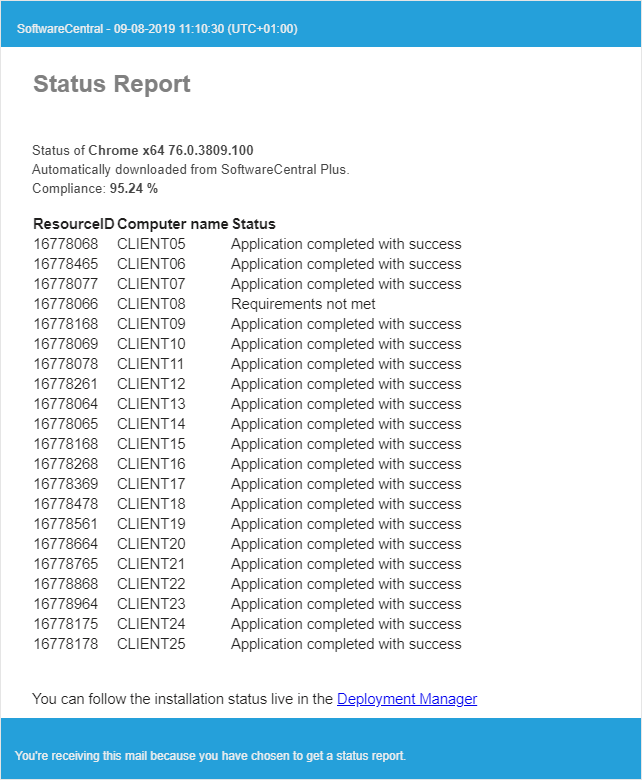
If you have selected a Test Collection, the mail address you enter in Mail Address gets a status report with the compliance and a complete list of all devices the application has been installed on.
The status report is automatically sent 24 hours after the application has been imported.
The status report looks by default like this, but it can be changed with the Mail Template Editor:
Deployment Settings
You can configure the download rule to automatically deploy the application. This is done using the phased deployments engine in SoftwareCentral.
Select a template in Phased Deployment template with predefined settings and phases to enable the automatic deployment of newly downloaded applications.
You can configure test phases and get mail notifications in the phased deployment.
You can also configure the "production phases" to require approval before they can begin.
You have the option to remove the devices from older install collections, with the checkbox Remove the devices from the previous versions install collection.
The devices will first be removed, once the system reached the phase where they will be deployed.
Note that this feature runs independently of the Test Settings for the download rule. This means that the phased deployment will start at the same time as the application is deployed to the selected Test Collection.
Click Save to create the rule. To change a rule later, use Edit (see below).
4 Manage the rules
From the main interface you can manage all existing rules. Click Run all Download Rules in the left menu to run the enabled rules straight away.
All enabled rules run automatically, once a day. The Run all Download Rules button runs them on demand. Its tooltip reads This will run all enabled Download Rules and download and import any new applications found. This task runs in the background and may take a while.
For each rule, you have the following options. Note that buttons will not appear if you do not have permissions to see them.

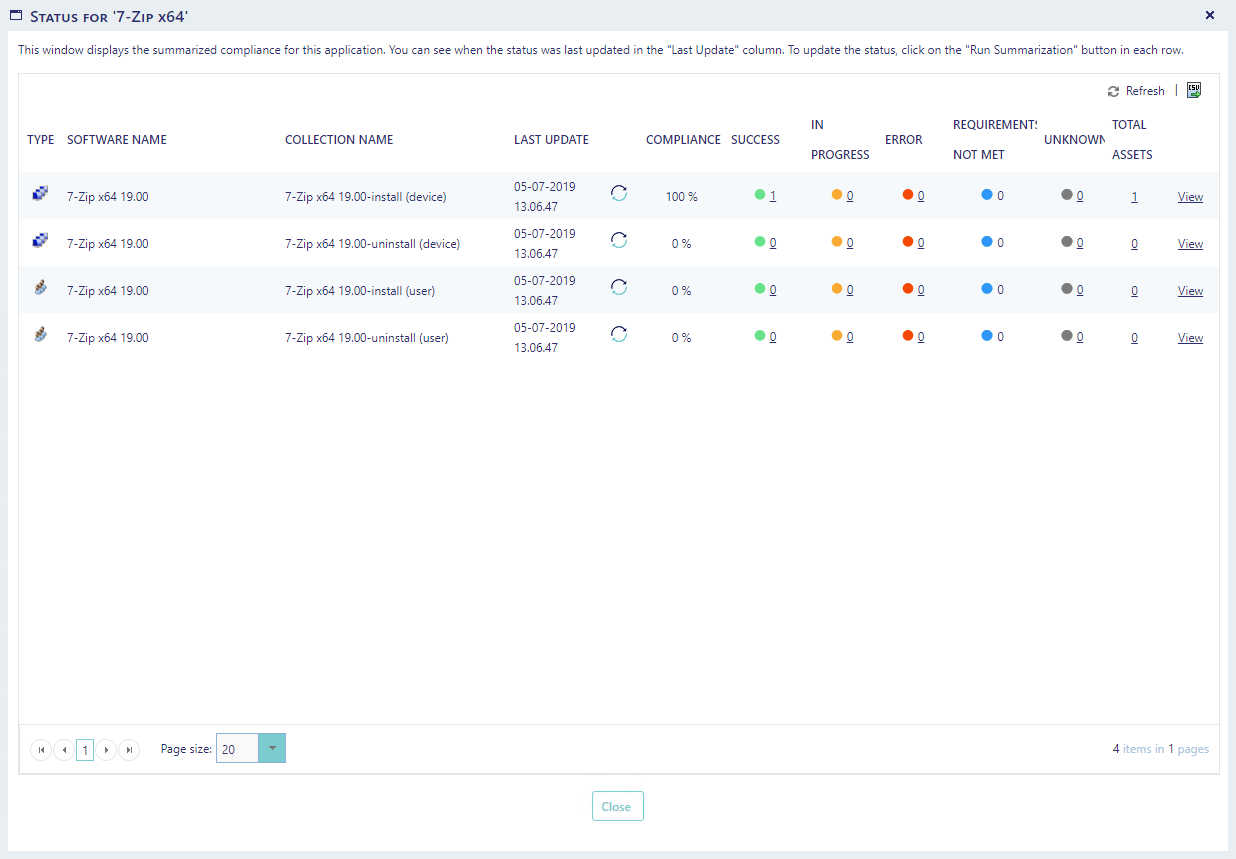
1 - Deployment Status of the last imported application
If you click on the name of the last imported application, a new window will open where you can see the deployment status of the application.
You can always go to the Deployment Manager to view the status of all applications.
2 - Replace older versions
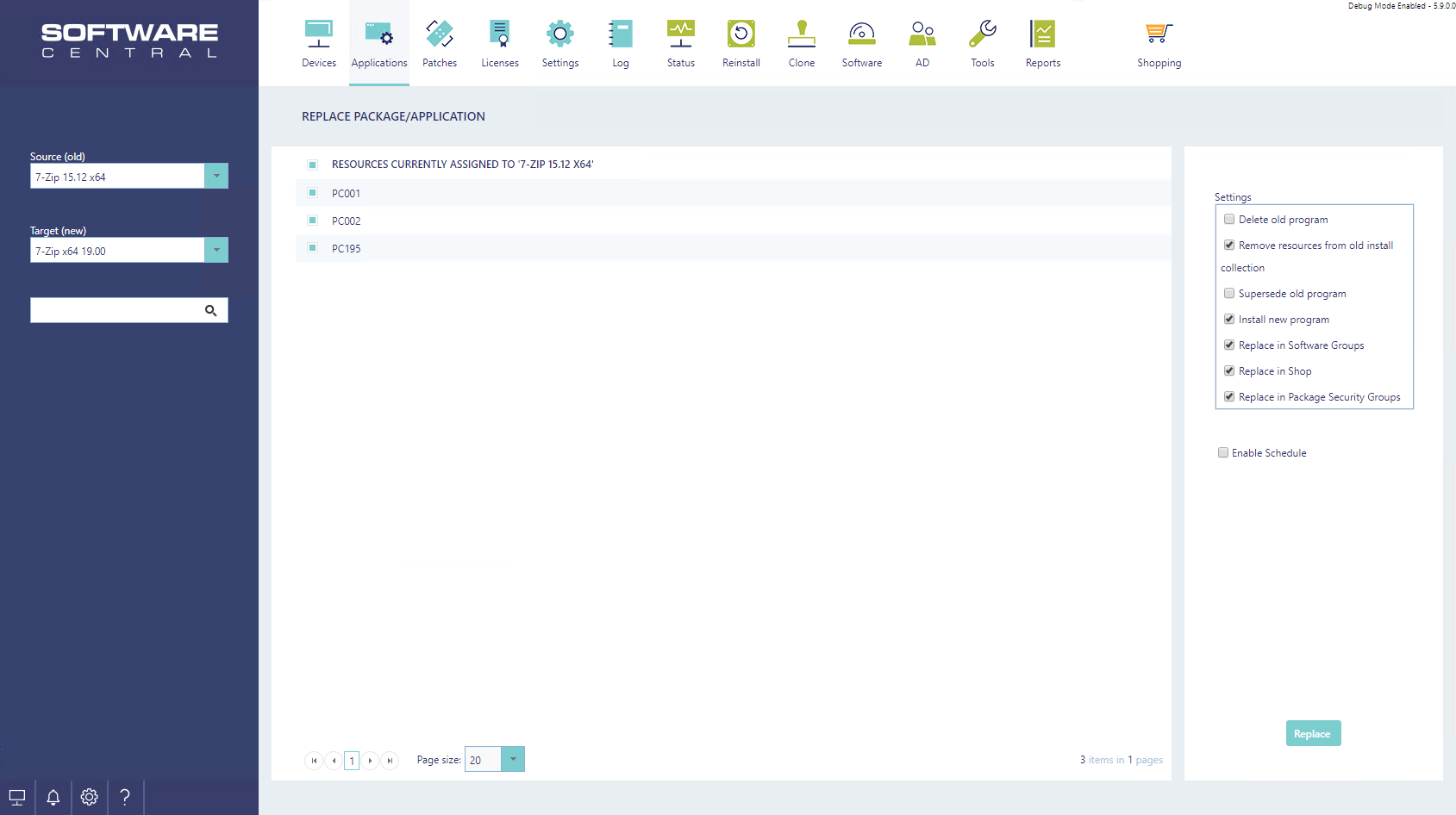
SoftwareCentral can automatically replace the previous downloaded version of the application with the newest version. When you click on the Replace older versions button, you will be navigated to the Replace Application interface and the new and old version of the application will be pre-selected for you. From the list in the Replace Application interface, you can see all the devices currently assigned to the old version and choose if you want to replace the application on all or some of them.
You can also replace the older version in Software Groups, the Shop and in Package Security Groups.
Replacing the application in Package Security Groups can add the application to a production group, so that other users than testers can deploy the new application.
You can also choose to supersede the old version, so any future deployments of the old application, will automatically be redirected to the new version.
The Replace older versions button only appears when a version has been downloaded for the rule, and your role has the permission to use the Replace Application interface.
History
The History link opens the download history of the rule, in a window titled Download history for followed by the name of the rule.
3 - Edit Download Rules
Use the Edit button to edit existing Download Rules. The edit interface is similar to the create new interface. But you cannot change the software that is bound to the rule. To change the software, you must delete the rule and create a new one.
4 - Delete Download Rules
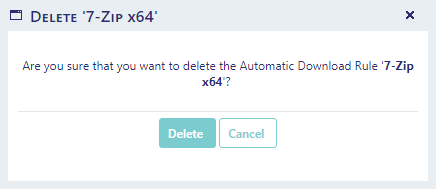
Click the Delete button to delete a Download Rule. SoftwareCentral asks you to confirm first.
5 When the rules run
The rules are checked once a day by SoftwareCentral's daily tasks. Run all Download Rules checks them at once.
| Step | What happens |
|---|---|
| Disabled rule | Skipped. A rule with Enabled unticked does not download anything. |
| New version | The newest version of the product is downloaded and imported with the application template of the rule. A version that was already downloaded for the rule is not downloaded again. |
| Status report | Sent once, about 24 hours after the import, when the rule has a test collection and a valid mail address, and the status report mail template is enabled. |
The check runs once a day, so the status report can arrive somewhat later than 24 hours after the import.
6 Best practice
- Test first. Use an Application Template that is linked to a Package Security Group only testers can see, and add the application to a production group only after the test (see Import Settings).
- Always give a test collection if you want a status report. The status report is only sent when the rule has a test collection and a valid mail address. Without a test collection, no mail is sent.
- Keep the status report mail template enabled. If the template is disabled, the status report is not sent, even when the rest of the rule works.
- Use the production phases for approval. Configure the production phases of the phased deployment template to require approval before they start.
- Replace older versions after you have checked the test results. Replacing in Package Security Groups can make the new version available to other users than testers.
7 Troubleshooting
| Symptom | Cause | What to do |
|---|---|---|
| The interface shows You do not have a subscription for SoftwareCentral Plus ! | There is no active SoftwareCentral Plus subscription, so the rules cannot run. | Contact your SoftwareCentral supplier. |
| No rule ever downloads anything, and no message is shown | The installation is Intune-only. Auto Update Plus does not download in an Intune-only environment. | Use Auto Update Plus on a ConfigMgr-based installation, or download the packages by hand with Download Packages. |
| The log says This is an offline installation, so no packages are downloaded from SoftwareCentral Plus. | The installation is offline, so it cannot reach SoftwareCentral Plus. | Connect the installation to SoftwareCentral Plus, or download the packages by hand with Download Packages. |
| The status report is not received | One of these: the rule has no test collection; the mail address is not valid; the status report mail template is disabled; less than 24 hours have passed since the import; or the mail could not be sent. | Check the rule and its mail address, and enable the status report template in the Mail Template Editor. If the mail could not be sent, the log shows Failed to send notificaiton mail to 'address'., with the address. |
| You must select a product. or You must give the Download Rule a name. | Software or Download Rule Name is empty when you click Save. | Fill in the field and save again. |
| There already is a Download Rule with this product assigned named 'name'. | Only one rule can exist for each product. | Edit the existing rule instead. |
| This name already exists. | Each Download Rule name must be unique. | Give the rule another name. |
| Invalid mail address provided. | The text in Mail Address is not a valid mail address. | Correct the address, or leave the field empty if you do not want a status report. |
| The Application Template for this rule no longer exists. or The Test Collection for this rule no longer exists. | The template or the collection was deleted after the rule was created. | Edit the rule and select a new application template or test collection. |
| It appears that this product is no longer available on SoftwareCentral Plus. | The product of the rule is no longer offered by SoftwareCentral Plus. | Delete the rule. Its product cannot be changed, so create a new rule for the product you want. |
| Failed to save Download Rule. See the log for details. | The rule could not be saved. | Open the log and look for the failure at the time you saved. |