1 The tabs
The list of packages is split over tabs. The first tab, SoftwareCentral Plus, lists the packages of your SoftwareCentral Plus subscription.
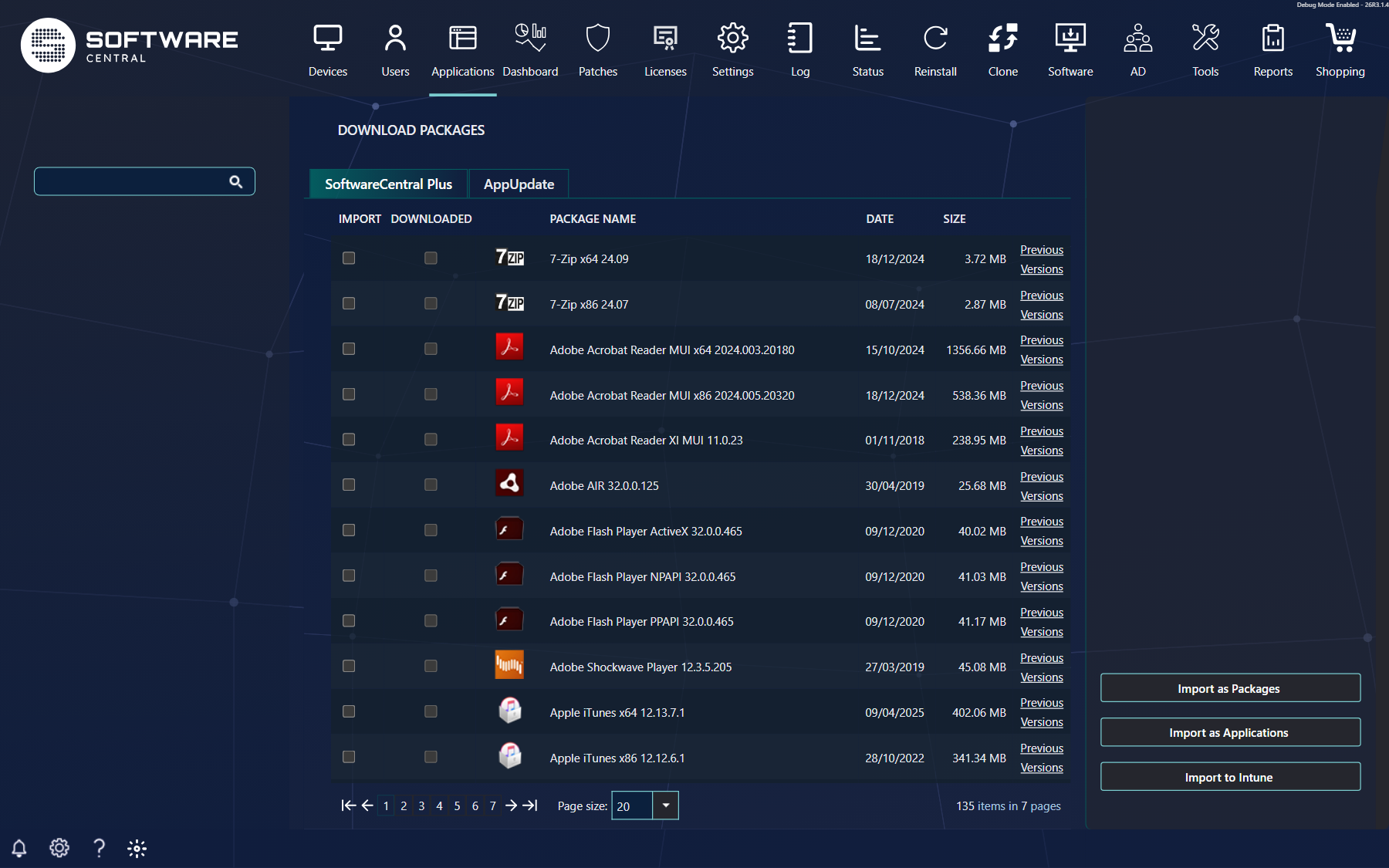
| Tab | When it appears |
|---|---|
| SoftwareCentral Plus | Always. Its tooltip says Import Packages from your SoftwareCentral Plus subscription. |
| AppUpdate | When AppUpdate is enabled for your installation. Its tooltip says Import Packages from your AppUpdate subscription. |
| Custom FTP (two tabs) | When an external FTP drive is set up. The tab shows the Name you typed. The drive is set up in Settings on the SoftwareCentral Plus ! panel: the Name is the name users see, and the Address is the FTP address of the folder that holds the packages. The Address, user name and password must all be filled in before the tab appears. The Download Packages interface can connect to 2 external FTP drives; this works without SoftwareCentral Plus. |
2 The package list
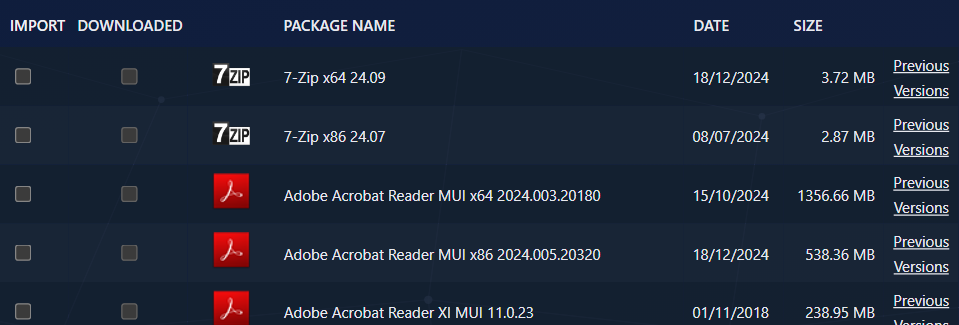
Each row is one package. The Downloaded column indicates whether or not a package has already been downloaded by your company account. It is not an indication that the package exists in your environment.
| Column | What it shows |
|---|---|
| Import | Tick the packages you want to import. The tooltip says Download and import. |
| Downloaded | Ticked when your company account has already downloaded the package. It is not an indication that the package exists in your environment. |
| Package Name | The name of the package, with its icon. |
| Date and Size | The date of the package (day/month/year) and its size. |
| Previous Versions | A link in every row. It opens the list of older versions of that package (see Previous Versions). |
You can show 20, 50 or 100 rows per page with the Page size list, and move between pages with the buttons at the bottom of the list.
3 Importing packages
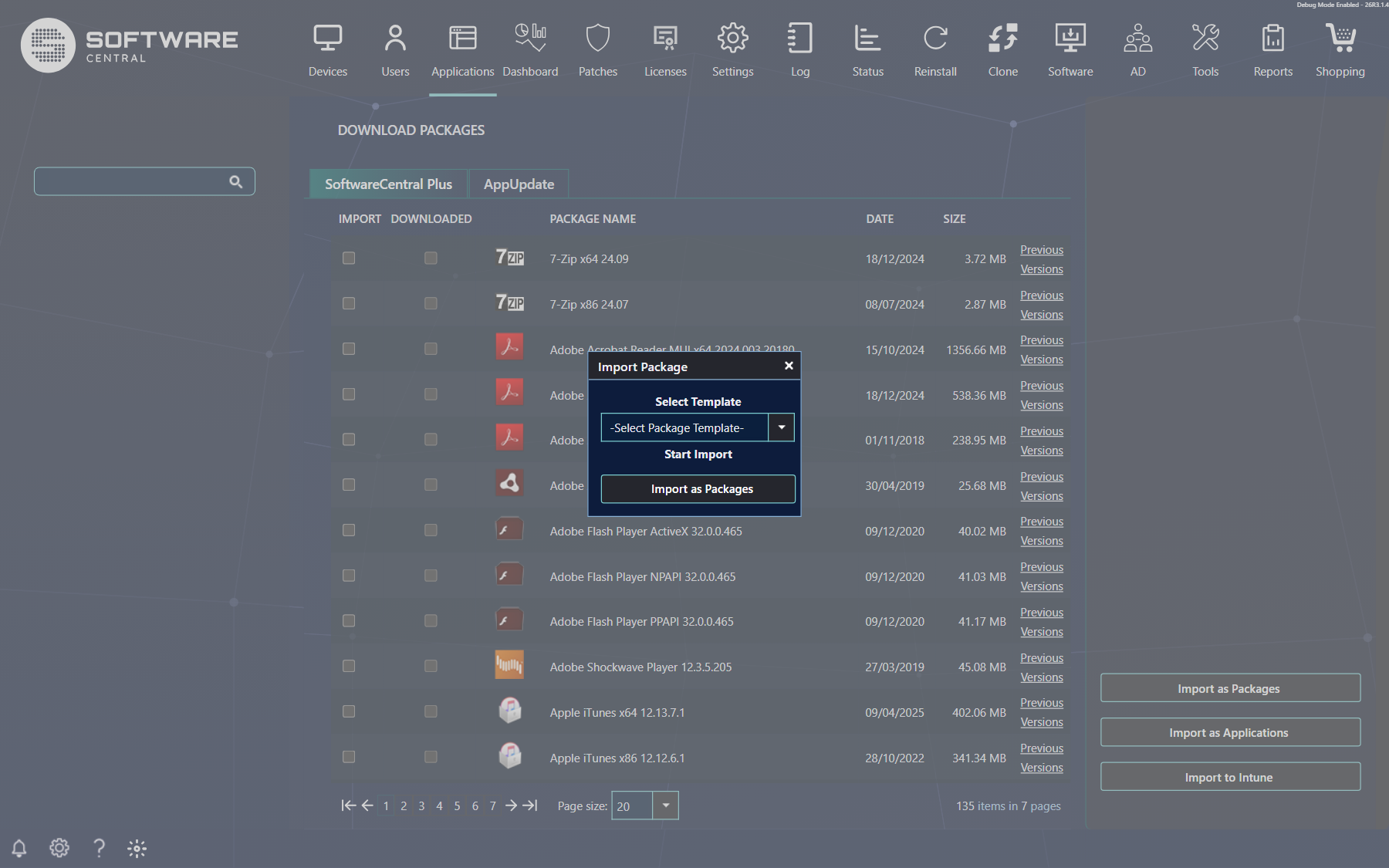
Select the packages you wish to import and click on the Import as Packages, Import as Applications or Import to Intune button.
Before the import starts, you will be prompted to select a template.
| Button | What it does |
|---|---|
| Import as Packages | Opens the Import Package box for the selected packages. Choose a package template and click Import as Packages to start the import. |
| Import as Applications | Opens the Import Application box. Choose an application template and click Import as Applications to start the import. |
| Import to Intune | Opens the Import to Intune box. The selected packages will be downloaded, converted to IntuneWin packages and then uploaded from your own installation to your Intune tenant. Choose a template to use predefined settings for the application, then click Import to Intune; Cancel closes the box. Intune must be enabled for your installation and access to Intune must be set up for the button to appear. |
Each template box says: If no template is selected, the default settings will be applied. So you can start an import without choosing a template, but then the default settings are used.
Select a template and click on the import button to start the import.
You can see the status of the import from the Notification popup and from the log. The log shows each download, for example Downloading ‘…’. Size: …. The import will continue when the file has been downloaded. and Successfully downloaded ‘…’.
4 Previous Versions
The Previous Versions link next to each package opens a window with the previous versions of the package. The window is titled Previous versions of ‘…’.

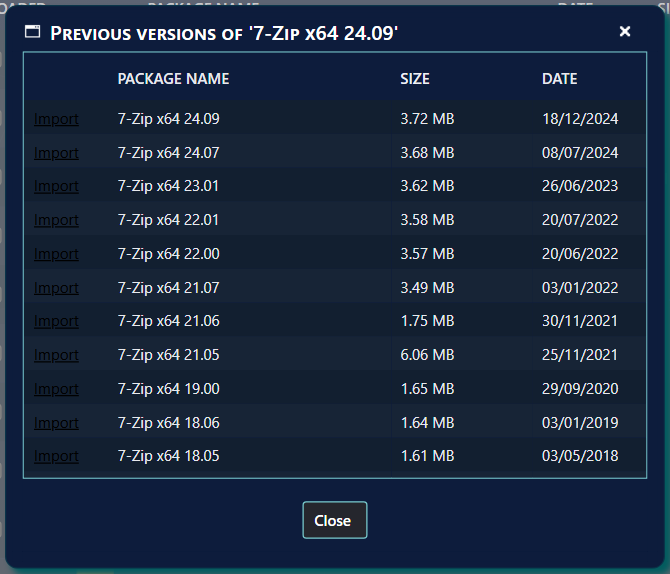
- Click the Previous Versions link in the row of the package.
- Click the Import link next to the version you want.
- A new box opens, Import Settings, which asks you to choose whether the package should be imported as a package or application.
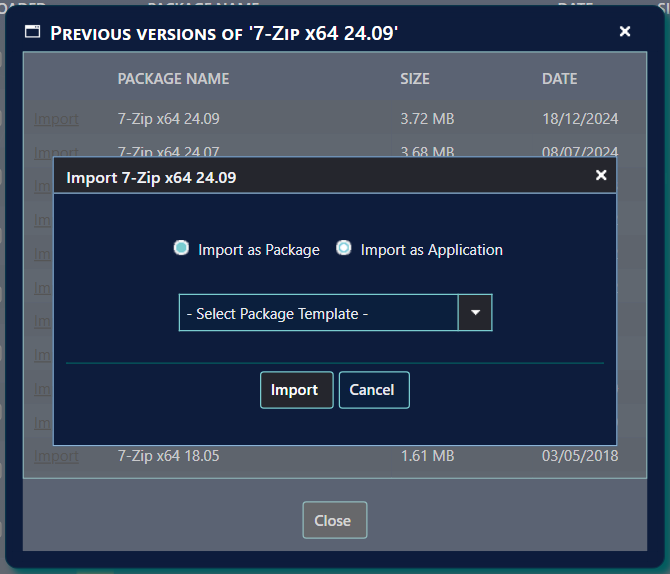
Click on the Import button to import the package.
5 Best practice
- Choose a template before you import. The import boxes say that the default settings are used when no template is selected. Pick the template that matches how you deploy the application, so the import is set up the way you expect.
- Do not read the Downloaded column as an inventory. It only shows that your company account has downloaded the package. It says nothing about whether the package is in your environment.
- Read the Log after a large import. Each download is logged with its size, and a failed download is logged with the exception. This is the place to check when a package does not appear.
- Set up the Custom FTP drive completely. The tab appears only when the address, the user name and the password are all filled in. A half-filled drive gives you no tab.
6 Troubleshooting
| Symptom | Cause | What to do |
|---|---|---|
| "Failed to retrieve packages in product family from SoftwareCentral Plus." | The package list of the SoftwareCentral Plus subscription could not be read. The log entry holds the exception. | Open the Log and read the entry for the exception. Then reload the page. |
| "Failed to download '<package name>." | The package could not be downloaded. The log entry holds the exception. | Read the entry in the Log, fix the cause, and import the package again. |
| "The server response for a download request for package '<package name>' was: <reason>" | The download service answered the request with an error. The text after was: is the reason given. | Read the reason in the Log, then try the import again once the cause is cleared. |
| Import as Application is disabled in the Import Settings box | The ConfigMgr site is version 2007. | Import the version as a package. |
| No Custom FTP tab | The address, user name or password of the FTP drive is empty. | Fill in all three in Settings on the SoftwareCentral Plus ! panel, then reload the page. |
| No Import to Intune button | Intune is not enabled for the installation, or access to Intune is not set up. | Ask your SoftwareCentral administrator to check the Intune settings. |