1 What a phased deployment is
A phased deployment is a sequenced rollout of one piece of software, divided into phases. Each phase targets its own devices (SCCM) or users and devices (Intune), and has a success criteria that must be met before the next phase begins.
- There is no limit to the number of phases.
- In SCCM you can phase a package, an application, an application group or a task sequence. In Intune you phase an Intune application or an Intune application group.
- A phase gets its devices from a collection or a fixed list of devices you pick (SCCM), or from an Entra ID group (Intune).
- A phase can wait for a person to approve it, can be limited to a time of day and a weekday, and can wait a number of hours after the previous phase has completed.
- You can get status reports by mail when a phase completes, when it fails, when it needs approval and when the whole rollout is done.
- Settings and phases can be saved as a template, which is also what Robopack Patch Flows and Auto Update Plus use to roll out new versions automatically.
2 How a rollout runs
The rollout is driven by the phased deployment evaluator in the SoftwareCentral Windows service. You set it up once; after that it runs by itself.
The evaluator does two jobs on its own schedule. It starts phases that are ready (by default every 30 minutes), and it runs a compliance check on the phase that is rolling out, to see whether its success criteria has been met (by default every 12 hours). The times of the last run of each are shown on the Phased Deployments page. How phases start, wait and fail is described in detail in Phased Deployments Advanced.
When a phase starts, its devices are added to one place for the software — they are never deployed to the phase’s own collection or group:
| Platform | What happens when a phase starts |
|---|---|
| SCCM | The devices are added as direct members to the software’s install collection (for a task sequence, its task sequence collection), and removed from its uninstall collection. A deployment job is created, so the installation status of each device can be followed, and the devices are asked to fetch their policy. |
| Intune | The users and devices are added to the application’s SoftwareCentral install group — as required or as available, see Assign as. The installation status is read back from Intune. |
3 SCCM and Intune
The same window and the same rules are used for both. Which one a phased deployment is, follows from the software you choose.
| SCCM | Intune | |
|---|---|---|
| Who a phase targets | A device collection, or a fixed list of devices you pick with Select Devices. | An Entra ID group of users or devices. Members of nested groups count too. |
| When the members are read | When the phase starts, not when you create the phased deployment. Devices added to the collection or group before then are included. The number you see while creating is only a preview. | |
| Required or available | As the software’s deployment to its install collection is set up in SCCM. | Chosen per phased deployment with Assign as, or the installation-wide setting. |
| Templates | Shared by everyone. Intune templates belong to one tenant and are only listed while that tenant is selected. | |
| Licence check | When the software has a licence rule in the License Module, a phase does not start if there are not enough licences left. | — |
On an installation that only uses Intune, the SCCM parts of the window (collections, Select Devices) are not shown.
4 The Phased Deployments page
Open it from Software › Phased Deployments. It lists every phased deployment of software your security role is allowed to see.
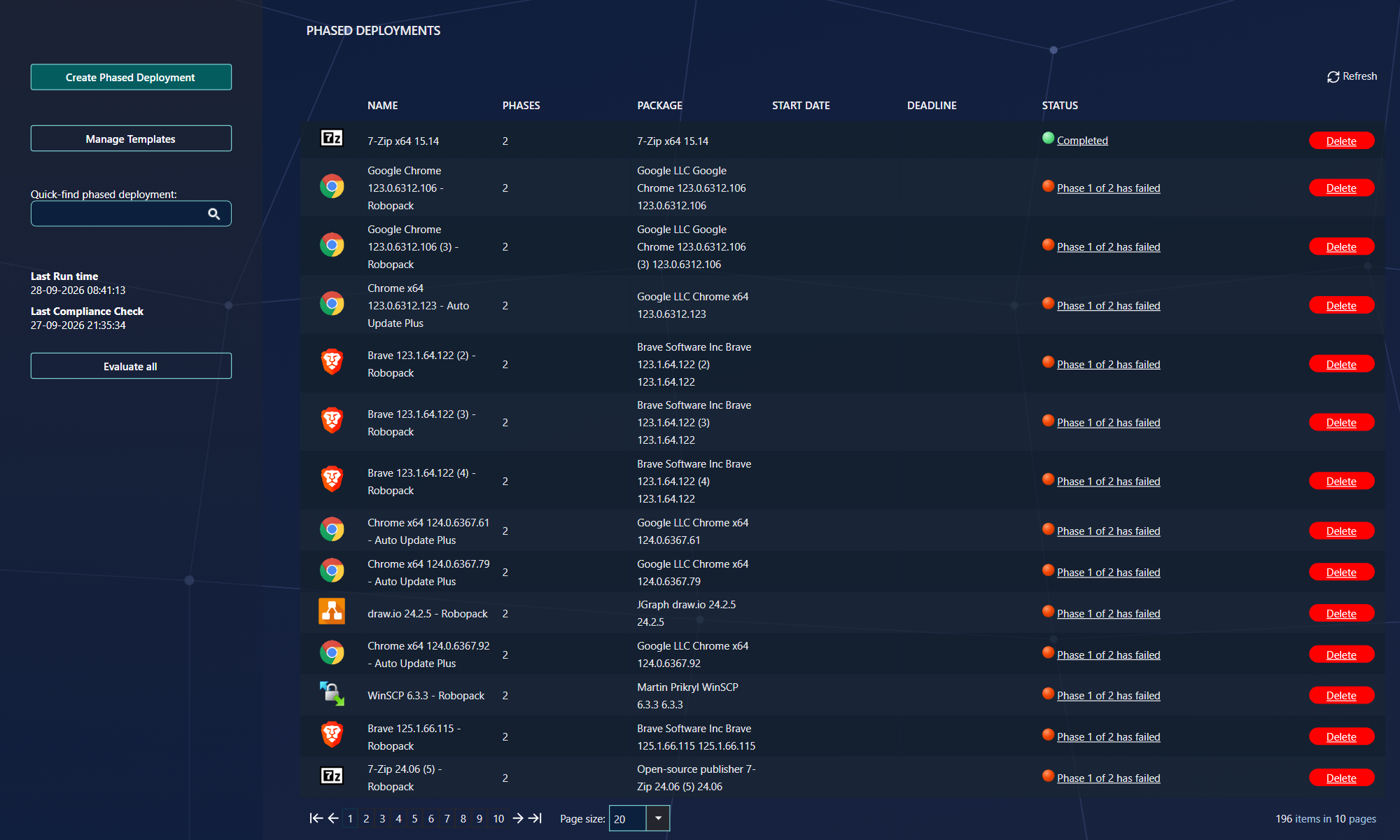
| Item | What it does |
|---|---|
| Create Phased Deployment | Opens the window where you set up a new rollout. See Create Phased Deployment. |
| Manage Templates | Lists the saved templates, to edit or delete them. See Phased Deployments Templates. |
| Quick-find phased deployment | Type part of a name and press Enter to filter the list. |
| Last Run time | When the evaluator last looked for phases to start. |
| Last Compliance Check | When the evaluator last checked the success criteria of the running phases. If these two times are old, the SoftwareCentral Windows service is probably not running. |
| Evaluate all | Asks the service to run a compliance check and then start all phases that are ready, right now, instead of waiting for the next scheduled run. It can take several minutes on a large installation. |
| Name | Opens the status window. While no phase has started yet, it opens the phased deployment for editing instead. |
| Phases, Package, Start Date, Deadline | The number of phases, the software, and the optional start date and deadline. |
| Status | Where the rollout is now; click it to open the status window. |
| Edit / Delete | See Edit / Delete Phased Deployments. Edit is only shown while no phase has started. |
Each button and column depends on your security role: creating, editing, deleting, managing templates, running the evaluator and seeing the status are separate permissions, and so are the actions in the status window. A button you do not have permission for is not shown.
5 The Status column
The Status column sums up the phase that is active now. Click it for the details of every phase.
| Status | What it means |
|---|---|
| Waiting to start | No phase has started yet. The phased deployment can still be edited. |
| Phase x of y is waiting to start | The previous phase has completed; this one waits for its time, its weekday or its waiting hours. |
| Phase x of y is in progress | The phase is being started right now. |
| Awaiting compliance for phase x of y | The software has been deployed to the phase; SoftwareCentral waits for the success criteria to be met. |
| Phase x of y is pending approval | The phase needs approval before it can start. |
| Phase x of y has been approved and are now waiting to start | Approved; it starts at the next run within its deployment time. |
| Phase x of y has no target resources | No devices were found for the phase. It is tried again at every run and starts as soon as devices are added — or it is skipped, if When a phase is empty is ticked and a limit emptied it. |
| Phase x of y cannot start because there are an insufficient amount of licenses | The License Module does not allow more installations. Add licences, then use Retry. |
| Not enough devices to complete phase x of y | The success criteria asks for more successful devices than the phase has. |
| Phase x of y has failed | The success criteria was not met in time, or the deployment could not be created. |
| Phase x of y has been skipped | The phase was skipped; the rollout continues with the next phase. |
| Paused at phase x of y | The rollout was paused from Application Manager. |
| Package has been deleted | The software no longer exists. |
| Completed | Every phase has completed or was skipped. |
6 Not the same as MECM phased deployments
Microsoft Configuration Manager has its own “phased deployment” feature. SoftwareCentral’s phased deployments are a different, independent feature.
| MECM phased deployment | SoftwareCentral phased deployment | |
|---|---|---|
| Phases | Two phases for software deployments. | Any number of phases. |
| How a phase is deployed | The software is deployed to a collection for each phase. | The software is deployed to one install collection (or install group); the devices of each phase are added to it. |
| Intune | — | Yes, with Entra ID groups. |
The MECM feature can be created from SoftwareCentral’s Deployment Manager; see Phased Deployment (Deployment Manager).
7 Where to go next
| You want to… | Read |
|---|---|
| Set up a rollout | Create Phased Deployment |
| Follow a rollout, approve or skip a phase | Phased Deployment Status |
| Reuse the same phases for many applications | Phased Deployments Templates |
| Know exactly when a phase starts, waits or fails | Phased Deployments Advanced |
| See examples — on its own and with Robopack | Ways to Use Phased Deployments |
| Avoid the common mistakes | Phased Deployments Best Practices |
8 Best practice
- Check the two run times after you create a rollout. Last Run time and Last Compliance Check show when the evaluator last ran. If they are old, the SoftwareCentral Windows service is not running and no phase will move.
- Give each phased deployment its own name. The window refuses a name that already exists; the comparison ignores capital letters.
- Check the licence count before you save. When the software has a licence rule, the window refuses to save if the phases target more devices than the licences left.
- Edit a rollout before its first phase starts. Edit is only offered while no phase has started. After that, use the status window.
- Use Evaluate all only when a phase must move now. It asks the SoftwareCentral service to run the phased deployment check straight away, instead of waiting for the next scheduled run.
9 Troubleshooting
| Symptom | Cause | What to do |
|---|---|---|
| “There are only 'x' licenses left. You have selected 'y' devices.” | The phases together target more devices than there are licences left for the package. The window does not save. | Reduce the devices in the phases, or add licences, then click Save again. |
| “Name already exists.” | Another phased deployment has the same name, ignoring capital letters. | Type a different name. |
| “No devices selected” is shown when you add a phase. | The phase has no collection or group, and no devices were picked. | Choose a collection or group, or click Select Devices and pick the devices, then add the phase. |
| “The license for this package has expired. Installations may not be not be completed.” | The licence of the chosen package has expired, and the license check blocks installations of it. | Renew or correct the licence in the License Module. |
| Status: “Phase x of y cannot start because there are an insufficient amount of licenses” | The licences left are fewer than the devices the phase needs. | Add licences, then click Retry in the status window. |
| Status: “Phase x of y has no target resources” | No devices were found for the phase. Either its collection or group is empty, or its limits removed every device. | Add members to the collection or group, or click Skip this phase in the status window. |
| Status: “Phase x of y is pending approval” | The phase needs approval before it can start. | Open the status window and click Approve this phase. The phase starts at a later run. |
| Status: “Phase x of y has failed” | The success criteria was not met in time, within the number of days set next to A phase has not met its success criteria after. | In the status window, click Retry to run the phase again, or Continue to next phase to move on. |
| Status: “Not enough devices to complete phase x of y” | The success criteria asks for more successful devices than the phase has. The number cannot be changed once the phase has started. | Click Continue to next phase in the status window to move on. |
| Status: “Package has been deleted” | The software no longer exists in SoftwareCentral. | Delete the phased deployment with the Delete link on the Phased Deployments page. |