1 Overview
SoftwareCentral provides the ability to replace a package with a new. The only requirement is that the new package can update or remove the old version.
Replace Package/Application is found under the ”Applications” menu.
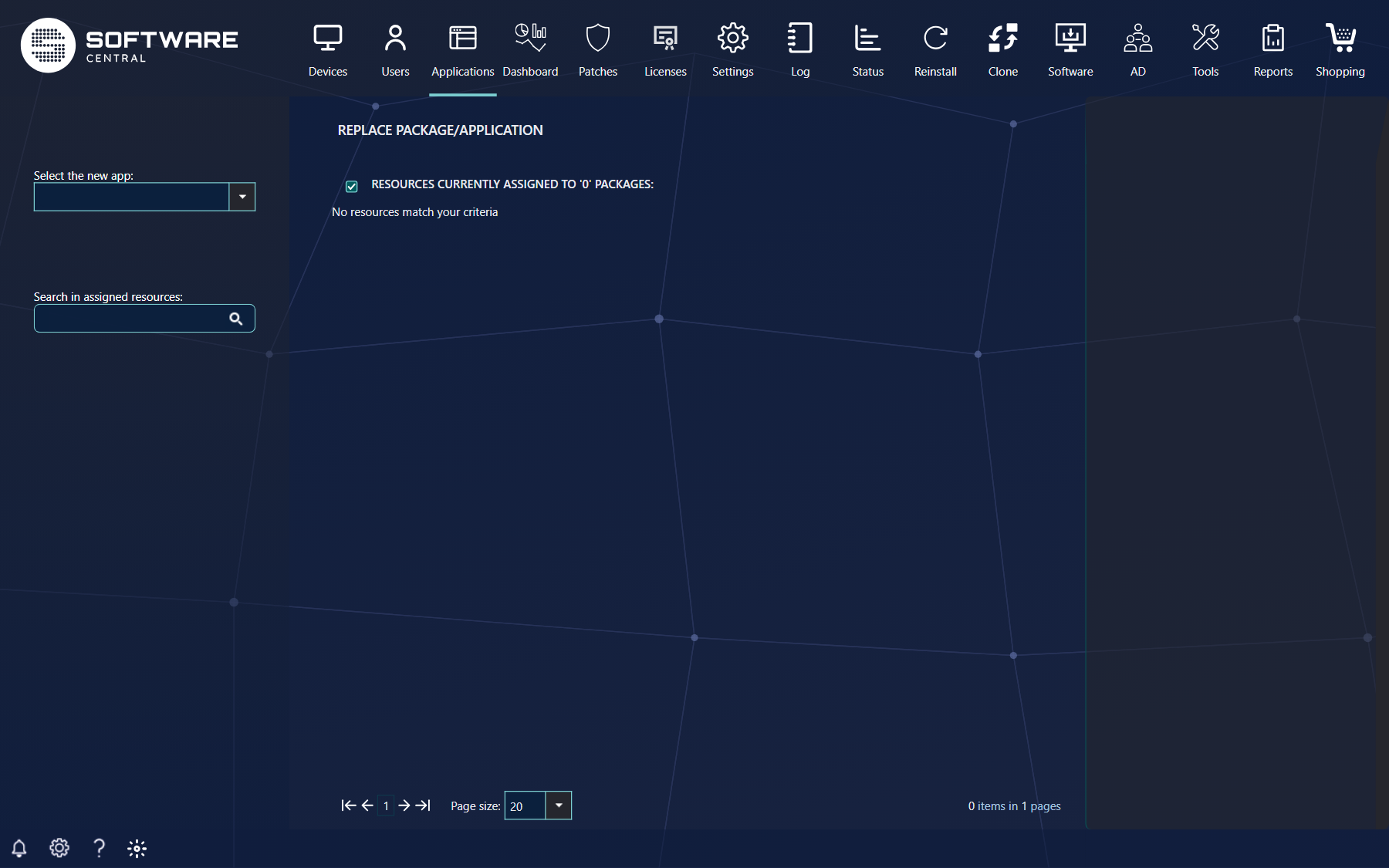
When a package or application needs to be replaced, the new package is selected in the first drop down found in left side of the interface (Select the new app:; it lists both ConfigMgr and Intune applications).
SoftwareCentral will then auto suggest packages to replace and mark them with a green color. Under Select programs to replace: you tick the old ones; the # column shows how many resources each is deployed to. For an Intune application you instead pick the old app under Select (old) Intune app to replace:.
Note that the suggested packages are not guaranteed to include all or be the right packages. It is only a suggestion based on an algorithm.
You can select one or more packages to replace.
This will populate the grid found in the middle with all computer and users currently assigned to this package. The search field found to the left (Search in assigned resources:) can be used to filter the grid.
The Replace button stays disabled until a replacement and at least one old package are selected, and the new package is not one of the old ones. If the new application has fewer licences left than there are resources, a warning says so: There are insufficient licenses for the target application.
2 Settings
Before the package is replaced, there are some options in the right side menu under Settings.
| Option | What it does |
|---|---|
| Delete old program | Will delete the old packages from the SCCM server, along with advertisements and collections. (The source files will remain.) For applications it reads Delete old application. |
| Delete source | Will remove the source files of the old packages. Only available when Delete old program is ticked. |
| Remove resources from old install collection | Will remove all resources from the old install collection. This must be checked, so that the old package won’t be installed again. If Delete old program is checked, the old install collection will be deleted. Therefore, it can only be unchecked if Delete old program is unchecked. |
| Supersede old program | If both selected programs are applications, it is possible to supersede the old application with the new one; the new application replaces the old in future deployments of the old application. If this setting is true, a window opens when Replace is pressed, where for each deployment type of the old application you choose the new deployment type (or Do not replace) and whether the old one should be uninstalled and the new newly installed (Uninstall). This option is only available if you replace one application, and not together with Delete old program. |
| Replace dependencies | Intune applications only: apps that depend on the old app have their dependencies updated with the new app. |
| Install new program | If checked, it will add all the resources currently assigned to the old (Source) package to the new (Target) package’ install collection (for Intune, the required install group). Applications read Install new application. |
| Replace in Software Groups | Will replace the old package in all Software Groups. This does not apply to Software Groups already deployed; enabling supersedence will update them. Packages can only replace packages and applications only applications. For Intune this reads Replace in Enrollment Status Pages. |
| Replace in Application Groups | Applications only, and needs SCCM CB 1906 or later. |
| Replace in Shop | Will replace the old package in the shop, adding the old package name, description, price, approver, picture etc. to the new package. (The old package is removed from the shop.) Only possible when you replace one package. |
| Add to Package Security Groups | Adds the new program to the Package Security Groups that the old program(s) are members of. |
| Add to prioritized deployment list | Will add the deployment to the “prioritized deployment list” in the Deployment Manager, for easy follow up. Prioritized deployments will not be installed faster. |
The ticks you start with are the defaults an administrator has chosen under Settings › SoftwareCentral › Interface Settings (Default settings in Replace Package). The setting Replace Package - Only use resources belonging to the SoftwareCentral root folders under Settings › SCCM › Collections limits the replacement to resources that are members through a SoftwareCentral collection.
3 Schedule the replacement
It is also possible to add a schedule for the replacement of the package, with Enable Schedule (only offered when Install new program is ticked, and not for Intune applications). Note this is only a schedule for when the resources are transferred.
Choose the start with the date-time picker. If no date is selected but the checkbox is still selected, the start is now and the end is 7 days later. The small settings icon opens Job Name, Schedule End, Use Wake-On-Lan and Ignore maintenance windows (the last two ticked by default). With no name the job is called Replacing package … with …. The messages Scheduled start time must be now or later. and Scheduled end time must greater than the start time. stop a wrong schedule. See Scheduling.
When ready to replace the old package, click on the ”Replace” button in the lower right corner.
4 See also
5 Best practice
- Untick resources you do not want to move, and check the green suggestions: they are only a guess.
- Keep Remove resources from old install collection ticked, otherwise the old software can be installed again.
- For a large number of resources use Enable Schedule so the transfer happens at a quiet time.
- Use Supersede old program for applications, so ConfigMgr itself upgrades installed copies.
- Agree the defaults for these options with your colleagues in Settings, so everyone replaces the same way.