1 What a template holds
Everything you set in the Create Phased Deployment window, except what belongs to one rollout only.
| Saved in the template | Not saved in the template |
|---|---|
| All phases: their collection, group or fixed list of devices, success criteria, approval, time of day, weekday and waiting hours. The general settings: Assign as, Limit to, When a phase is empty and the Notifications with their addresses. | The software, the name, Start at and the Deadline. You choose those each time you use the template. |
A collection or group in a phase is stored as a reference: when a phased deployment made from the template runs, the phase reads the members the collection or group has at that moment.
2 Create a template
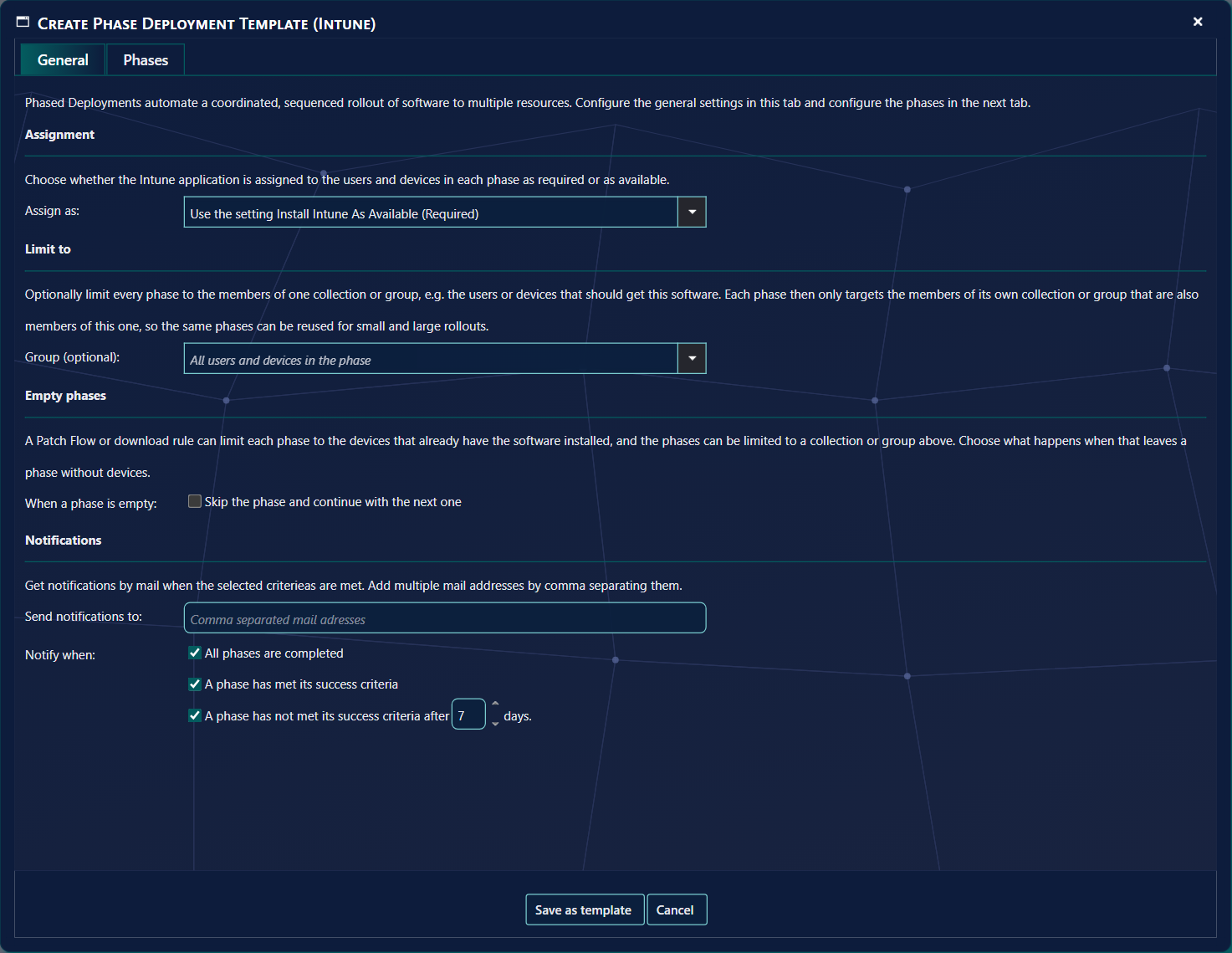
There are three ways; all of them open the same window.
| From | How |
|---|---|
| Create Phased Deployment | Set up the settings and phases you want, then click Save as template and enter a Template Name (unique, at most 256 characters). You do not have to choose software or deploy. |
| The Setup Guide | The steps for a phased deployment template open the window as Create Phase Deployment Template (SCCM) or (Intune). |
| The Robopack wizard | The green + next to SCCM Phased Deployment (step 3) or Intune Phased Deployment (step 5). See Download and import wizard. |
3 SCCM and Intune templates
A template is either for SCCM or for Intune, depending on its phases: collections make it an SCCM template, Intune groups an Intune template.
- SCCM templates are listed for everyone.
- Intune templates belong to the tenant they were made in, because their groups only exist there. They are only listed while that tenant is selected. With several tenants, make a template for each.
4 Manage Templates
On Software › Phased Deployments, click Manage Templates in the left menu.
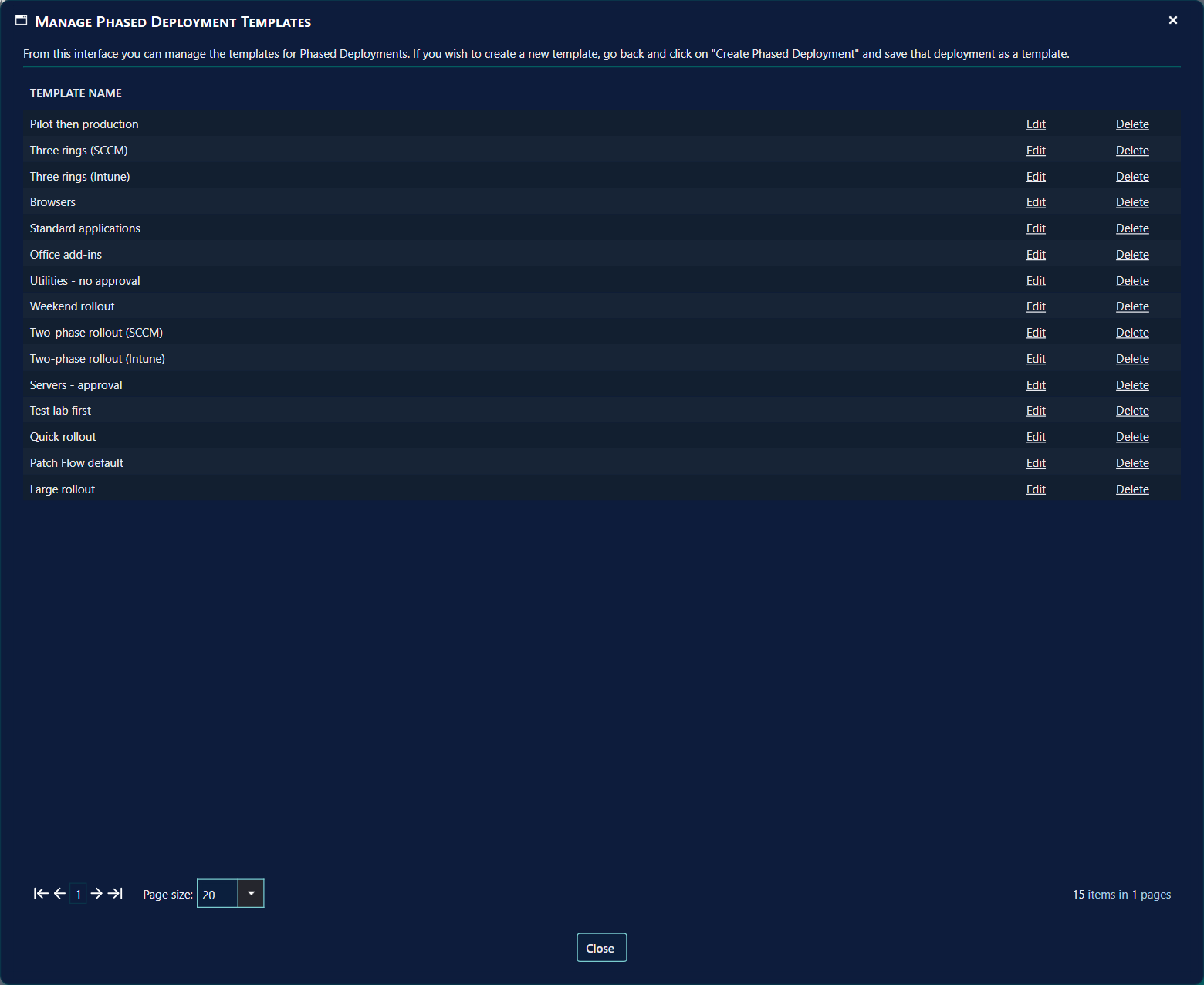
| Link | What it does |
|---|---|
| Edit | Opens the template in the same window. Change it and click Save as template to save the changes under the same name. |
| Delete | Deletes the template. Phased deployments that were made from it are not affected. |
To create a new template from here, go back and use Create Phased Deployment and Save as template, as the window says.
5 Where templates are used
| Where | How |
|---|---|
| Create Phased Deployment | Template (optional) fills in the window; you then choose the software and deploy. |
| Robopack Patch Flows | Step 3 (SCCM) and step 5 (Intune) of the wizard, and the Robopack deployment templates, point at a phased deployment template. Every new version that is imported gets a new phased deployment from it, named <application> - Robopack (or - Robopack - Intune), which starts straight away. |
| Auto Update Plus | A download rule can roll out each newly downloaded application with a template; the phased deployment is named <application> - Auto Update Plus. See Auto Update Plus. |
Patch Flows read the template every time
A Patch Flow or download rule loads the template when a new version arrives. A change to the template therefore applies to the next version, not to phased deployments that already exist. If the template is deleted, new versions are imported but not rolled out, and the Patch Flow reports that the template was not found.
6 Best practice
- Give each template a unique name. Names are compared without regard to capitals, and a name that is already used is refused.
- Change a template before the next version arrives. A Patch Flow loads its template when a new version is imported. Phased deployments that already exist are not changed.
- Expect collections and groups to be read when the phase runs. A phase uses the members its collection or group has at that moment.
7 Troubleshooting
| Symptom | Cause | What to do |
|---|---|---|
| “Name is missing” | The Template Name box is empty. | Type a name, then click Save as template. |
| “Name cannot be any longer than 256 characters” | The template name is longer than 256 characters. | Shorten the name. |
| “Name already exists.” | Another template has the same name. Capitals do not make a name different. | Choose another name, or open the existing template with Edit to change it. |
| New versions are imported but not rolled out. The log says: “Phased Deployment template with id '...' was not found”. | The template the Patch Flow points at has been deleted. | Select an existing template in step 3 (SCCM) or step 5 (Intune) of the Robopack wizard. |