1 Overview
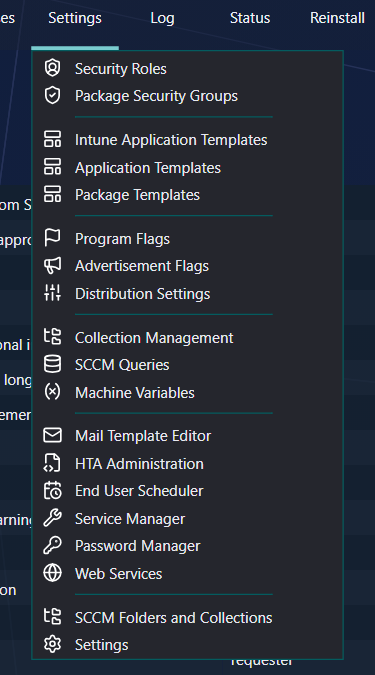
The mail engine in SoftwareCentral uses HTML templates. These templates can be modified and translated in the Mail Template Editor, which is located under the Settings menu.
2 Find a template
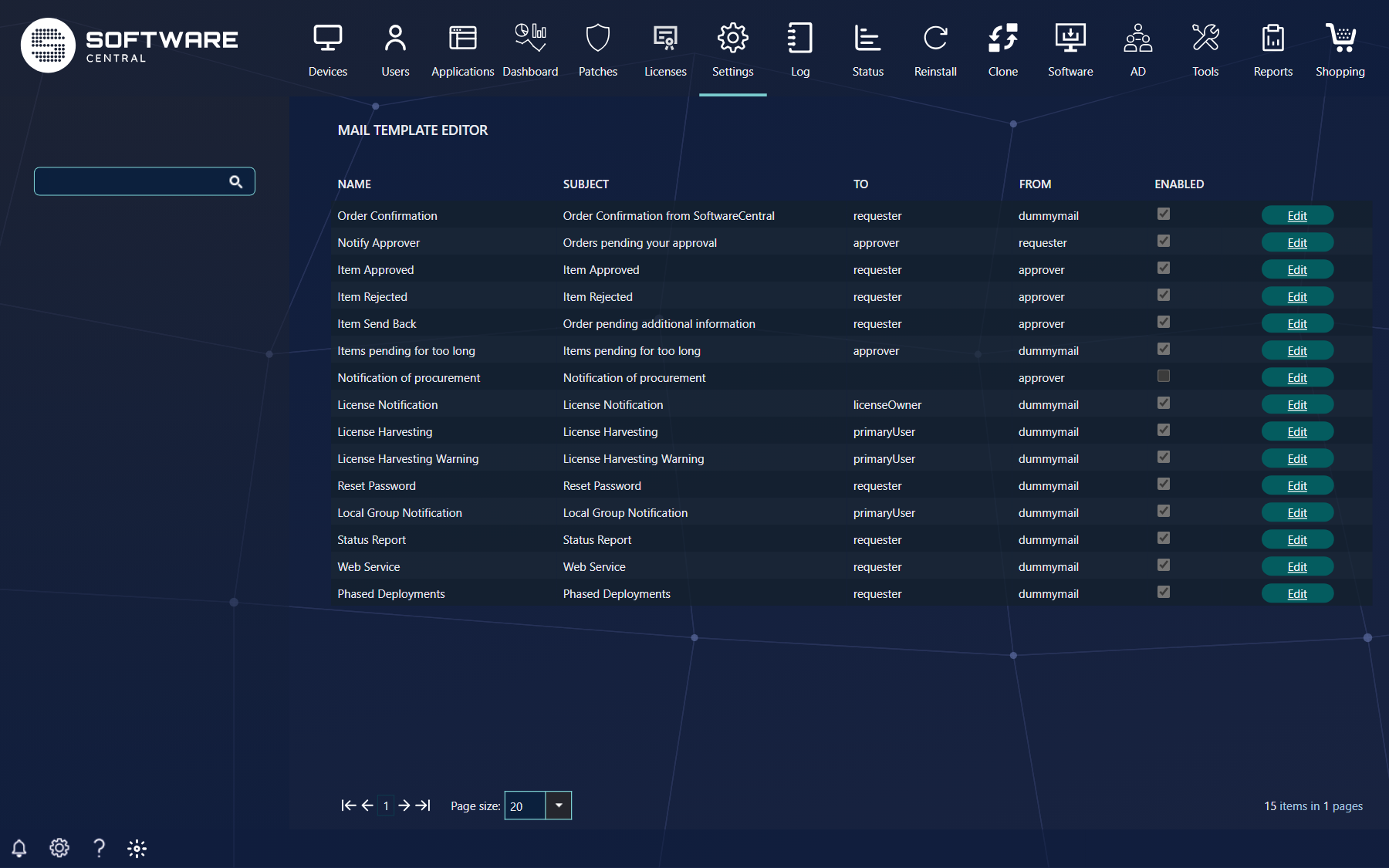
In the Mail Template Editor, you can see a list of all the mail templates which can be modified.
| Column | What it shows |
|---|---|
| Name | The name of the mail template. |
| Subject | The default subject title for the mail. |
| To | The receiver of the mail, as set in the template, for example requester or approver. |
| From | The sender of the mail, as set in the template. |
| Enabled | Determines if the template is enabled or disabled. The box is read-only in the list; change it on the Properties tab. |
| Edit | Click on the Edit button to edit a mail template. |
Type part of a template name in the search box in the left menu and press Enter. The list shows the templates whose names contain every search value. Choose how many rows to show with Page size at the bottom.
3 Edit a template
Click on the Edit button next to the template. A new window opens, titled Edit followed by the template name.
Design view
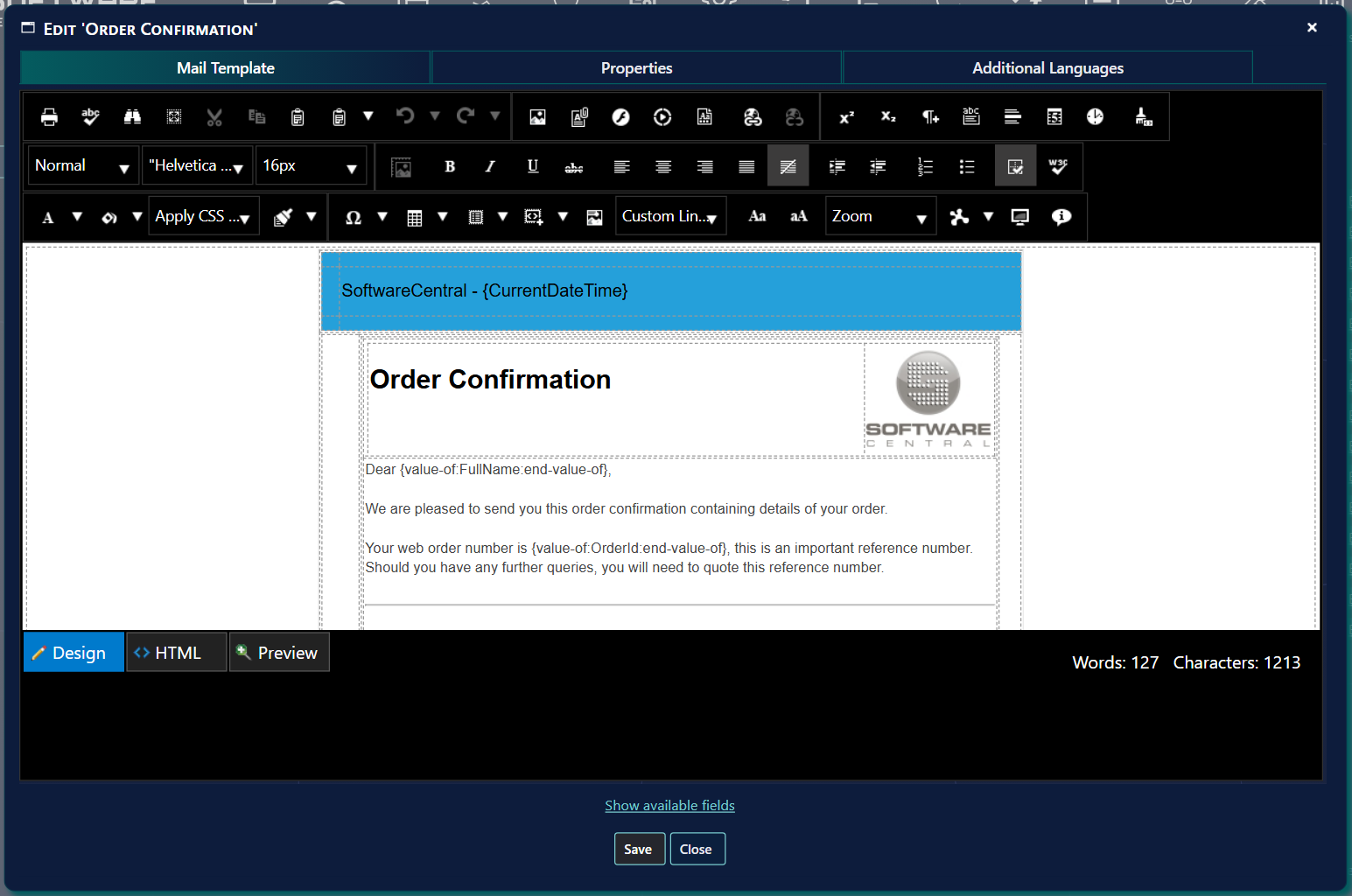
By default the template is displayed in the Design view. From here you can edit the template text.
The fields in curly braces, e.g.: {value-of:FullName:end-value-of} are variables which the
SoftwareCentral mail engine translates.
HTML view
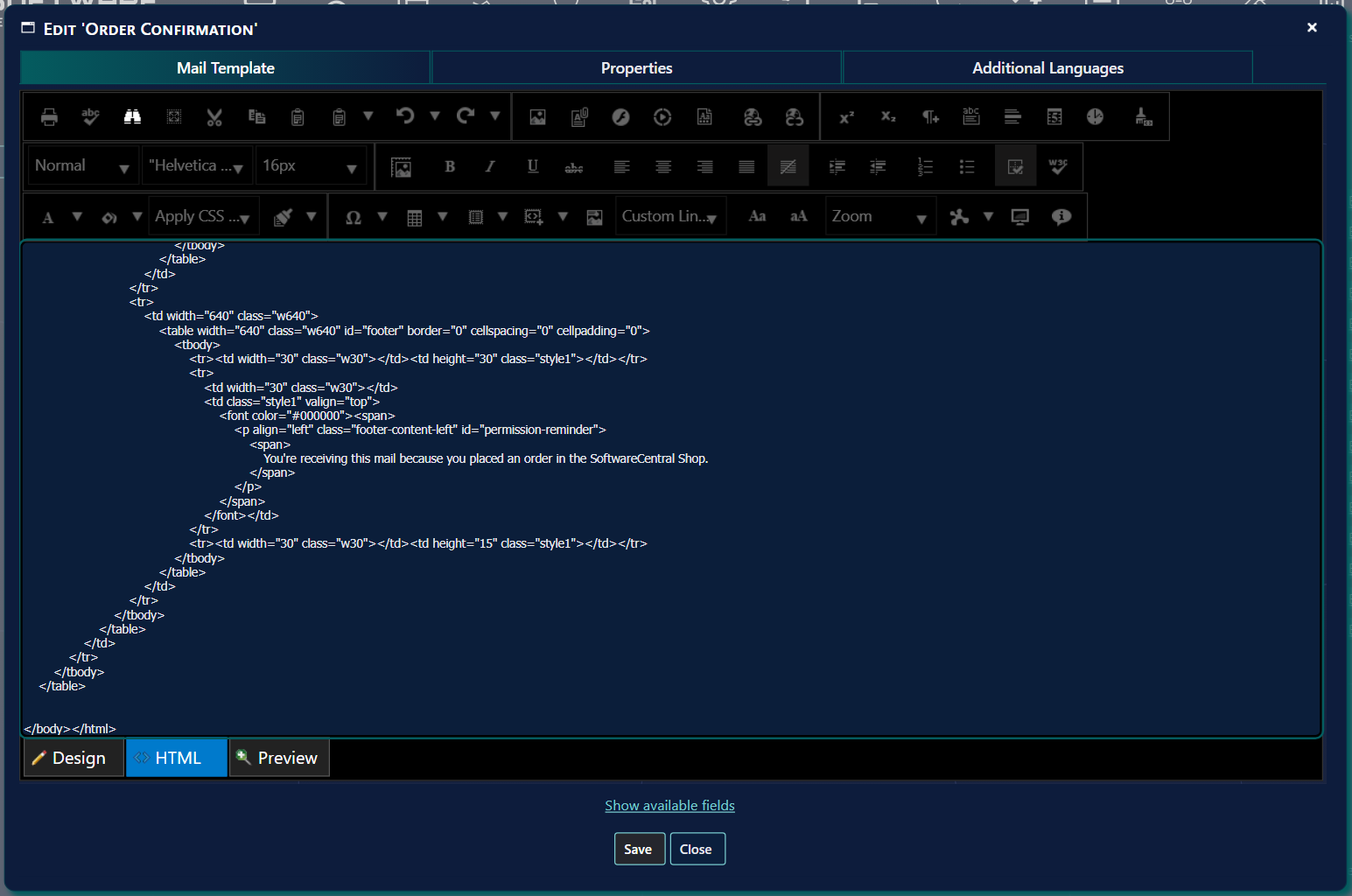
Click on the HTML button at the bottom of the editor to see the template’s HTML code. You can modify directly in the HTML code. If you have created a template in another editor, you can copy it directly into the HTML view.
Preview
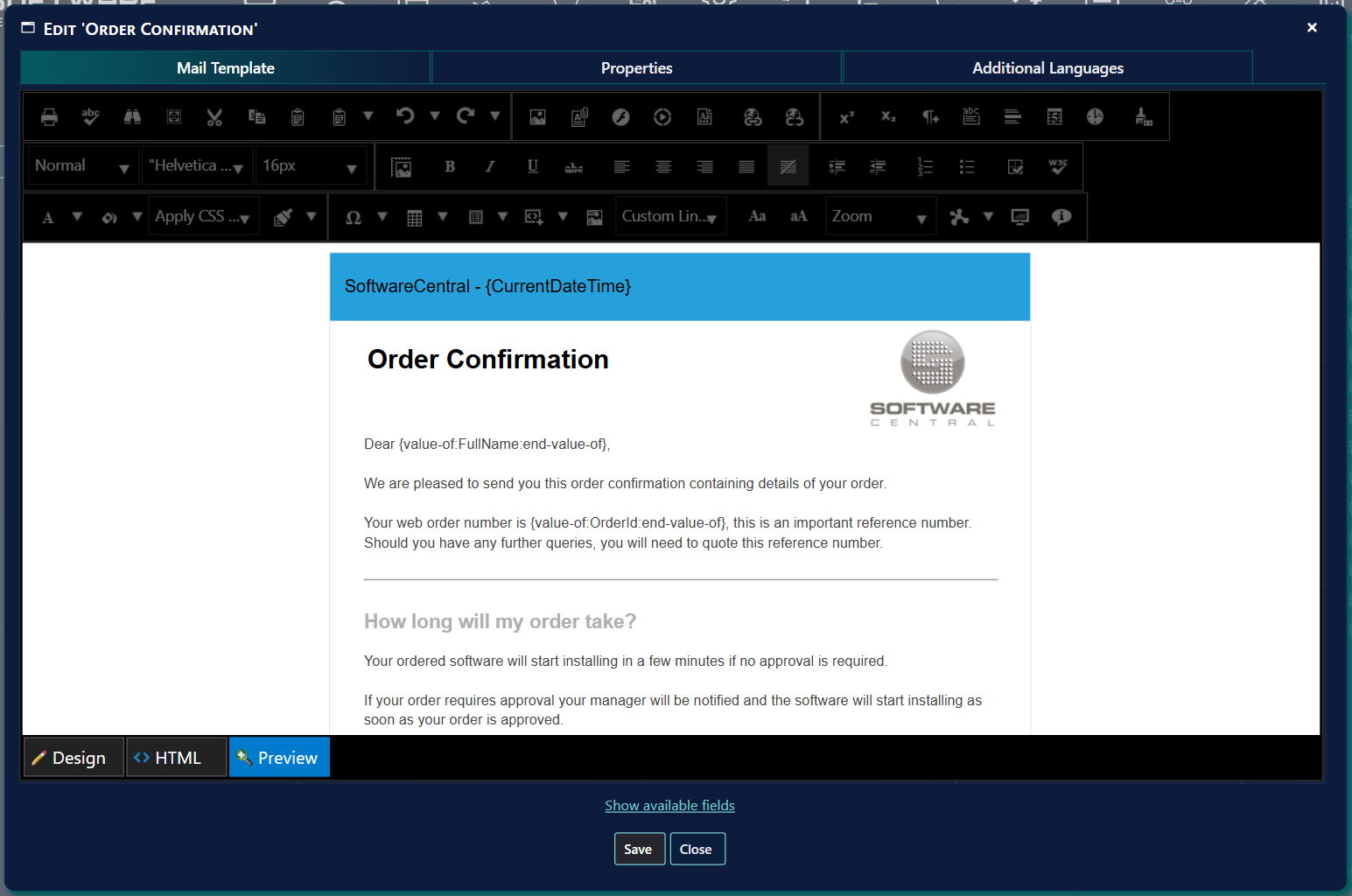
Click on the Preview button to see a preview of the mail template.
4 Fields
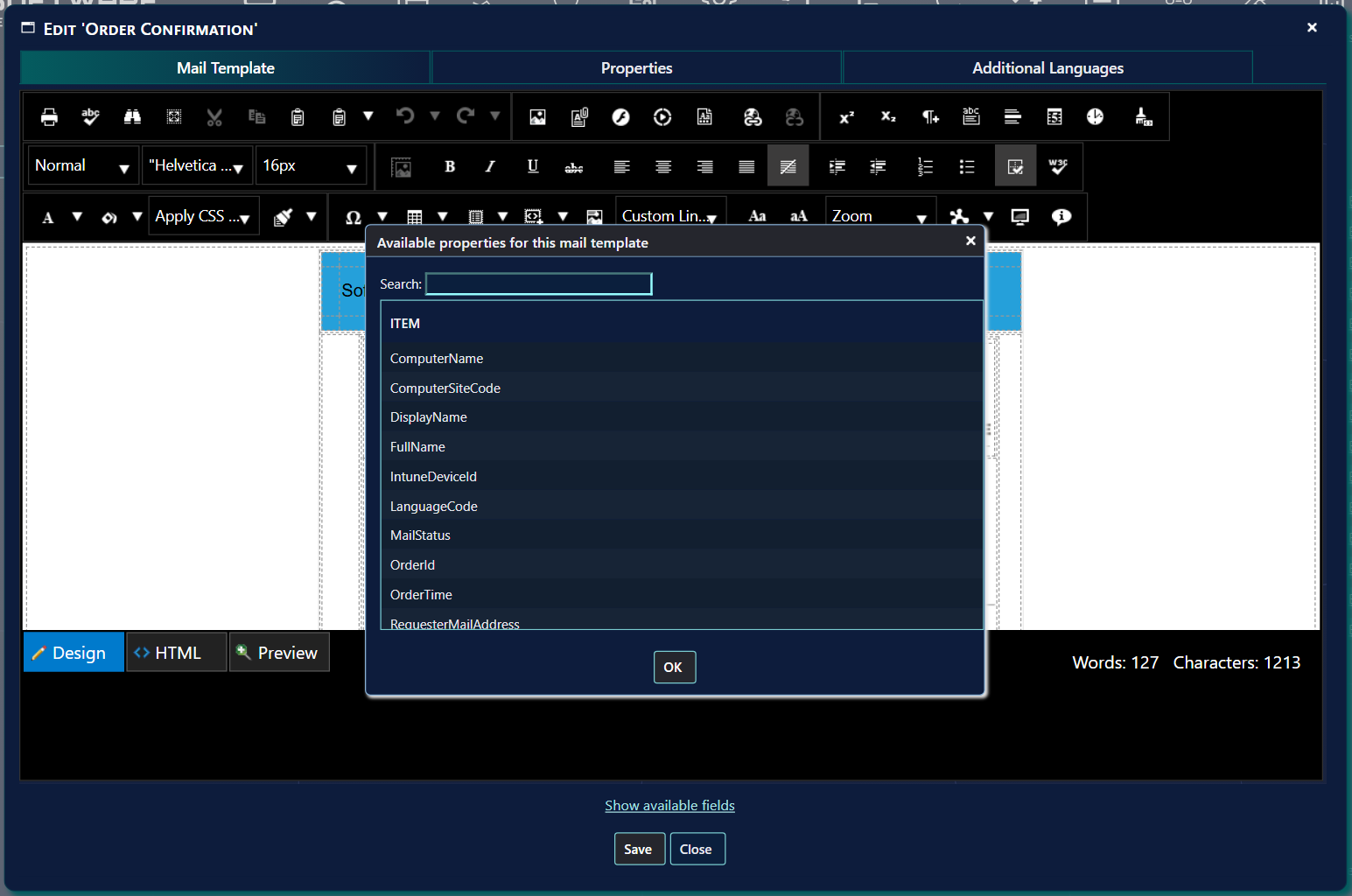
Click Show available fields at the bottom of the editor window to open a list of the fields that this template can use.
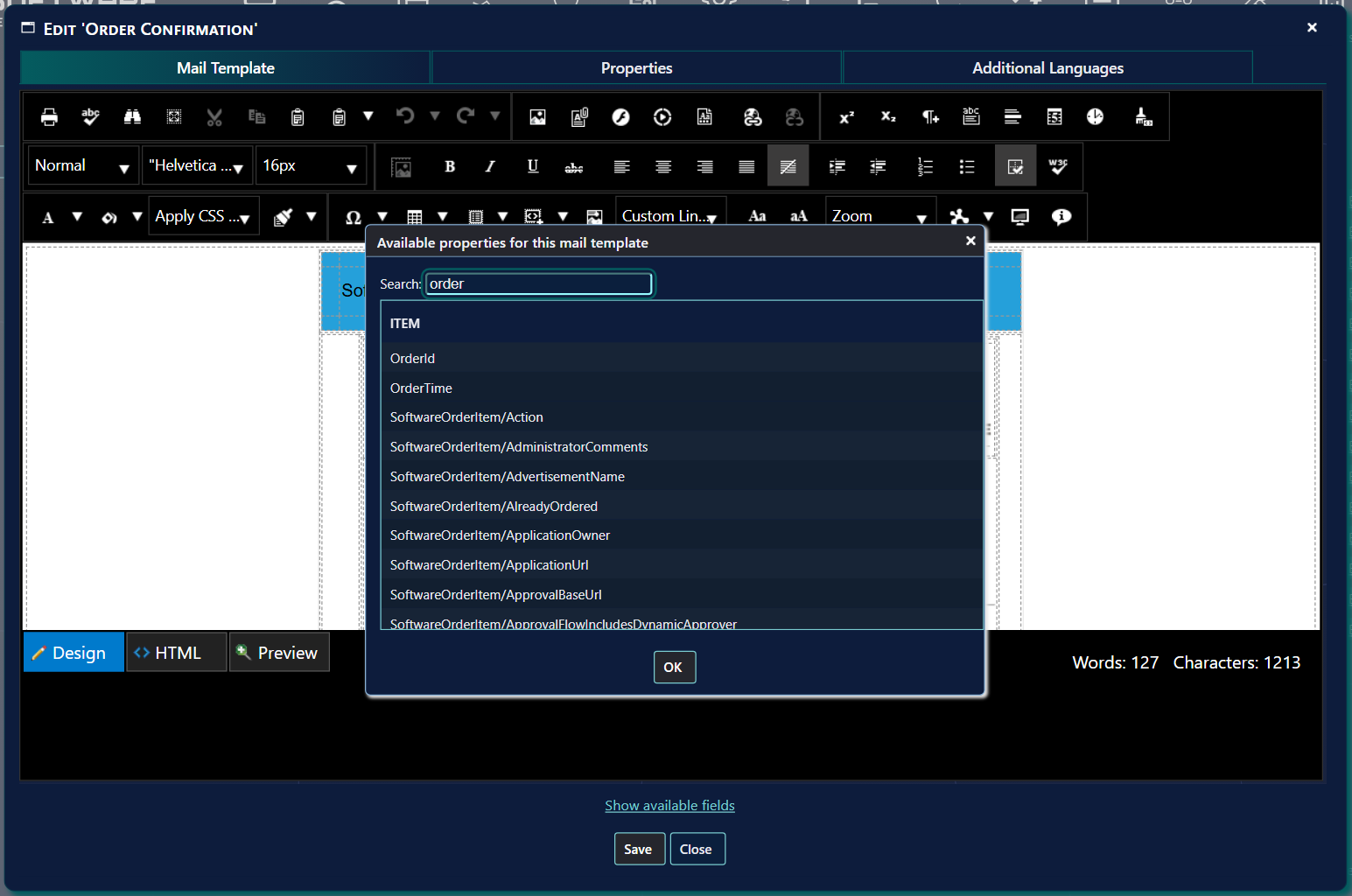
Type in Search to narrow the list. Every word you type must appear in the field name.
You can double-click on a field to open an easy “copy and paste” box. The box contains the field written as
{value-of:FieldName:end-value-of}. Press Ctrl+C and then Enter to copy it, and paste it into the template.
Click OK to close the list.
5 Properties
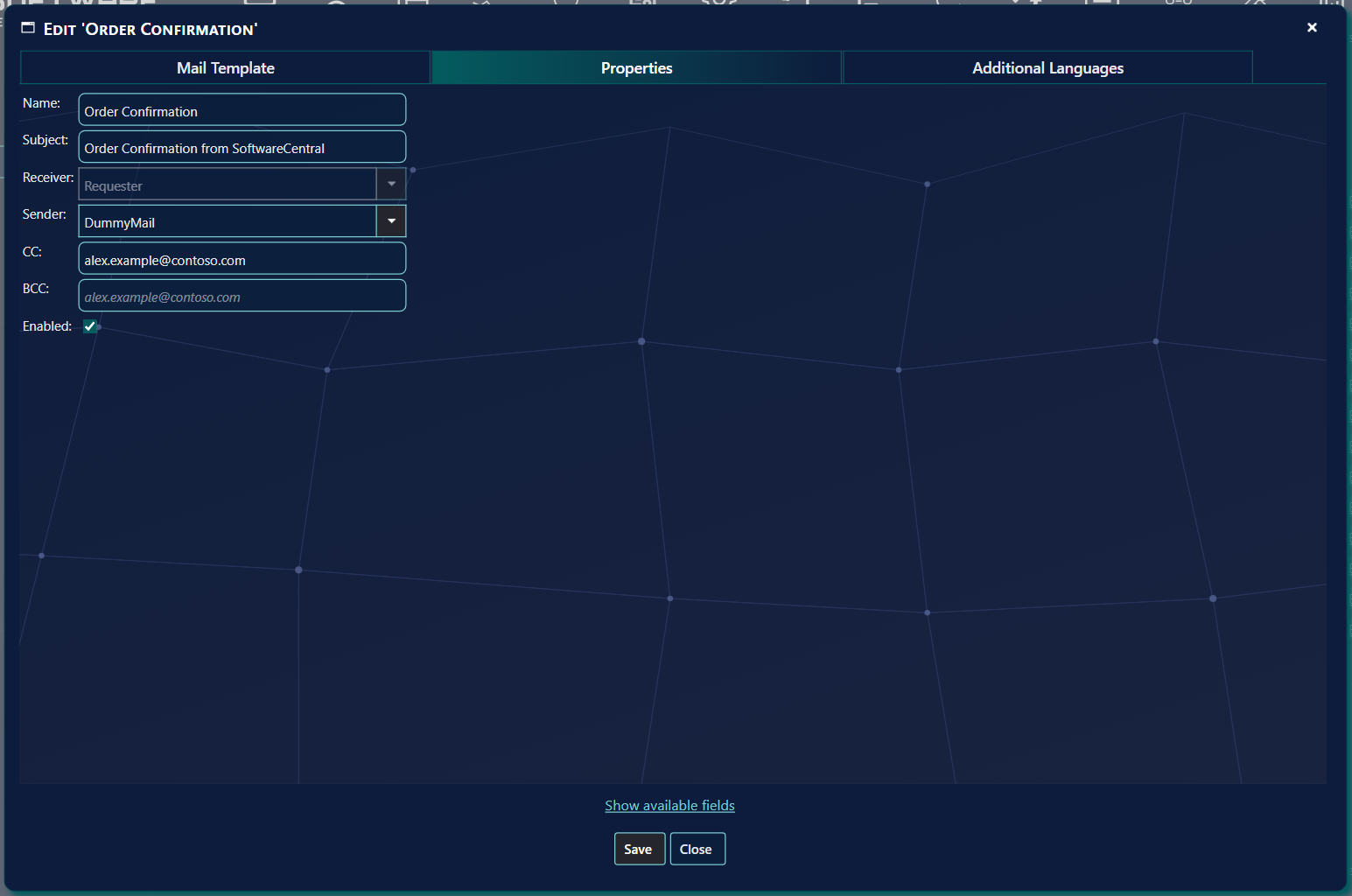
From the Properties tab you can change the subject, the sender, receiver and enable or disable the template.
| Field | What to enter |
|---|---|
| Name | The name of the template. The box is read-only. |
| Subject | The subject of the mail. A template cannot be saved with an empty subject. |
| Receiver | Who gets the mail: Approver, Requester, DummyMail, Primary User or License Owner. For Notification of procurement you type a mail address instead. Some templates have a fixed receiver, and the box is greyed out. |
| Sender | Who the mail is sent from: Approver, Requester or DummyMail. Some templates have a fixed sender, and the box is greyed out. |
| CC and BCC | Optional extra mail addresses. Each one must be a valid mail address, or the template is not saved. |
| Enabled | Tick the box to enable the template. Clear it to disable the template. |
Save on the Mail Template or Properties tab saves the template text and its properties together.
6 Additional languages
From the Additional Languages tab, you can add translations of the templates.
Users will receive the mail in the language they used in the shop or approvers view interfaces. If they have not come from the shop or the approvers view, or a template is not added in their language, they will receive the default mail.
The editor works the same as the default.
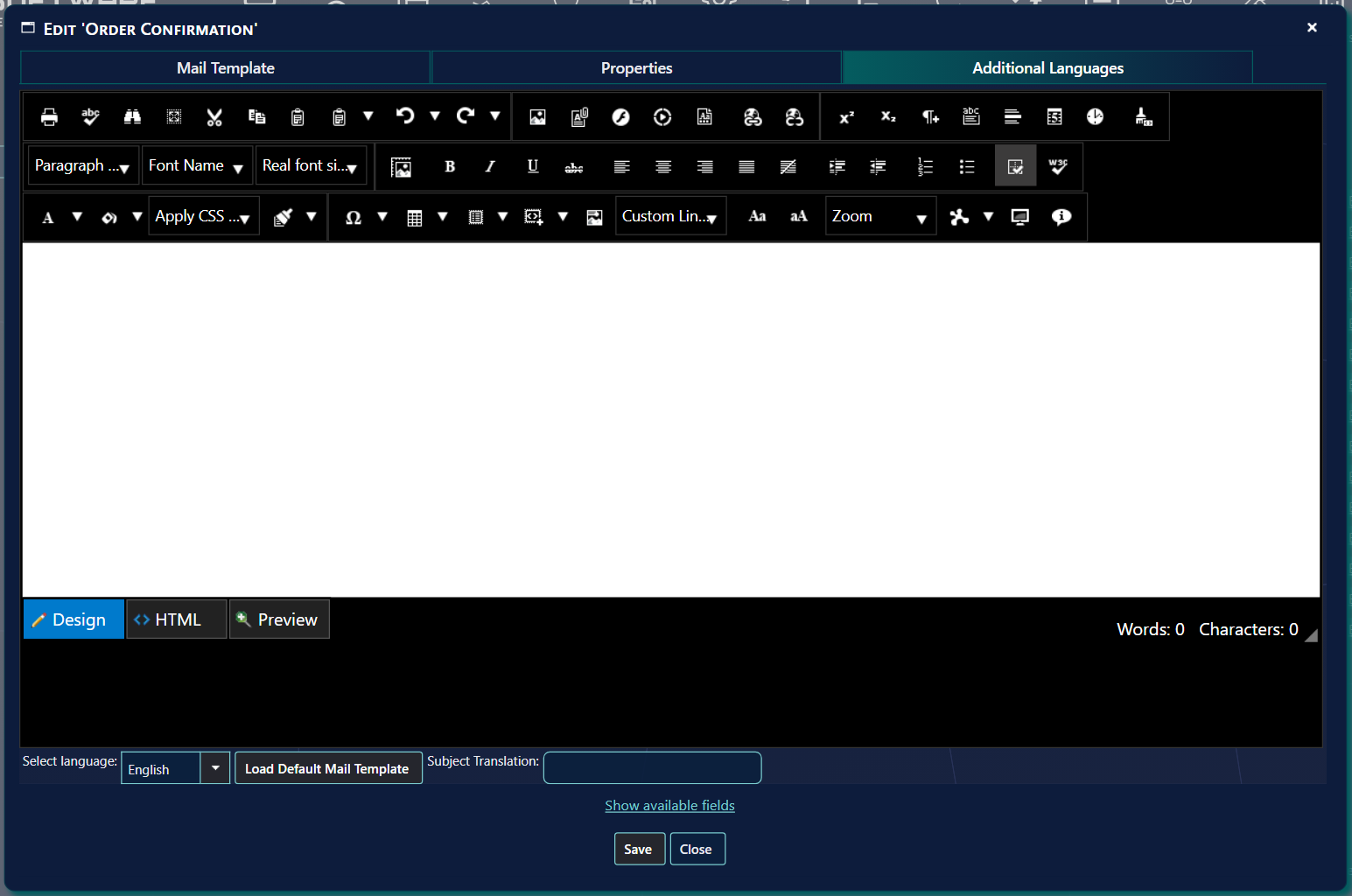
In the bottom you have the Select language drop-down where you can select the language you want to modify the template in. The languages are English, German, Danish, Swedish, Norwegian and Finnish.
- If the template is empty, you can click on the Load Default Mail Template button. This will load the template from the first page and allow you to focus on the translation and not the layout. If the translation already has text, the editor asks you to confirm first, because the text is replaced.
- Save on this tab saves only the translation of the selected language. The translation is kept separately from the default template.
- If you change the language while the translation has changes that are not saved, the editor asks you to confirm, and those changes are lost.
7 Best practice
-
Keep the markers of the licence mails. The licence harvesting mails need the markers
[REASONUSED-START],[REASONUSED-END],[REASONNEVERUSED-START]and[REASONNEVERUSED-END]. The licence notification mail needs[REASONTHRESHOLD-START],[REASONTHRESHOLD-END],[REASONEXPIRED-START]and[REASONEXPIRED-END]. The editor does not save a template without them. - Check the layout in Preview before you save. The preview shows the template as it is written, so a broken table or a missing curly brace shows there first.
- Close only after you have saved. Close asks for a confirmation, and changes that are not saved are lost.
- Translate after the default template is final. A translation is stored separately. A later change to the default template does not change the translations. Load Default Mail Template replaces the text of the translation.
- Keep a copy of the HTML before a large change. Copy the HTML view into a file, so that you can put the template back if a change does not work.
8 Troubleshooting
| Symptom | Cause | What to do |
|---|---|---|
| The window shows "Subject is missing." | The Subject box on the Properties tab, or the Subject Translation box, is empty. | Type a subject and click Save. |
| The window shows "Name is missing." | The template has no name stored. The name box is read-only, so this is rare. | Close the window and check the template in the list. Ask your SoftwareCentral support if the name is empty. |
| The window shows "CC is not a valid e-mail address." or "BCC is not a valid e-mail address." | The CC or BCC box contains text that is not a mail address. | Correct the address, or clear the box. Then click Save. |
| The window shows a message such as "[REASONUSED-START] is missing." | A required marker was removed from a licence mail template. The message names the marker. | Put the marker back exactly as written, with its start and end marker. See Best practice. |
| The editor opens an error page: "Unable to load mail template with ID" | The template is not in the list that the page loaded for your session. | Go back to the Mail Template Editor from the Settings menu, and open the template again. |
See also Service Manager and Password Manager.