1 Open the SCCM settings
On the Settings page, expand SCCM in the left menu. It has four pages: Shares, Clients, Packages and Collections.
Some settings are not shown on every installation. Settings marked for Application Manager Only are hidden when SoftwareCentral runs as Application Manager Only.
3 Clients
Options that change how SoftwareCentral talks to the client computers.
| Setting | What it does |
|---|---|
| Remote Registry Service is enabled on clients (checkbox Remote Registry Service Enabled) | Enable this if the Remote Registry Service is enabled on all clients. SoftwareCentral uses it to read the clients' registry, which gives more precise data for software deployment messages and speeds up some functions that would otherwise require WMI. |
| Manually register SoftwareCentral to a URI Scheme on clients | Enable this if SoftwareCentral should not try to register the SoftwareCentral client to the URI scheme on clients automatically. The URI scheme is used by the Remote Control Tool and Custom Tools. See External Tools Configuration. |
| Refresh Machine Policy Delay in seconds | The delay in seconds before SoftwareCentral refreshes the Machine Policy on clients after a deployment. There is an additional delay of at least 30 seconds, which cannot be avoided. |
| Use SCCM Client Online Status | Uses SCCM data for the online indicator in the computer management interfaces. This replaces the old method, where computers were pinged to determine whether they were online. This feature only works with SCCM 1602 or above. |
| Use live data in Manage Software (checkbox Use live data) | Enabling this allows SoftwareCentral to contact client computers directly to get installation status for software deployments. |
| Show devices from all sites | Lets SoftwareCentral retrieve all devices from all sites, instead of using the site selector. |
| Use SCCM Client Notifications instead of Refresh Machine Policy | Uses the SCCM Client Notifications instead of invoking a policy request on the clients with WMI. It is currently supported by Manage Software (single and multiple resources) and the Deployment Manager. Note that this delays installations for up to 10 minutes. This feature is not fully implemented yet. |
| Max number of clients to use SCCM Client Notifications | Only deployments within this threshold trigger client notifications. If you set this to 1000, deployments to 1001 or more clients do not trigger a notification. This helps to avoid many clients installing a program at the same time. 0 means unlimited. |
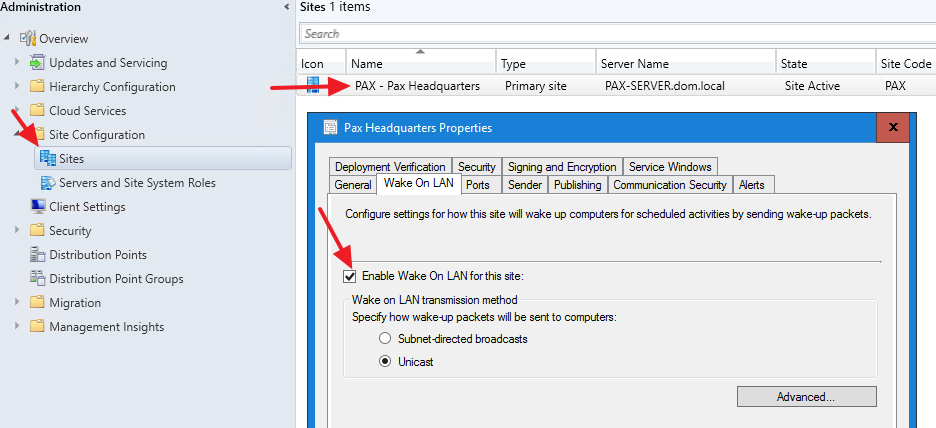
| Use SCCM to send Wake on Lan package instead of SoftwareCentral (checkbox Use SCCM to send Wake on Lan package) | SCCM sends the Wake on LAN package. This feature requires SCCM 1810 or above and must be enabled in SCCM (see the picture below). |
| Use duplicate hardware settings when importing a computer (checkbox Enable Duplicate Hardware Settings) | When enabled, a computer with a MAC address that is already in the list of known MAC addresses is not marked as a known computer during import. This feature also works in the HTA. Requires SCCM 1610 or above. |
Client accounts
Client accounts are used when SoftwareCentral connects to clients with WMI, for instance when making a Refresh Machine Policy or adding users to local groups. By default the list is empty, or no accounts are selected. In those cases the application pool user is used when connecting to clients with WMI.
Accounts can be added to the list from the Password Manager.
When one or more accounts are added, SoftwareCentral uses those accounts, in the order they are listed, to connect to clients. The application pool user is always included, so it does not need to be added manually. If it is not in the list, it is tried first. The accounts can be reordered by drag and drop, or with the "up" and "down" buttons to the right.
Custom tools and actions still run in the context defined for each tool and action.
It is required that the setting "Remote Registry Service Enabled" is disabled in SoftwareCentral when using the client accounts.
4 Packages
How packages and applications are named, and the defaults used for the programs and task sequences they create.
| Setting | What it does |
|---|---|
| Naming (check boxes Manufacturer, Name, Version and Language) | Defines which parts of an application or package name are shown in SoftwareCentral as the full name. Name is always selected. Collections and folders in SCCM are also named according to this setting. |
| Install Program Name | The default install program used to identify install advertisements, and the install program name given to packages created with SoftwareCentral. |
| Uninstall Program Name | The default uninstall program used to identify uninstall advertisements, and the uninstall program name given to packages created with SoftwareCentral. |
| Software Group Package Base Variable Name | The base variable name used for packages in software groups. OSD task sequences must be configured to read this variable. See Task Sequence Configuration. |
| Software Group Application Base Variable Name (ConfigMgr 2012 only) | The base variable name used for applications in software groups. OSD task sequences must be configured to read this variable. See Task Sequence Configuration. |
| Software Group - Continue On Error (check box Continue On Error) | Settings for the Continue On Errors flag in the install software task sequences step. |
| Software Group - Continue On Install Error (check box Continue On Install Error) | Settings for the Continue On Install Errors flag in the install software task sequences step. |
| Add username in the application and package description when a new application or package is created (check box Add username in description) | Adds the current user's name to the description field of applications and packages. |
5 Collections
How SoftwareCentral creates and updates the SCCM collections. The root collections and folders are set up on SCCM Folders and Collections, and the first settings to make are in Initial Configuration.
| Setting | What it does |
|---|---|
| Update All Systems collection after computer import (check box Update All Systems) | If enabled, the All Systems collection is updated after a computer import. When it is updated, the Auxiliary Evaluator updates all collections in your SCCM environment. If you have many collections and this update is slow, disable the setting. Warning: for small environments with only a couple of hundred collections, disabling this gives a noticeable delay when importing computers. It is not recommended to disable this setting and use Aggressive Update Collection Membership at the same time. |
| Use aggressive Update Collection Membership (check box Aggressive Update Collection Membership) | Updates the collection membership repeatedly until the newly imported computer is a member of the OSD collection. Enable it if newly imported computers take a long time to show up in their OSD collection. This setting applies to SCCM 2012 only. |
| Limiting User Collection | The user collection used as the limiting user collection for all user collections created with SoftwareCentral. |
| Limiting Device Collection | The device collection used as the limiting device collection for all device collections created with SoftwareCentral. |
| Create collection memberships on computer site instead of collection site (check box Deploy To Computer Site) | Can only be enabled if there is more than one site. Adds collection memberships to the computer site instead of the collection site. This can overcome slow replication between SCCM site databases. |
| Delete scheduled collections after latest run time (in days) | Scheduled collections are deleted after their last run time, plus this number of days. When a scheduled collection expires, its content is moved to the original collection. Scheduled collections should be kept after the last run time if deployment status messages are required in the Deployment Manager. |
| Do not create folders for collections belonging to application (check box Disable Collection Folders) | If enabled, SoftwareCentral no longer creates a separate folder for each application's device and user collections. All collections are located under the Application root folder. |
| Check for user collections in Manage Software (check box Check for user collections) | By default, when you select a user in Manage Software on a single resource, SoftwareCentral does not check for a user install collection. If this setting is enabled, SoftwareCentral performs the check and only shows applications that are deployed to a user collection. This increases the loading time of Manage Software on a single resource. |
| Replace Package - Only use resources belonging to the SoftwareCentral root folders (check box Only use resources belonging to the SoftwareCentral root folders) | If enabled, software is only replaced on resources that, through their collection membership, belong to one of the SoftwareCentral root folders. By default, resources from all collections the software is deployed to are replaced by the newer version. |
6 Best practice
- Set the Package Share for every site before you create packages or applications. It is required for Create Package / Application.
- Keep the Client accounts list short. Each account adds up to 30 seconds when a connection has to try it, and it slows down many interfaces. SoftwareCentral tries the accounts in the order they are listed.
- Enable Remote Registry Service Enabled only when the service runs on all clients. Otherwise SoftwareCentral reads the registry through WMI.
- Set Max number of clients to use SCCM Client Notifications when you deploy to large groups, so that many clients do not install at the same time. 0 means unlimited.
- Do not disable Update All Systems and use Aggressive Update Collection Membership at the same time. The tip for the setting says not to combine them.
7 Troubleshooting
| Symptom | Cause | What to do |
|---|---|---|
| Use SCCM Client Online Status has no effect | The SCCM version is older than 1602, which the setting requires. | Update SCCM to 1602 or later, or leave the setting off. |
| Wake on LAN is not sent by SCCM | The option is not enabled in SCCM, or SCCM is older than 1810. | Enable Wake On LAN for the site in SCCM, and check the SCCM version. |
| The OS Share row is not shown | SoftwareCentral runs as Application Manager Only, where this setting is hidden. | No action is needed on this installation. |
| Remote control does not start on a client | The users do not have read and execute permissions on the share, or the share does not contain the files from the Tools\CmRcViewer\ folder. | Check the share path and its permissions, and check that the files are in the share. |