1 Set Configuration Manager up
Remote control in SoftwareCentral starts the Configuration Manager remote control viewer (CmRcViewer.exe),
so the Configuration Manager side must work first.
Use this guide from Microsoft to set up remote control: http://technet.microsoft.com/en-us/library/gg682148.aspx
That guide is the source for the Configuration Manager side. Microsoft has moved and renamed it over the years; if the link no longer opens, search Microsoft Learn for Configuration Manager remote control and follow the current version for your Configuration Manager release.
2 Define the users as Viewers
Every user of this tool needs to be defined as a Viewer in Configuration Manager.
In the Configuration Manager console this is the list of permitted viewers in the Remote Tools client settings. A person who is not on that list is refused by the client on the device, even if SoftwareCentral lets them start the tool.

| Where | What it controls |
|---|---|
| Configuration Manager: permitted viewers | Who the device accepts as a remote control viewer. This is the Viewer definition above. |
| Configuration Manager: the Remote Control permission on the collection | Which devices the account may control. It is one of the collection permissions listed in Preparing the SCCM. |
| SoftwareCentral: the role | Whether the person sees remote control at all, and whether it works for computers, users or both. This is set on the role, not in Configuration Manager. |
3 Tell SoftwareCentral where the tool is
Open Settings and the SCCM group (see SCCM) and find Remote Control Tool Share Path: (CmRcViewer.exe). It is on the Shares item of the group.
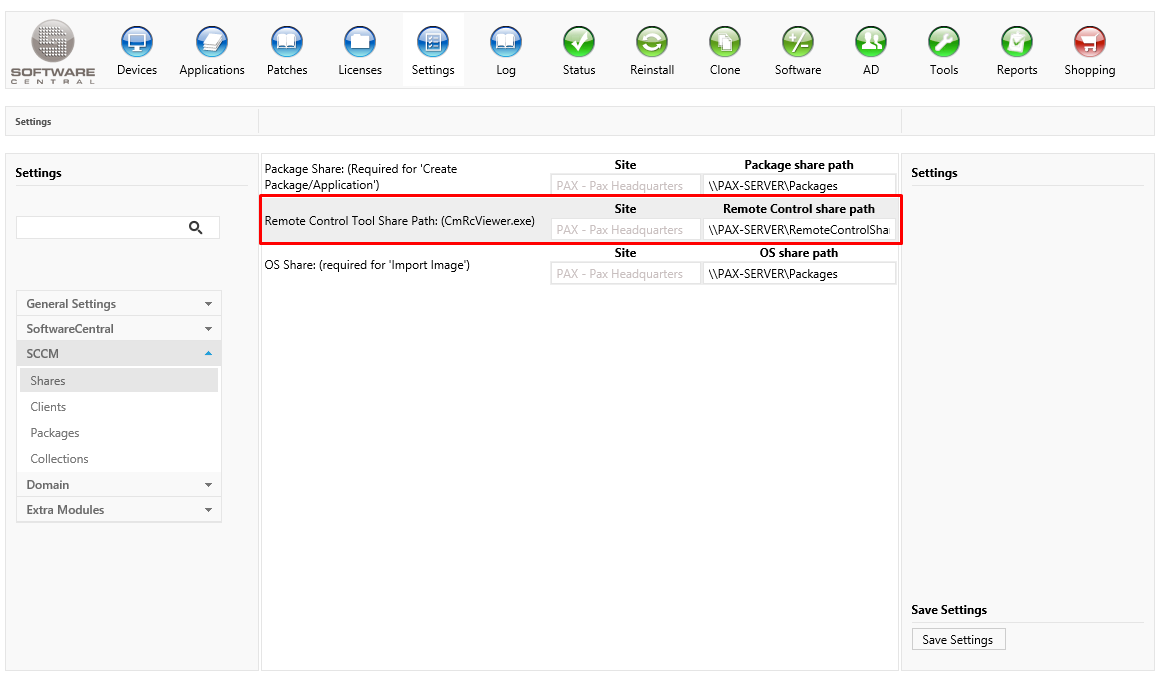
| Column | What to enter |
|---|---|
| Site | One row for each site. The name is only shown. |
| Remote Control share path | The path to the remote control share for that site. All users must have read and execute permissions to this share. The share must contain the files located in the [<SoftwareCentral install dir>\Tools\CmRcViewer] folder. See External Tools Configuration for more details. |
The path used is the one for the site that is selected when the person starts remote control. A site without a path cannot be controlled: the Connect button on the Remote Control page stays disabled and a warning is written to the log.
The viewer is started on the technician's own PC, from the share. SoftwareCentral first tries the
SoftwareCentral ActiveX component, then Windows Script Host, and finally the SoftwareCentral: URI scheme
link of the SoftwareCentral client. If you register that link yourself instead of letting SoftwareCentral do it, turn on
Manually register SoftwareCentral to a URI Scheme in the settings; see
Remote Control and The SoftwareCentral client.
4 Best practice
| Do | Why |
|---|---|
| Test remote control in Configuration Manager first | Start the viewer from the Configuration Manager console on one device. If that does not work, SoftwareCentral cannot fix it, and you know the fault is in the client settings, firewall or permissions. |
| Put the Viewers in a security group | Add the group, not each person, to the permitted viewers. New technicians then only need to join the group. |
| Give the share read and execute only | Users run the tool from the share; they never need to write to it. |
| Use one share per site that is close to the technicians | The tool starts from the share, so a share across a slow link makes every session slow to open. |
| Limit remote control to the roles that need it | The role decides who sees it; combine it with the collection permission so people can only control the devices they manage. |
Copy the CmRcViewer folder again after an update | The share must contain the files from the SoftwareCentral install folder, so refresh it when SoftwareCentral is updated. |
5 Troubleshooting
| You see | Check |
|---|---|
| Connect stays disabled after choosing a device | No share path is entered for the site, or the device was not found. Enter the path under Remote Control Tool Share Path. |
| The tool does not start | None of the launch methods worked: the ActiveX component is not installed and the SoftwareCentral: link is not registered on the technician's PC, or the share cannot be read by that person. See Remote Control. |
| The viewer starts but is refused | The person is not defined as a Viewer in Configuration Manager, or the device has not yet received the client settings. |
| The device is not found | The role may not allow that device, or the wrong site is selected. |
See also Troubleshooting and Configuration of SoftwareCentral.