1 What is needed
Three folders, one for each kind of deployment.
| Folder | It holds |
|---|---|
| A user folder named Software Distribution | Collections used for deploying applications to users. |
| A device folder named Software Distribution | Collections used for deploying applications to devices. |
| A device folder named Software Distribution Packages | Collections used for deploying packages to devices. |
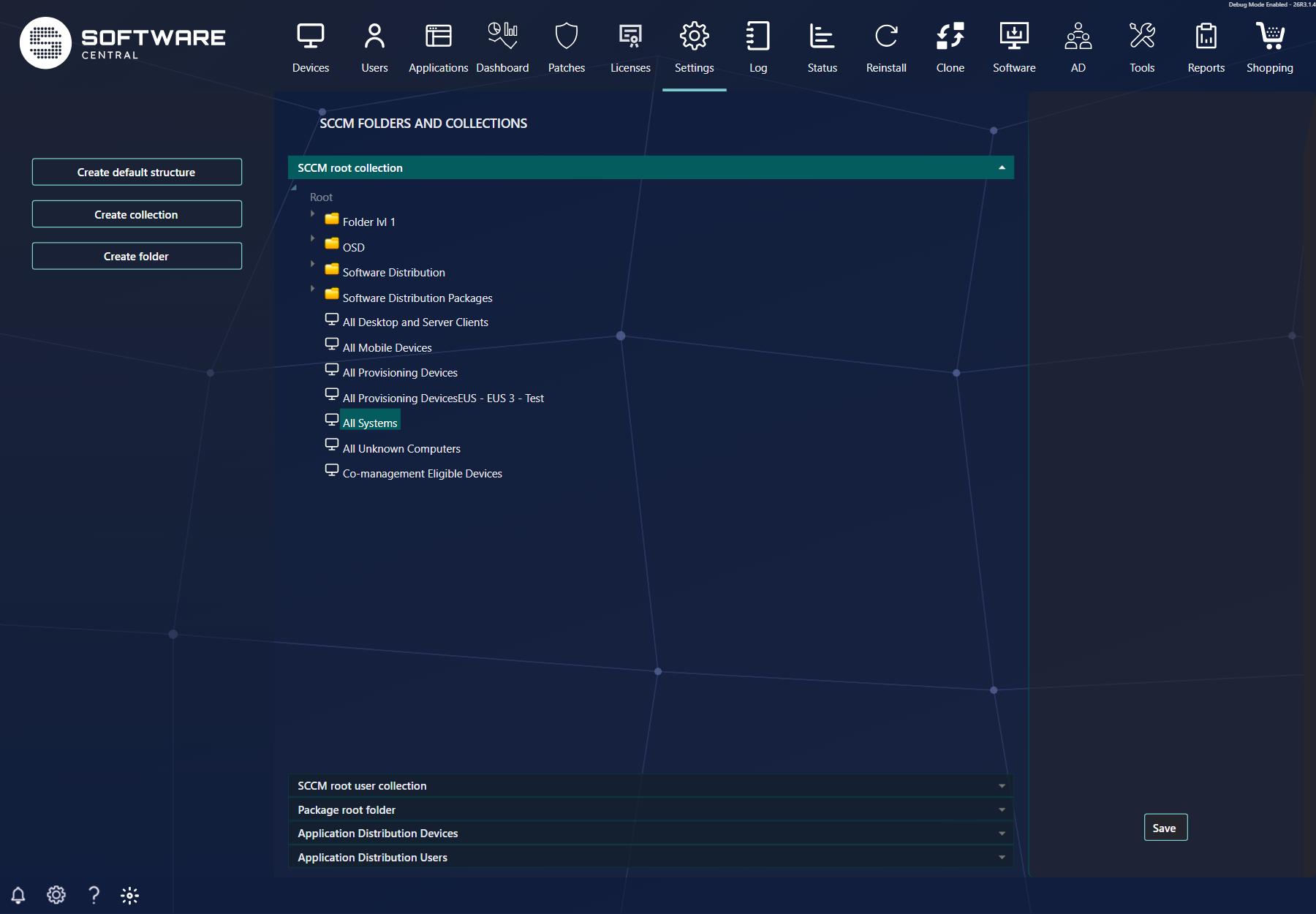
You can let SoftwareCentral create the three folders, create them manually in Configuration Manager, or use your existing folders. Open Settings and select SCCM Folders and Collections (in the SCCM group). If you have several sites, choose the site in the Select site box at the top first; the page shows the folders and collections of that site.
2 Create the folders
Click Create default structure on the left.
A Warning! dialog tells you that three default folders will be created if they do not exist. Confirm it and SoftwareCentral creates the three folders described above at the top level of the site. A folder is only created when no folder of that name and kind exists on the site, so running it again is harmless.
3 The five root settings
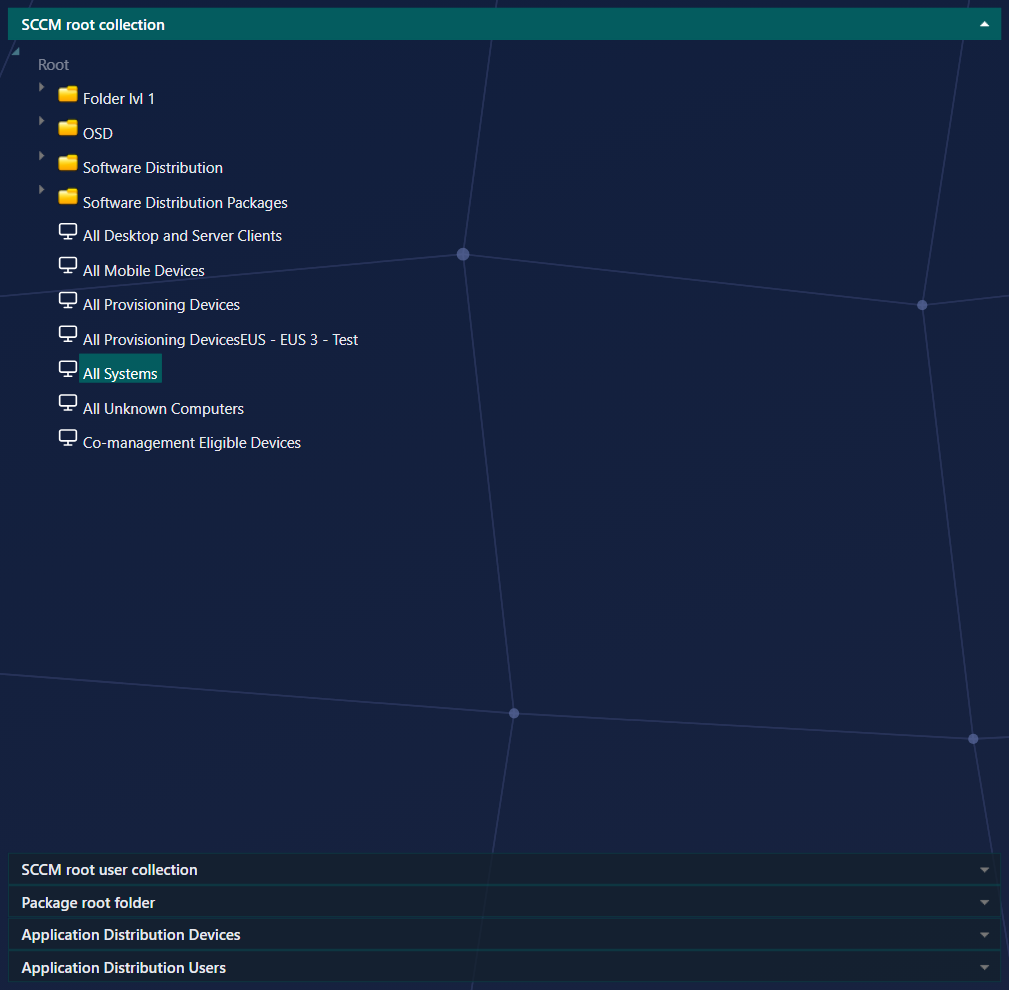
The middle of the page has five panels, one open at a time. Expand the folders in the tree and click the folder or collection to use.
| Panel | You select | What it is and what to choose |
|---|---|---|
| SCCM root collection | A device collection | The root device collection. In early versions of the SCCM this was known as the “COLLROOT” collection. Select All Systems. |
| SCCM root user collection | A user collection | The root user collection. Select All Users. |
| Package root folder | A device folder | Select the folder created earlier called Software Distribution Packages. |
| Application Distribution Devices | A device folder | The folder where the application install and uninstall device collections are created. Select the folder Software Distribution created before. |
| Application Distribution Users | A user folder | The folder where the application install and uninstall user collections are created. Select the user folder Software Distribution created before. |
When you are done, click Save on the right (the box is headed Save SCCM collection settings). A panel where you select nothing keeps the value that is already stored.
4 Create collection and Create folder
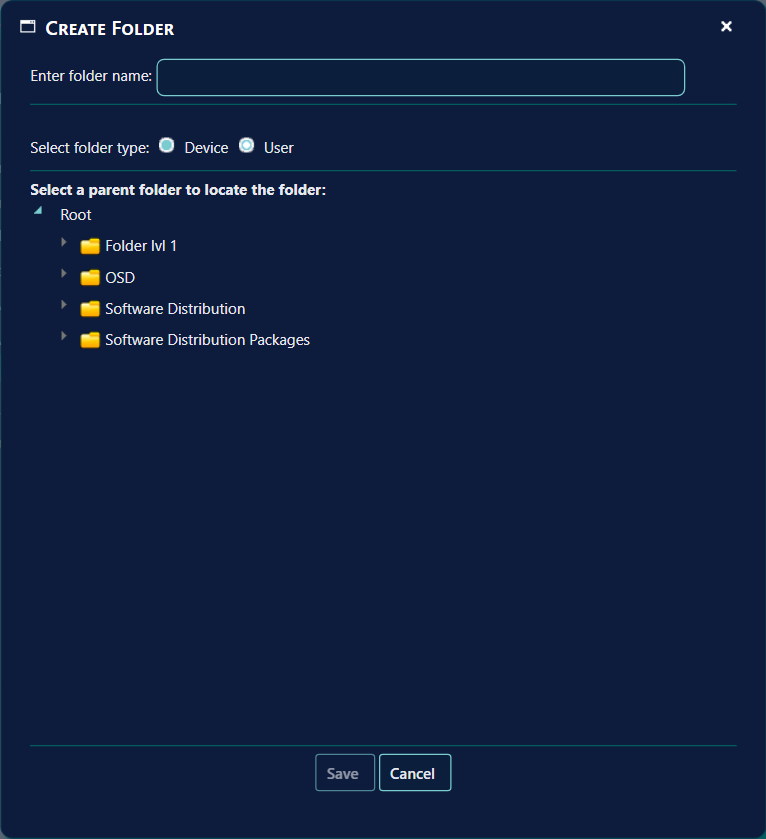
The two buttons under Create default structure open a window to add something to Configuration Manager without leaving SoftwareCentral.
| In the window | What to do |
|---|---|
| Enter collection name / Enter folder name | The name. It must not already exist on the site, otherwise you get Name already exist on site followed by the site code. An empty name gives Name is missing. |
| Select collection type / Select folder type | Device or user. |
| Select a parent folder | Where to place it. A new collection must go inside a folder; a new folder can also go at the top level. |
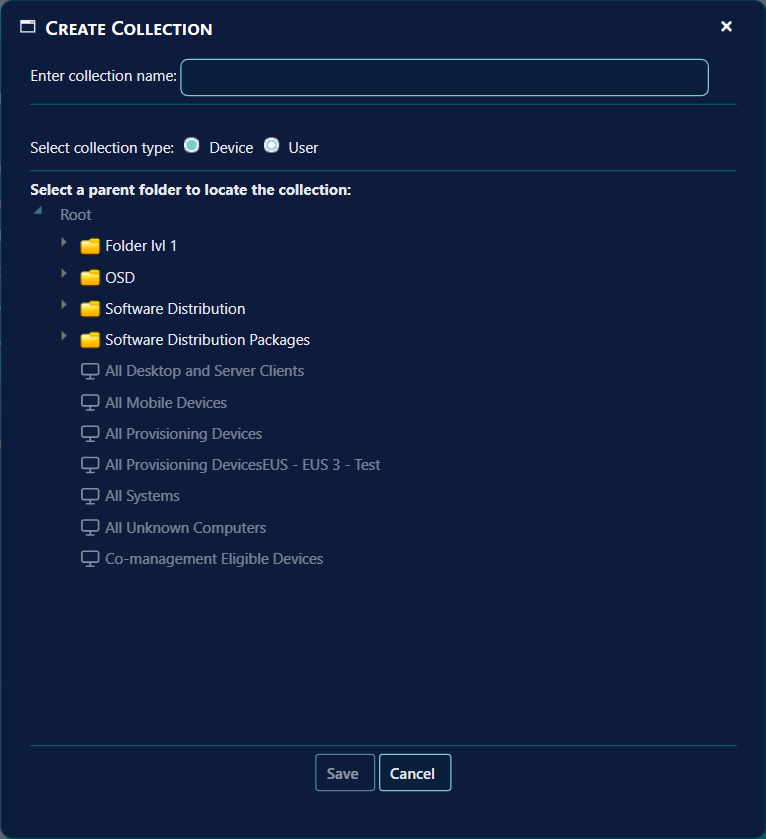
A collection created here gets the comment Created in SoftwareCentral.
5 Best practice
| Do | Why |
|---|---|
| Start with Create default structure | The names are the ones the rest of the documentation uses, and the dialog creates only what is missing. |
| Configure the folders on the central site | Use the same site every time, so everyone sees the same structure. The central site is shown unless your role has a site of its own. |
| Select the root collections All Systems and All Users | The root settings define what SoftwareCentral can reach; a narrower collection hides devices and users from the portal. |
| Do not delete, or recreate under a new name, a folder you have saved | The settings remember the folder or collection, so a deleted one leaves the setting pointing at nothing. Select it again and save. |
| Keep device and user folders apart | A device folder cannot be used where a user folder is expected, and the panels only show the right kind. |
| Give the SoftwareCentral account the folder and collection rights it needs | Creating folders and collections is done with that account. See Preparing the SCCM. |
6 Troubleshooting
| You see | Check |
|---|---|
| A tree is empty or a folder is missing | The wrong site is selected, or the folder was created in Configuration Manager after the page was opened. Reload the page. |
| Root collection can't be a folder | Choose a collection, not a folder, under SCCM root collection and SCCM root user collection. |
| Name already exist on site | Choose another name; names are checked across the whole site. |
| The settings are back to the old values | You did not click Save; Create default structure does not save. |
See also SCCM and Configuration of the SCCM Server.