1 Root folders and collections
The first and most important thing to do is to configure your root folders and collections. Open Settings › SCCM Folders and Collections. The middle of the page has five panels, and the buttons Create default structure, Create collection and Create folder are on the left.
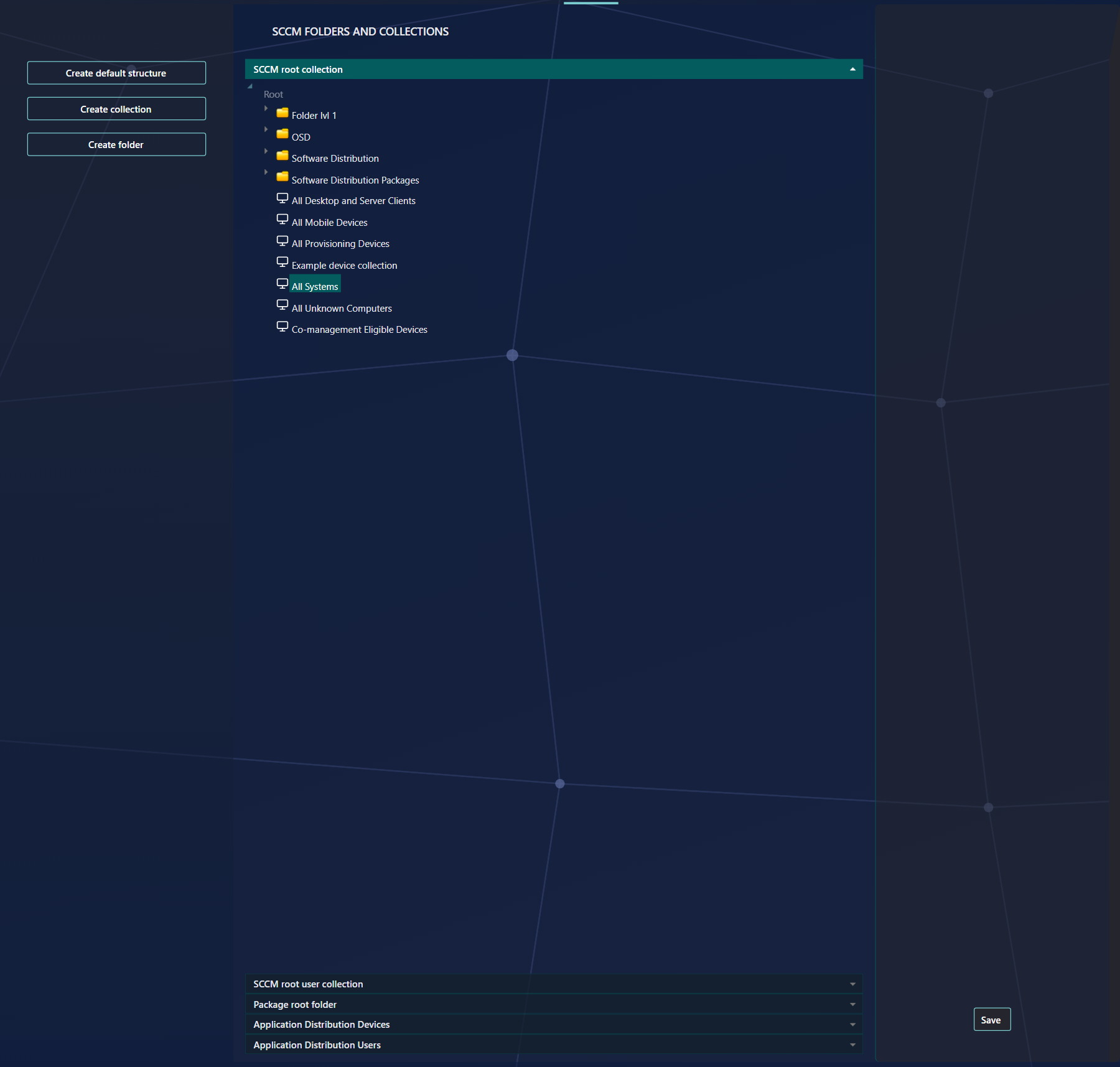
| Panel | What it holds | What to choose |
|---|---|---|
| SCCM root collection | The root device collection. | All Systems, a device collection. |
| SCCM root user collection | The root user collection. | All Users, a user collection. |
| Package root folder | The folder that holds your package collections. | A device folder, for example Software Distribution Packages. |
| Application Distribution Devices | The folder that holds your application device collections. | A device folder, for example Software Distribution. |
| Application Distribution Users | The folder that holds your application user collections. | A user folder, for example Software Distribution. |
The SCCM root collection and the SCCM root user collection must always point to All Systems and All Users. The first-time setup button Apply SCCM defaults sets these two defaults for any root that is not yet assigned.
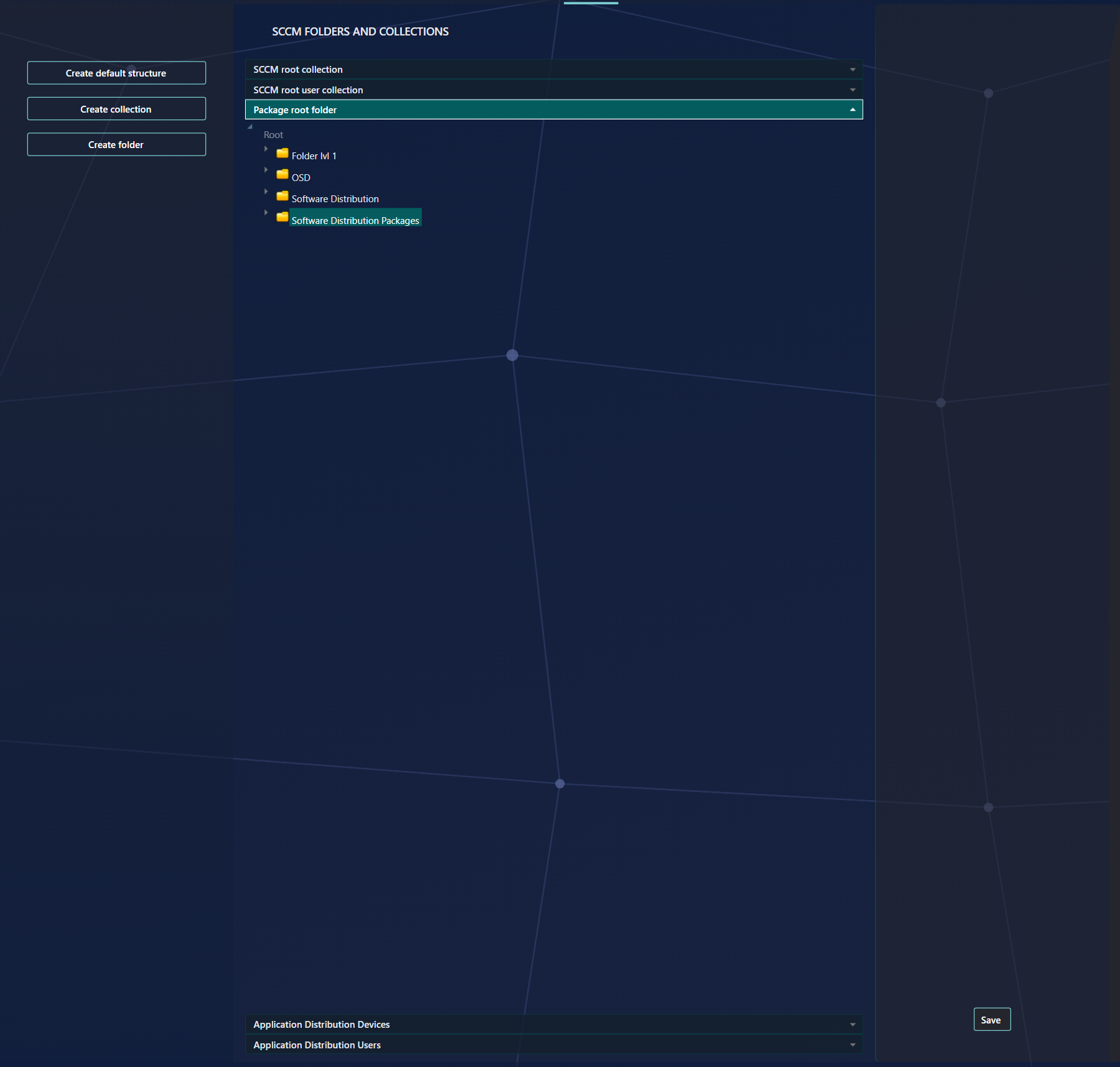
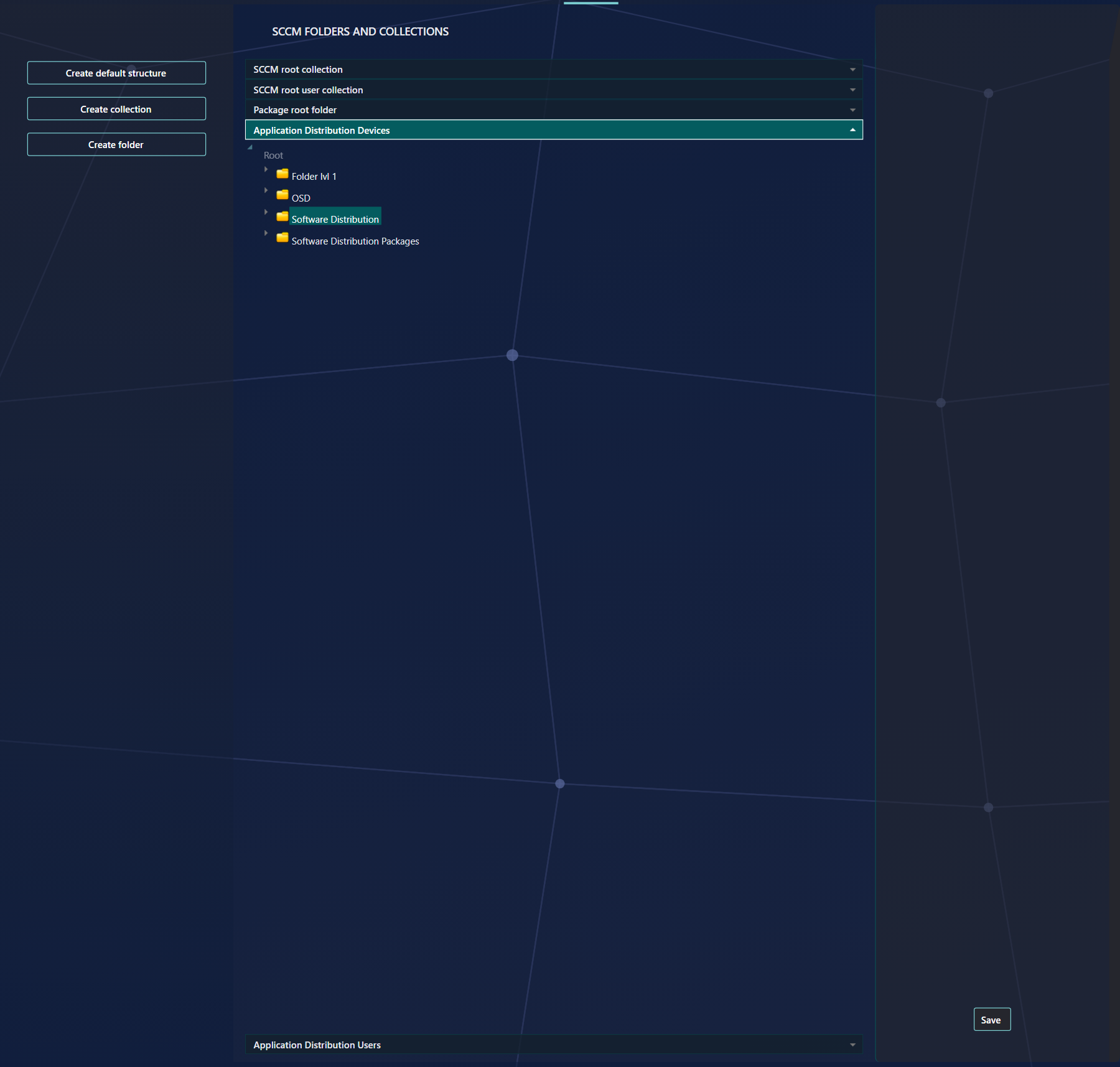
Application Distribution Users is the folder that holds your application user collections. Choose the user folder for it, for example Software Distribution.
Create default structure creates the three folders that SoftwareCentral uses if they do not exist: a user folder Software Distribution, a device folder Software Distribution and a device folder Software Distribution Packages. It asks you to confirm first, and it does not change the five panels. Select the folders you want and click Save in the box headed Save SCCM collection settings.
2 Limiting collections
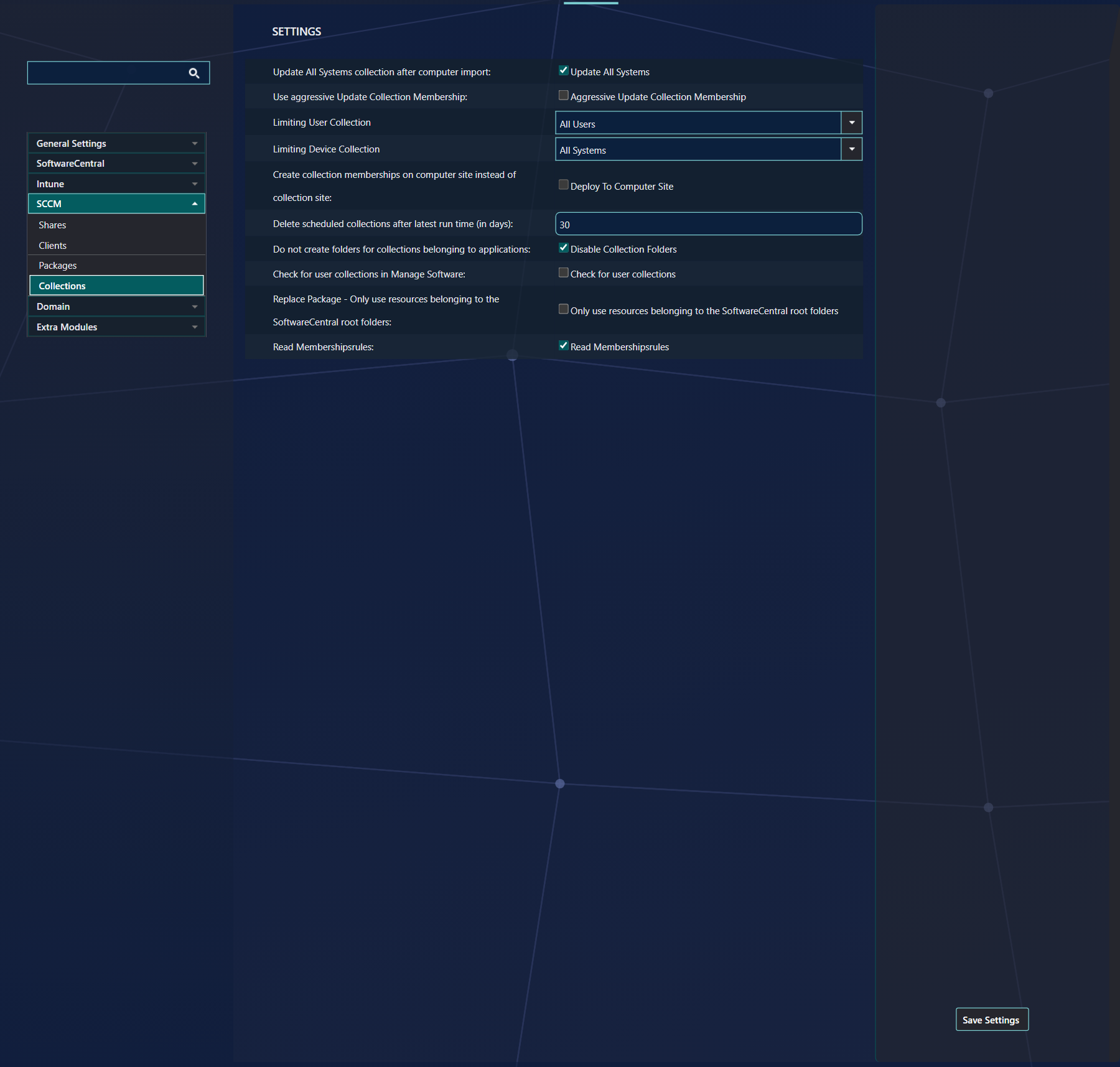
By default, when SoftwareCentral creates collections, the limiting collection is the root collection from section 1: All Systems for devices and All Users for users in a standard setup.
You can change this from Settings › SCCM › Collections, in the boxes Limiting User Collection and Limiting Device Collection. Choose a collection in each box, then click Save Settings.
| Setting | What it does | If the box is empty |
|---|---|---|
| Limiting User Collection | The limiting collection for the user collections SoftwareCentral creates. | The SCCM root user collection from section 1. |
| Limiting Device Collection | The limiting collection for the device collections SoftwareCentral creates. | The SCCM root collection from section 1. |
3 Program names
For SoftwareCentral to identify the install and uninstall programs, you must define a default install and uninstall program name. This is done from Settings › SCCM › Packages.
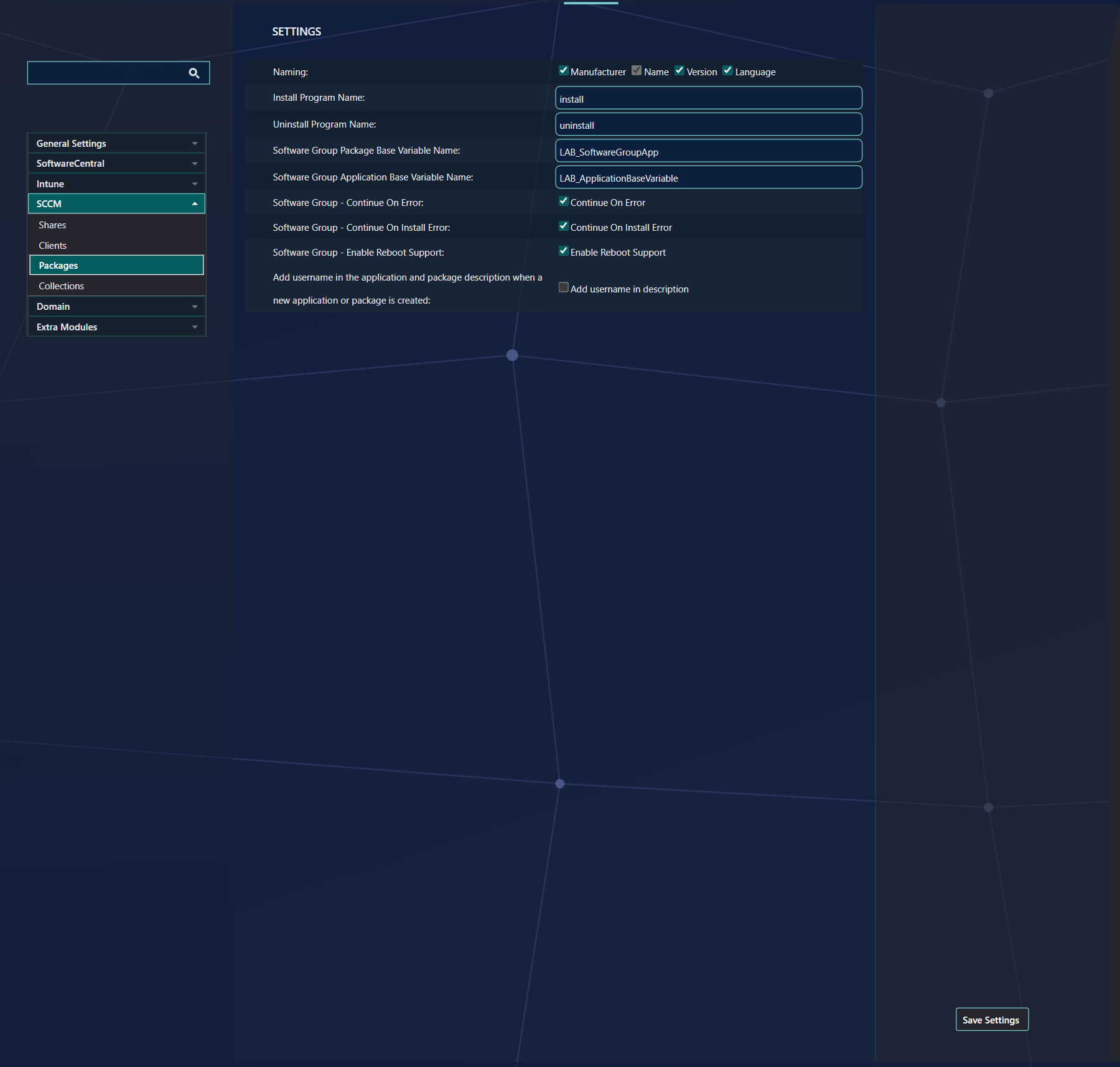
These two rows are hidden when SoftwareCentral runs as Application Manager Only.
The full description of the folders page is in SCCM Folders and Collections. For the collection structures you can build yourself, see Custom Collection Structures.
4 Best practice
- Create the folders with Create default structure before you select them. It only adds the folders that are missing, so running it again is safe.
- Keep the two root panels on All Systems and All Users. These are the same defaults that Apply SCCM defaults uses in the first-time setup.
- Leave the limiting collections empty unless you need to narrow the collections SoftwareCentral creates. An empty box uses the root collection.
- Click Save on the SCCM Folders and Collections page, and Save Settings on the Collections and Packages tabs. A change that is not saved is lost when you leave the page.
- Use the same install and uninstall program names for every package, because SoftwareCentral uses them to find the install and uninstall programs.
5 Troubleshooting
| Symptom | Cause | What to do |
|---|---|---|
| “Root collection can't be a folder” | A folder is selected in the SCCM root collection or SCCM root user collection panel. | Select a collection in those two panels and click Save. Nothing was saved. |
| The folders in the trees are not the ones you expect | The trees show the site selected in the Select site box at the top of the page. | Choose the right site and reload the page. |
| The panels show the old values after you clicked Create default structure | Create default structure creates the folders but does not save the panels. | Select the folders in the five panels and click Save. |