1 Choosing Run Locally
In the Type list of the tool, choose Run Locally. The window then shows the Path and Arguments boxes instead of the script upload and the Run as user.
These tools run on the users' local computer in the local users context. The tool must either be installed on the users' computer or accessible from a network location.
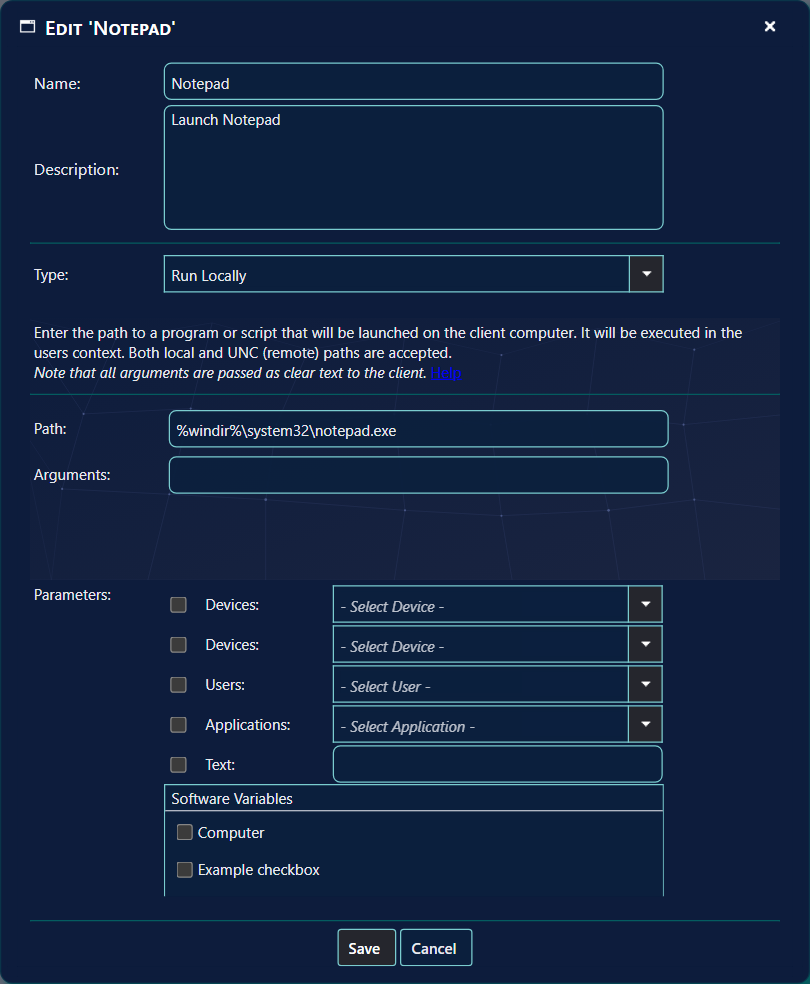
In the following example, we will create a tool that launches an already installed program, Notepad, on a users' computer.
When an operator opens the tool, the button reads Launch 'Notepad', and the second button reads Close Window.
2 Path and Arguments
Path is the program or script on the client computer. Local and UNC (remote) paths are both accepted.
Any arguments in the Arguments box are added after the file path, exactly as you write them. Please note that arguments are passed as clear text to the client.
The command line that the client receives is the path, then the arguments, then the parameters and Software Variables, in that order.
3 Parameters
You can choose between five predefined parameters, and add any Software Variable to your tool. Each parameter has a tick box in the window. Only the parameters that are ticked are shown to the operator.
| Parameter | What the operator sees | How it is passed to the program |
|---|---|---|
| Devices | A drop-down box where the operator selects a computer. The first box is passed as /ResourceID. |
/ResourceID:<value>. For SCCM devices the value is an integer. For Intune devices the value is a string, the Intune device ID. |
| Devices (second box) | An additional drop-down box for a second computer. | /SecondResourceID:<value>, with the same kind of value as the first box. |
| Users | A drop-down box where the operator selects a user. The user list comes from the SCCM user discovery, not from Active Directory. | /Username:<value>. The value is a string in the format “domain\username” for on premise Active Directories. For Azure AD, it is the user principal name. |
| Applications | A drop-down box where the operator selects an application or package. | /PackageID:<value>. The value is a string with the SCCM or Intune package ID. |
| Text | A text box where the operator types any parameter. | The text is passed after the path and the arguments, as typed, without a name. |
| Software Variables | A list with a tick box for each variable you add. The order can be changed by dragging the variables in the list. | /<Name>:<value>, one for each variable. A value that contains a space is put in double quotes. The name and the value of the variable are passed on to the script. |
On the screen, the first two parameters are both labelled Devices. The Software Variables list can be reordered by dragging the variables in that list.
4 PowerShell scripts
If you wish to launch a PowerShell script, you must write the path to PowerShell.exe on the local machine in the Path textbox and the path to the powershell script in the Arguments textbox:
%windir%\System32\WindowsPowerShell\v1.0\powershell.exe

Note that execution of PowerShell scripts must be enabled on the local computers running this tool. Remember that there are two PowerShells in Windows, one for 32 bit processes and one for 64 bit processes. The "normal" PowerShell is the 64 bit one, but SoftwareCentral will launch the 32 bit PowerShell if the browser is a 32 bit program. You should enable execution of PowerShell scripts on both PowerShell versions.
Note that if your script requires one or more of the parameters, e.g. the resource id, you must call your parameter in the
script the same as the parameter that is passed. When the Path is PowerShell.exe, SoftwareCentral sends each parameter in PowerShell
form: /ResourceID:123 arrives as -ResourceID 123. The example below therefore declares
$ResourceID.
The following example demonstrates how to get the computer name from the ResourceID that is passed to the script:
Param(
[Int32]$ResourceID
)
# Web Service Parameters Start
[String]$strSiteCode = "[String]"
# Web Service Parameters End
# The object that will make the call to the Web Service
$proxy = New-WebServiceProxy -Uri "http://softwarecentral/Api/WS_Devices.asmx" -Class "Proxy" -UseDefaultCredential
# Call the Web Service
$result = $proxy.GetResourceNameById($ResourceID,$strSiteCode)
# Print the result if any
Write-Host $result
[Int32]$ResourceID, and GetResourceNameById takes a whole-number ResourceID. An
Intune device sends its Intune device ID as text, so for Intune devices the script must not declare the parameter as a number.
To use the above example, you must give the users who call the tool permission to call the web service. Read more about the web service here.
5 Best practice
- Never put a password or secret in the Arguments. Arguments are passed to the client as clear text. Use a script that reads its secrets from a protected place instead.
- Only add programs you trust. The program runs in the operator's own context on the operator's computer, with the rights that operator has.
- Make the Path readable for every operator. If the Path is a UNC share, each operator must be able to read it.
- Tick only the parameters the tool needs. Each ticked parameter is an extra choice for the operator, and a tool that does not use it only adds a step.
- Test on one computer before you assign the tool. Give the tool to the security roles that need it, using Assign Tools to Security Roles, after the test.
6 Troubleshooting
| Symptom | Cause | What to do |
|---|---|---|
| The red message "Please select a computer" under the buttons | The Devices box is ticked, and no computer is selected. | Choose a computer in the drop-down box, then click Launch. |
| The red message "Please select a user" | The Users box is ticked, and no user is selected. | Choose a user in the drop-down box. |
| The red message "Please select a program" | The Applications box is ticked, and no application is selected. | Choose an application in the drop-down box. |
| A red list of Software Variable names, each with a star in front | A mandatory variable is empty, or a text variable does not have the length it needs. | Fill in the variables that are named in the list, then click Launch again. |
| Nothing starts after you click Launch | The SoftwareCentral: link is not registered on the computer, or the path does not exist there. |
See External Tools Configuration. |
| A PowerShell tool stops with an error about the ResourceID | The script declares the ResourceID as a number, but an Intune device sends its ID as text. | Declare the parameter so that it accepts text, as described in the note above. |
See also: Run on Server · Use Tools · Software Variables