1 What to set up first
- Put the client on a share, or in a local folder on the devices — Installing the client.
- Register the
SoftwareCentral:link on every device. For the shop this is always done by you: the shop never registers the client — Manual registration. - Remove the browser question — Removing the browser question.
2 Turn it on for the shop
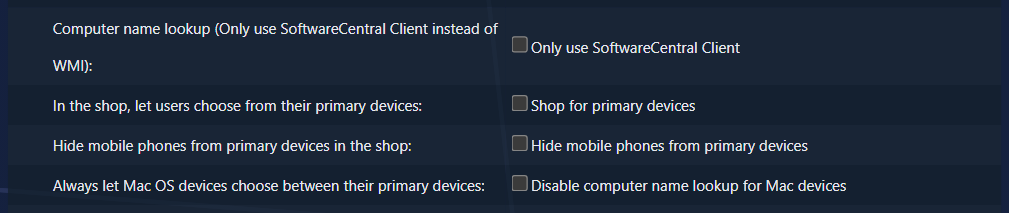
| Setting | Use it when |
|---|---|
| Only use SoftwareCentral Client | Devices connect through VPN, from outside your network or through Citrix, or DNS is not reliable. The shop then never looks the device up on the network; it always asks the client. |
| Shop for primary devices | Your users have primary devices in Configuration Manager or Intune. The shop uses them first: with several, the shopper chooses. It only needs the client for shoppers who have no primary device at all. |
| Hide mobile phones, Mac OS devices | Fine-tune the primary-device choice. |
Intune devices
Devices that are managed by Intune, and may be anywhere, need Only use SoftwareCentral Client, the client in a
local folder, and SoftwareCentral reachable from where the users are.
3 What the shop remembers
The shop remembers the device the client reported, for that shopper and network address. The client is only needed again when the shopper comes from another address, for example at home. A device the shopper chose from their own devices is remembered everywhere. See Your device for what shoppers see.
4 Troubleshooting
| What the shopper sees | Check |
|---|---|
| Please wait stays, nothing opens | The SoftwareCentral: link is not registered on the device, or the path in it does not exist. Type SoftwareCentral: in the Windows Run box: when the link is registered, the client starts and says that no arguments were passed to it. |
| The browser asks every time | The allow list is missing for that browser. |
| The shop opens in another browser, still waiting | The client opened the default browser, which is not the one the shopper started in. Ask them to use their default browser for the shop. |
| The shop shows the wrong device | Turn on Only use SoftwareCentral Client. Meanwhile the shopper can pick the right device under their name. |
| We were unable to resolve your computername | No source gave a name. Check the registration on that device, or use primary devices. |
A debug report from the shop's settings panel shows how the shop identified the device; see Shop Debug Reports.
5 Best practice
| Do | Why |
|---|---|
Register the SoftwareCentral: link on every device before turning on Only use SoftwareCentral Client | With that setting the shop never looks the device up on the network, so a device without the link cannot be identified. |
| Use the same client path on every device | The registered link contains the path; a path that does not exist gives Please wait forever. |
| Remove the browser question first | Otherwise every shopper is asked each time; see Removing the browser question. |
| Try it on a few devices, from outside the network, before the roll-out | The shop remembers the device per shopper and address, so the first visit from a new address is the real test. |
| Keep Shop for primary devices for users who have primary devices | Then the client is only needed for shoppers with none. |