1 Start from Create
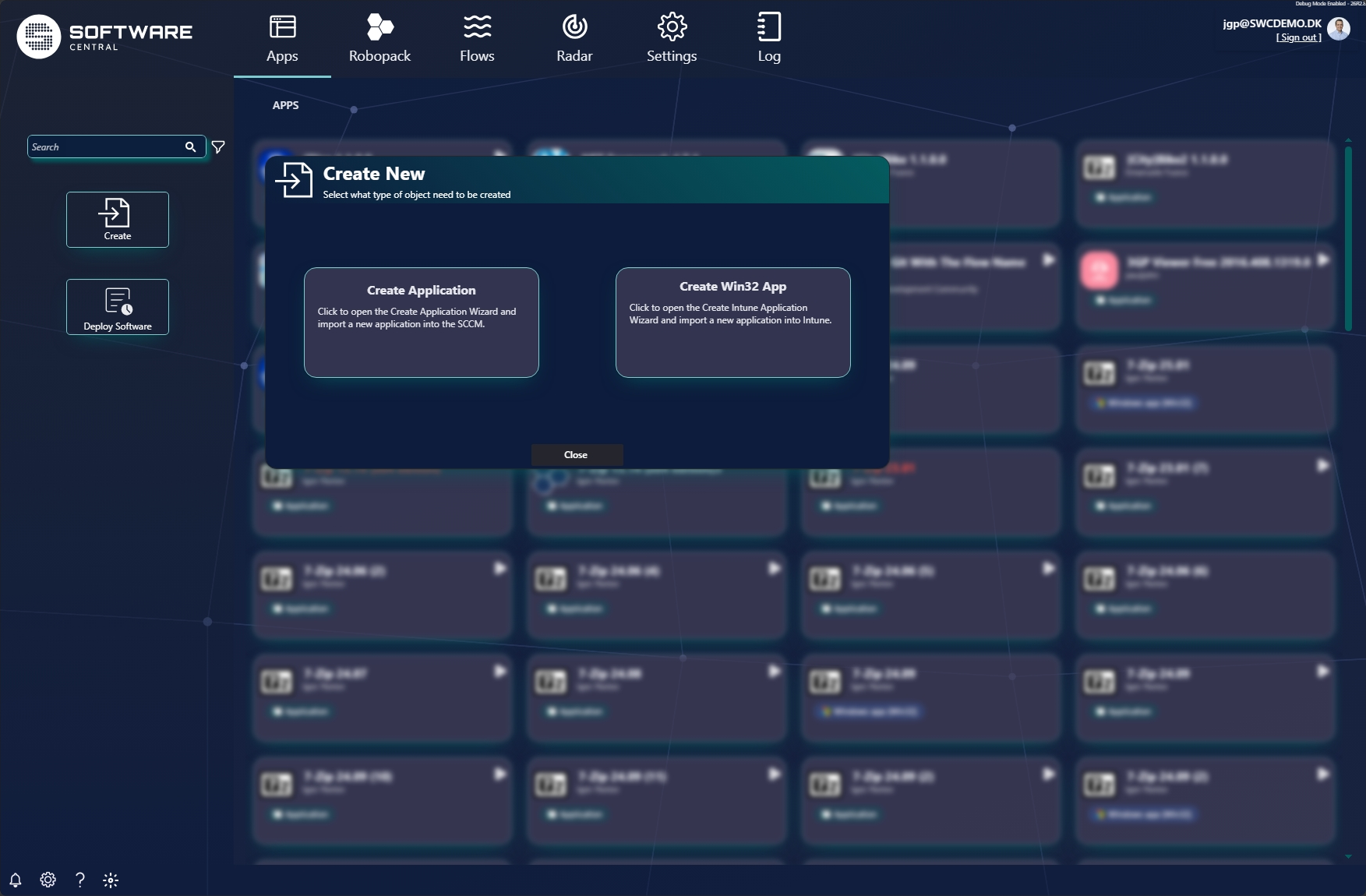
In the Apps view, click Create in the left panel. A Create New dialog asks what type of object to create:
- SCCM Create Application — opens the Create Application Wizard and imports a new application into ConfigMgr (SCCM).
- Intune Create Win32 App — opens the Create Intune Application Wizard and imports a new application into Intune.
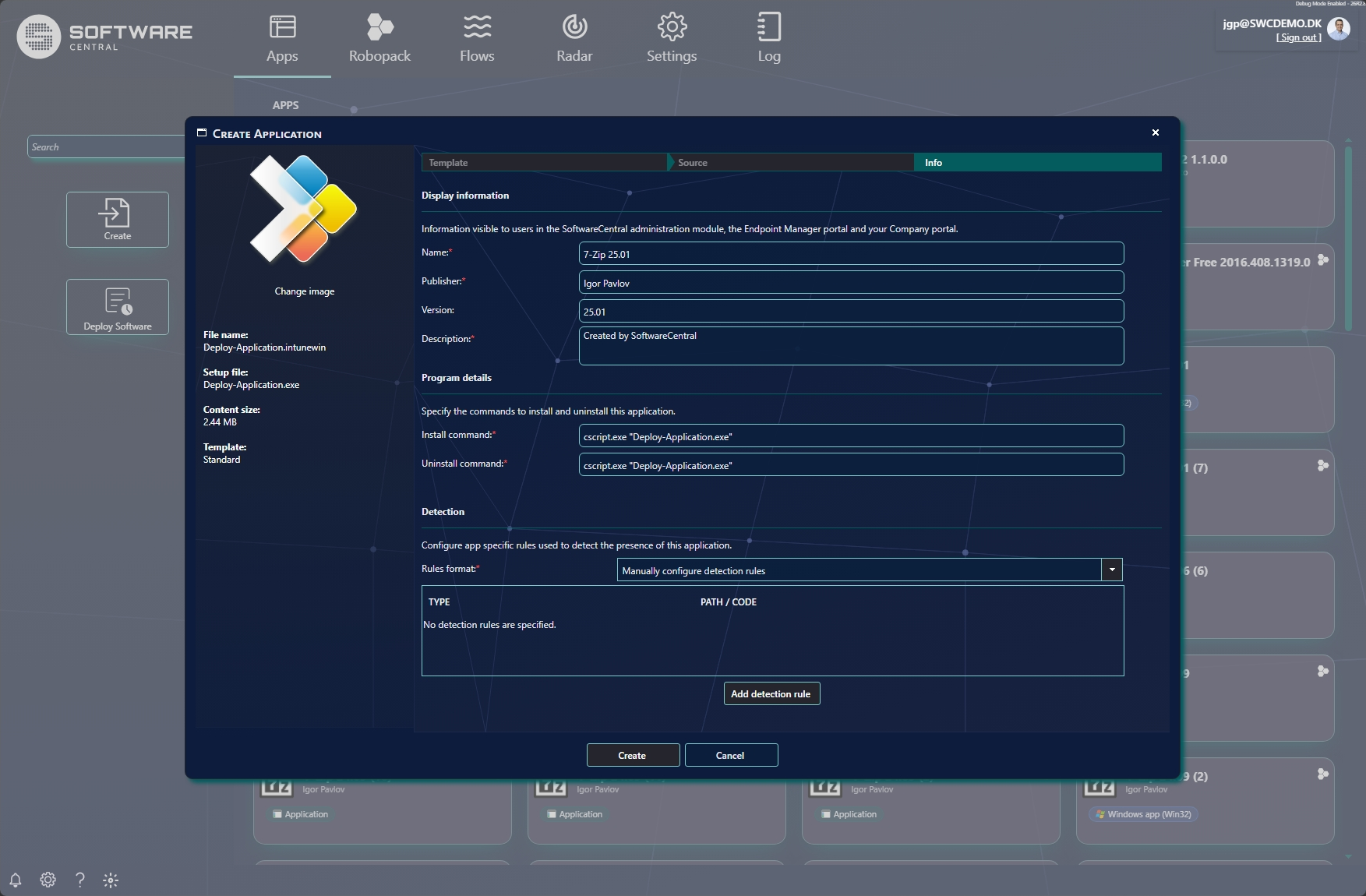
2 Intune Create a Win32 app
The Create Intune Application (Win32) wizard steps through Template → Source → Info. The left panel summarises the packaged content — the .intunewin file, setup file, content size and template.
3 SCCM Create an SCCM application
The Create Application Wizard steps through the tabs along the top — Template → Source → Files and Naming → Detection → Overview — using Next / Previous to move between them.
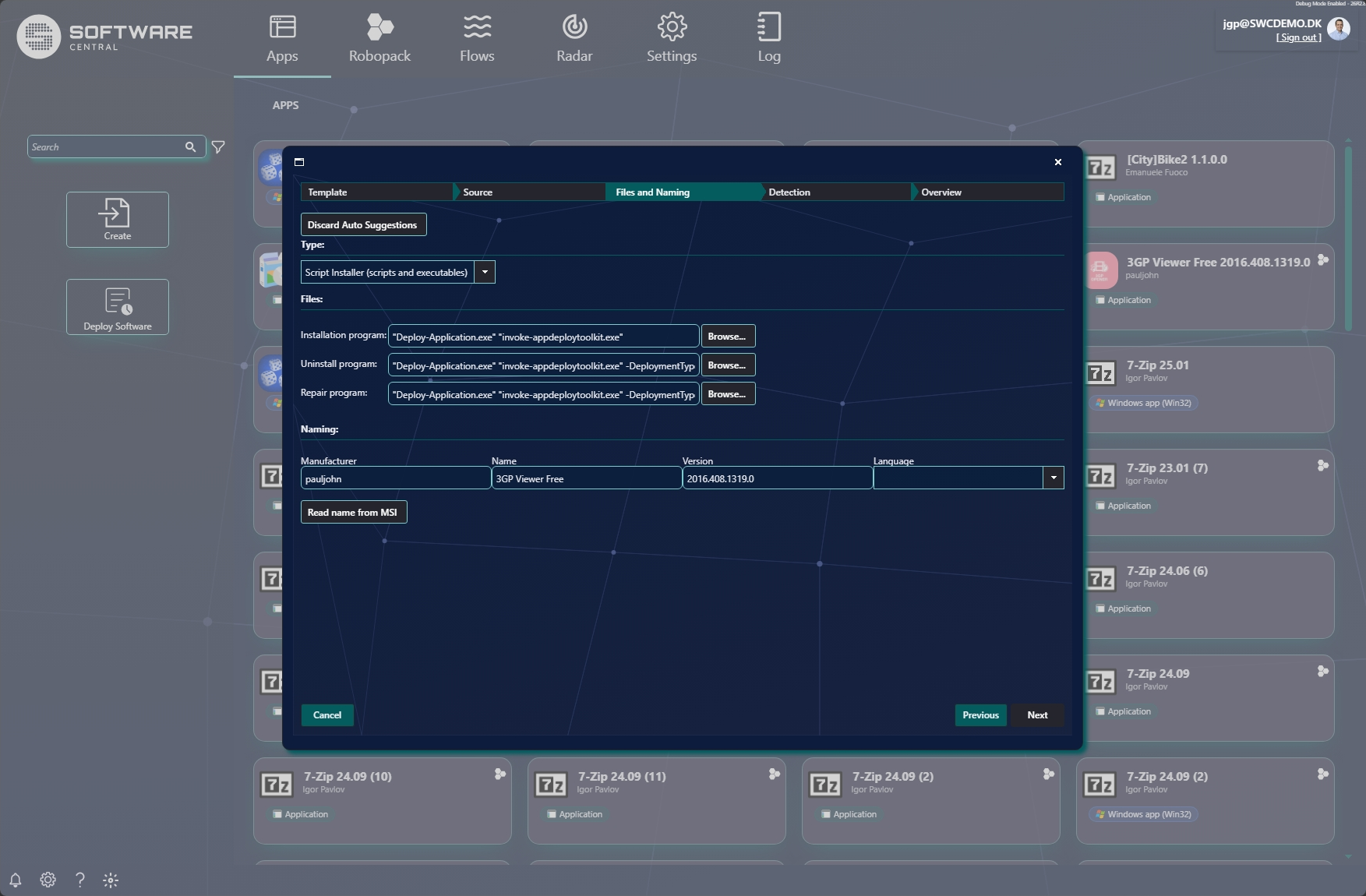
The other tabs cover the source files (Source), how the app is detected as installed (Detection), and a final Overview before the application is created.
Next
Once an app is created, deploy it to devices or users — see Deploy software.