1 Open Machine Variables
To change the variables printed on a computer, open the Machine Variables interface in SoftwareCentral and edit the variable names and display names.
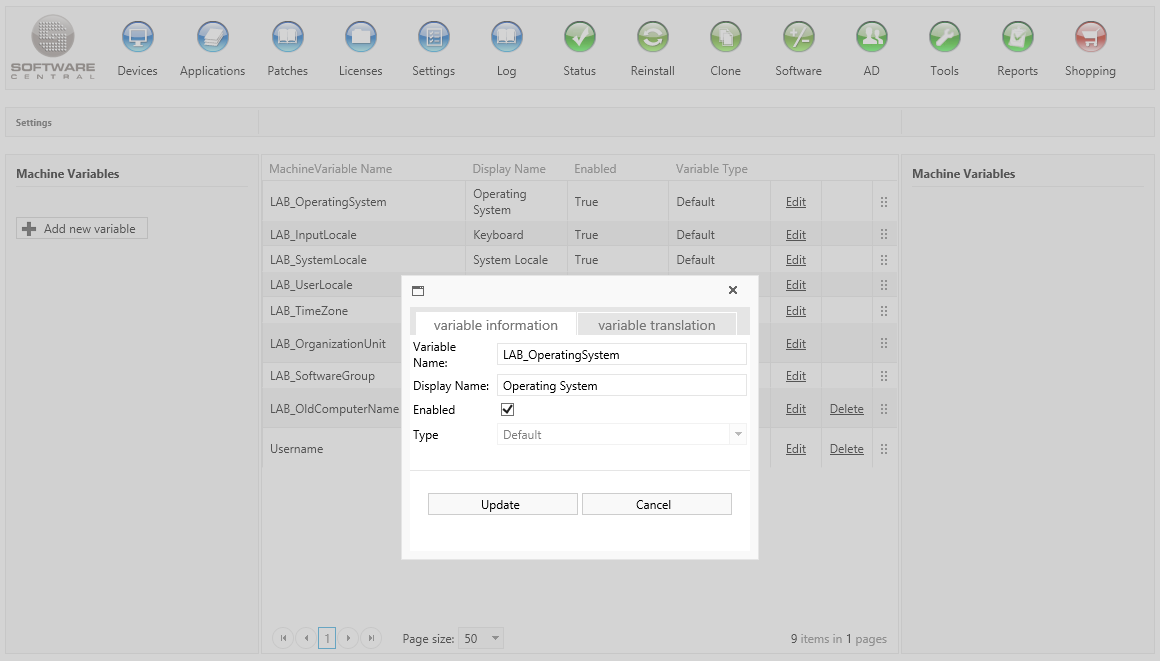
Machine Variables is under the Settings menu, then Machine Variables. The list shows all default and custom variables, in the order they are set.
2 Edit a variable
Click Edit on the row. The window has the fields below. Click Update to save your changes.
| Field | What it does |
|---|---|
| Variable Name | The name SoftwareCentral stores for the variable on each computer, for example LAB_OperatingSystem. It must be unique among the variables. |
| Display Name | The name that is shown for the variable. It must be unique among the variables. |
| Enabled | When it is ticked, the variable is used. Operating System is always enabled, and its box cannot be unticked. |
| Type | The kind of variable. A default variable keeps its type, and the list is greyed out. |
Use the variable translation tab to give the display name in other languages. Choose a language in the list, then type the translated display name for that language.
3 Add, reorder and delete
- Add a variable: click Add new variable, fill in Variable Name, Display Name, Enabled and Type, then click Save.
- Choose the type: Textbox for free text, Drop-down for a fixed list of values, User Drop-down for a list of users, or Computer Drop-down for a list of computers. For a drop-down, add each value with a display name and a value, then click Save.
- Change the order: drag a row by its handle. The variables are shown in that order from then on.
- Delete a variable: click Delete on the row. Default variables have no Delete link.
4 Software group variable names
The variables used for programs (for example LAB_SoftwareGroupApp) are set in the settings menu.
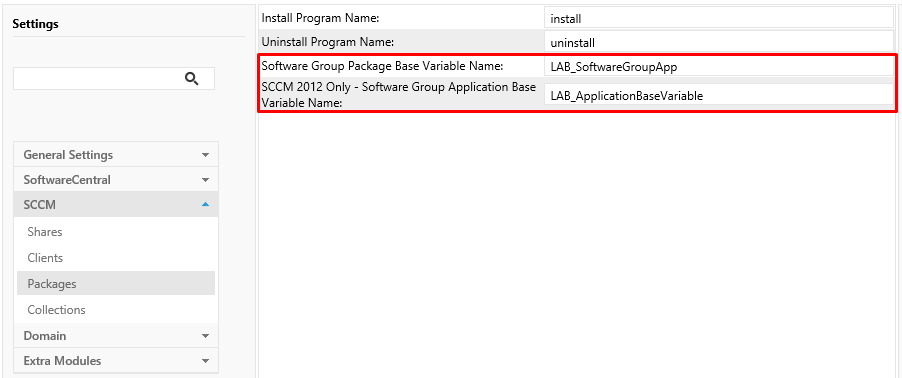
Open Settings, then SCCM, then Packages. Two boxes set the names of the software group variables:
| Box | What it sets |
|---|---|
| Install Program Name | The name of the install program, shown in the same panel. |
| Uninstall Program Name | The name of the uninstall program, shown in the same panel. |
| Software Group Package Base Variable Name | The base name of the variables for software group packages, for example LAB_SoftwareGroupApp. |
| Software Group Application Base Variable Name | The base name of the variables for software group applications. |
5 Best practice
- Change a display name when you only need different wording. The variable name is the key that SoftwareCentral and its scripts use to read a computer's value, so changing the name is a bigger step.
- Keep the software group base names in step with the variables. SoftwareCentral recognises software group variables by their prefix. If a base name in Settings › SCCM › Packages does not match the variable names, those variables may not be recognised.
- Do not switch off Operating System. It is always enabled, because SoftwareCentral uses it to match the operating system in computer templates.
- Translate the display names for your users. Add a translation for each language your users work in, on the variable translation tab.
6 Troubleshooting
| Symptom | Cause | What to do |
|---|---|---|
| "Name or display name already exists" | Another variable already uses the name or the display name you typed. | Choose a different name and display name. |
| "Please enter name and display name" | The variable name or the display name is empty. | Fill in both fields. |
| "Displayname allreadey exist in dropdown" (the spelling is as shown in SoftwareCentral) | Another value in the same drop-down already has this display name. | Choose a different display name for the value. |
| "Name or value is empty" | A drop-down value is missing its name or its value. | Fill in both the name and the value of the drop-down entry. |