1 The installer
Installer The SoftwareCentral installer will grant these permissions when running the SCCM check. If the installer is unable to grant these permissions, you may do it manually as follows.
2 Create the SQL login
SoftwareCentral needs to be able to query the SCCM's SQL database directly and therefore needs read and execute permissions on the database. SoftwareCentral uses a SQL Server login for this operation, created for the SCCM_SWC_ADMIN account with Windows authentication.
Start Microsoft SQL Server Management Studio.
-
Locate the Security folder. Right-click Security and choose New Login… from the context menu.
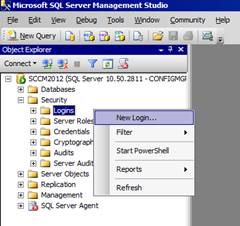
SQL Server Management Studio (external product): choose New Login… from the Security folder. -
Click Search and find the SCCM_SWC_ADMIN account created in
Create an Active Directory User. Make sure you selected
Windows authentication.
Make sure that the Default language for the login is set to English and press OK.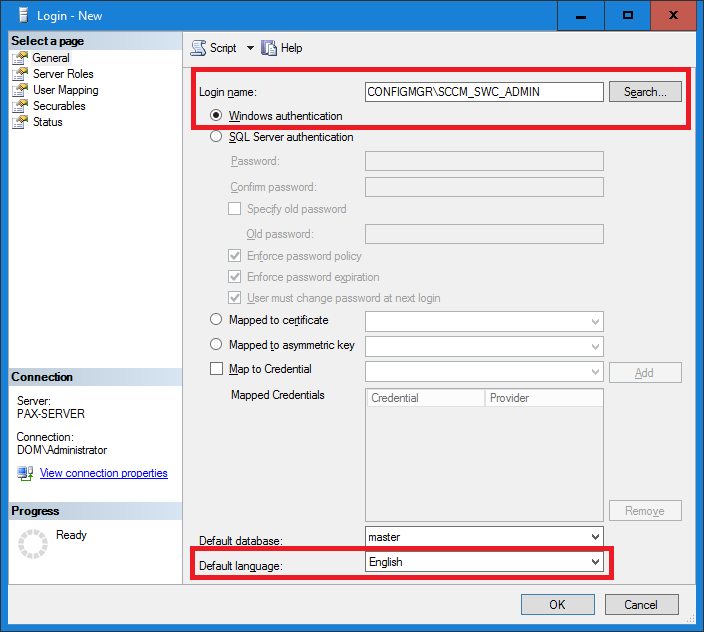
SQL Server Management Studio (external product): Windows authentication is selected and Default language is English. The server and login names in this picture are from an earlier setup.
3 Give the login access to the database
-
Locate the SCCM's database. The name will start with CM_. Expand the tree to Security › Users
and right-click the Users folder. Select New User… from the context menu.
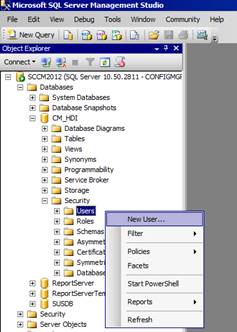
SQL Server Management Studio (external product): the Users folder of the CM_ database, with New User…. -
Assign db_datareader to the SCCM_SWC_ADMIN account.
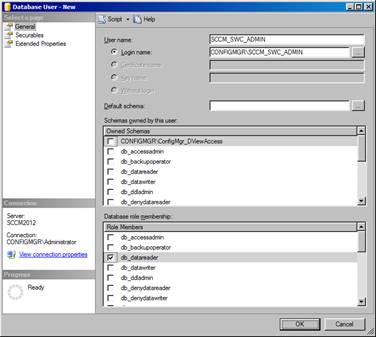
SQL Server Management Studio (external product): db_datareader is ticked under Database role membership. -
Right-click the SCCM database and choose Properties from the context menu.
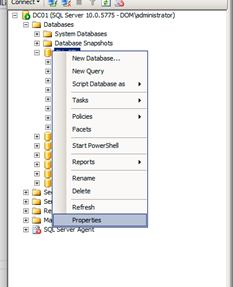
SQL Server Management Studio (external product): right-click the database and choose Properties. -
Choose Permissions and grant the SCCM_SWC_ADMIN database user Execute permissions on the SCCM database and click OK.
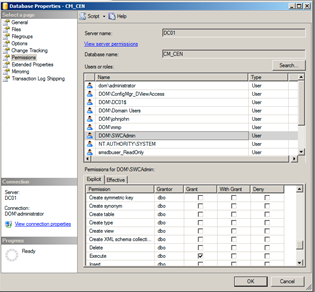
SQL Server Management Studio (external product): the Permissions page of the database properties. Grant Execute to the SCCM_SWC_ADMIN database user.
4 Best practice
- Grant only db_datareader and Execute on the ConfigMgr database. SoftwareCentral reads ConfigMgr views and runs two stored procedures on that database, and the steps above cover both. Do not add database roles such as db_owner.
- Use the application pool account for the trusted connection. With SCCM Database Trusted Connection ticked, SoftwareCentral connects with Windows authentication as the account the application pool runs as, which is the account you created in Create an Active Directory User.
- If you use a SQL login instead, enter it in the settings. Untick SCCM Database Trusted Connection and fill in SCCM SQL User and SCCM SQL Password (both are only needed if untrusted). The password is stored encrypted.
-
Check the database name. SCCM Database Name must be the CM_ database of your site, and SCCM Database Server Name
is the server, with
servername\instancenamefor a named instance. Both are in Settings › General Settings › Server Configuration.
5 Troubleshooting
These messages are written to the SoftwareCentral log. They are not shown on the page.
| Symptom | Cause | What to do |
|---|---|---|
| Log: "Failed to read ConfigMgr administrative users for site" followed by the site code | The login cannot read the ConfigMgr database: db_datareader is missing, the login is not mapped to the database, or the database name in the settings is wrong. | Check the steps in sections 2 and 3, and SCCM Database Server Name and SCCM Database Name in the settings. |
| Log: "Failed to read ConfigMgr security roles for site" followed by the site code | The same as above: the login cannot read the ConfigMgr database. | The same as above. |