1 Overview
In order for SoftwareCentral to operate in your environment an Active Directory user must be created.
This user will be used for running the application pool in the Microsoft IIS, reading directly from the SCCM database and doing WMI operations on the SCCM server.
Create this user once, before you configure SoftwareCentral. The other guides in this section use the same name, SCCM_SWC_ADMIN.
You can create the user in Active Directory Users and Computers, as shown on this page. If your security role has the permission, you can also use Create new user on the AD Users page. This guide follows the Active Directory Users and Computers steps.
2 Create the user
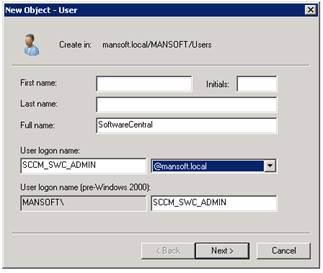
Create a user named SCCM_SWC_ADMIN and give it a password.
| Field | What to enter |
|---|---|
| User logon name | SCCM_SWC_ADMIN |
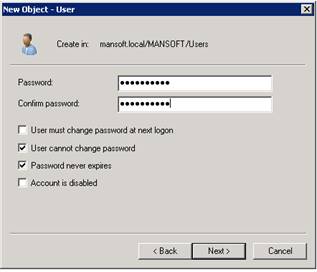
| Password and Confirm password | A password that fulfills your organization’s requirements. |
3 Set the account options
Set these properties on the SCCM_SWC_ADMIN user.
| Option | Setting |
|---|---|
| Password never expires | Tick it. |
| User cannot change password | Tick it. |
| User must change password at next logon | Remove the check mark. |
LdapUser.cs, the account control is set to 512). Tick Password never expires and User cannot change password in Active Directory Users and Computers. A password that expires stops this account from signing in, and the application pool then cannot run.4 Add the user to the SMS ADMINS group
If your SCCM server is installed on a domain controller, the SMS ADMINS group is located in the Active Directory USERS container. If your SCCM server is installed on a member server, the SMS ADMINS group is located in the Local Groups on the SCCM server.
The SMS ADMINS group is a Configuration Manager group. SoftwareCentral does not add the user to it; this step is done in Active Directory or on the server. The Configuration Manager permissions for the account are described in Preparing the SCCM.
5 Next steps
- Create the group that SoftwareCentral uses for its top-level administrators: Create an Active Directory Group.
- Give the account only the Active Directory rights it needs: Active Directory Module Delegation of privilege.
6 Best practice
- Use this account only for SoftwareCentral. The application pool runs as this user, so a personal account would stop SoftwareCentral when its owner changes or leaves.
- Keep the two password options set. If the password expires, the account cannot sign in and the application pool stops working. Set them in Active Directory Users and Computers, as in section 3.
- Keep the application pool password in step. SoftwareCentral keeps the application pool password in its own configuration. When you change the password in Active Directory, update it in SoftwareCentral as well; see Configure the application pool.
- Do not make the account a domain administrator. It needs only the rights listed in Active Directory Module Delegation of privilege.
7 Troubleshooting
The messages below come from the Create new user window on the AD Users page. They appear only when the user is created there.
| Symptom | Cause | What to do |
|---|---|---|
| “Username contains invalid characters, must not contain the following characters” | The user name contains one of the characters / \ [ ] : ; | = , + * ? > < @. | Use a user name without these characters. |
| “A user with that username exists already.” | An account with this name already exists in the domain. | Choose another name, or use the existing account if it is the right one. |
| “Password to short” | The password is shorter than the minimum length of the domain. | Type a longer password. |
| “Password ain't following complexity requirements for this domain” | The password does not contain at least three of: a digit, a lower-case letter, an upper-case letter, a symbol. | Change the password so that it meets the domain’s complexity rule. |
| “Password can't have more than two consective charecters from user name” | The password repeats part of the user name. | Choose a password that does not contain part of the user name. |