1 Overview
The Service Manager is used to manage the SoftwareCentral service which run background jobs such as license harvesting and local group administration. SoftwareCentral automatically manages the service, so you do not need to use this functionality in normal operation. Use the page to check the service and its jobs, and to restart the service when you need to.
The Service Manager is located under the Settings menu:
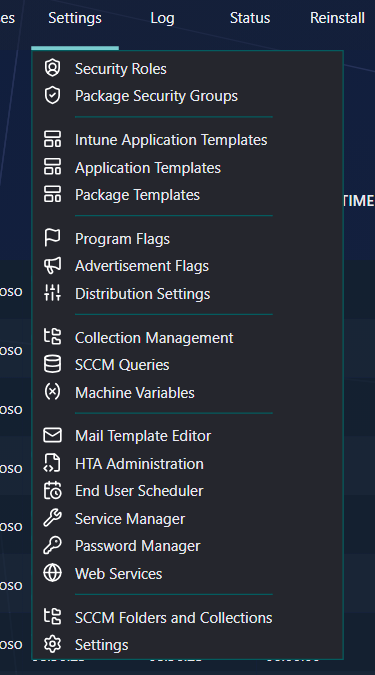
The service runs under the application pool account of the web site. On an Application Manager Only installation the Windows service is named SoftwareCentralApp; otherwise it is named SoftwareCentral.
2 Status panel
The left menu shows the state of the service and the number of jobs in each state.
| Line | What it shows |
|---|---|
| Service location | The name of the computer where the service runs. |
| Service status | The state the service reports, for example Running, Not installed or Stopped. |
| Pending jobs | The number of jobs that are waiting to run. Click the number to show only the pending jobs. |
| Failed jobs | The number of jobs that failed. A failed job that has Rerun if Failed set is run again by the service. Click the number to show only the failed jobs. |
| Expired jobs | The jobs which have never completed. Click the number to show only the expired jobs. |
If a number shows Unknown, the page could not read it. Click Refresh above the list to read it again.
3 Jobs
All jobs are listed in the center view. You can use the search bar in the left menu to search for a specific job, and click the pending, failed or expired counts to show only those jobs.
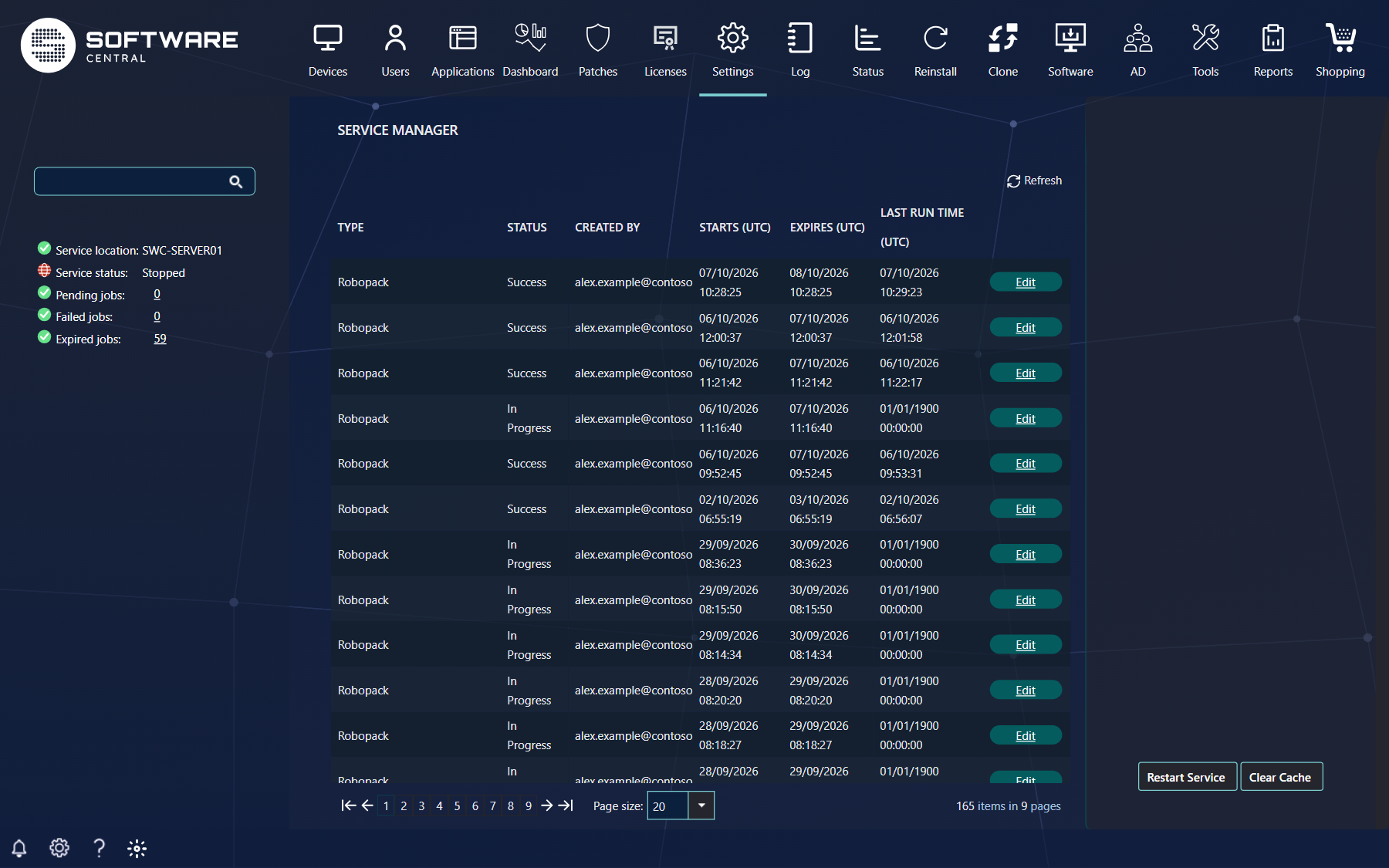
| Column | What it shows |
|---|---|
| Type | The kind of job, for example a Robopack job. |
| Status | The state of the job. See the table below. |
| Created by | The user who created the job. |
| Starts (UTC) and Expires (UTC) | The times stored with the job. The times are in UTC, not in your time zone. |
| Last run time (UTC) | When the service last ran the job. 01/01/1900 00:00:00 means that no run time is recorded. |
| Edit | Opens the properties of the job. |
| Status | Meaning |
|---|---|
| Pending | The job is waiting for the service to run it. |
| In Progress | The service is running the job. |
| Success | The job has finished. |
| Failed | The last run failed. The service runs it again only if Rerun if Failed is set. |
| Cancelled | The job was cancelled with Cancel Job. |
| Expired | The job did not complete before its expire time. A pending or failed job becomes expired when its Expires (UTC) time has passed. An in-progress job becomes expired when its expire time is more than a day in the past. An expired job is not run again by itself. |
4 Job properties
Click the Edit button next to a job. A new window opens, titled Service job properties:
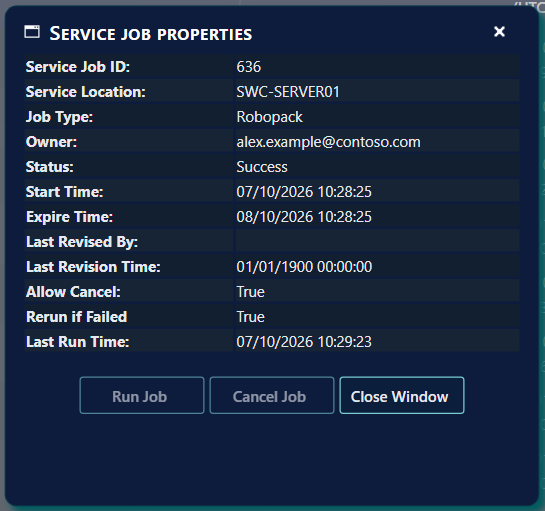
From this window you can run the job immediately or cancel the job.
| Button | Enabled when |
|---|---|
| Run Job | The job is Pending, Failed (including a job whose removal from a group failed) or Expired. Run Job updates the last revision and tells the service to run the job straight away. |
| Cancel Job | Allow Cancel is True, and the job is not Cancelled or Success. |
| Close Window | Always. It closes the window without a change. |
5 Restart and Clear Cache
In the lower right corner of the interface you can restart the service with the Restart Service button, or clear the cache of the service with the Clear Cache button.
- Restart Service stops the service and starts it again. Before it stops the service, jobs that are In Progress and whose last run is more than two hours old are marked as Failed. If any other job is still in progress, the service is not restarted, and a warning asks you to wait for the jobs to finish.
- Clear Cache sends a command to the service to clear its memory cache.
6 Best practice
- Restart only when it is needed. Restart the service after a change that the service reads when it starts, for example the proxy setting in General Settings. Otherwise leave the service to SoftwareCentral.
- Wait for running jobs. The service is not restarted while a job is in progress. Wait until the In Progress jobs have finished, or until their last run is more than two hours old.
- Watch the pending count after a restart. The service runs the pending jobs. If the pending count does not go down, check the service status and the Log.
- Run an expired job only when it is still needed. An expired job is not run again by itself. Open it and click Run Job only if the work must still be done.
- Check the Log after a restart. A successful restart writes Successfully restarted the service to the Log.
7 Troubleshooting
| Symptom | Cause | What to do |
|---|---|---|
| Service status shows Not installed | The Windows service is not installed on the server. | Check the Log for the reason. The first-time configuration explains how the service is installed: Configure SoftwareCentral for the first time. |
| A count shows Unknown | The page could not read the number of jobs. | Click Refresh. If it stays Unknown, check that the service is running and read the Log. |
| The Log shows "Unable to restart the service on server '...' while jobs are running. Please wait for them to finish." | A job is In Progress and its last run is less than two hours old. | Wait until the job has finished, then click Restart Service again. |
| The Log shows "Failed to restart the service on server ..." | The service could not be stopped or started. The Log entry gives the reason. | Read the entry in the Log, and check the service in the Windows Services list. Then try again. |
| Jobs stay Pending | The service is stopped, or it has not picked up the jobs. | Check the service status. If it is not running, restart the service. Then check the Log. |
| A job shows Expired and did not run | The job was not run before its expire time. | Open the job and click Run Job if the work is still needed. |
| Run Job or Cancel Job is greyed out | The status of the job does not allow it. See the table in Job properties. | Use the button only for a job whose status allows it. |
See also Log and Maintenance.