1 Open the templates
Open the Deployment Templates page from the menu. The page is shown under Settings.
The page lists every template with its Name, an Edit button and a Delete button on each row. Use the Add new template button to create one. The search box under the button finds a template by name; type a value and press Enter to search for all items that contain it.
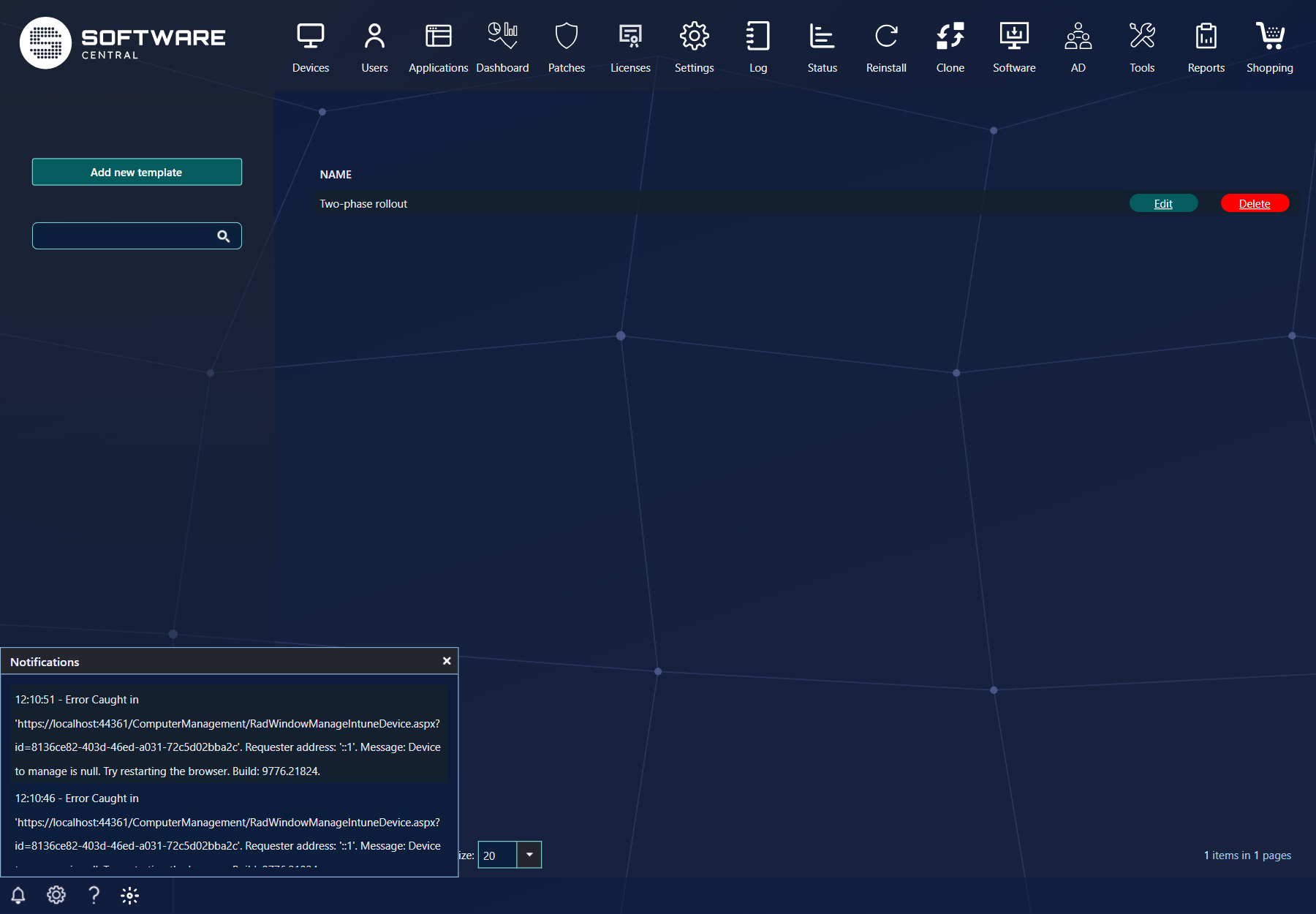
You can delegate this page and its functions to other users through the security roles. The buttons are shown only to the roles that have them: CreateDeploymentTemplate, EditDeploymentTemplate and DeleteDeploymentTemplate.
2 Template overview
A deployment template consists of a name and two groups of settings: the deployment settings and the phase settings.
3 Deployment settings
The deployment settings define how SoftwareCentral creates the application deployment for the first phase of a phased deployment.
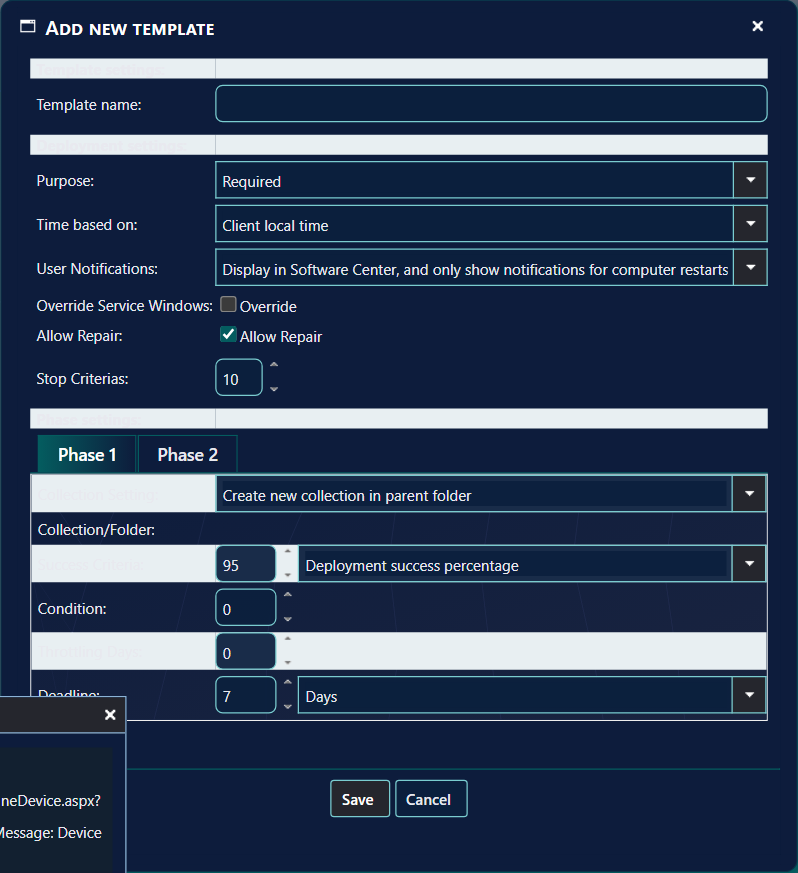
| Setting | What it does |
|---|---|
| Purpose | Defines whether the deployment is Required or Available on the targeted resources. Default: Required. |
| Time based on | Defines whether the deployment uses the local time on the client (Client local time) or UTC (UTC (GMT)). Default: Client local time. |
| User Notifications | Defines how many notifications the user sees in the Configuration Manager Software Center on the client. The choices are Display in Software Center and show all notifications, Display in Software Center, and only show notifications for computer restarts and Hide in Software Center and all notifications. Default: the middle choice, which shows notifications only for computer restarts. |
| Override Service Windows | Defines whether the deployment can run in the service window on the targeted devices. Tick Override to allow the application to install or uninstall outside the maintenance window when the deadline is reached. Default: not ticked. |
| Allow Repair | Defines whether the deployment can repair the application on the targeted devices. Default: ticked. |
| Stop Criterias | Defines how many percent of the target devices must fail in executing the deployment before Configuration Manager stops and does not continue. Accepts 0 to 100. Default: 10. |
4 Phase settings
The phase settings define how each phase behaves. Each phase has its own tab. A new template has Phase 1 and Phase 2.
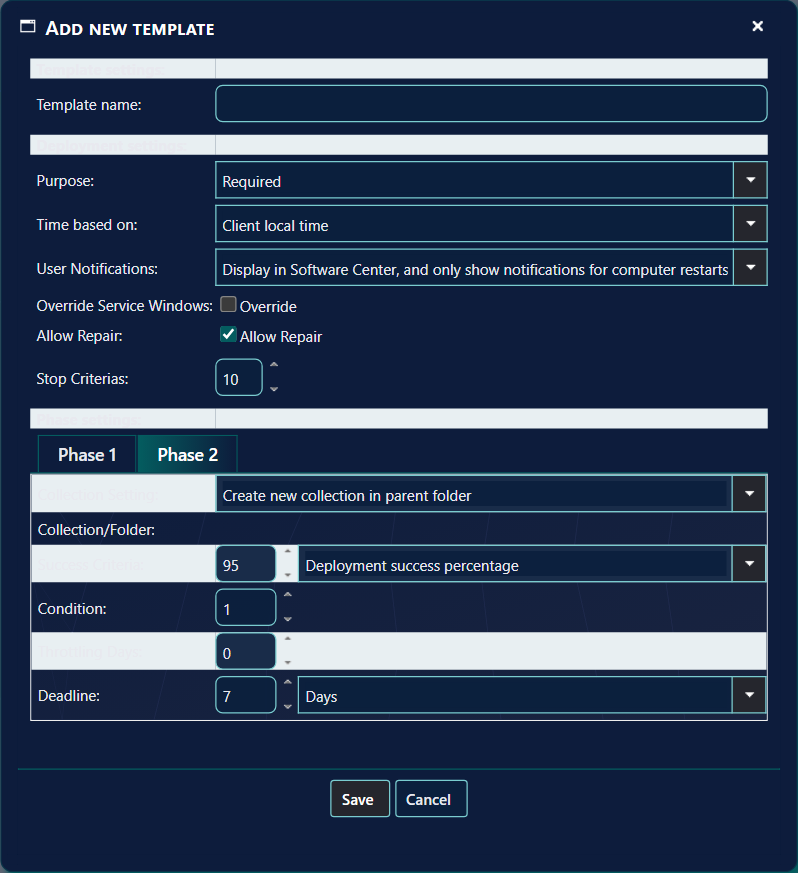
| Setting | What it does |
|---|---|
| Collection Setting | Defines whether SoftwareCentral creates new collections or uses a static collection for the phase. There are three options:
|
| Collection/Folder | Shows the collection picker when Static Collection is selected, and the folder tree when Create new collection in specific folder is selected. It is empty for Create new collection in parent folder. |
| Success Criteria | Defines when Configuration Manager counts the phase as a success: a percentage of the devices in the collection, from 0 to 100, with the type Deployment success percentage; or a number of devices, with the type Number of devices successfully deployed. The type list is shown only with Configuration Manager version 1902 or later. Choosing the number type sets the value to 1. |
| Condition | The number of days, from 0 to 256, after a phase is completed before Configuration Manager automatically goes on to the next phase. |
| Throttling Days | The number of days, from 0 to 30, over which the deployment is gradually made available to the resources in the phase. |
| Deadline | The deadline by which the resources in the phase must have completed the deployment: a number from 1 to 365 and a unit, Hours, Days, Weeks or Months. Default: 7 days. |
5 Create a template
Click Add new template. A new window opens with the default values shown above.
The only setting you must give is the Template name. Choose a descriptive name, so that other users can pick the template by name when they create a phased deployment in the Deployment Manager.
Click Save to save the template. The window closes and the list shows the new template.
6 Edit a template
Click Edit on the row of the template you want to change. A window opens with all the settings of the template.
Change the settings, and click Save to save the changes.
7 Delete a template
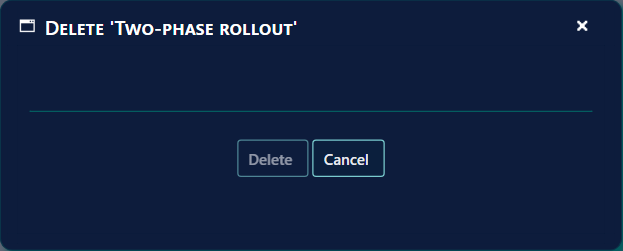
Click Delete on the row of the template you want to remove. A window opens and asks you to confirm the deletion.
8 Best practice
- Give create, edit and delete to different roles. The three buttons are controlled separately (CreateDeploymentTemplate, EditDeploymentTemplate, DeleteDeploymentTemplate). A user who only needs to use templates does not need any of them.
- Name each template for its use. The Create Deployment Plan wizard lists the templates in alphabetical order by name, so a clear name is the only way to tell them apart.
- Use a different collection in each phase. A collection can be selected in only one phase of a template. If the same collection is chosen twice, the save does not complete; the reason is written to the log (see Troubleshooting).
- Use the number type only on Configuration Manager 1902 or later. On older versions only the percentage is offered, so a template made with the number type cannot be created there.
- Read the stop criteria before you save. Stop Criterias is the percentage of the target devices that may fail before the deployment stops. The default is 10. See Phased Deployment for how phases run.
9 Troubleshooting
| Symptom | Cause | What to do |
|---|---|---|
| The window stays open after Save, and the reason is only in the log: "Name is missing" | The Template name is empty. | Type a name and click Save again. |
| The window stays open after Save, and the log says "Collection is missing in phase number N" | Static Collection is selected for that phase, but no collection is chosen. | Choose a collection in Collection/Folder, or change Collection Setting. |
| The log says "Folder is missing in phase number N" | Create new collection in specific folder is selected, but no folder is chosen. | Select a folder in the tree, or change Collection Setting. |
| The log says "Collection is already selected in another phase, please change collection for phase N" | The same collection is chosen in two phases. | Choose a different collection for that phase. |
| The window reports "Failed to delete deployment template. See the log for details." | The template could not be removed from the database. | Look in the log for the error, then try again or contact your administrator. |
| The Create Phased Deployment option is greyed out, with the tooltip "A deployment template is mandatory, please create a deployment template to create a phased deployment" | No template exists yet. | Create a template on this page, then open the Create Deployment Plan wizard again. |
| The wizard shows "A template must be selected" | You chose Create Phased Deployment but did not pick a template. | Pick a template in the list. |